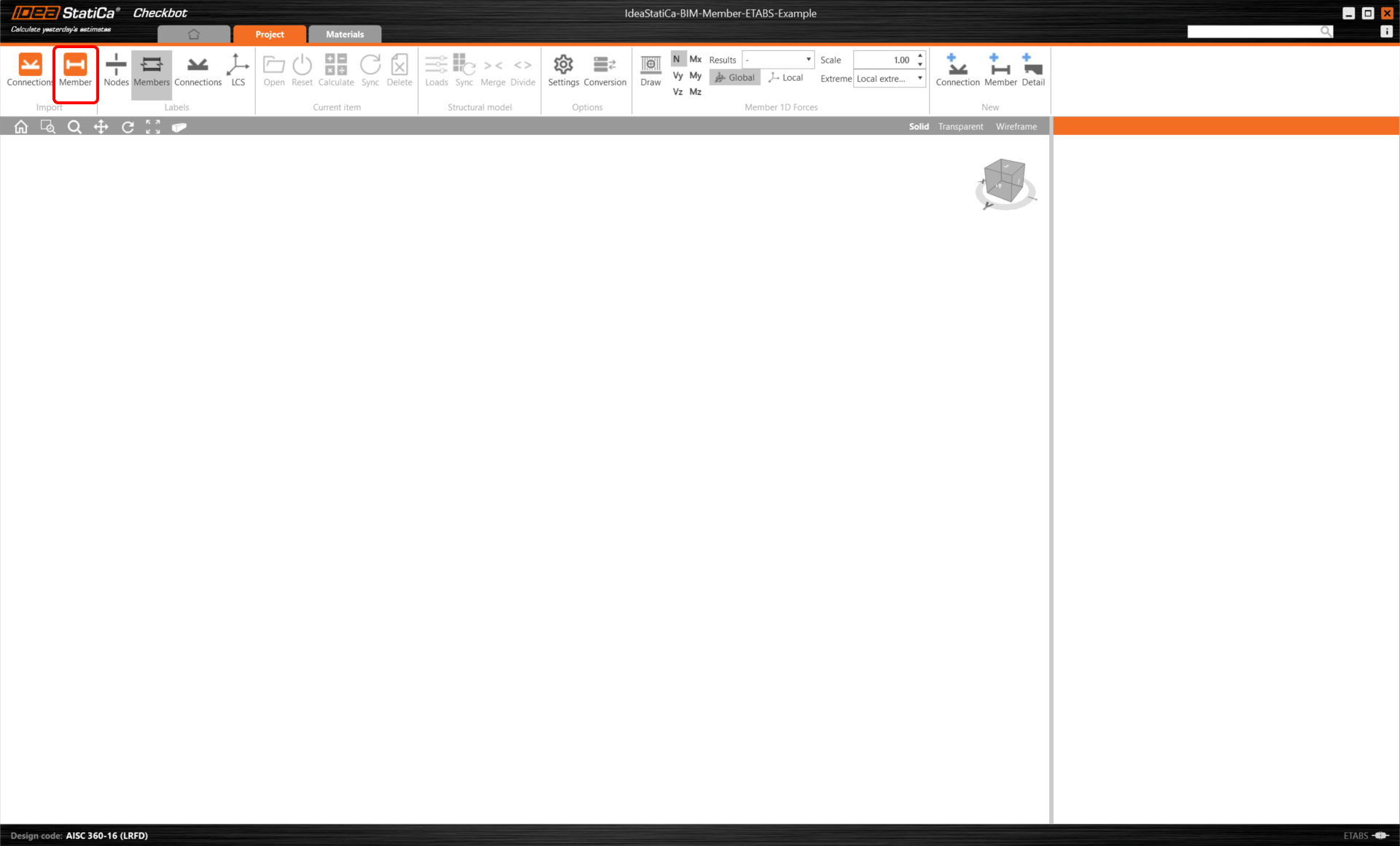
Then in Checkbot select Member.
This will import the beam and its load effects into Checkbot - with the exact coordinates, orientations, and section sizes as per the FEA/BIM model.
Please note that your node and member numbering might be different.
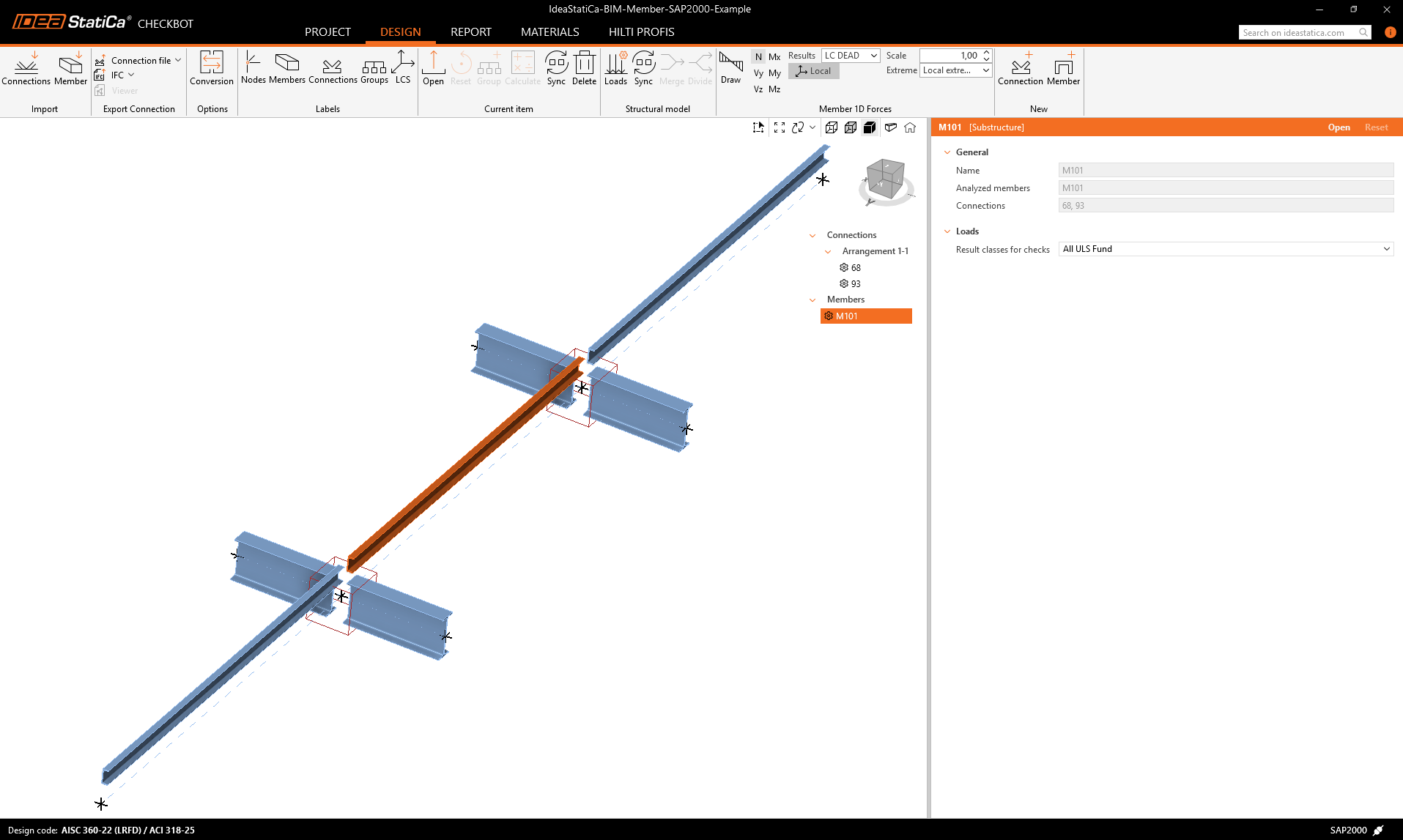
As you can see, the selected member with all related members has been imported.
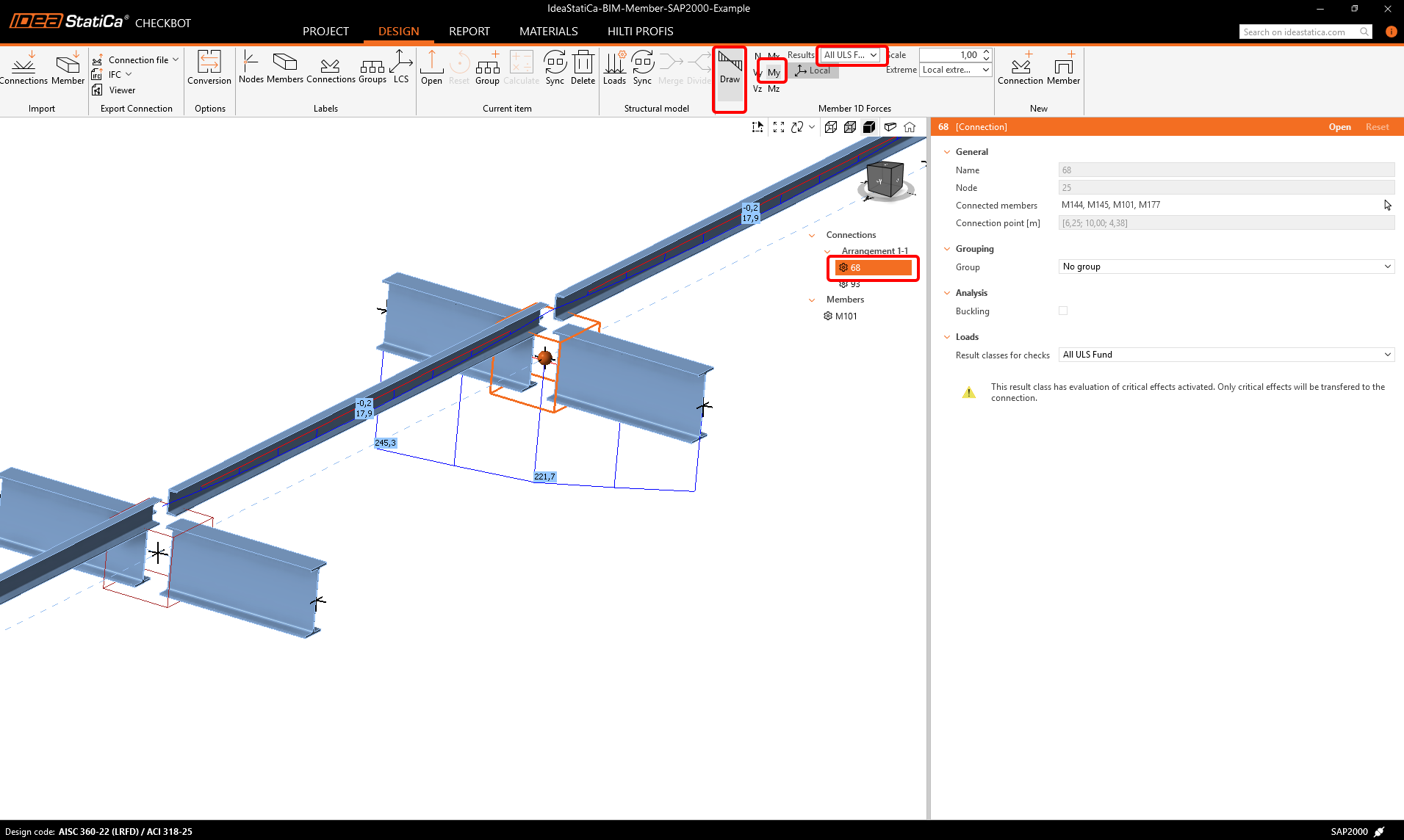
You can check the internal forces. Select Draw, then the desired internal force and combination, then left-click on the connection box, and follow the steps below in the picture.
Elements can be merged together directly in Checkbot, then in the Member application; they will be a single continuous element.
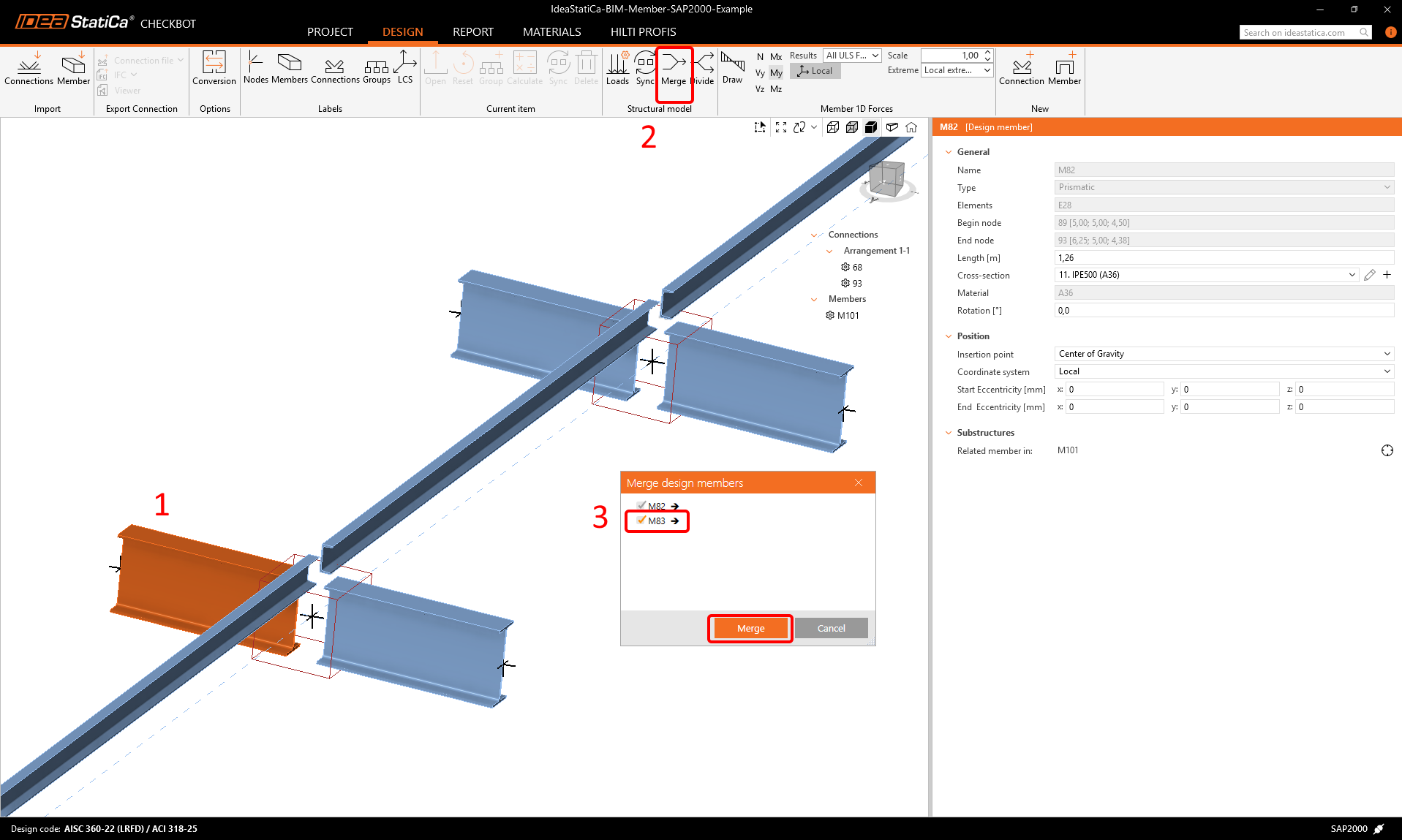
Merge both perpendicular related members. Left-click the I-profile M-82, select Merge operation, then tick the M83 box in the merge design window, and follow the steps as shown in the picture.
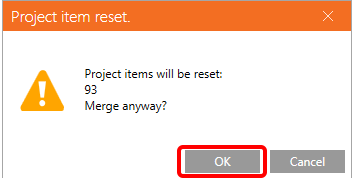
In this window, you will see an informative alert about the operation that will occur, accept it.
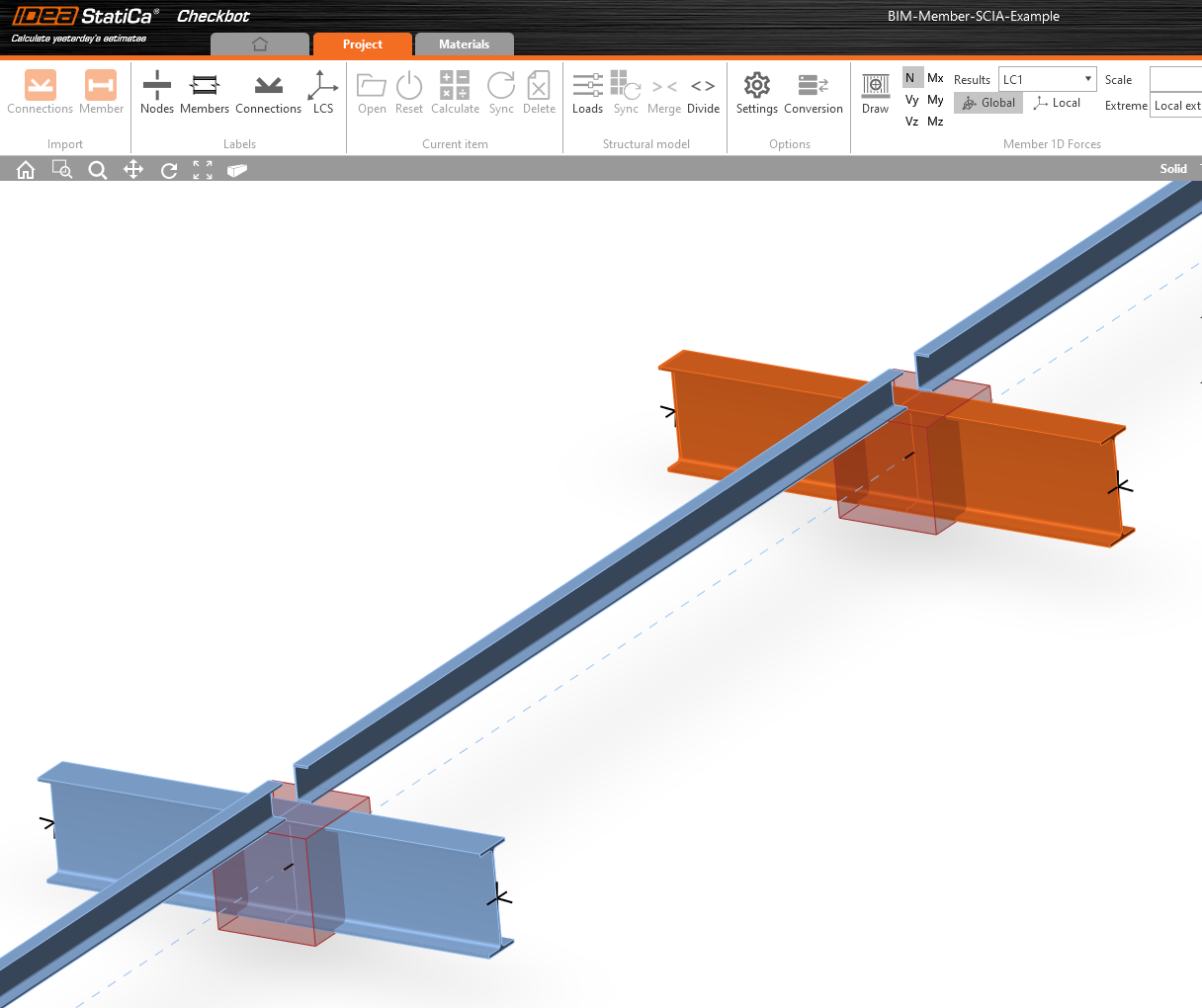
Make the same merging action for another group of I-profile. After changes, our model should look as in the following picture.
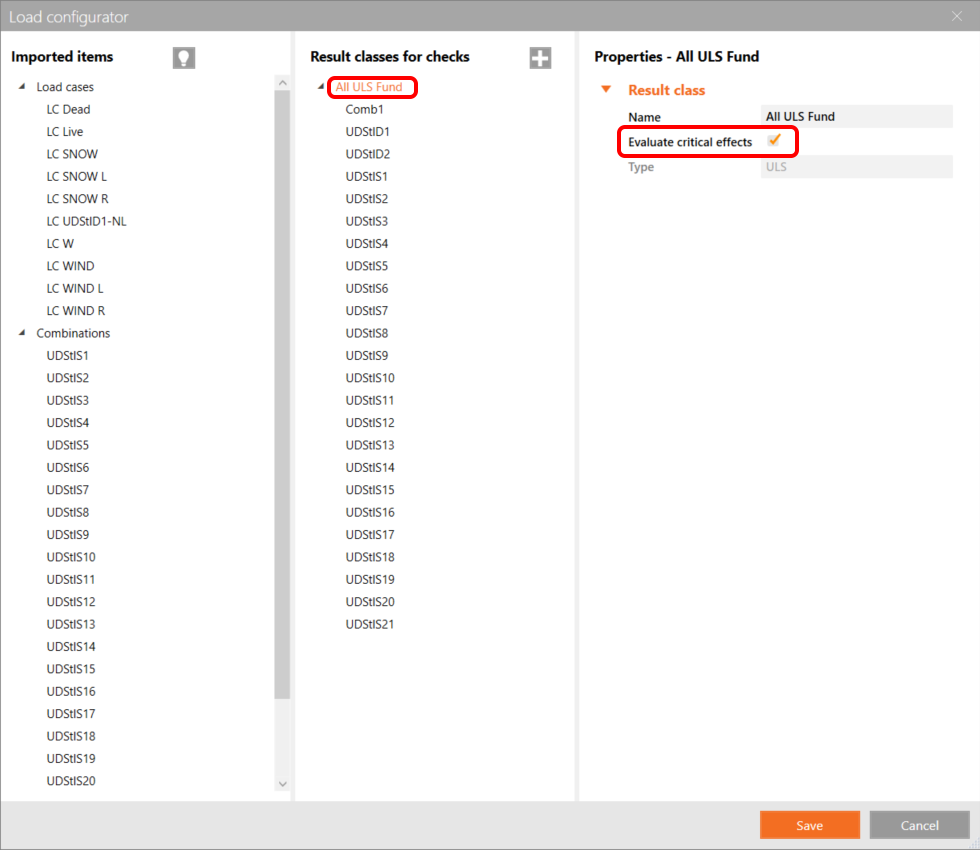
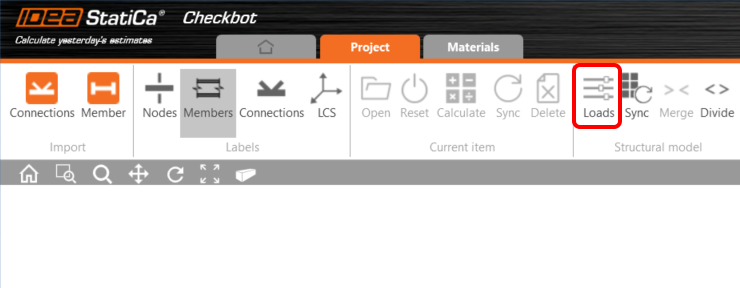
You can control what load case or combination will be loaded to the Member application by clicking on Loads and managing Result classes for checks.
Here in Load Configurator, you can add load cases for the member application. Please notice by default the Evaluate critical results function is enabled, which filters critical combinations to speed up the calculation. You can turn it off and all combinations will be included in the calculation.