

Calculate load extremes
Load Extreme Selection
Note: For complex connections, it is advisable to perform the final calculation using the entire set of load effects to ensure all loads defined in the global structural model are clearly accounted for.
There are different ways to define load effects in the IDEA StatiCa Connection model. For multiple load effects, the easiest way is to import the load via a BIM link or use the XLS import option.
A connection model can then contain hundreds of load combinations. Since it is very ineffective to calculate that amount of load effects (time-wise), you can design connections in your project using the decisive loads only to save time with the Calculate Load extremes feature.
IDEA StatiCa apps Connection and Checkbot have a useful function to filter the extreme load effects in an automated and easy way. But first...
What load is the extreme one?
The Calculate Load extremes evaluates the load components of every connected member in the connection and selects the most extreme load effects based on the following criteria:
- Positive or negative maximum of each load component - 12x
Load effects in which the highest values of each internal force (N, Vy, Vz, Mx, My, Mz) are found one by one (simulating the envelope selection). - Maximum shear force resultant - 1x
The load effect in which the vector sum of shear forces (Vy, Vz) is the highest. - Maximum bending moment resultant - 1x
The load effect in which the sum of bending moments (My, Mz) is the highest. - Maximum positive and negative normal resultants - 2x
Load effects in which the sum of the normal force (N) and bending moments (My, Mz) is the highest at a certain point of the cross-section. - Maximum shear resultant - 1x
The load effect in which the sum of the shear forces (Vy, Vz) and torsion moment (Mx) is the highest at a certain point of the cross-section. - Maximum total resultant - 1x
The load effect in which the sum of all internal forces (N, Vy, Vz, Mx, My, Mz) has the highest resultant. - Maximum stress at the edge of the cross-section – 2x
Load effects in which the normal force N, with bending moments (My, Mz), produce the highest stress at the edges of the cross-section.

This is evaluated independently of connection design. The algorithm takes into account only cross-sections of members and the load effects.
A theoretical maximum of 20x load extreme is selected for each connected member. The total number of selected extremes is therefore n x 20, where n is the number of members in a connection. Nevertheless, the number of selected load sets can be lower as the extremes of members overlap. Load effects with identical internal force values (duplicates) are all selected.
Select the extremes and perform the analysis
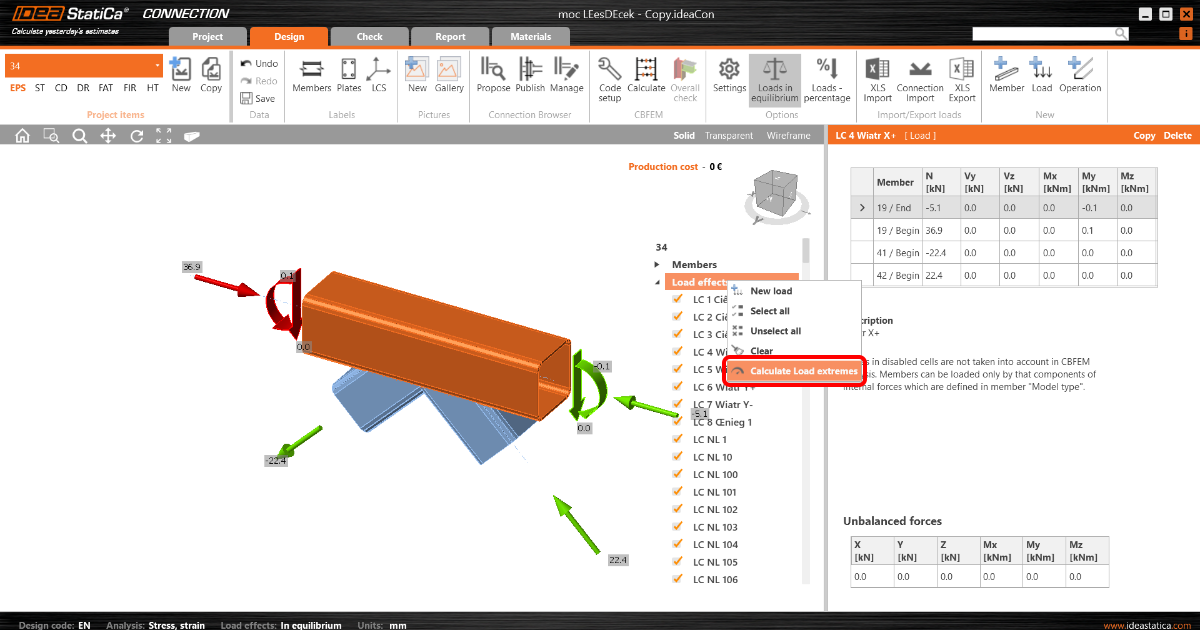
To select the extremes to be analyzed, use the right mouse button on the Load effects and select the Calculate load extremes option.
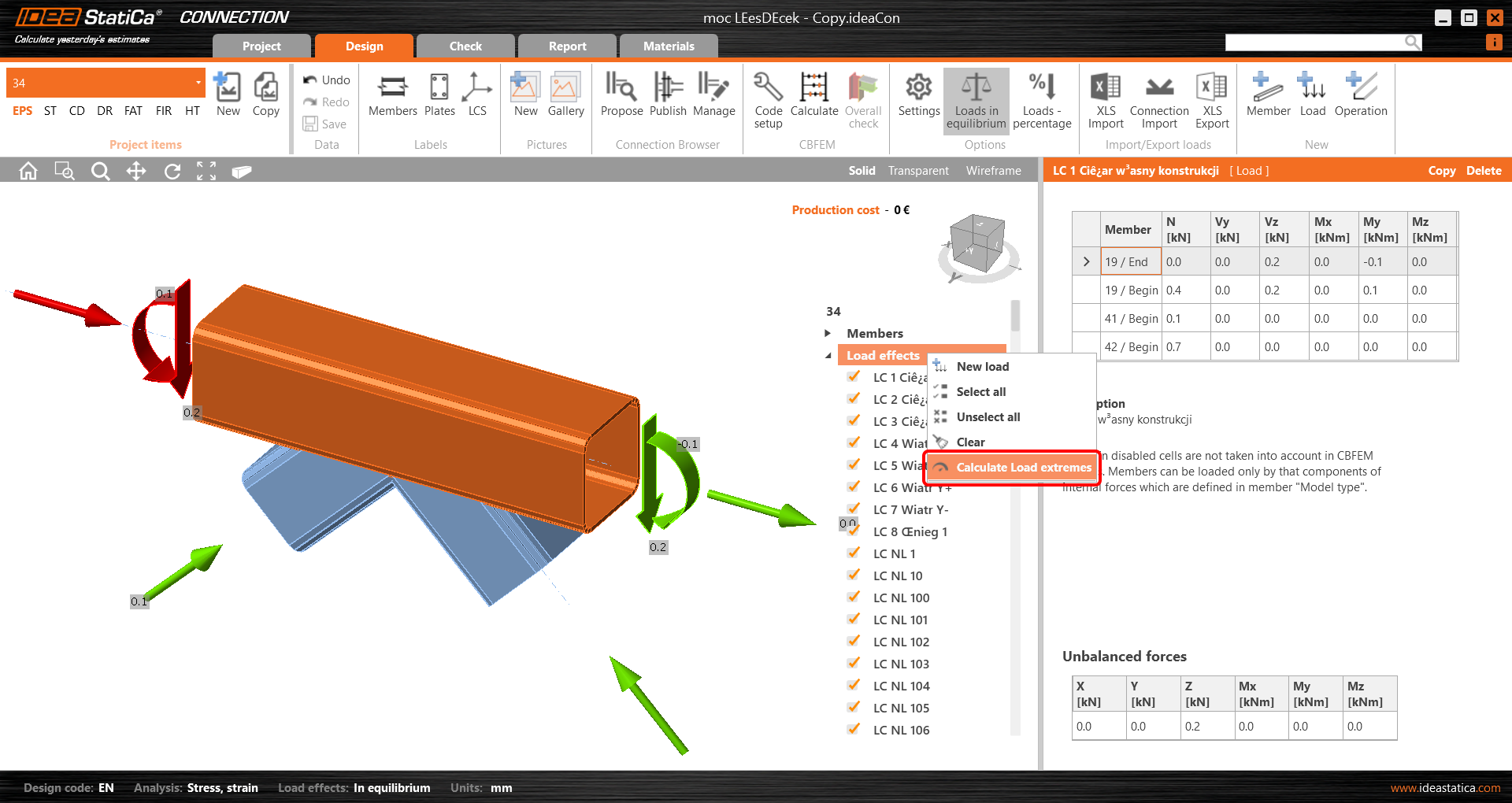
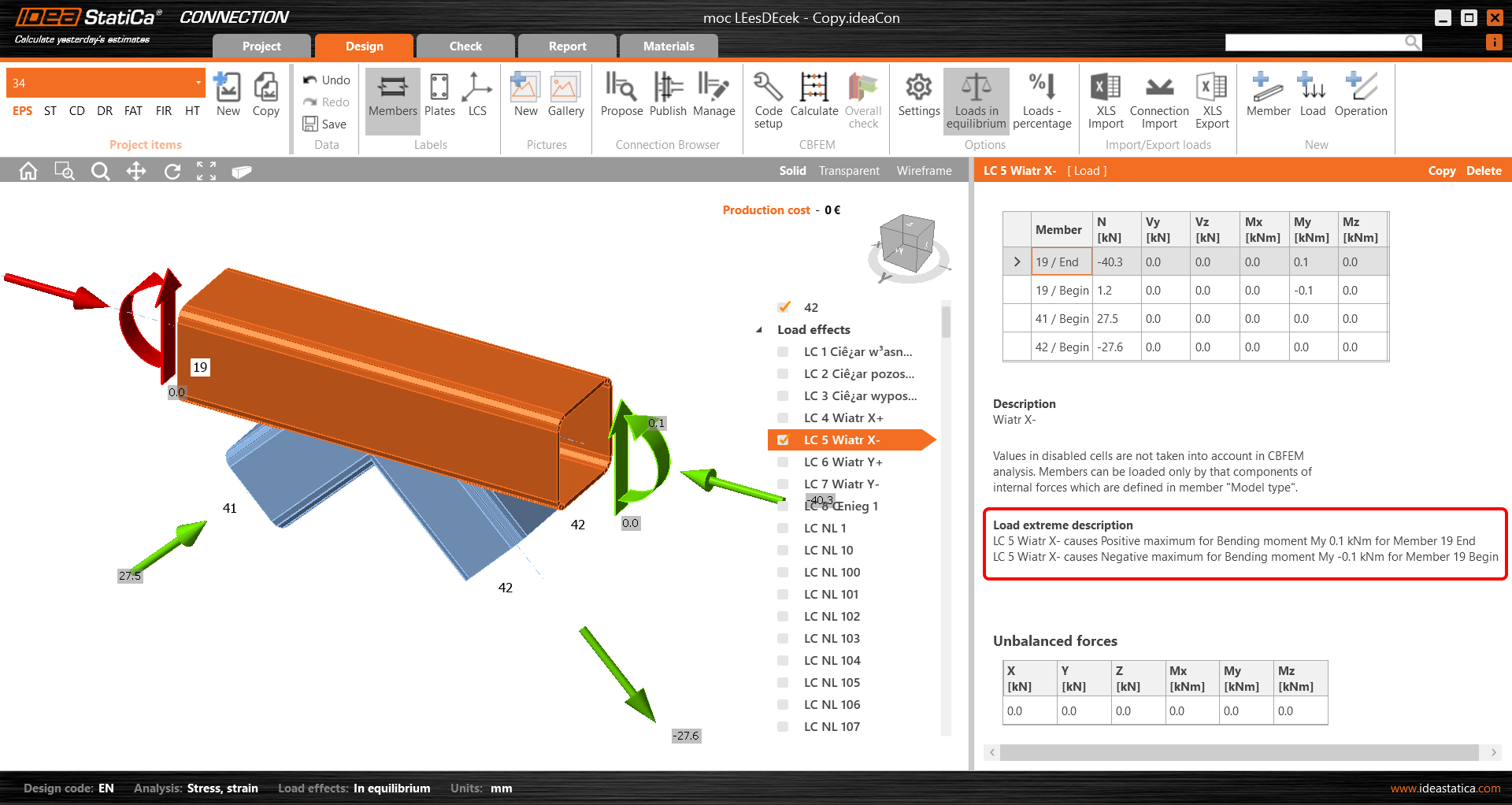
This unselects the irrelevant (non-extreme) load effects from the list. The reason for each selected extreme load effect is presented in the description under the table.
XLS import of extremes
You can also use the extremes selection when importing the load values from an Excel sheet. Check the Import only extremes box. You are instantly shown how many load effects are considered extremes.
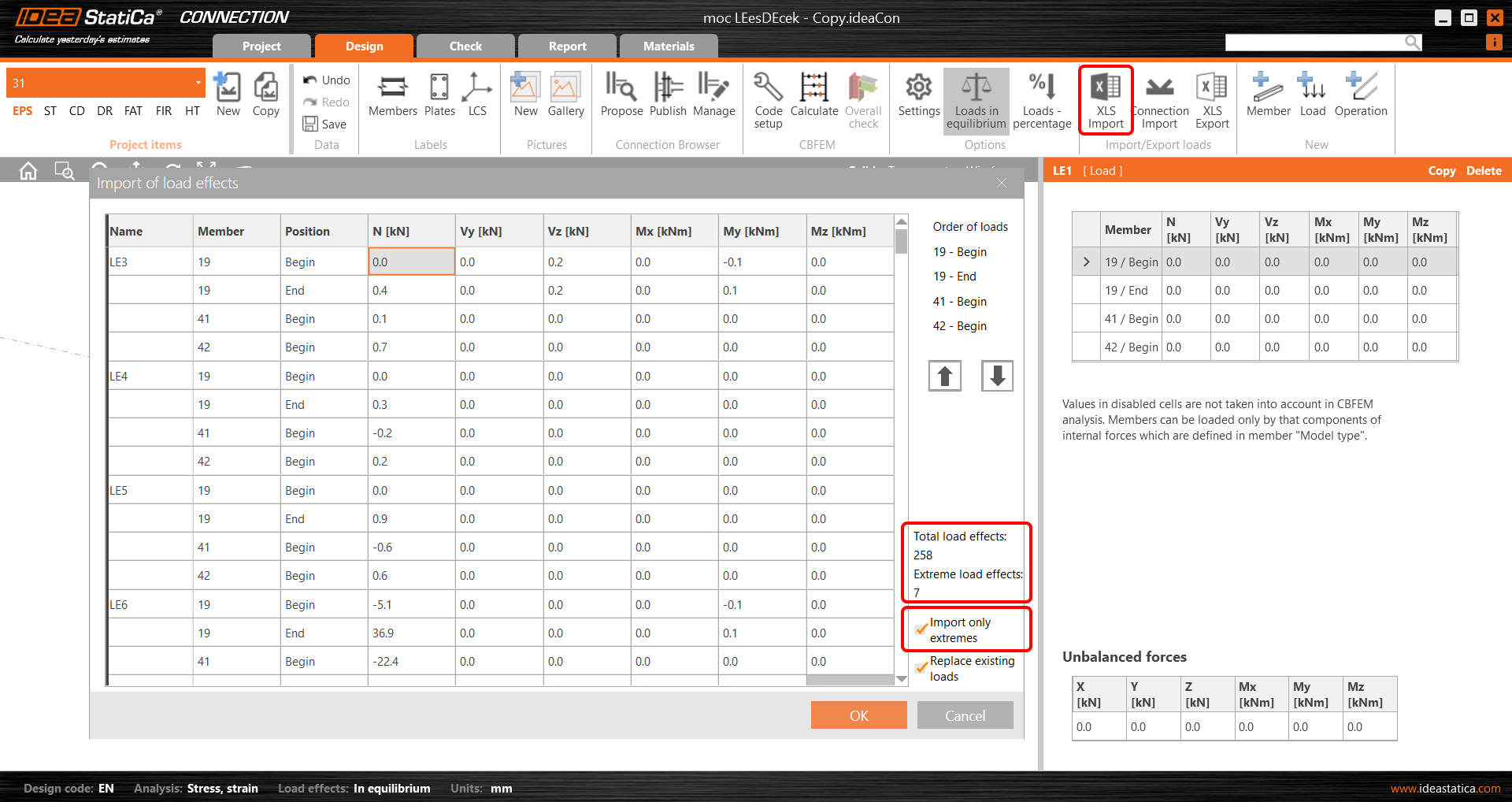
The extreme load effects are imported, and the rest are ignored.

Setting the tolerances
To neglect the irrelevant (small) values of extremes, you can set the limits/tolerances for each component of the internal forces. The force value (an absolute value) lower than the set limit will not be considered to evaluate extremes.

When you change these values to higher ones, a warning and the reasons for selecting the given load effect are presented.

You can save your custom values among the templates and use them in another project by loading it or setting the template as the default one.
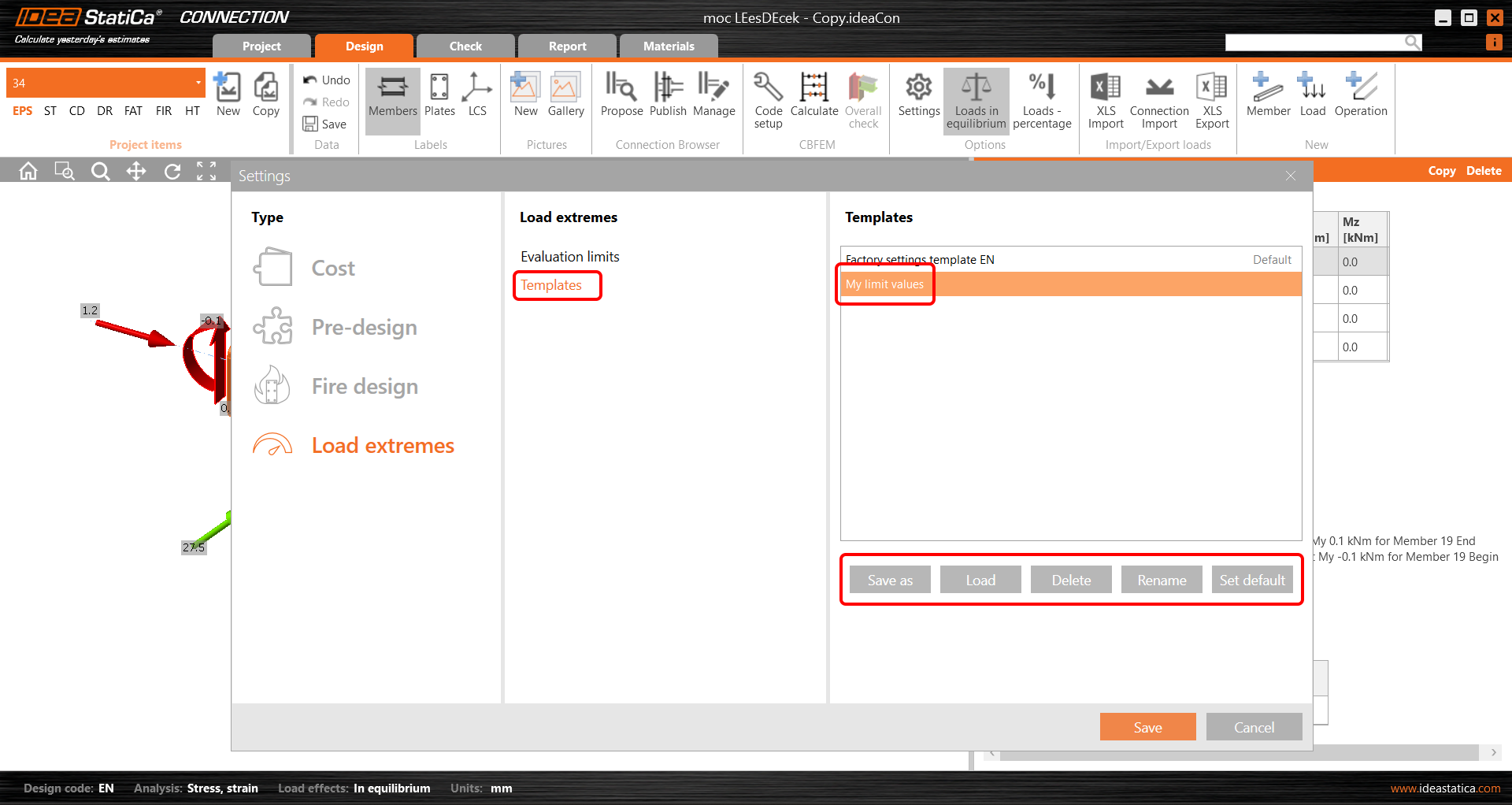
The feature was released in the 22.1.3 patch and updated in 23.0.1.
Selecting extreme loads via Checkbot (BIM link)
There is also another possibility to filter the load extremes in case you are using the BIM link (IDEA StatiCa Checkbot). Open the Load configurator in Checkbot and go to Result classes for checks in the middle column. Select the desired result class and in the right field, specify whether the loads should be filtered. When the Evaluate critical effects* checkbox is selected, the force extremes are filtered. (You need to call the Load update after closing the Load configurator window.)
Please note that the filtering algorithm differs from the above-mentioned procedure: Read more in the Evaluate critical effects for loads imported via BIM links article.
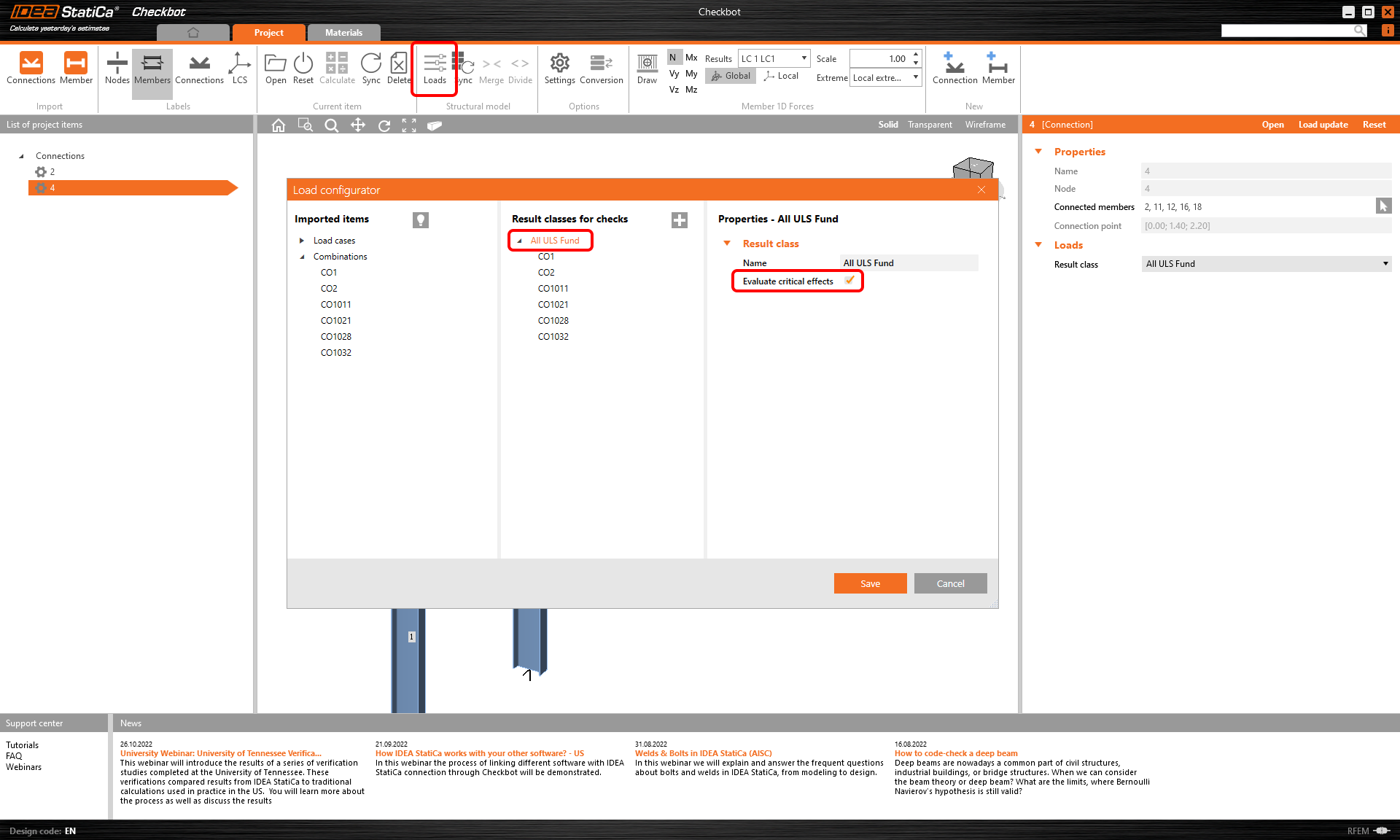
* The Evaluate critical effects function was removed and replaced by the Calculate load extremes function since version 25.1.2.