

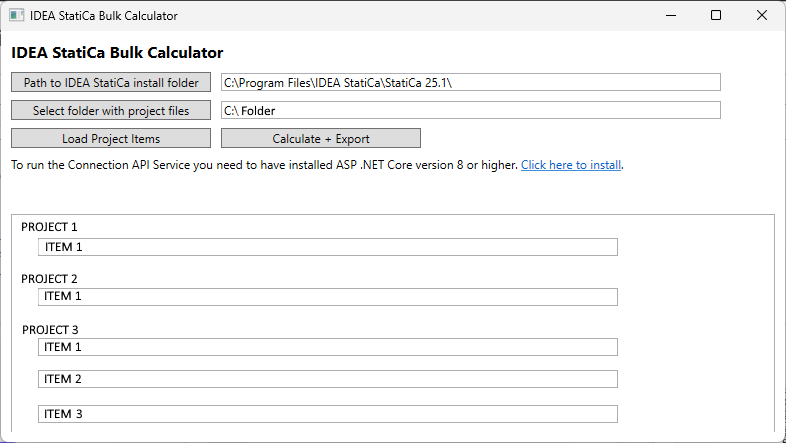
How to check the project files quickly
- Download our checking tool from here
- Run the CalculationBulkTool.exe
Note: With the first run, the Windows Defender warning can be displayed. In this case, follow these steps.


- Upload your project files in bulk (Note: It is necessary to have for the tool to perform correctly, .NET 8.0.22 must be installed.)
- The tool will calculate all the projects in sequence
- If the analysis could be performed, .csv file with results will be generated.
Step by Step Guide
First select the path to the folder where IDEA StatiCa is installed. The oldest version that can currently be installed for the bulk calculator to work is 25.1.2.
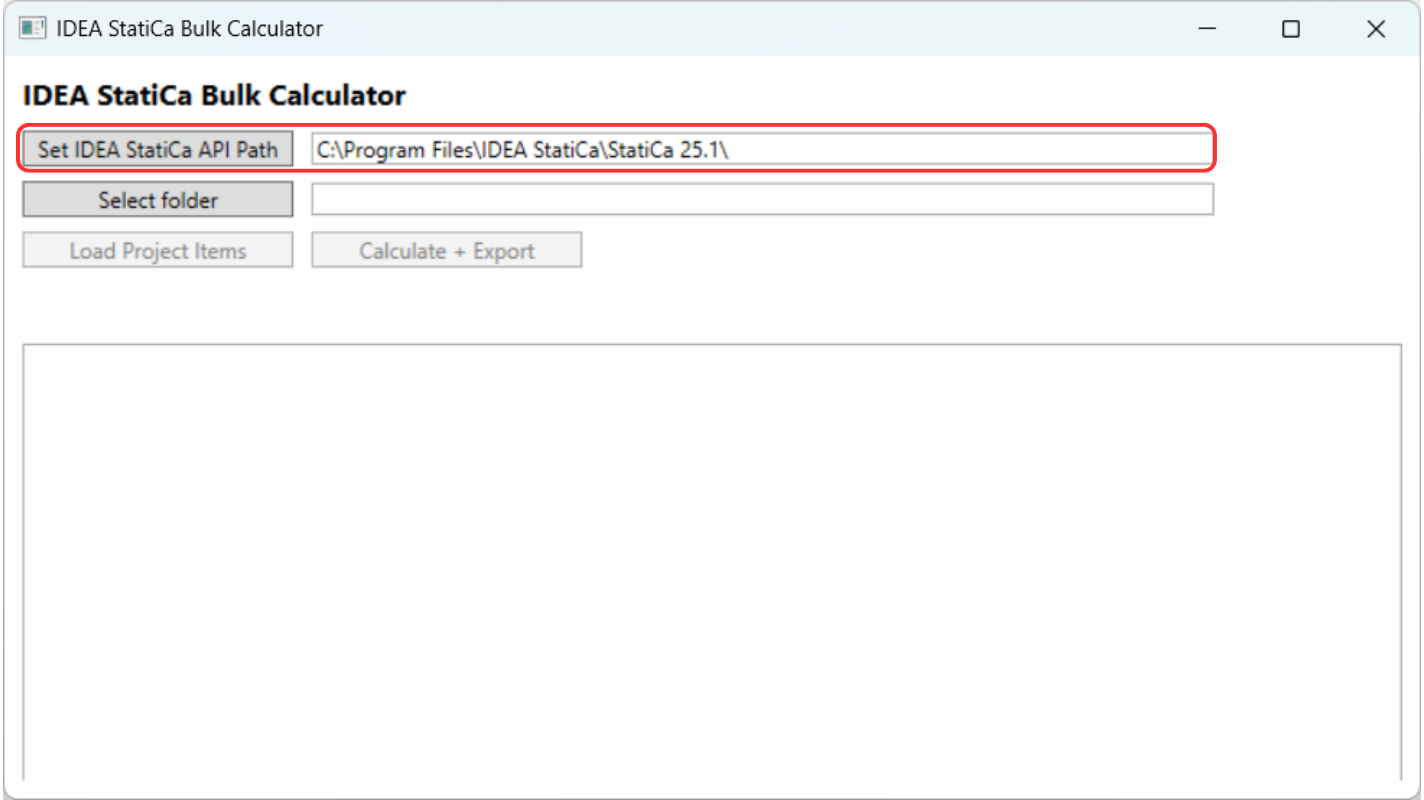
Upload the folder containing the IDEA StatiCa projects files. Folders are scanned recursively, so project files (.ideacon) from subfolders are included.
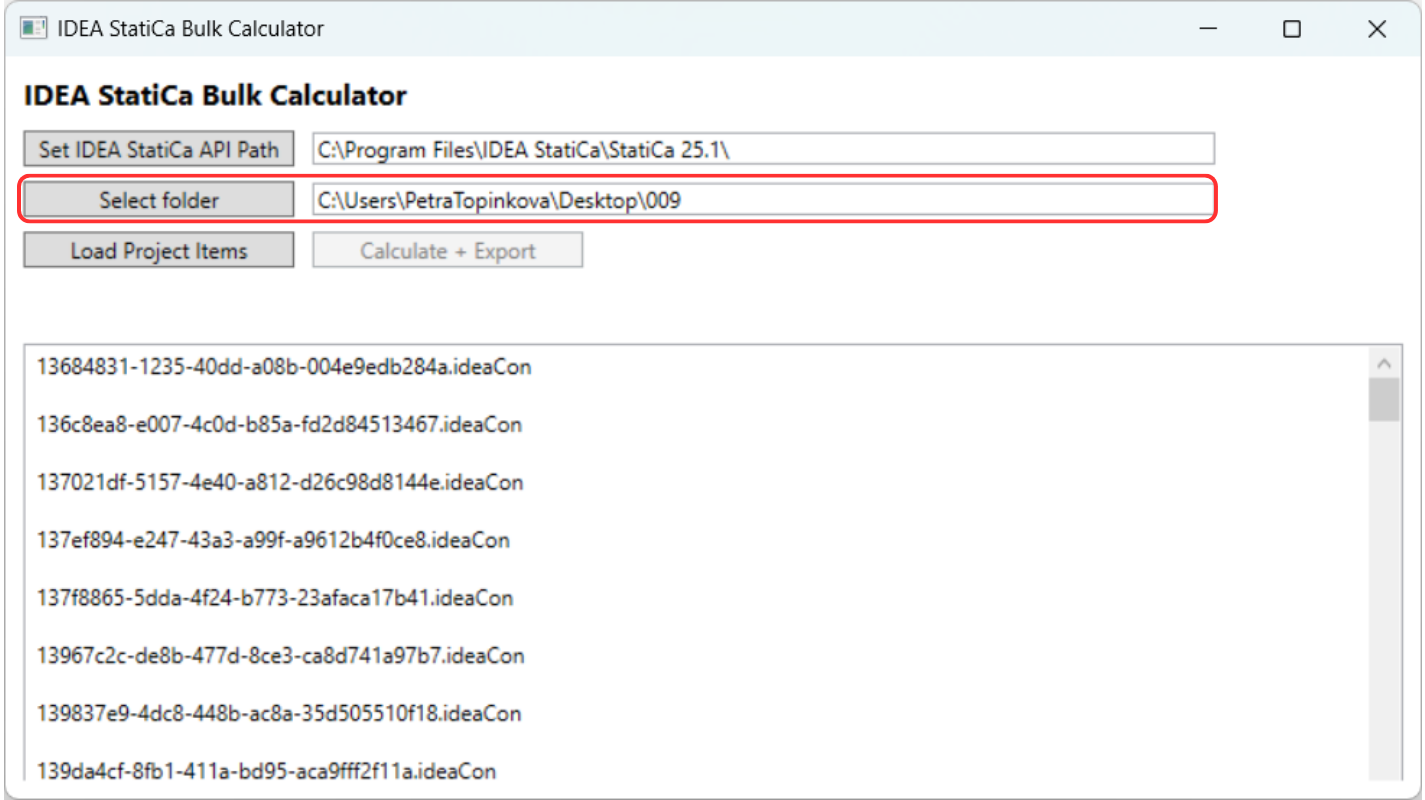
Click on ‘Load Projects Item’ to start loading all connections from each project.
Note: A black window of the command prompt is displayed for several seconds before the algorithm starts - don't turn this window off until the whole analysis is finalized.
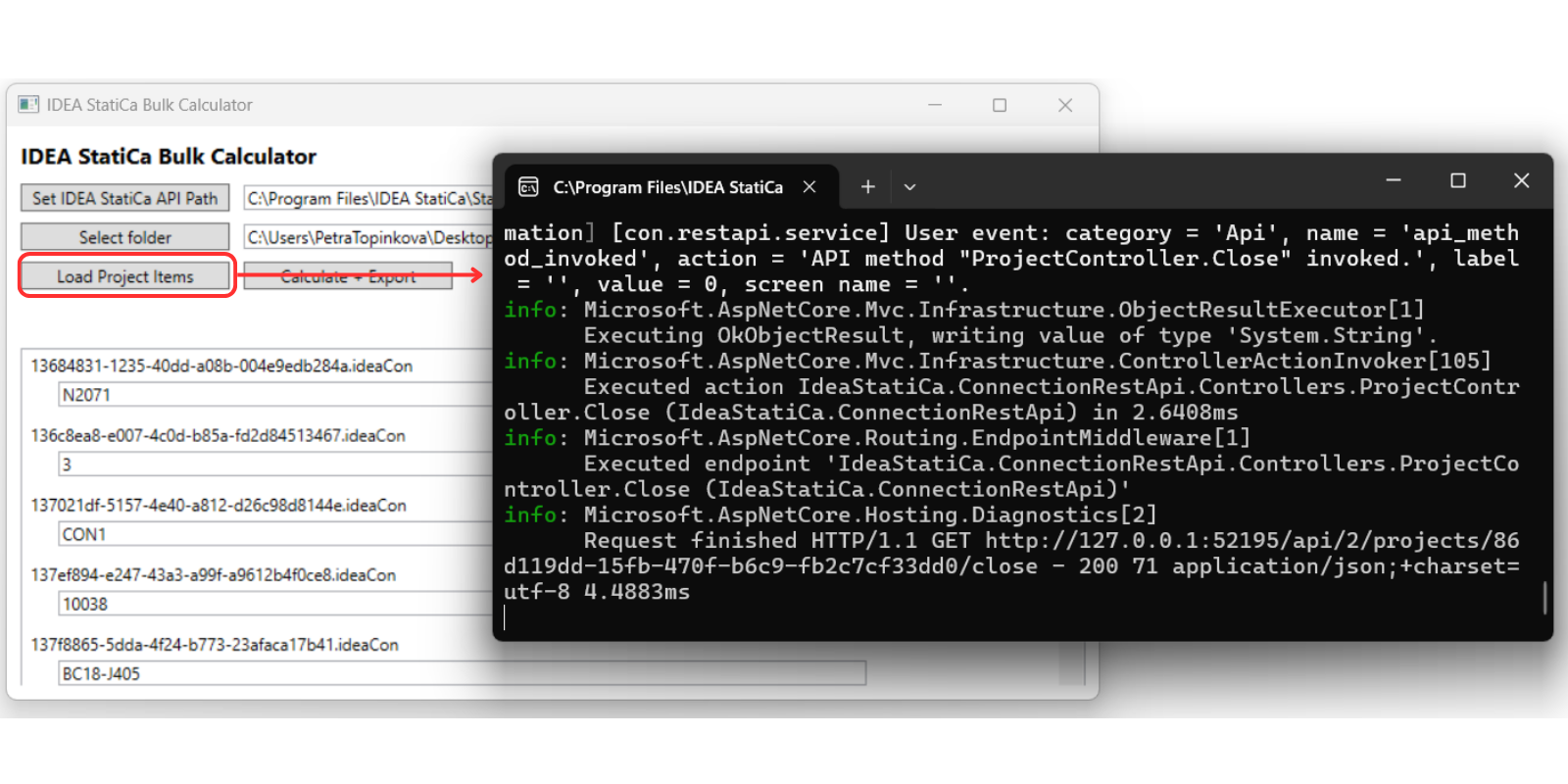
Once the projects are loaded, you can click ‘Calculate and Export.’ The calculation runs in the background.
Please be aware that processing a large number of connections may take some time, depending on the model complexity, number of load combinations, etc. For example, approximately one connection may take around 5 minutes.
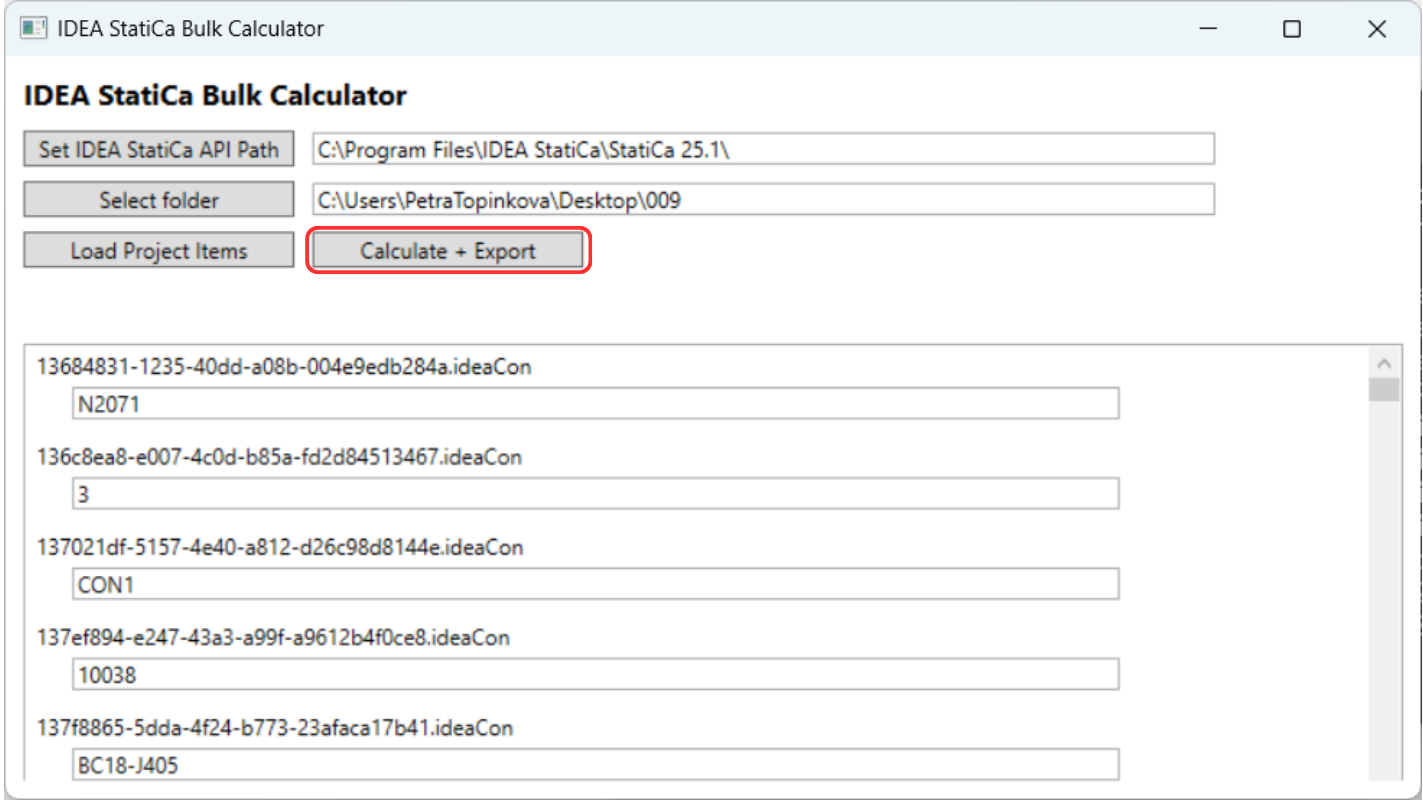
And a .csv file is generated in the same folder as the analyzed project files. Once the calculation is completed a table showing the successful completion of the calculations will be displayed.

The .csv file contains overall results for the welds', plates' and bolts' utilisation. But first it is necessary to adjust the table to ensure the evaluation is easy to read.
1. Split the values into individual columns. Select the first row and use the option Text to Column.
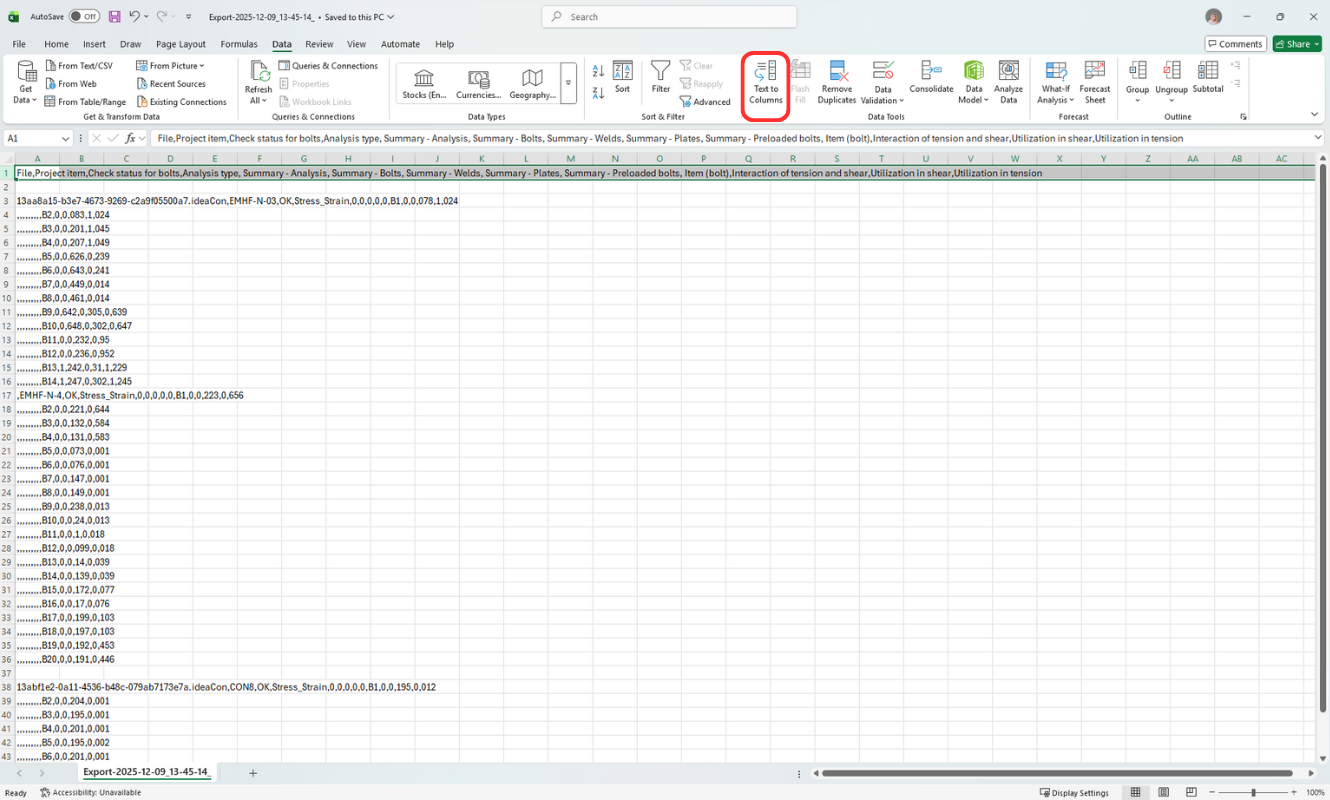
2. Now you can evaluate the results. For example, interaction utilization for bolts - by adding a filter to the first row and hiding all rows with a value of 0, or by using conditional formatting to highlight values greater than one.
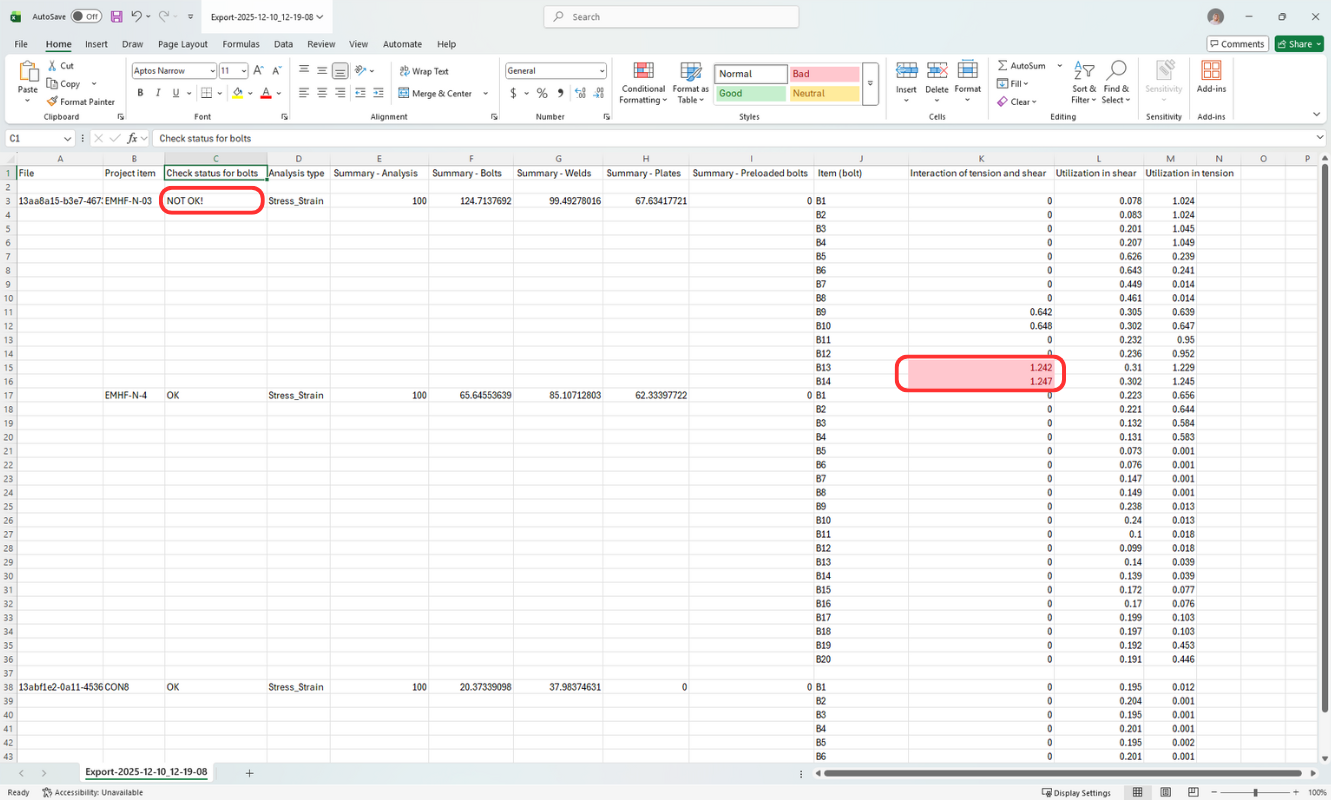
The image shows the overall status of a project that does not meet the requirements, with the next column indicating the specific bolts that fail.
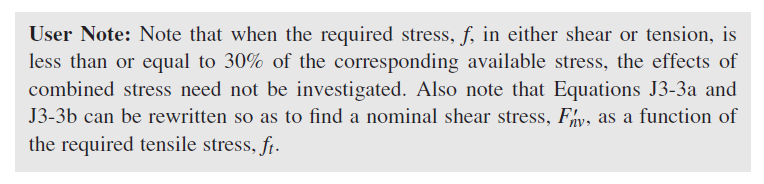
Note: If the utilization in shear or tension is below 0.3, the interaction is ignored and recorded as 0. (in accordance with AISC 360-22 J3.8)
3. If there were any project items with unsuccessful analysis, a text file (FailedProjects-time_stamp.txt) will also be generated in the project's folder, specifying the project and project item name.
Typical reasons for failing analysis:
- Missing loading
- Singularities
- Modeling issues - clashes in elements
(Basically the same reasons why the calculation in the desktop app wouldn't start either)
Attached Downloads
- CalculationBulkTool.zip (ZIP, 64.2 MB)