
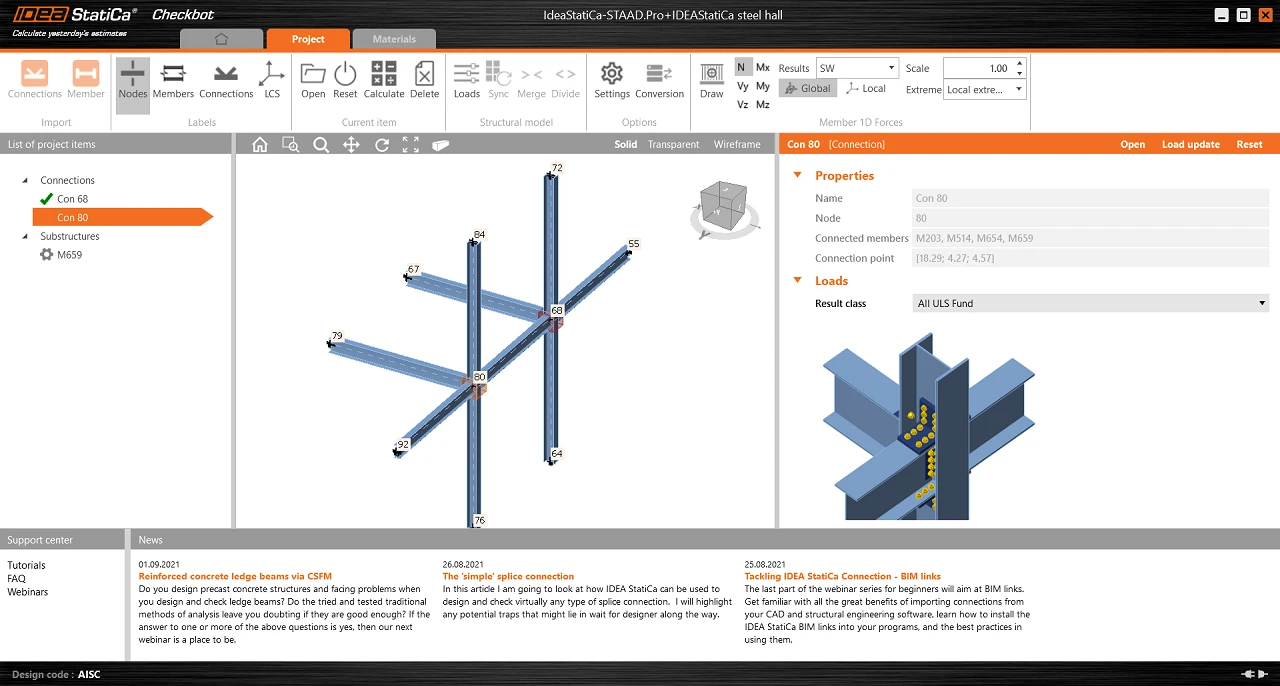


In case the Checkbot does not open or falls suddenly after short use, even though you have correctly installed the BIM link to IDEA StatiCa in your software, there might be several issues that cause this error.
Please, try to go through these measures:
- Check if the linked software version is supported, possibly update to the latest version.
- Reinstall IDEA StatiCa to the latest version.
- Check if the license is working right, search in the Support center to get more help about how to troubleshoot it.
- Check if there's no antivirus/security program (e.g. G DATA) that might be blocking the Checkbot opening, or that has deleted some installation files of IDEA StatiCa making the Checkbot unusable.
- Check your Windows user rights, those might be limited preventing 3rd party software to be launched (possibly consult with your IT administrator).
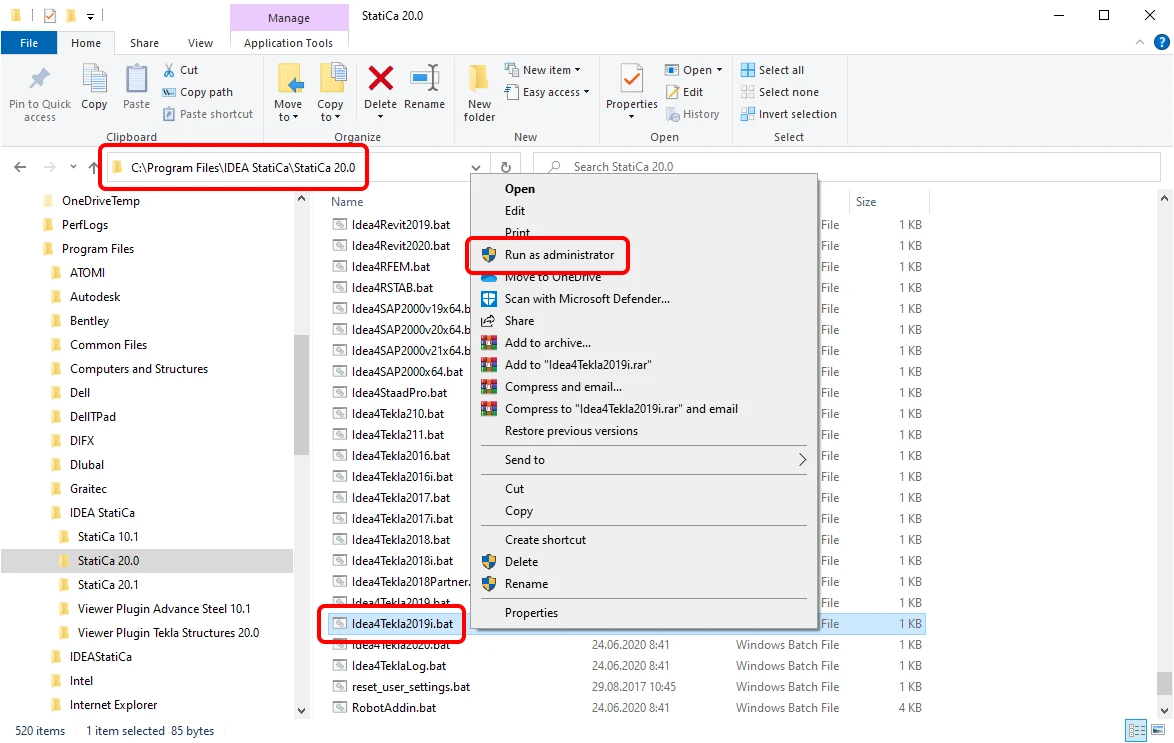
- Install the BIM link manually by running the appropriate .bat file. Close the linked software, go to the installation folder of IDEA StatiCa on your computer (typically C:\Program Files\IDEA StatiCa\StatiCa XX.X), select the .bat (.exe) file, and run it via right-click as administrator.
Note:
For Robot Structural Analysis, run RobotAddin.bat
For Advance Steel, run Idea4AS2026.bat
For Midas Civil NX, run IdeaMidasCivilNXPlugin.exe
For Revit, run Idea4Revit2026.bat
For RAM Structural System, run RamToIdeaPluginInstall.exe
For RFEM, run Idea4RFEMNET6.bat or Idea4RFEM.bat (for version 5)
For RSTAB, run Idea4RSTABNET6.bat or Idea4RSTAB.bat (for version 5)
For SCIA Engineer, run SetIDEAInstallDir.bat
For SDS2, run Idea4SDS22025.bat
For STAAD.Pro, run Idea4StaadPro.bat
For Tekla Structures, run Idea4Tekla2025.bat
For AxisVM, run AxisVMLinkPluginInstaller.exe (C:\Program Files\IDEA StatiCa\StatiCa XX.X\net48)
For Advance Design, run SetIDEAInstallDirAD.bat (C:\Program Files\IDEA StatiCa\StatiCa XX.X\net48)
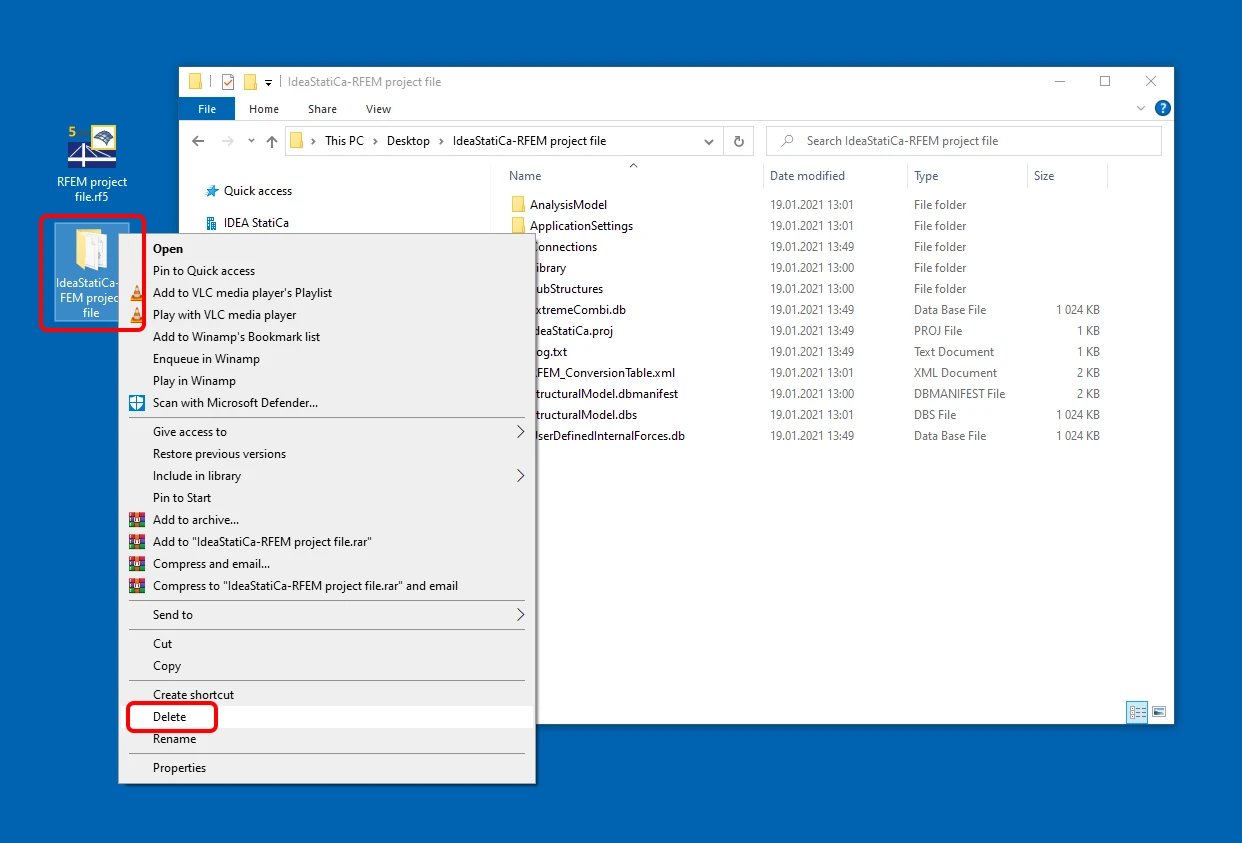
- Delete the IDEA StatiCa import folder. This folder is created next to the source software project file and has the same name. This clears the data and allows you to create a new import.
Note: For Tekla Structures, the IDEA StatiCa folder is located inside the Tekla Structures project folder with the same name.
For case when there is a missing Checkbot icon in Tekla Structures, read the Checkbot in Tekla Structures ribbon missing article.