


How it works
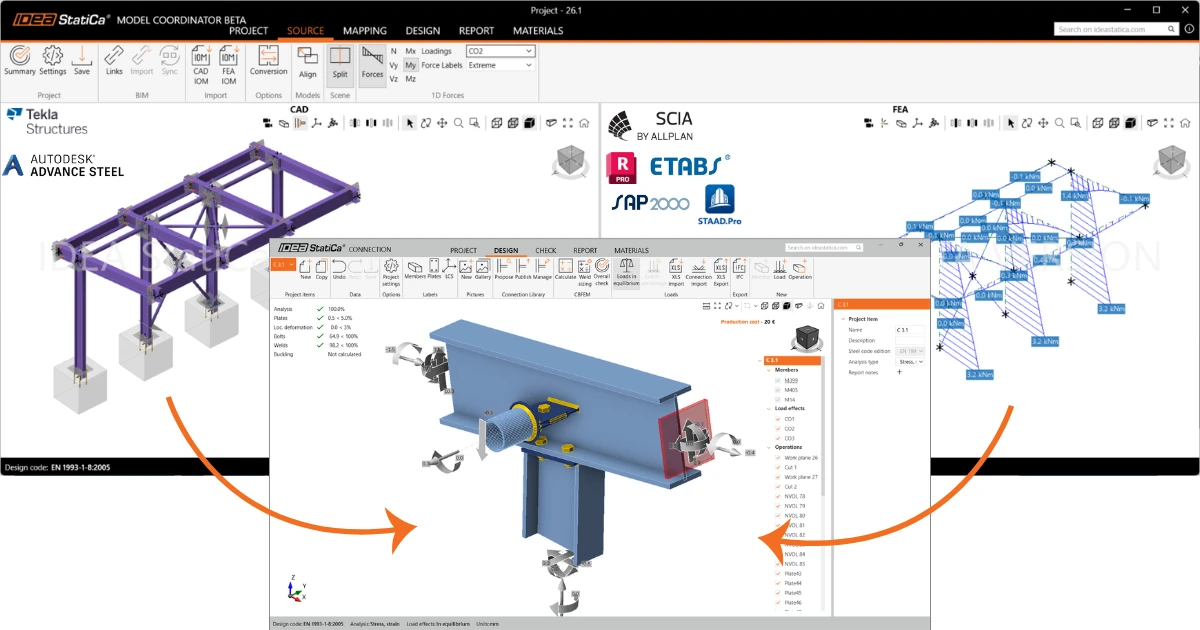
Model Coordinator combines two models of the same structure. The CAD model contains the connection geometry, and the FEA model contains the internal forces. To design a connection with those forces, Model Coordinator first needs to know which FEA member belongs to which CAD member.
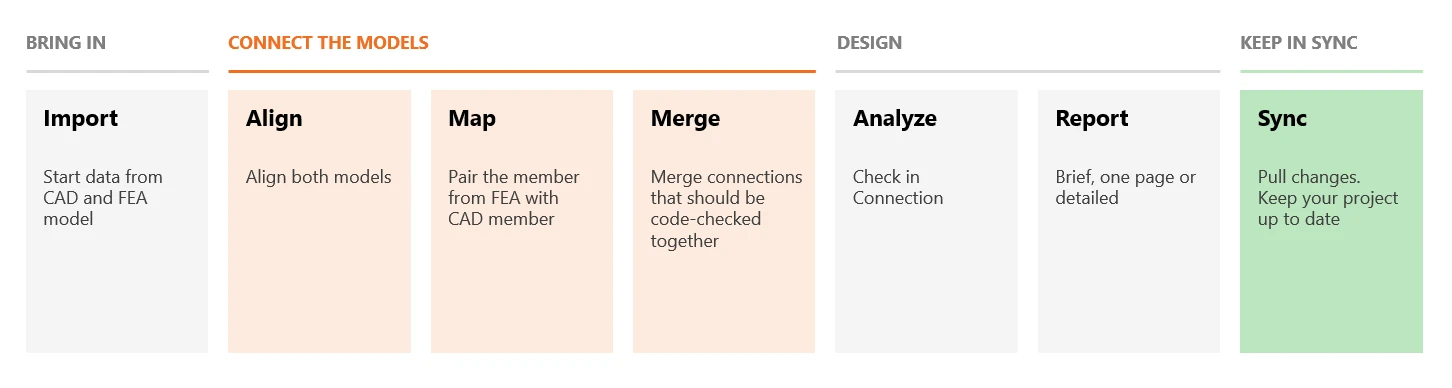
Bring in: import the CAD and FEA models into one project.
Connect the models:
- Align the models so they overlap. They are often built in different coordinate systems.
- Map the members that pair each CAD member with its FEA member.
- Merge the connections that should be code-checked together.
Design: analyze the connections in IDEA StatiCa Connection, with forces transferred automatically from the FEA model, and generate the report.
Keep in sync: when a model changes, pull the changes into your project instead of starting over.
01. Create a project
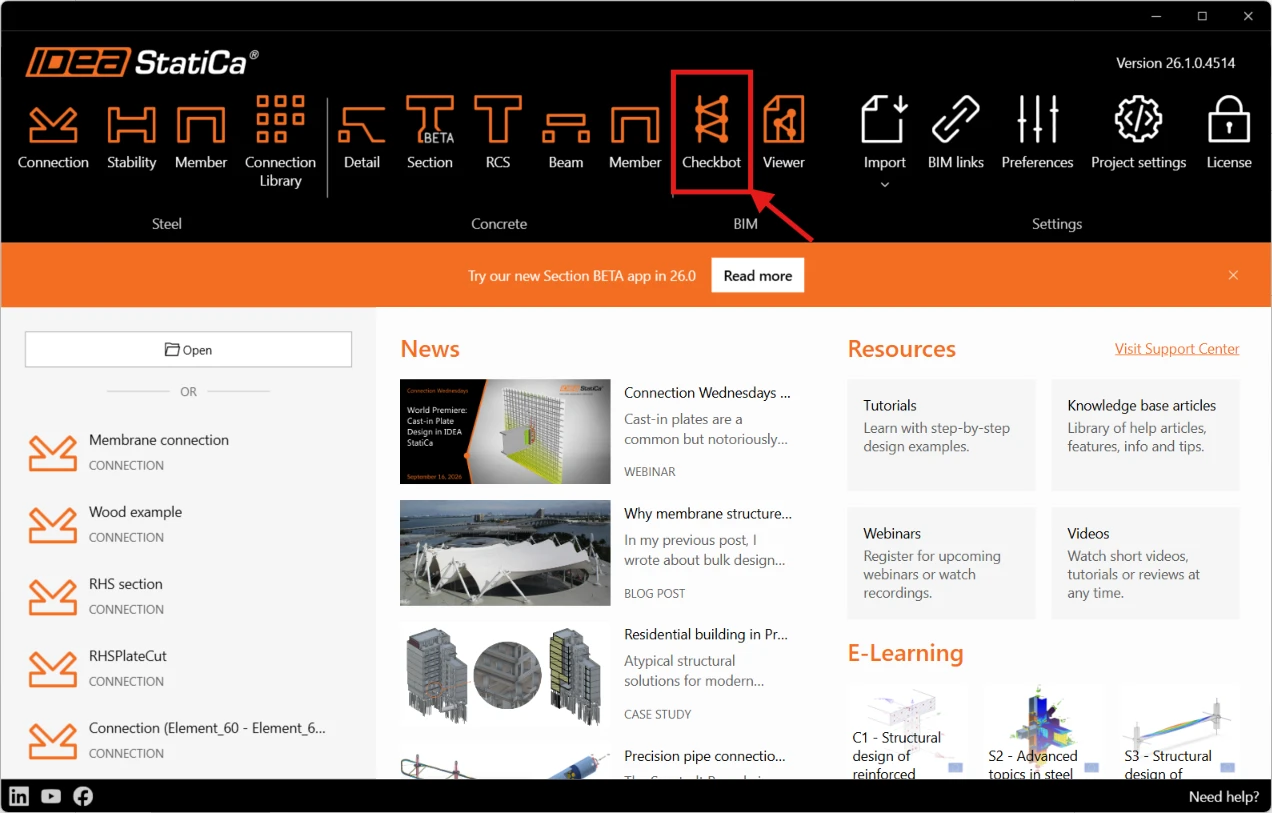
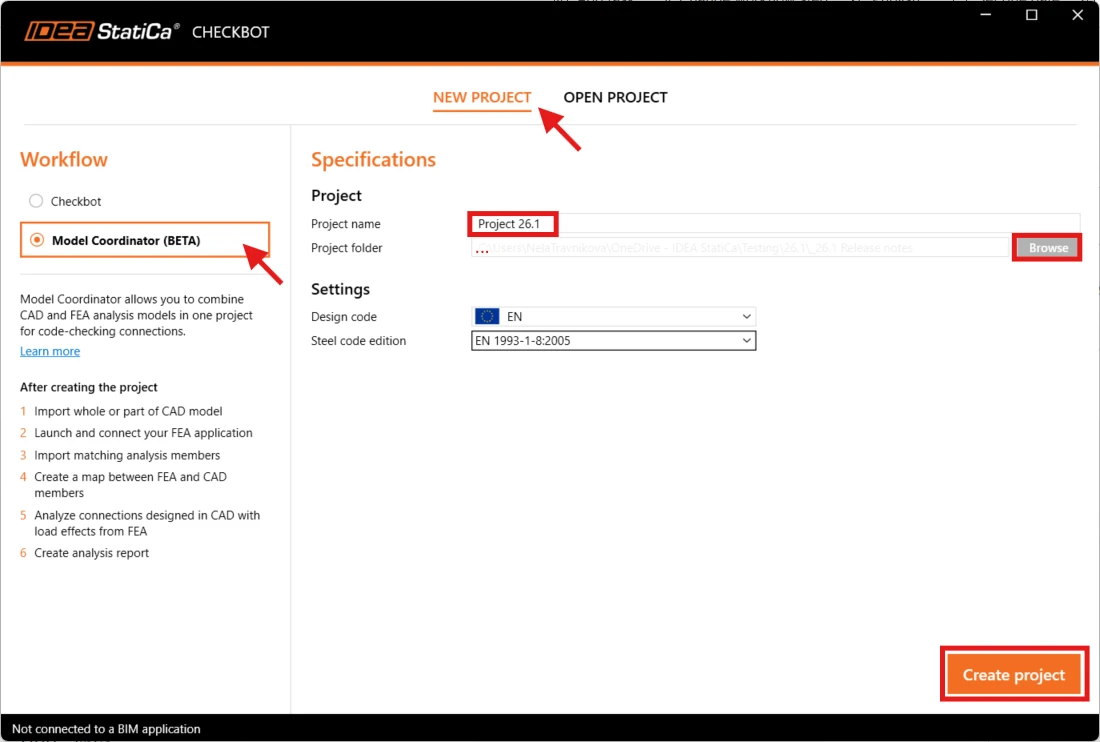
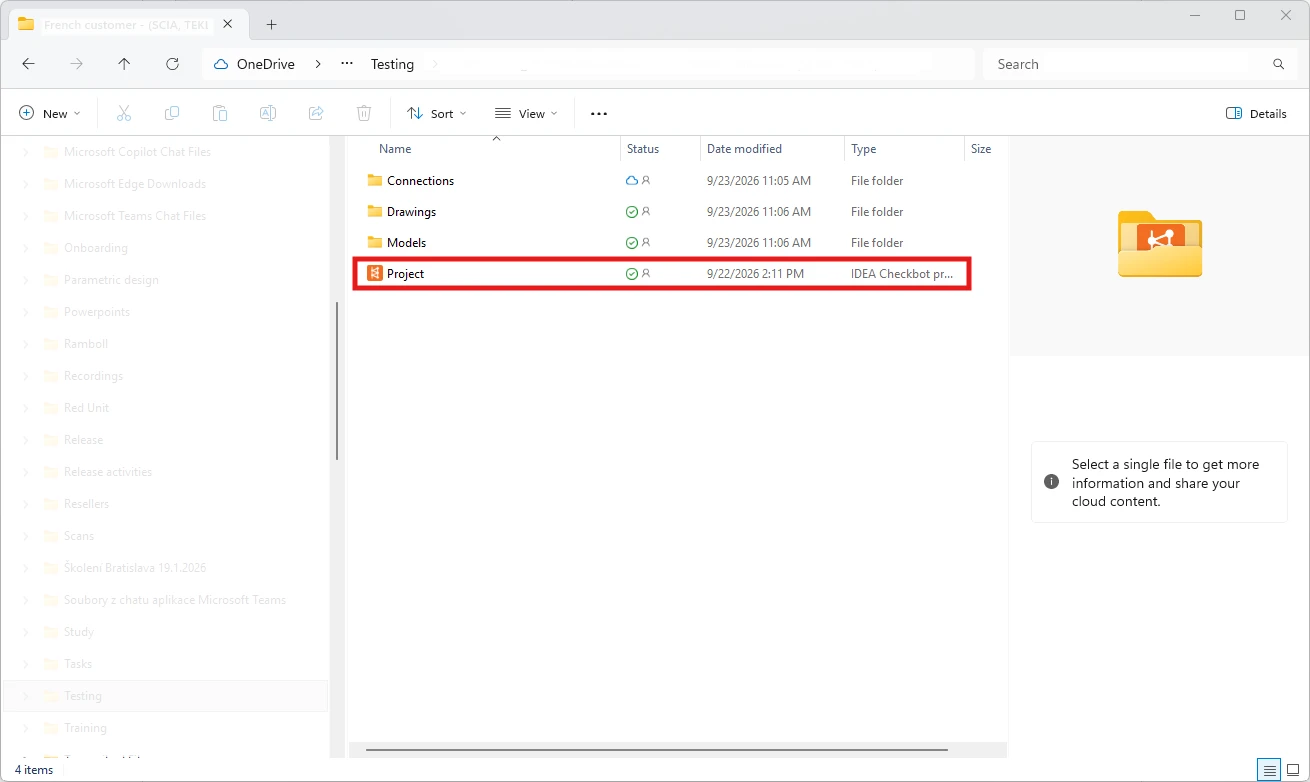
When you start Checkbot from the IDEA StatiCa Launcher, the New Project wizard lets you select the workflow. Select Model Coordinator (BETA) – a workflow combining two data sources, FEA and CAD.
Next, name the project, choose the folder where it will be saved, and select the design code and code edition.
The project is created in the selected folder.
Note: Once the workflow (Model Coordinator) is set, it cannot be changed for that project.
02. Connect to CAD and FEA applications
Next, connect Model Coordinator to your CAD and FEA applications. Launch them, then click Links on the Source tab.
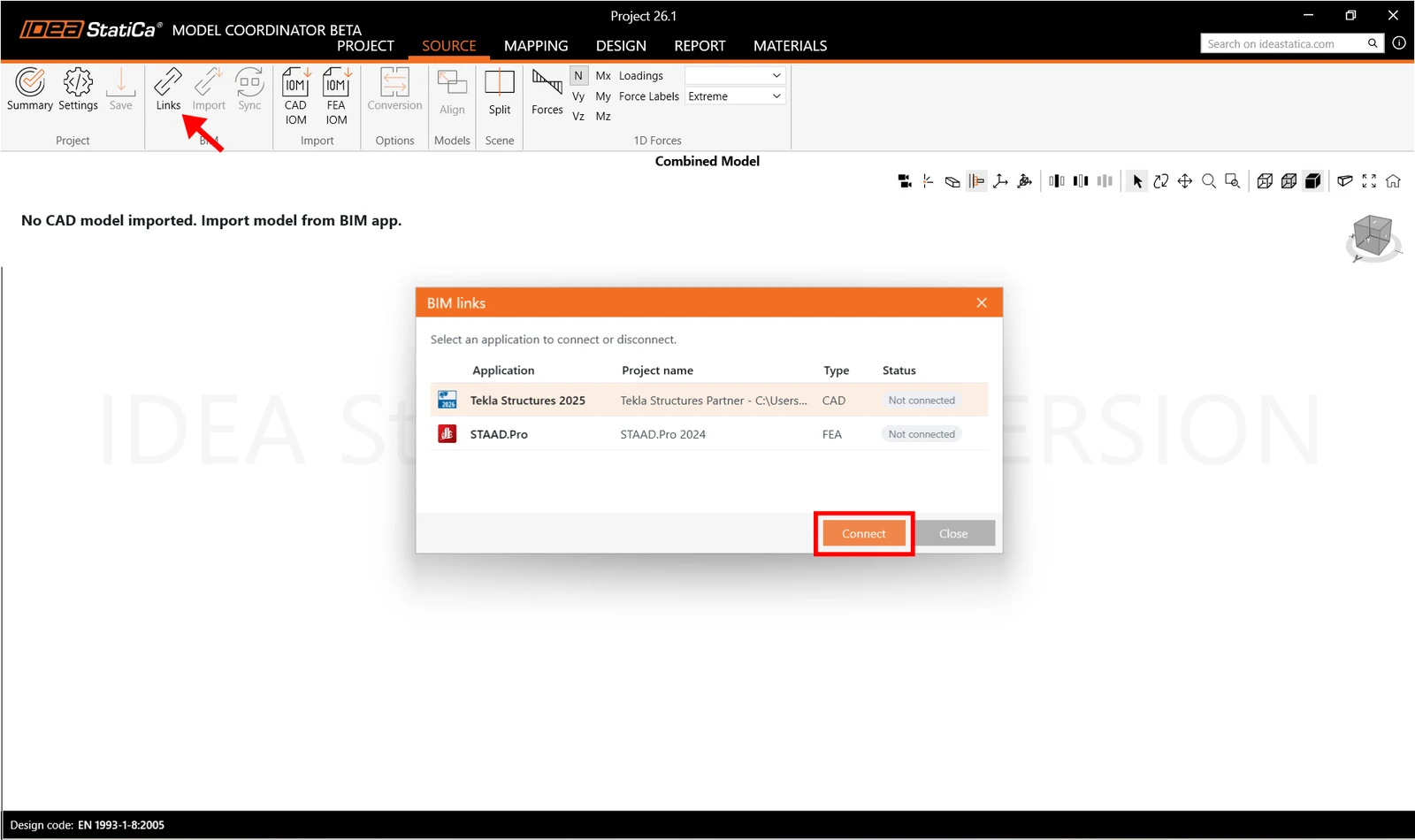
Model Coordinator can connect directly to these applications:
To connect SCIA Engineer or Autodesk Robot, start IDEA StatiCa directly from the source model in the application, then link it to your Model Coordinator project.
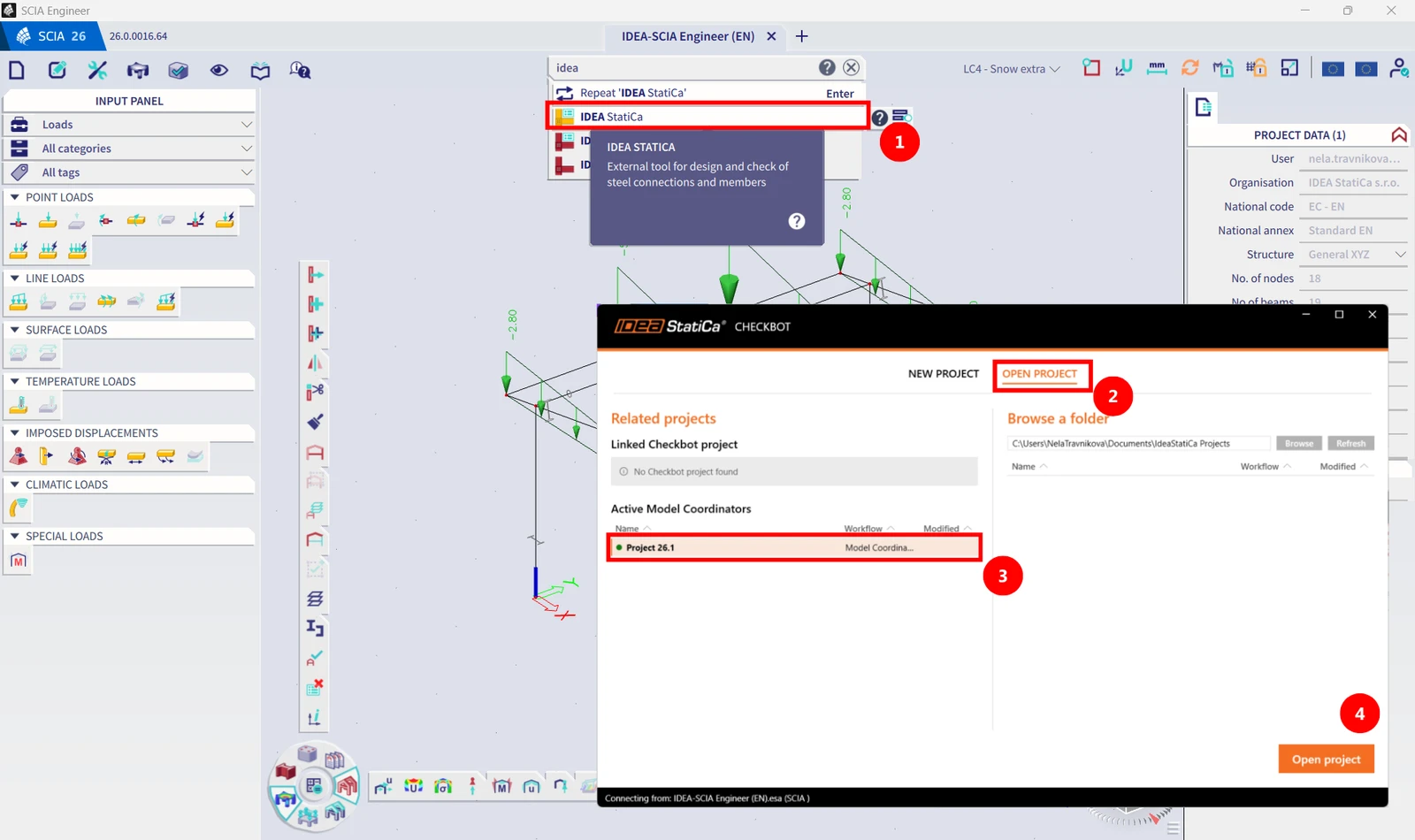
After you click Open project, SCIA Engineer appears in the BIM links window with the status Connected.
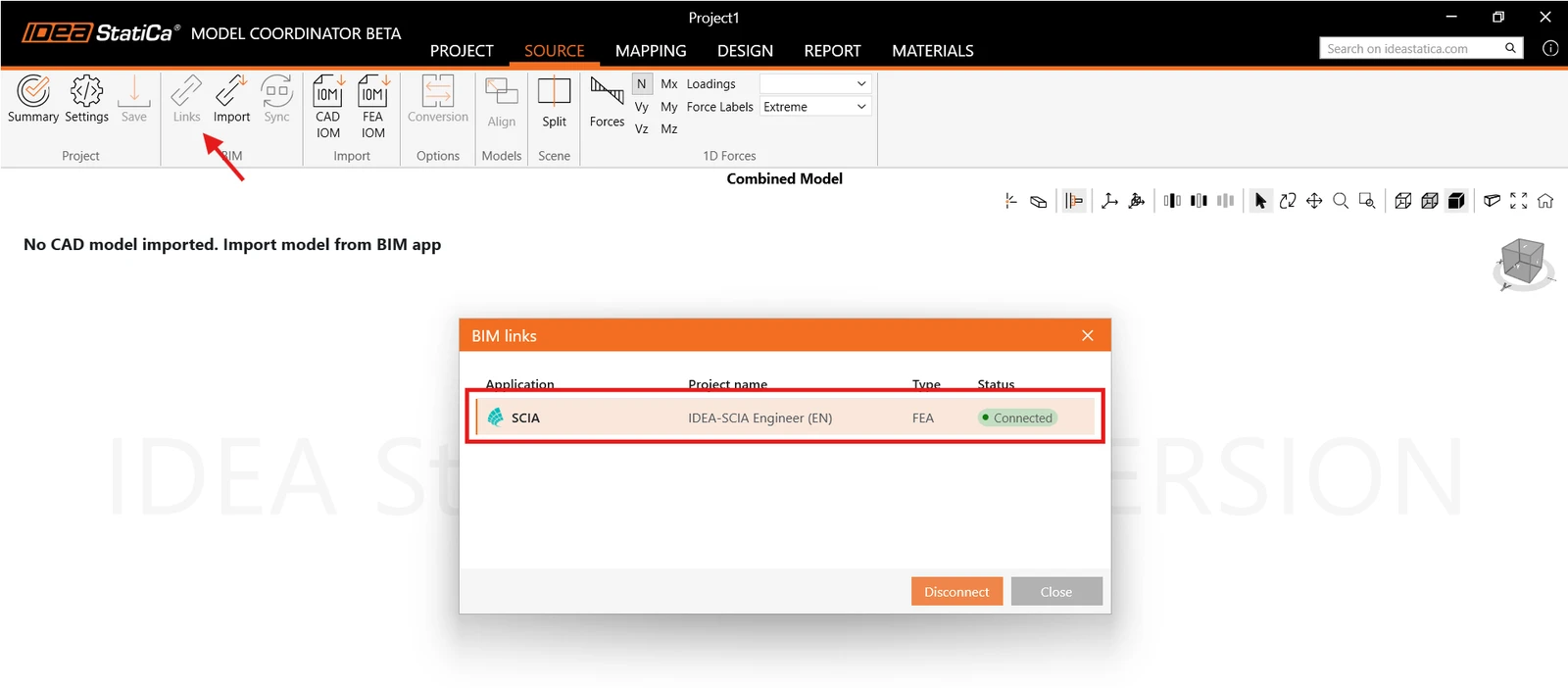
Once both applications show Connected, you can import your data.
03. Import data
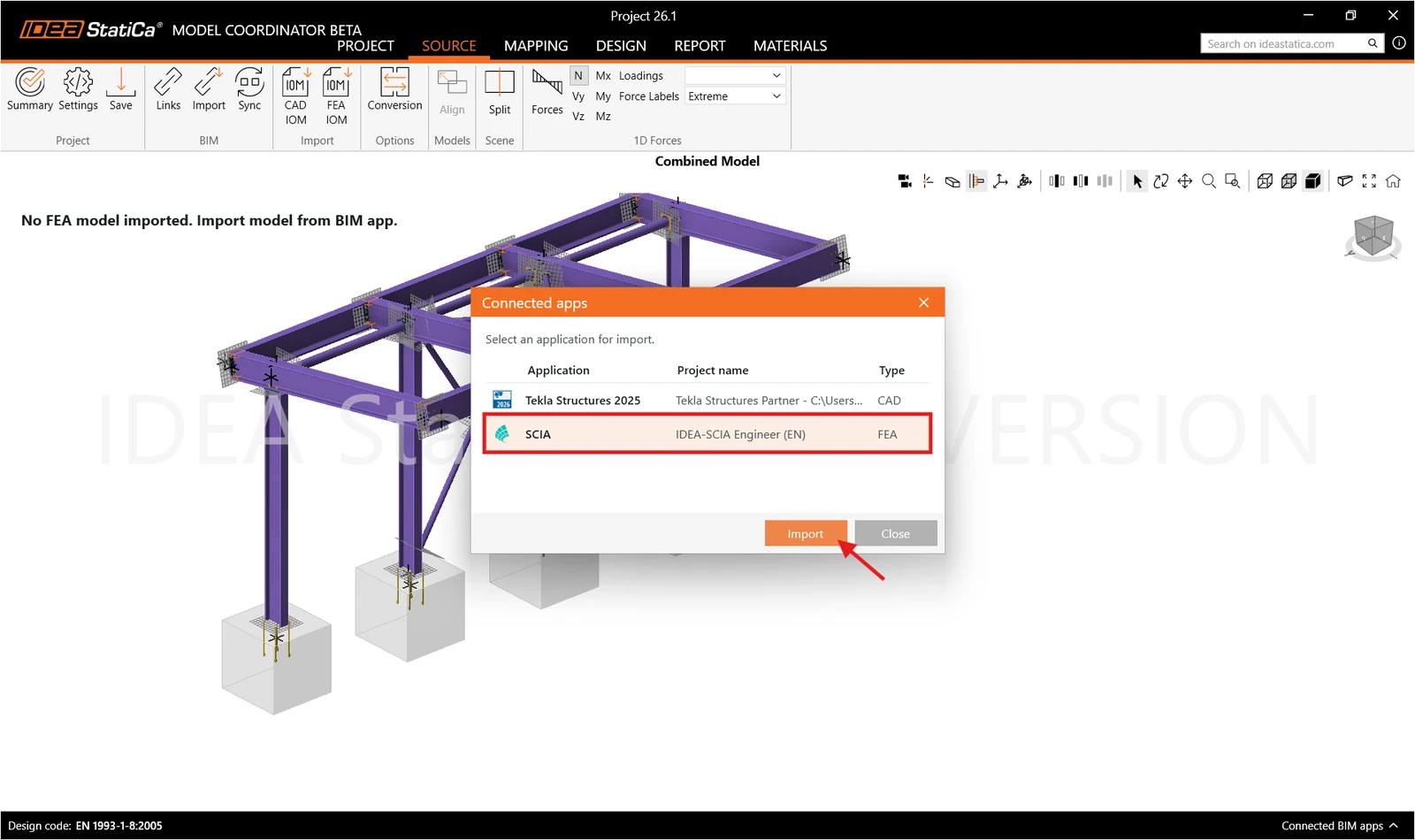
Click the Import button and select the application you want to import from.
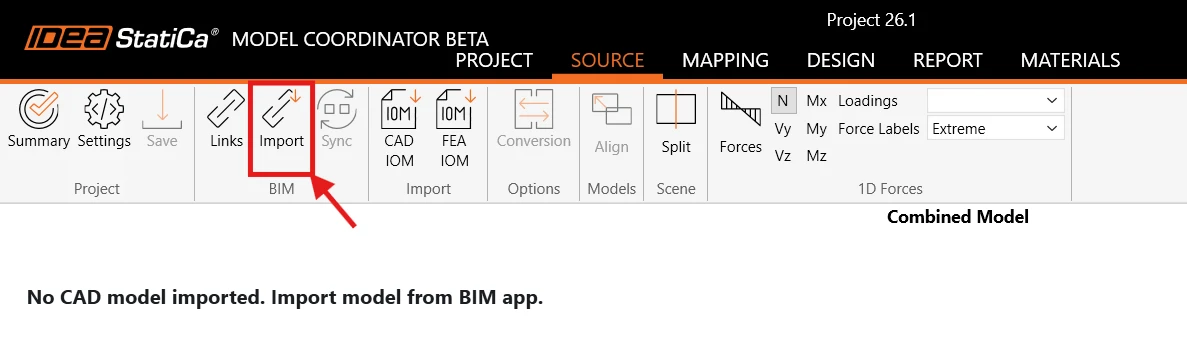
For CAD, you are asked to make a selection after you click on the “Import” command in Model Coordinator. Select the entire structure or only part of it in the CAD source application using area selection, and confirm the selection by pressing Enter. To cancel the import, press Esc.
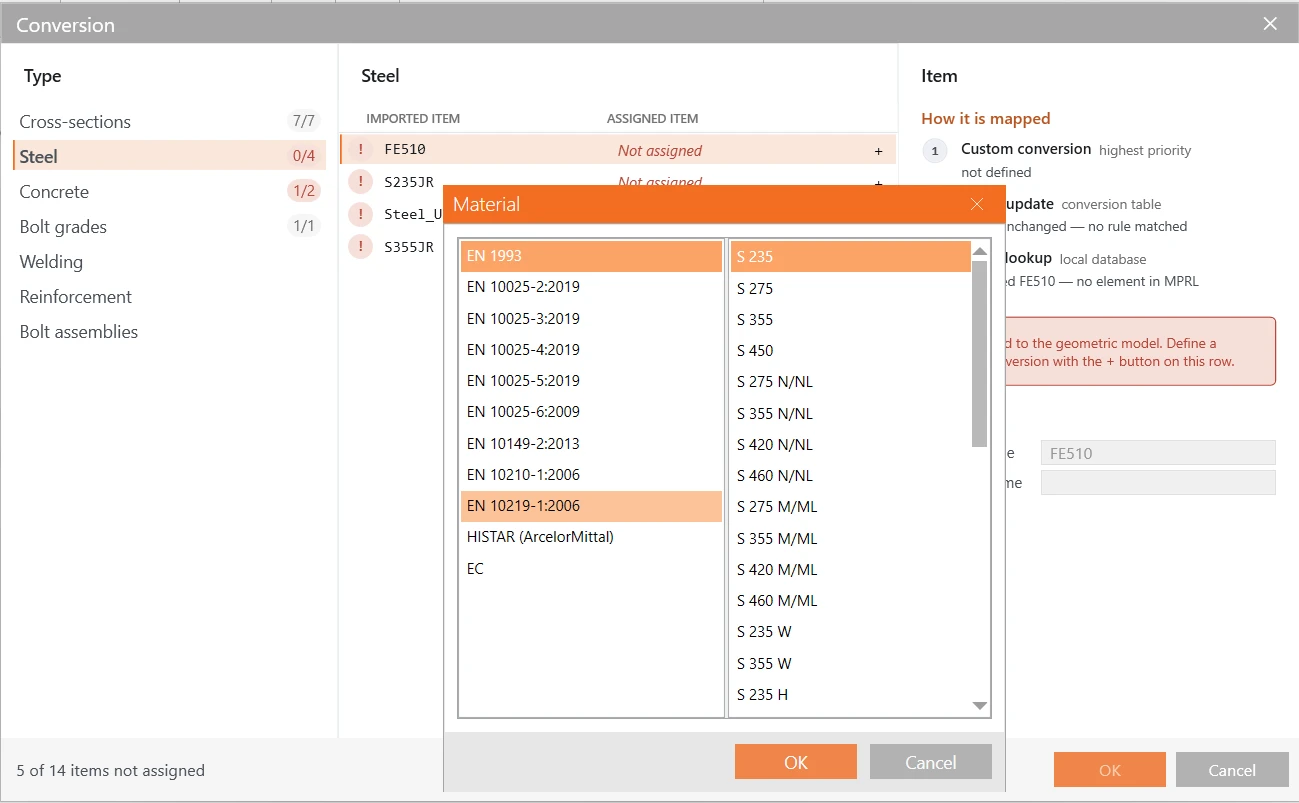
If there are unrecognized items, a conversion table appears.
For FEA, make sure your FEA model has been analyzed. Make a selection of the entire structure or only a part of it in the partner app before clicking the Import command in Model Coordinator. Clicking “Import” initiates data exchange for the active selection.
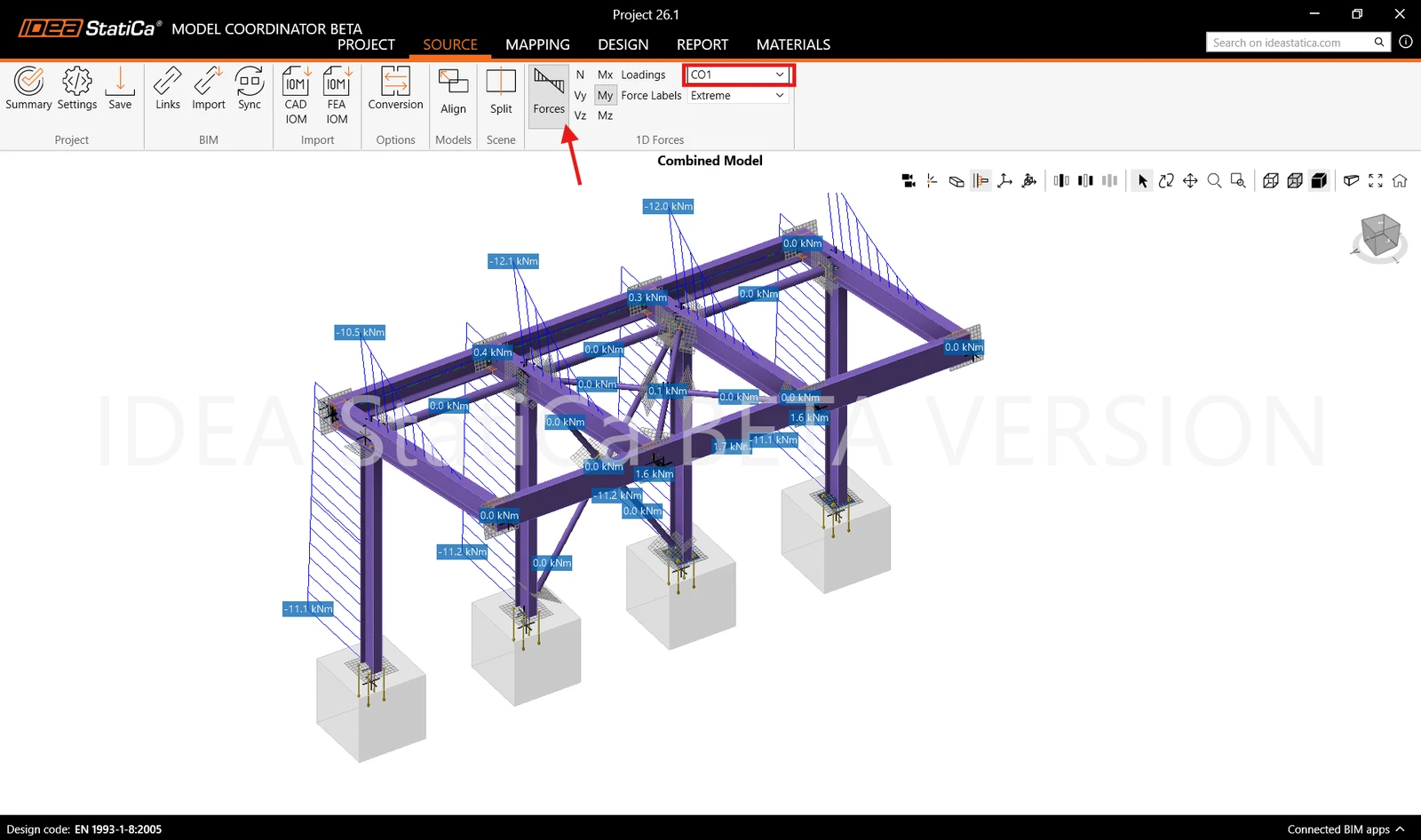
Visualize and check imported forces.
Both models are now displayed in the 3D scene, including CAD operations such as bolts and plates. To check models separately, click Split.
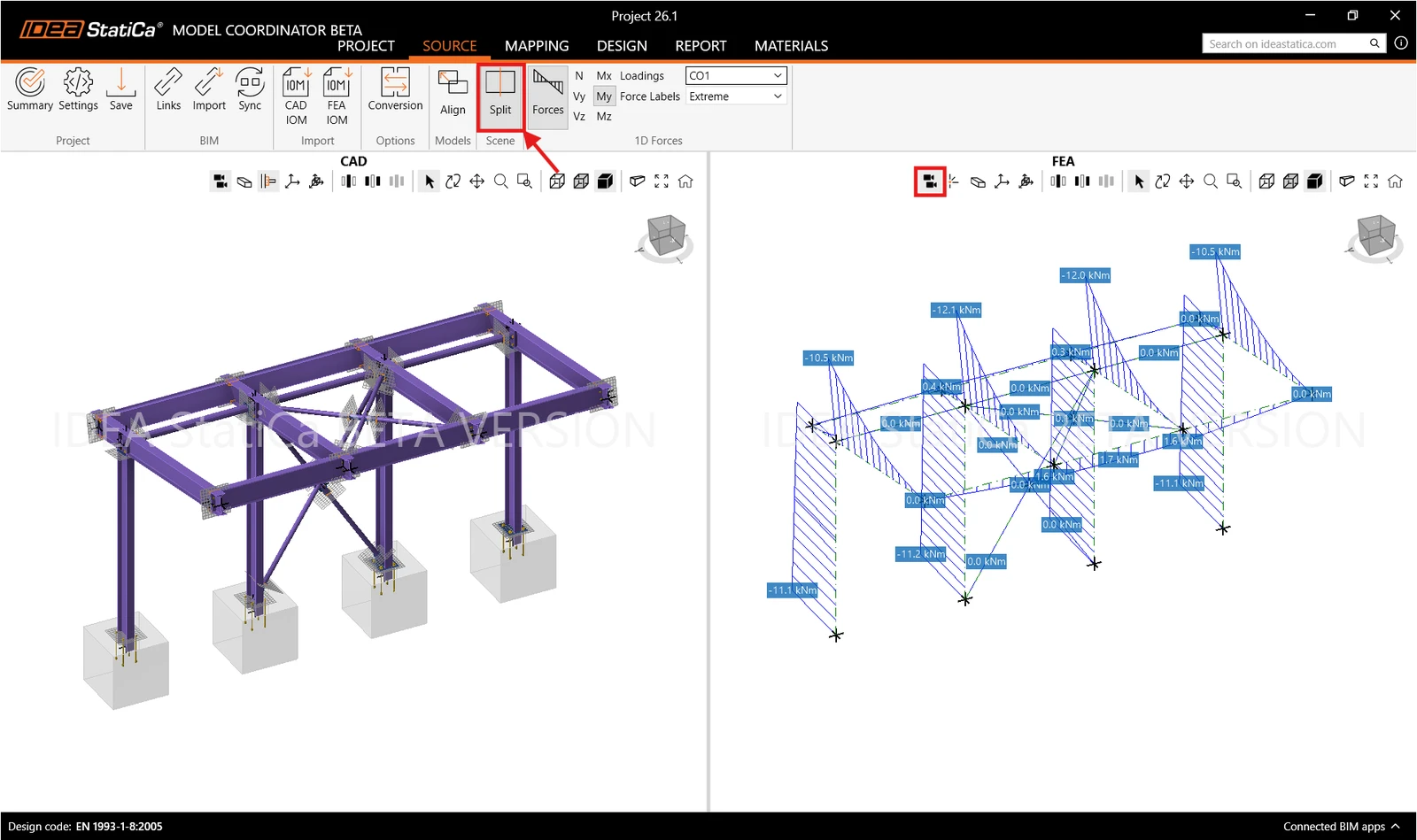
04. Alignment
To combine the CAD and FEA models, Model Coordinator needs to map CAD members to FEA members, and for that the members must overlap. CAD and FEA models are often built in different coordinate systems, so they need to be aligned first.
Model Coordinator always moves only the FEA model; the CAD model stays fixed.
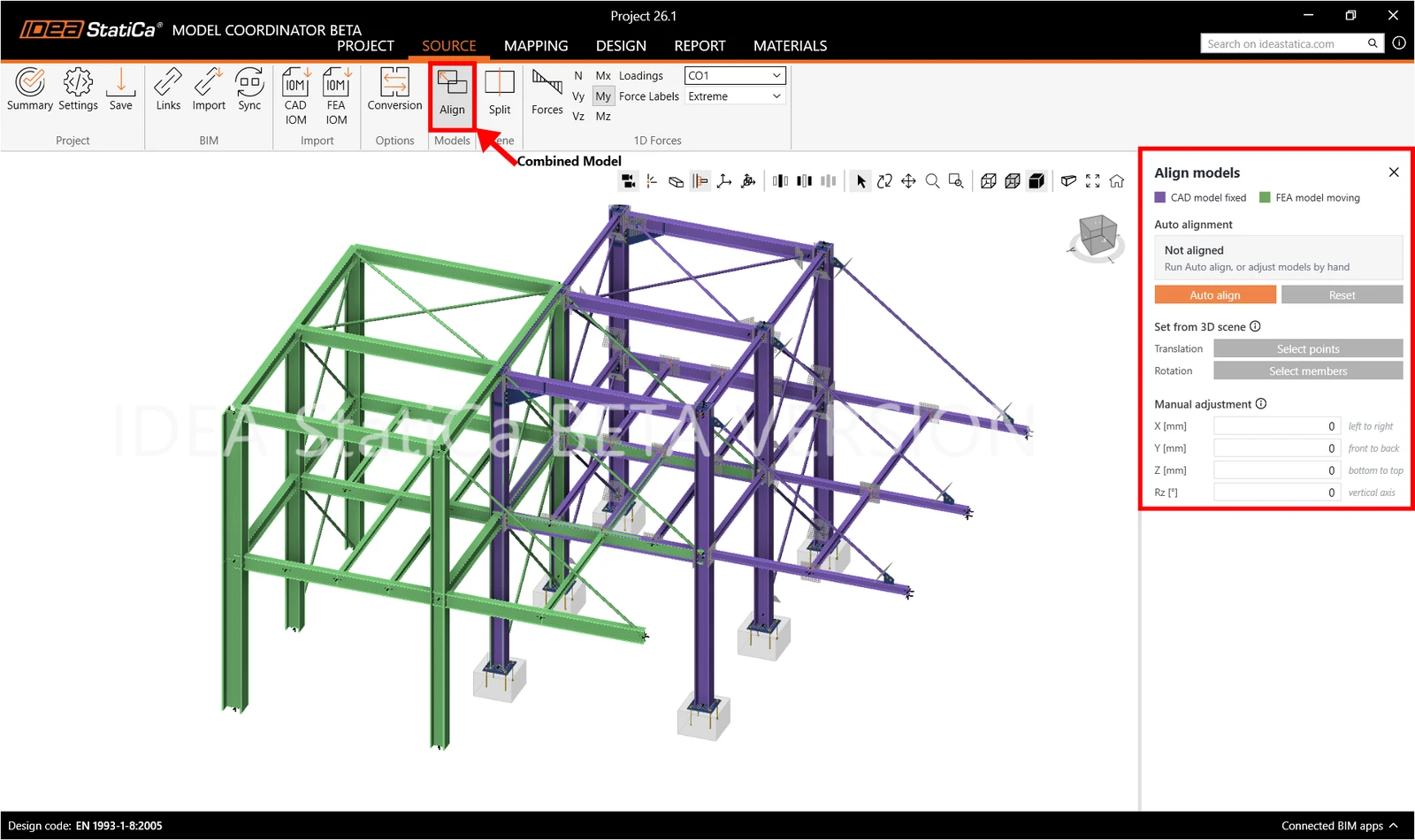
To do that, you can use:
- Auto Align: recommended as the first step. Model Coordinator checks if an ideal overlap position is available and applies translation (in the X-Y global plane) and rotation around the vertical axis (global Z).
- Translation and Rotation: defines alignment by selecting corresponding points in the 3D scene. App will guide you through the translation and rotation process.
- Manual Adjustment: enter the exact movement values numerically.
- Reset: reverts all alignment changes, both automatic and manual.
- You can also combine autoalign with manual adjustments.
05. Mapping between FEA and CAD
Once your CAD and FEA models are aligned, Model Coordinator needs to know which FEA elements belong to which CAD member, so it can transfer forces from the FEA model to the connections modeled in CAD. Running the mapping creates this relation at the level of 1D members.
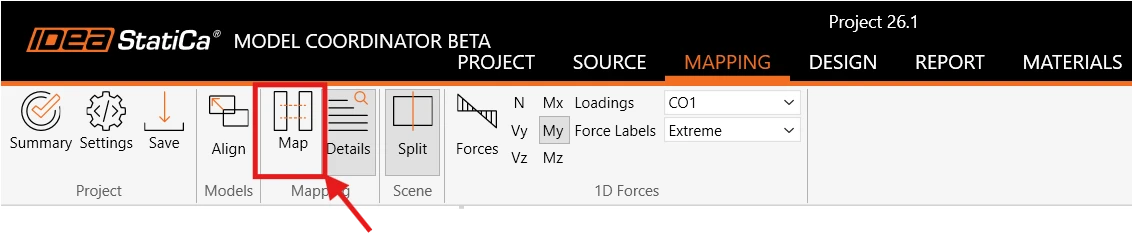
Make sure the models are aligned, then go to the Mapping tab and click Map.
Mapping sorts members into three categories:
- Mapped – the algorithm found a suitable pair with high confidence. No action needed.
- Review – a pairing was made, but the Model Coordinator recommends checking the result.
- Unmapped – no relation was found automatically. These members can still be paired manually.
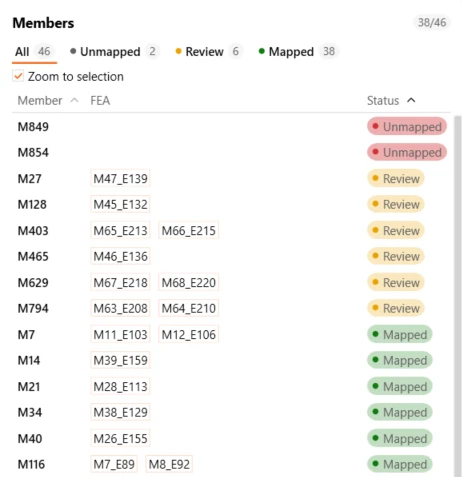
Reviewing mapping
Selecting a member in the Members list highlights mapped members. For easier orientation, member and node labels can be displayed in the scene, making it simpler to identify which elements you're looking at.
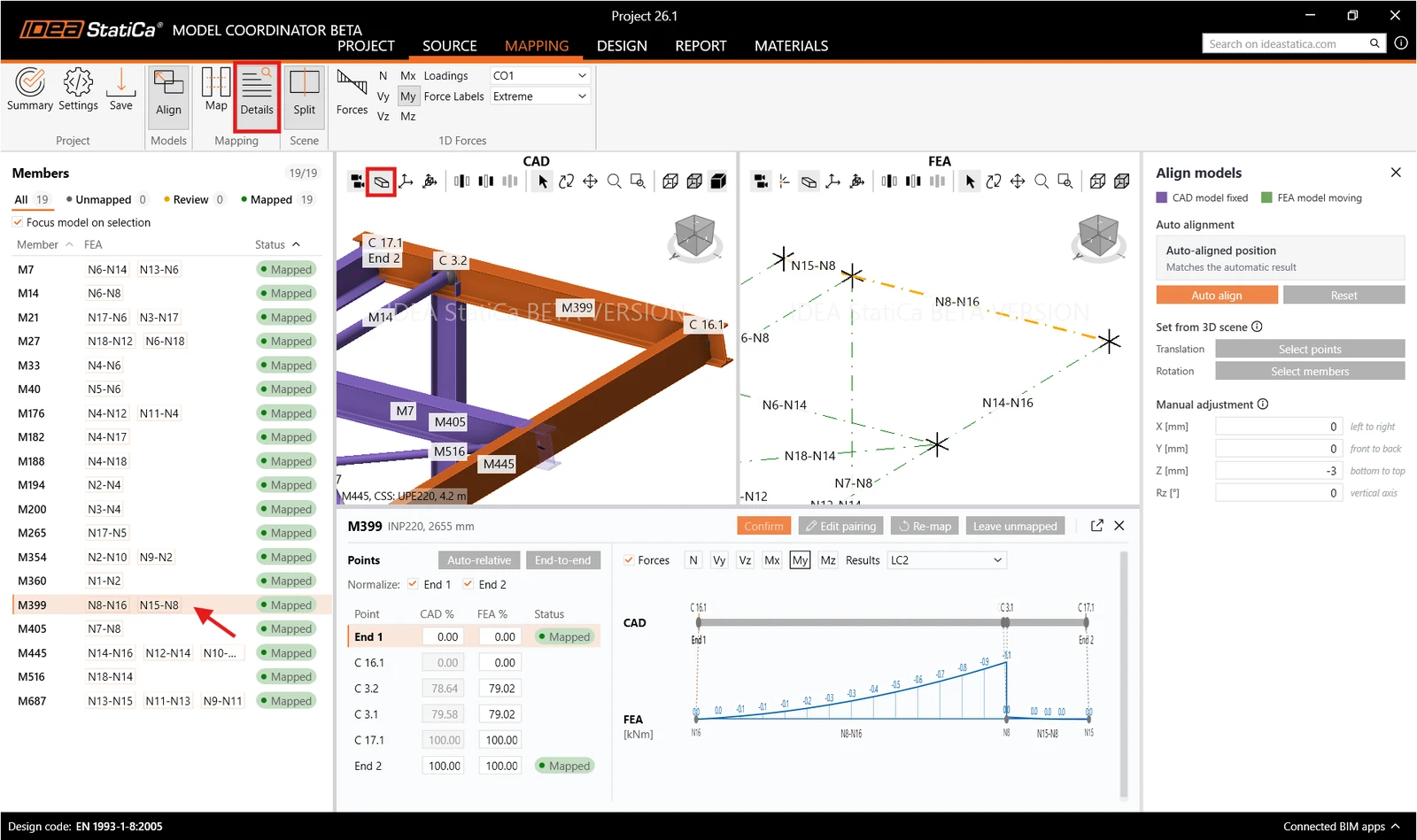
When a member is selected, the Mapping Details panel is displayed at the bottom of the screen.
Mapping can be adjusted manually:
- Auto-relative: Automatically maps a member end using relative positions. If one member extends beyond the other, the end of the shorter member is mapped to the corresponding perpendicular position on the longer member (e.g., 100% CAD = 80% FEA or 60% CAD = 100% FEA).
- End-to-end: Automatically maps CAD member ends to corresponding FEA member ends
- Snap to node: When a connection point is selected, it maps the nearest FEA node to the CAD node.
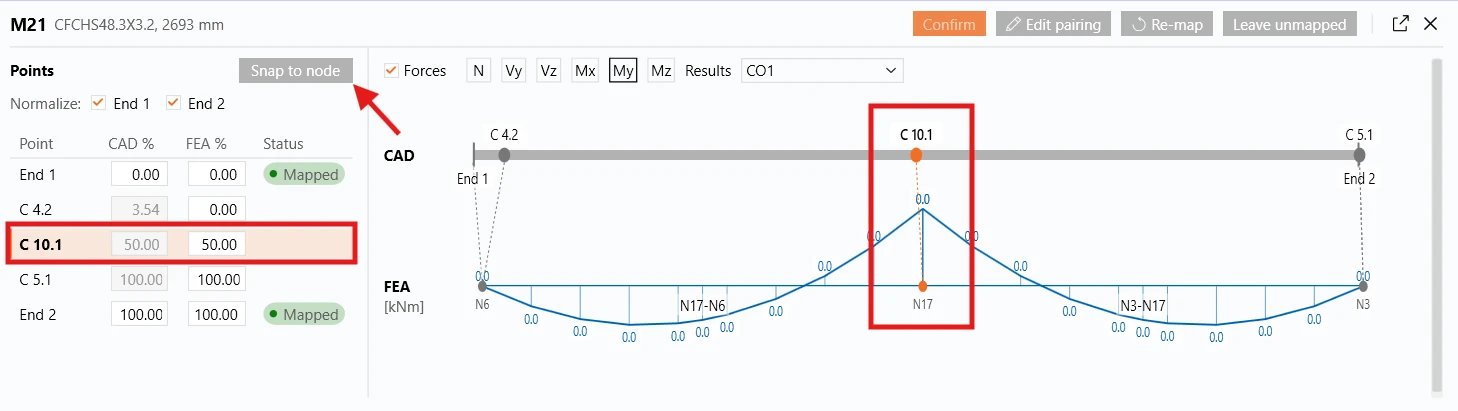
- Normalize check boxes: Indicate whether a CAD member end is considered shortened or extended to the expected connection point.
In a CAD model, members don’t always end exactly where they meet. In Tekla, for example, a member is often shortened to leave room for the connection. For the connection check, though, Model Coordinator needs to know where the members would theoretically meet. That’s what the Normalize checkboxes (End 1 and End 2) are for. Tick one, and the member end is adjusted to the expected connection point. Leave it unticked, and the member stays exactly as it was modeled.
06. Merge connections
When members are mapped, each connection is generated as a separate, individual joint. Therefore, a single column-beam-beam connection, for example, might appear as several separate connections. Therefore, you need to merge these into a single connection you want to check.
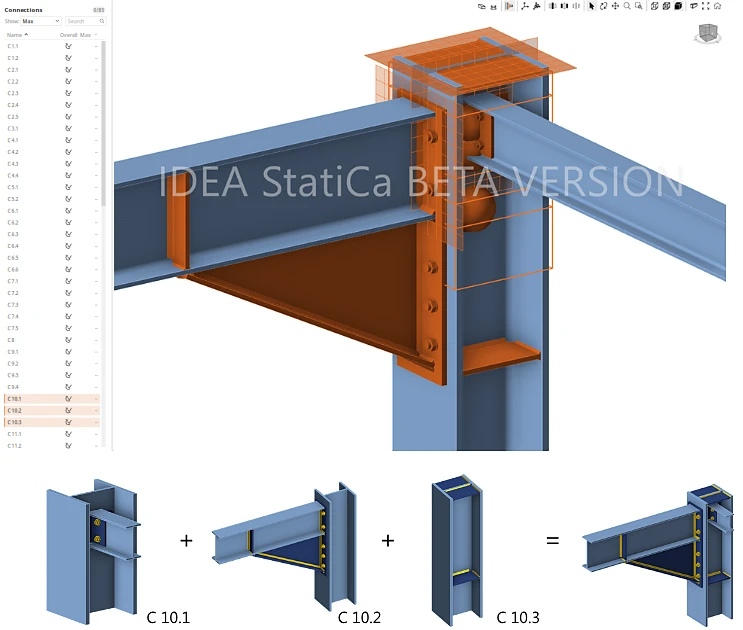
There are two ways to merge connections:
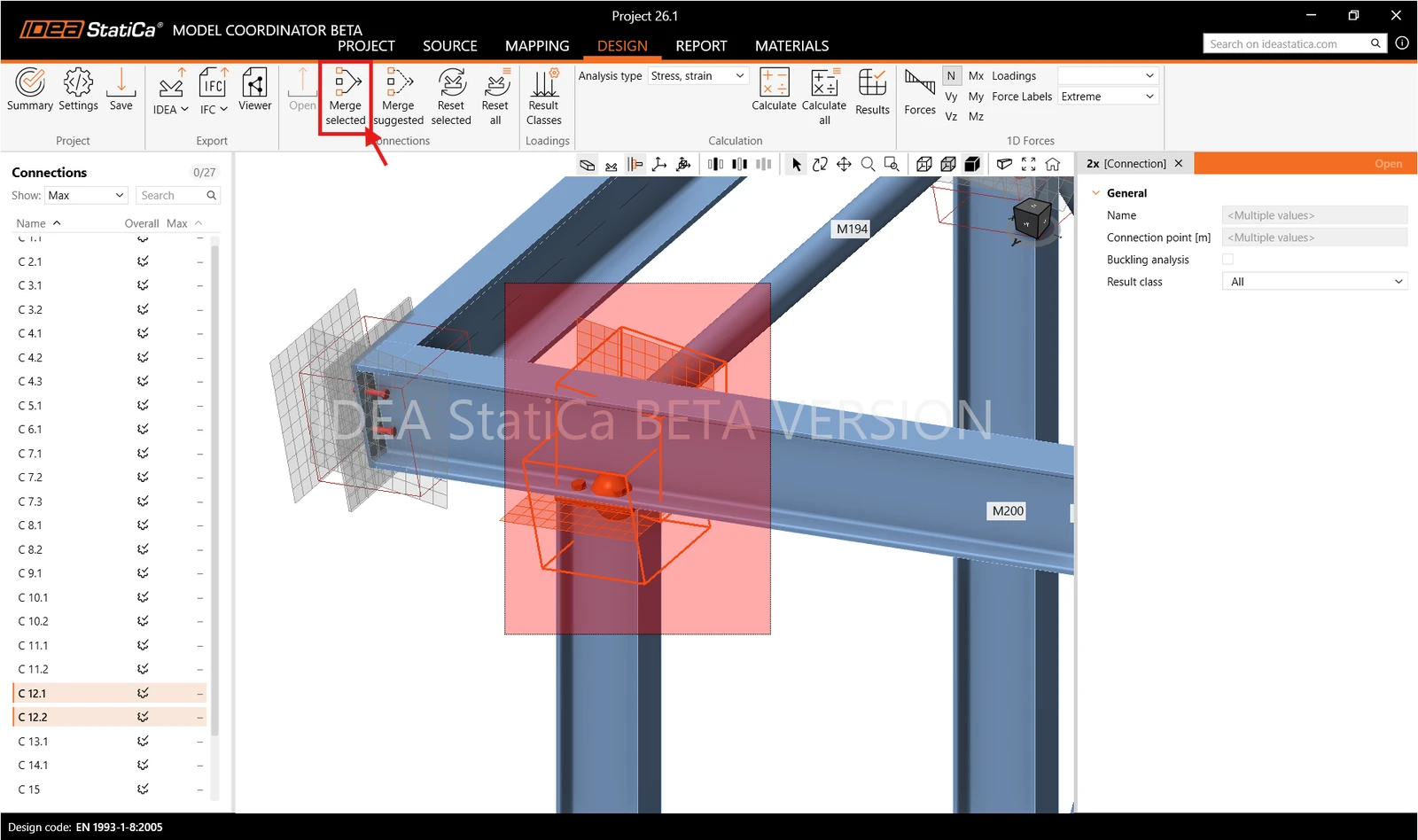
- Manually: select the connections you want to merge, then click Merge selected in the ribbon. Model Coordinator merges them into one connection and automatically determines the new connection point.
- Automatically: click Merge Suggested to open a dedicated tab. A slider at the top lets you set the maximum distance between the reference points of connections for them to be proposed as a merge group (up to 2000 mm).
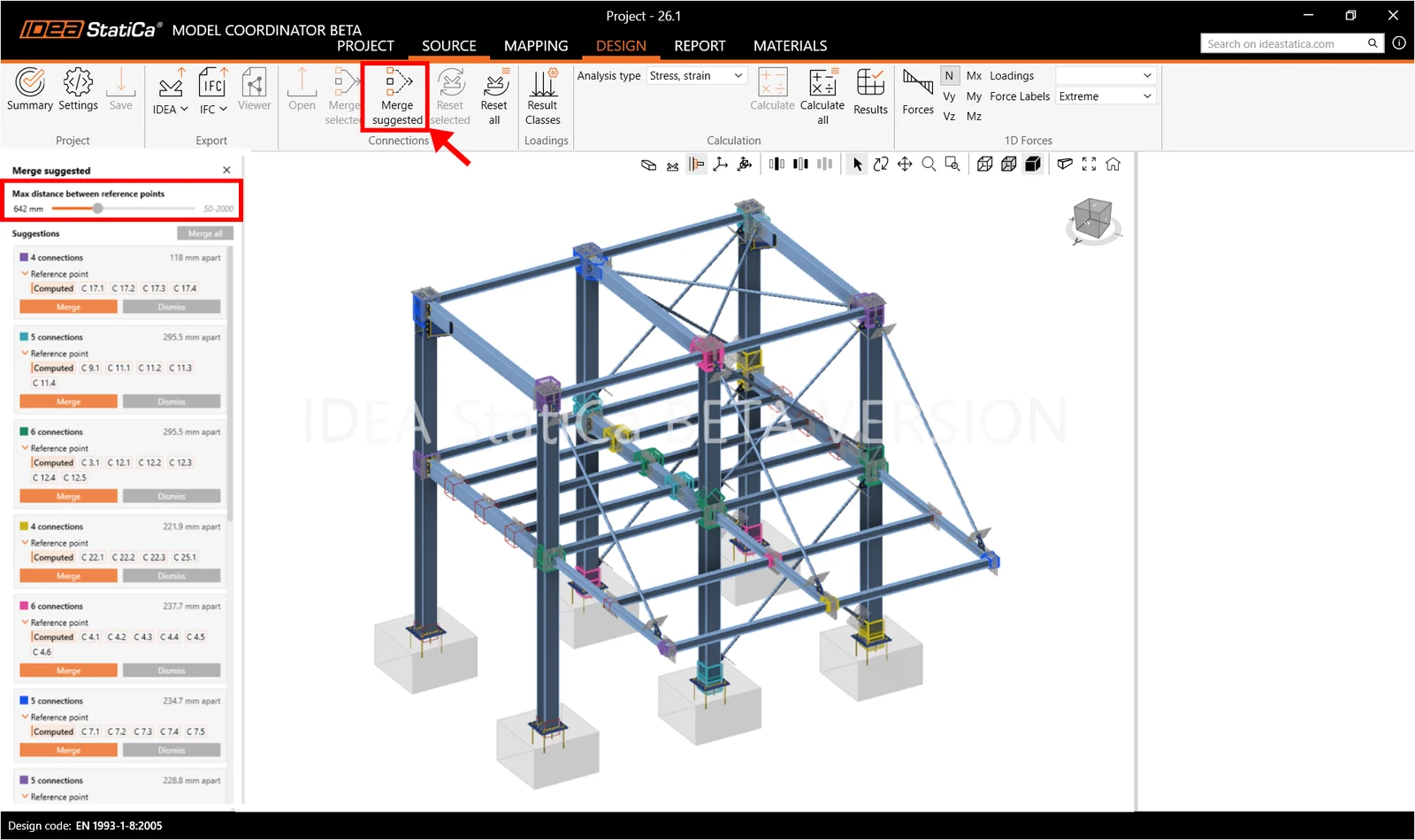
Merged connections can also be reset either individually by selecting a connection and clicking Reset Selected, or in bulk by clicking Reset All.
07. Results classes for checks
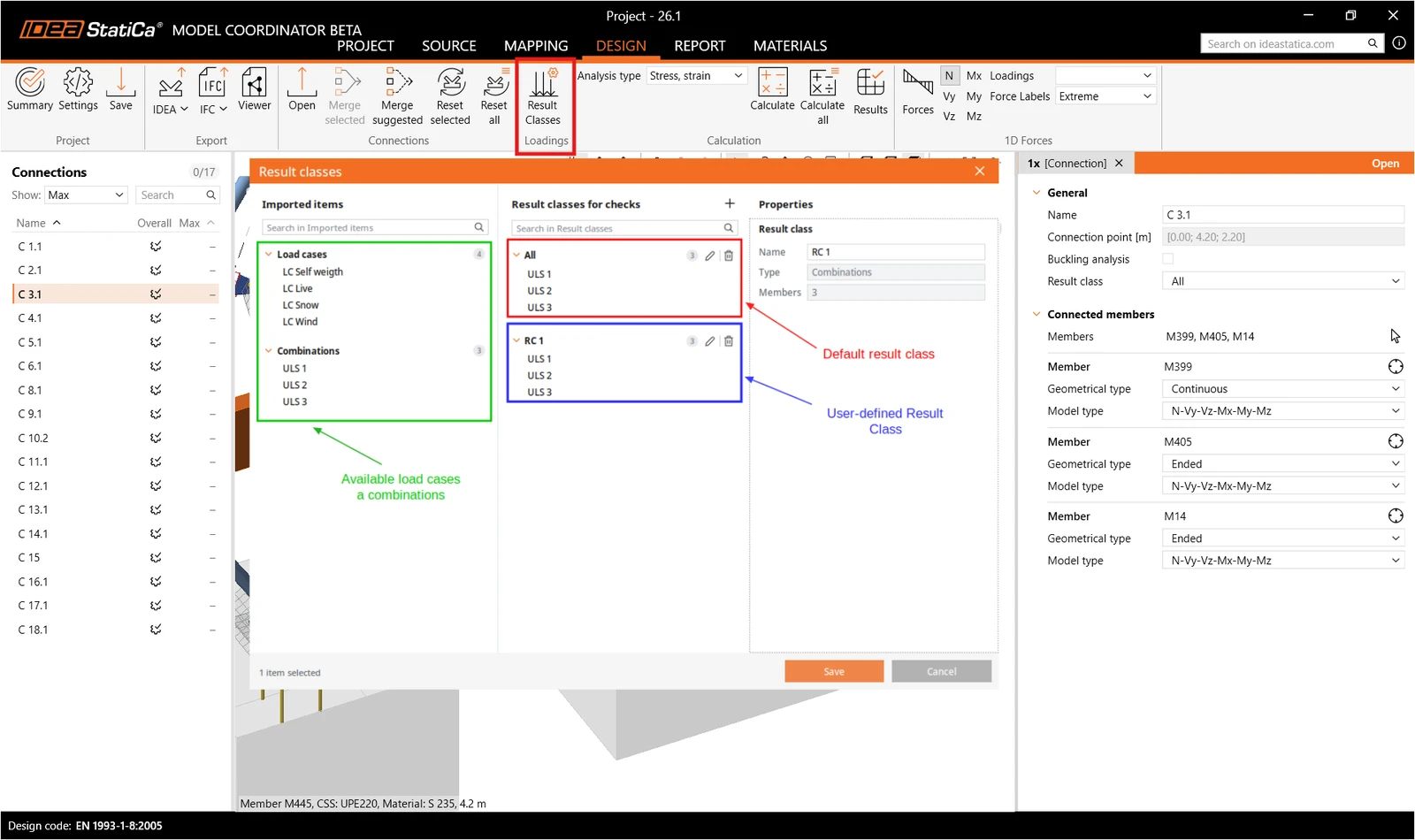
Result classes define which load cases and combinations are used for the checks. To review them, click Result Classes on the Design tab.
The window lists all load cases and combinations imported from the FEA model on the left. By default, one result class containing all of them is created automatically. To check connections against only some of them, click the + button to add a new result class, then drag and drop the load cases and combinations you want into it.
To apply a result class, select a connection and choose it in the Result class property.
08. Open, check and calculate connections
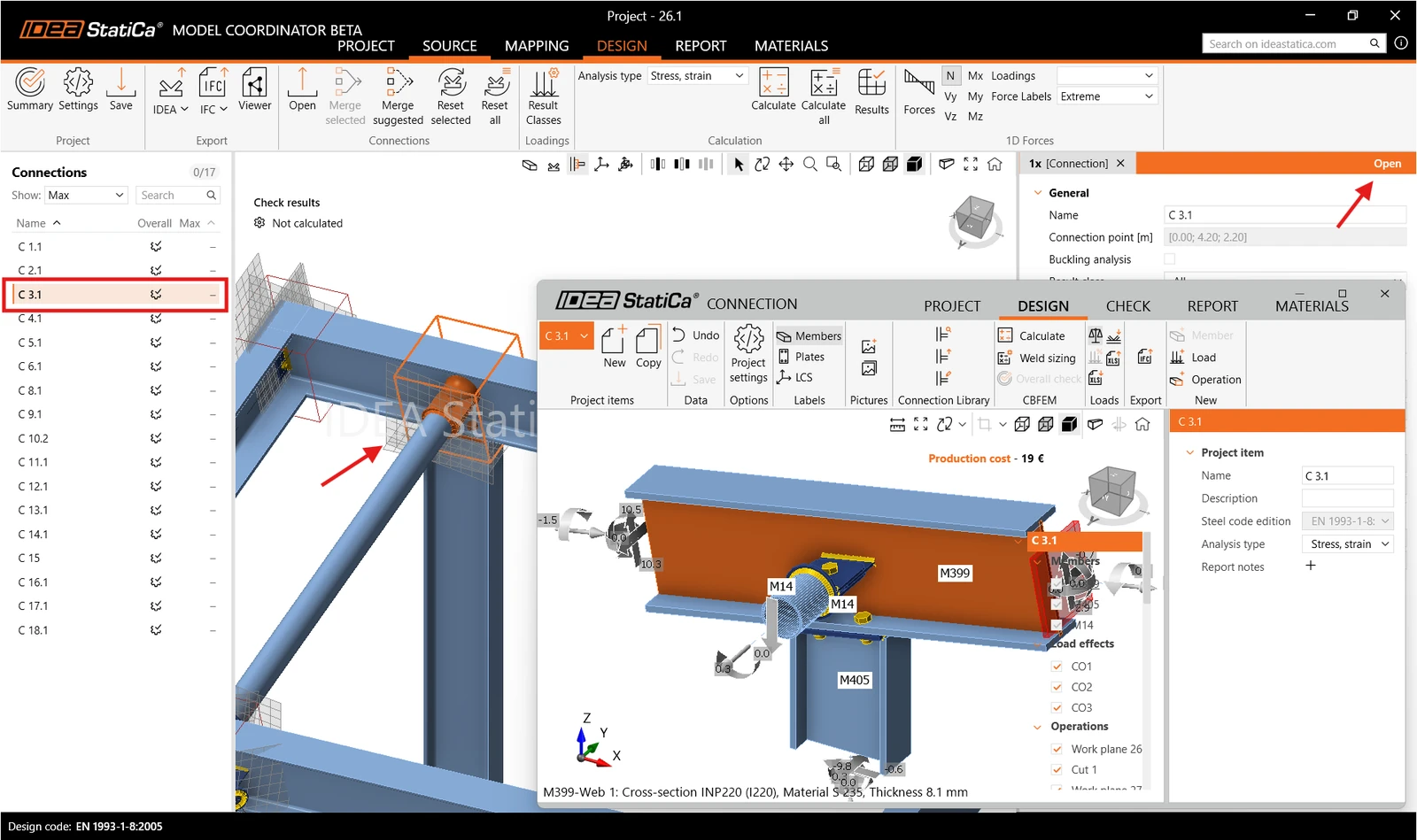
Open a connection, review it, and run the analysis. To calculate without opening connections, select the analysis type in the ribbon and click Calculate or Calculate All.
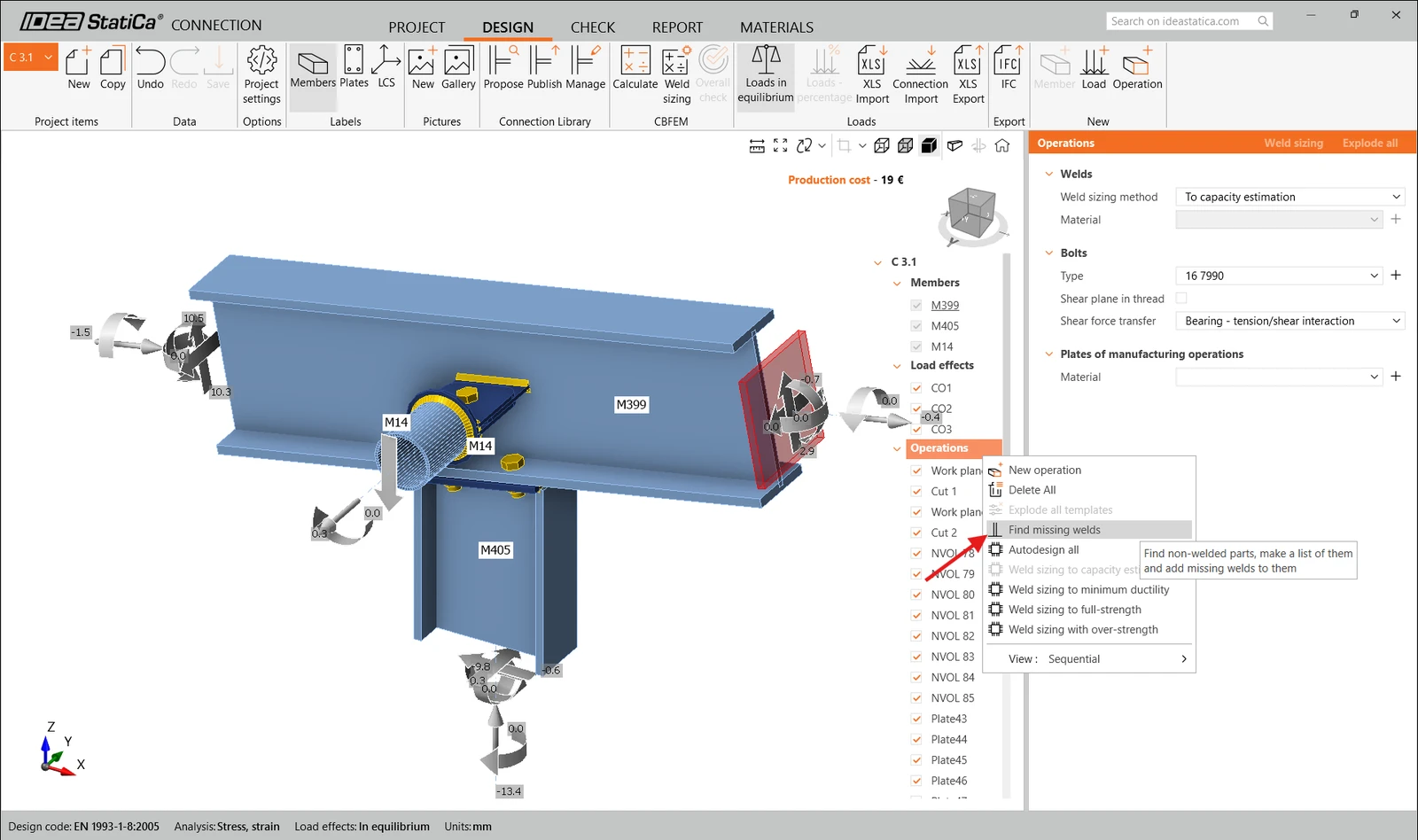
Tekla Structures can occasionally miss welds during import, so before analyzing, we recommend right-clicking on Operations and selecting Find missing welds to catch and add any welds that weren't transferred correctly.
09. Exports
By selecting connections either in the Connections tab or directly in the 3D scene, you can export IDEA StatiCa Connection projects to:
- IDEA Connection file
- IFC (single, multiple, complete model)

10. Report
Once you have analyzed some or all connections, go to the Report tab to set up and generate the project report.
In the list on the left, tick the connections you want to include in the report. To include only analyzed connections, select Calculated only. You can also include project data, software information, and the theoretical background.
To adjust the content of the Report, click Settings to change the report language or choose which items appear, such as drawings, formulas, explanations, bill of materials, and cost estimation.
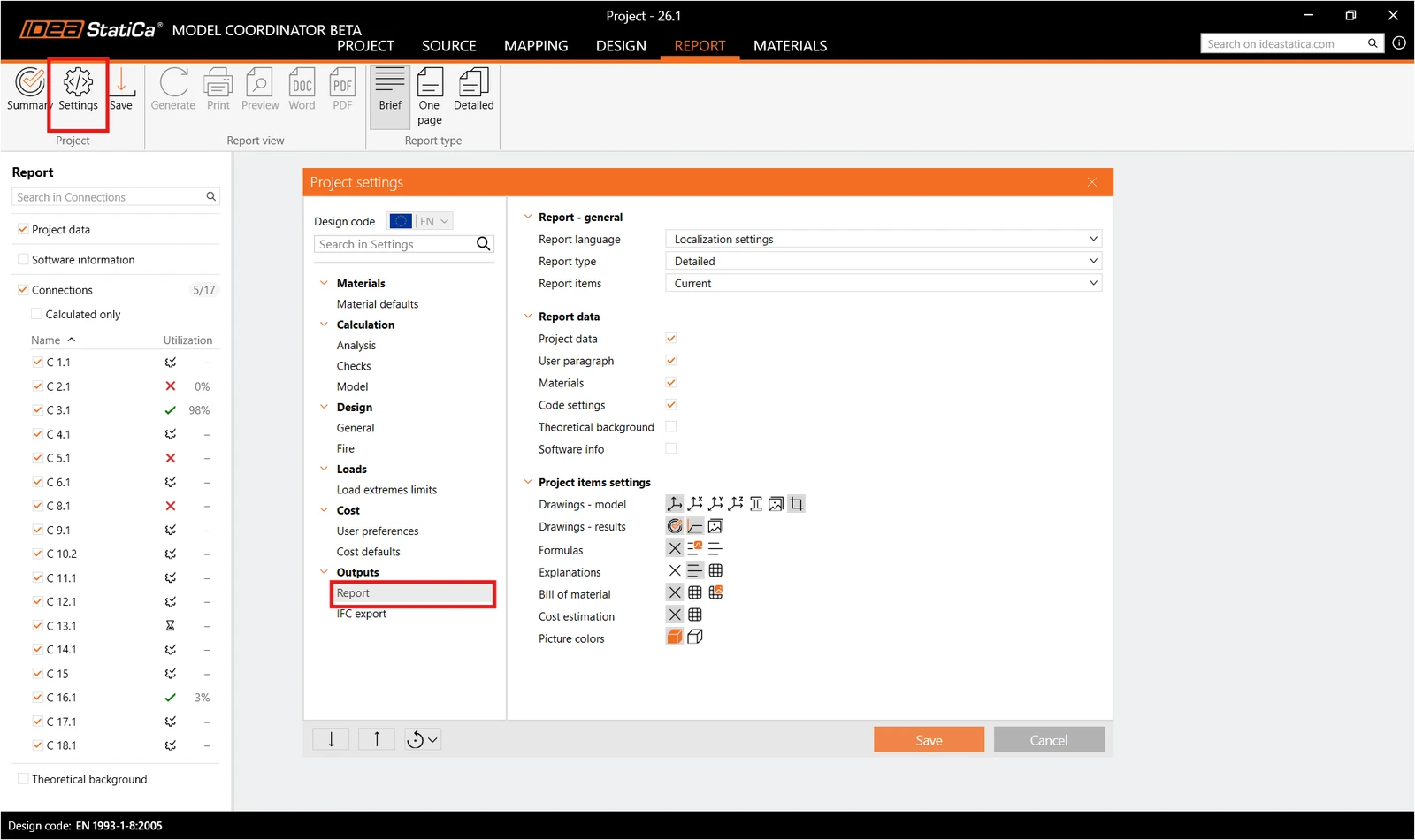
Before generating the report, you can set which connections are included in the report. In the right panel, choose whether to include all connections in the project or only the ones that have been calculated, or manually select individual connections to include in the export.
11. Sync
When you change a model in your CAD or FEA application, you don't need to import it again. Click Sync on the Source tab, choose the connected application you want to synchronize, and Model Coordinator updates the entities it already knows.
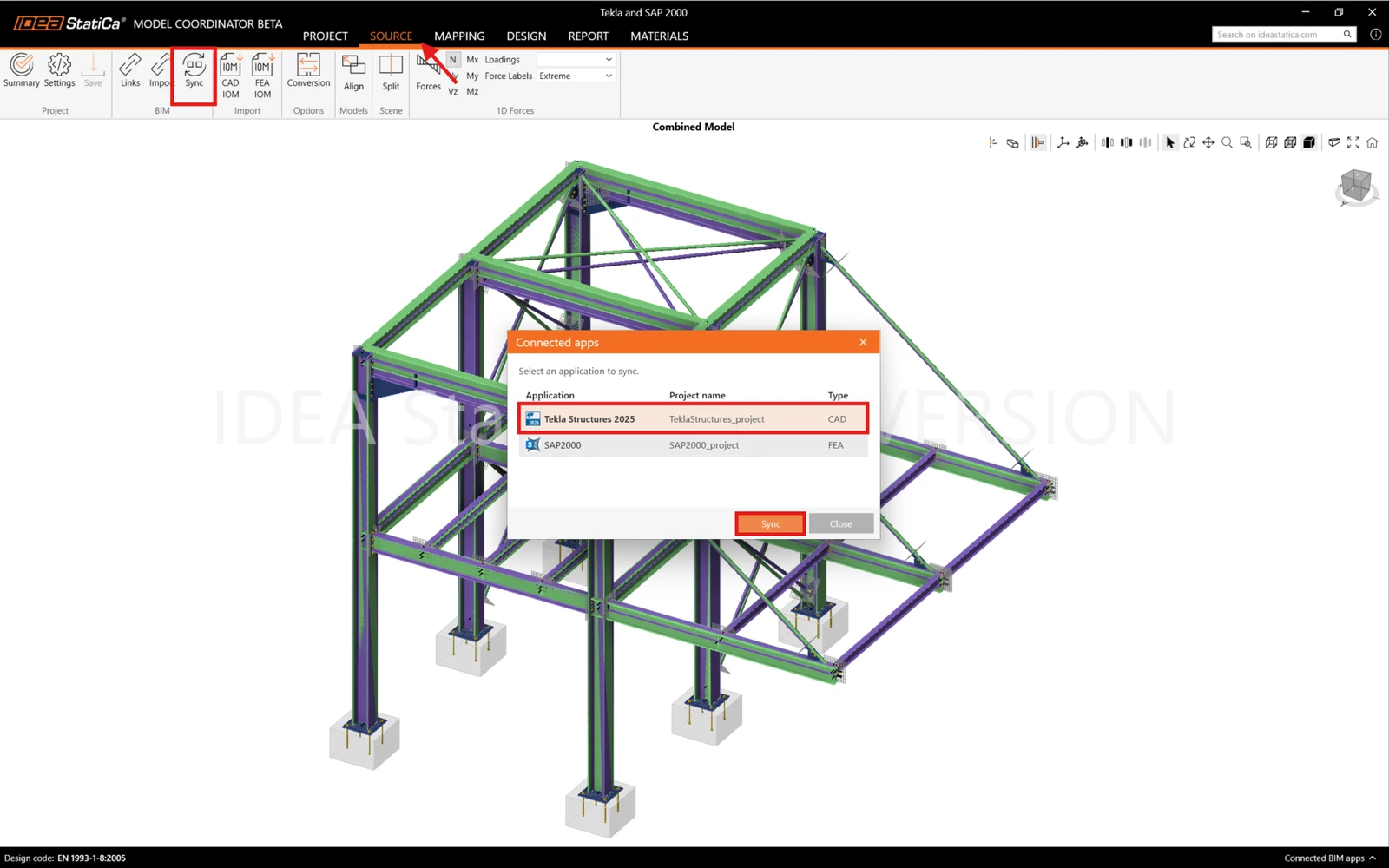
Sync updates only entities that have already been imported:
- If you change the properties of a macro or a member, use Sync.
- If you delete a macro in Tekla and define a new one, Model Coordinator doesn't know the new objects. Import the connection again instead.
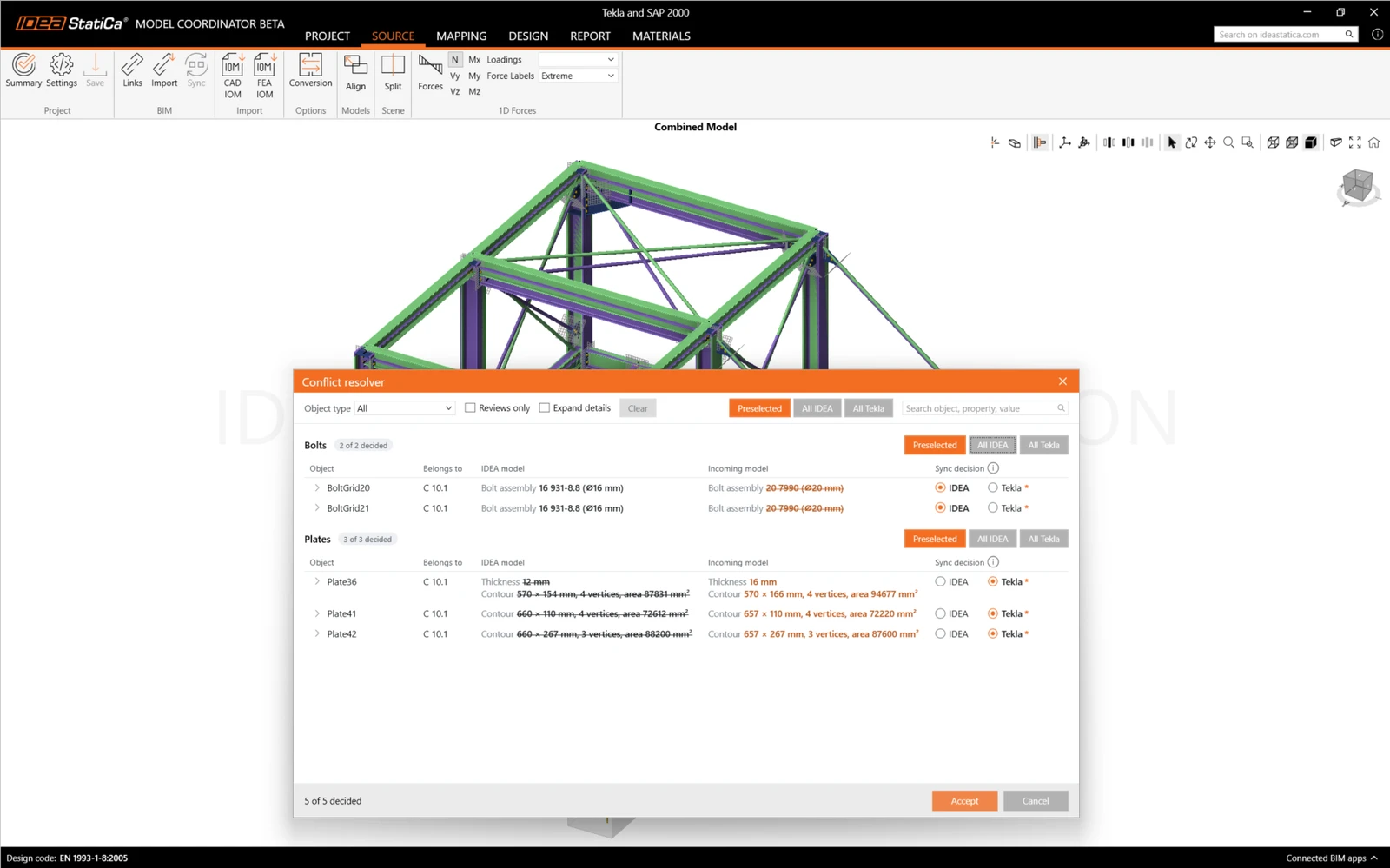
If Sync detects conflicts, the Conflict Resolver opens. It shows which changes are about to be made to your model, and you can accept (Tekla) or reject them (IDEA).
Supported design codes and partner software
Supported codes:
- EN
- AISC
- CSA
- AS
- SP
- GB
- IS
- HKG
Linked partner software:
Note: Release in IDEA StatiCa version 26.1