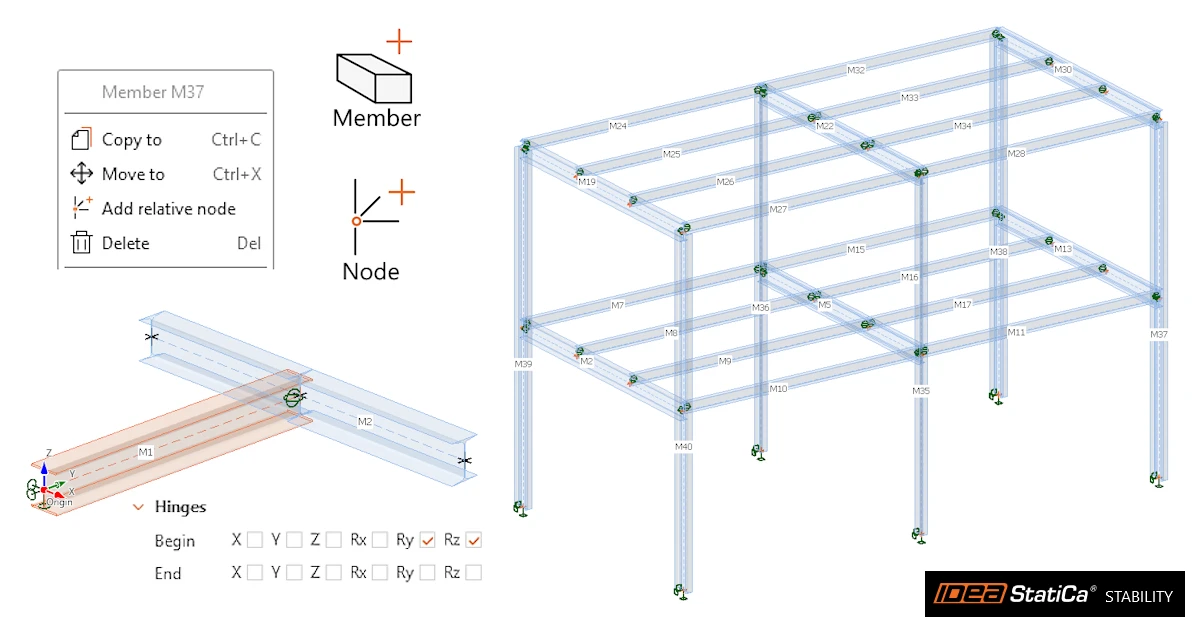


The structural model in IDEA StatiCa Stability is a frame model made of 1D beam elements with 6 degrees of freedom per node, created in the Model tab. Follow the sections below to build your structural model from scratch.
Adding members
Members are added directly in the 3D scene. Click Member button in the ribbon group New to start the drawing mode. Alternatively, right-click Members in the tree in the 3D scene and select New member.

Start point. Move the cursor in the scene. The cursor snaps to existing points and shows their name and coordinates, e.g. Origin 0.00, 0.00, 0.00 m. Click to place the start point of the member. Alternatively, type the coordinates of the start point X, Y, Z and press Enter.
Tracing along a global axis. When you move the cursor from the start point approximately parallel to a global axis (X, Y or Z), the program locks the direction and displays a dashed trace line with a dimension line. A tooltip shows the current traced distance, e.g. Trace Z 3.10 m. The dimension line is colored according to the axis: red for X, green for Y, blue for Z.
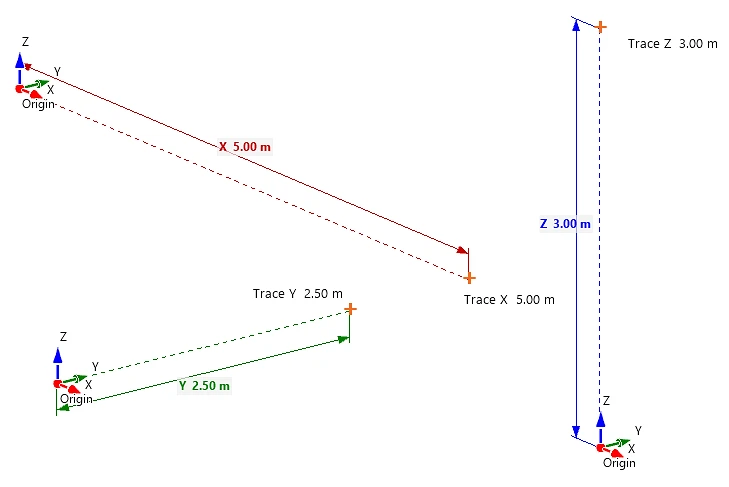
Entering the exact length. While the trace is active, type the required length on the keyboard. The value is locked (e.g. Trace Z 4 m) regardless of the cursor position. Press Enter to confirm the end point. There is no need to click into an input field, you just type.
Entering a general direction. For members that are not parallel to a global axis, type the coordinate increments ΔX, ΔY, ΔZ and press Enter.
Continuous drawing. When the end point is confirmed, the member and both end nodes are created automatically, e.g. member M1 with nodes N1 and N2. The new members and nodes appear in the model tree in the 3D scene.
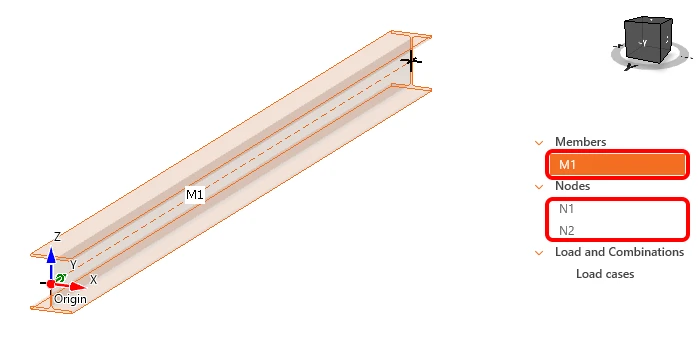
The drawing mode continues from the last end point, so the next member starts there. A frame can therefore be drawn in one sequence: column up, beam across, column down.
Snapping to existing geometry. While drawing, the cursor snaps to existing nodes and to points on existing members. These include characteristic points such as mid point, 1/4 point and 3/4 point, or an arbitrary point On member. The tooltip shows the type of snap and its position.
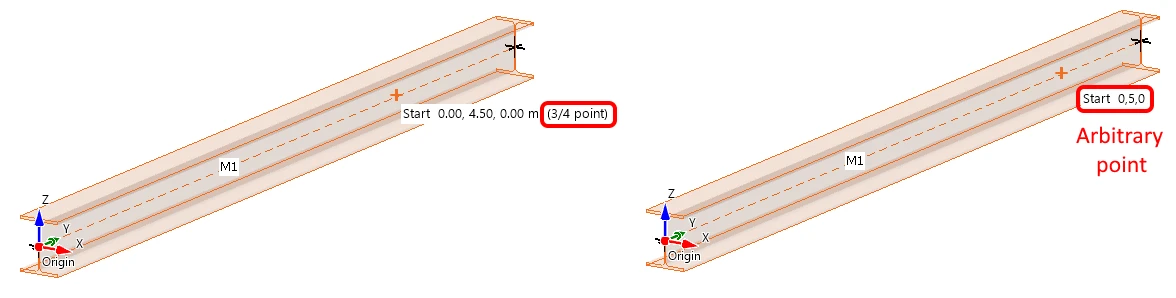
Adding nodes
Nodes are added directly in the 3D scene. Click Node button in the ribbon group New to start the drawing mode. Alternatively, right-click Nodes in the tree in the 3D scene and select New node.

Nodes at member ends. Nodes at the ends of members are created automatically while drawing members (see Adding members). They are labelled N1, N2, … and listed under Nodes in the model tree.
Adding relative nodes
Relative nodes on a member. To add a relative node at an arbitrary position on an existing member, right-click the member in the 3D scene and select Add relative node from the context menu. The new node is labelled IN1, IN2, … and appears under Nodes in the model tree. The node does not split the member, e.g. member M1 remains a single member with nodes IN1 and IN2 on it.
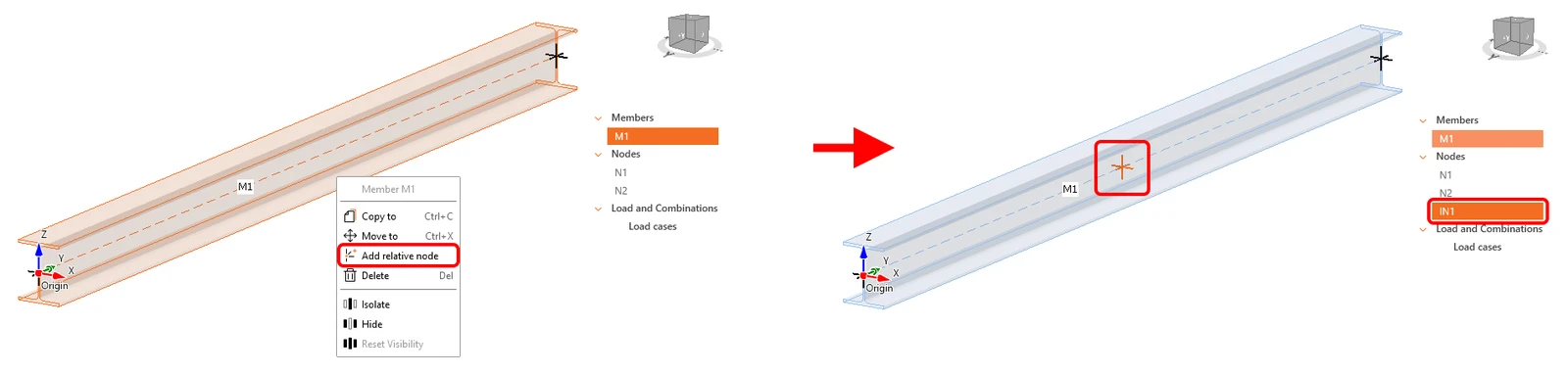
Operations with members and nodes
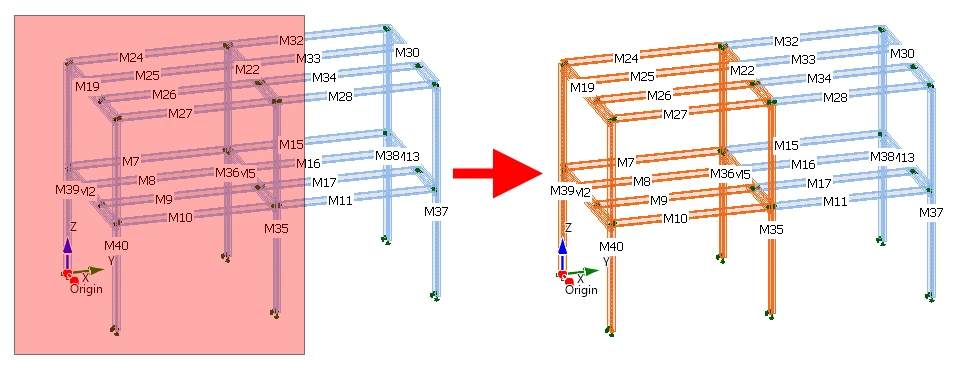
Selecting objects. Members and nodes can be selected by clicking them in the 3D scene, either directly on the model or in the tree. Several objects can be selected at once by dragging a selection rectangle in the 3D scene, or by holding Ctrl and clicking individual objects. The selected objects are highlighted on the model and in the tree.
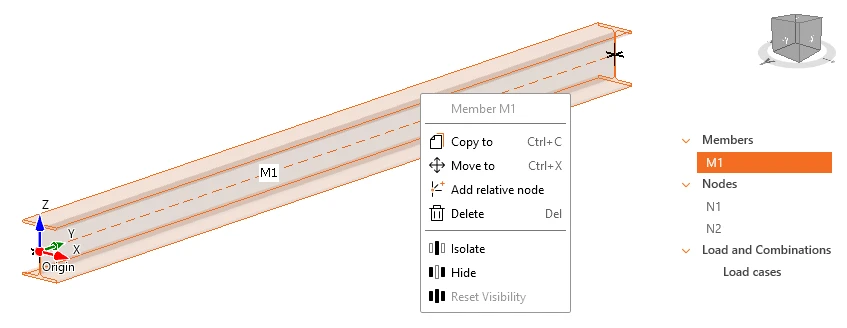
Context menu. Right-click a selected object in the 3D scene to open the context menu. The header of the menu shows the selected object, e.g. Member M1, or Members when more objects are selected. The menu contains these commands:
| Command | Shortcut | Description |
| Copy to | Ctrl+C | Copies the selected objects to a new position |
| Move to | Ctrl+X | Moves the selected objects to a new position |
| Add relative node | – | Adds a node on the member (see Step 2) |
| Delete | Del | Deletes the selected objects |
| Isolate | – | Displays only the selected objects |
| Hide | – | Hides the selected objects |
| Reset Visibility | – | Displays all hidden objects again |
Copy to. Select the objects to be copied, e.g. a whole frame including its members and nodes. Then select Copy to in the context menu or press Ctrl+C. The program asks for two points:
A. Reference point: Select start point, or type X, Y, Z + Enter. Click a point in the 3D scene, using the same snapping as when drawing members, or type its coordinates and press Enter.
B. Target point: Select target point, or type a distance or ΔX, ΔY, ΔZ + Enter. Tracing works the same way as when drawing members. Trace the direction along the X, Y or Z axis, type one of the inputs below and press Enter. For a general direction, type the increments ΔX, ΔY, ΔZ.
| Input | Result |
6 | Single copy at a distance of 6 m in the traced direction |
6*3 | 3 copies at a constant spacing of 6 m (at 6, 12 and 18 m from the reference point) |
3 5 7 | Copies at different distances, entered in sequence and separated by a space |
4/5*3 | The length of 4 m is divided into 5 segments and 3 copies are created with a step of 1/5 of the length (at 0.8, 1.6 and 2.4 m from the reference point) |
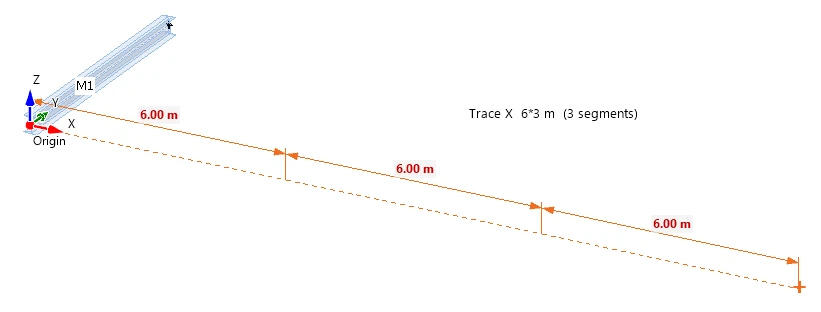
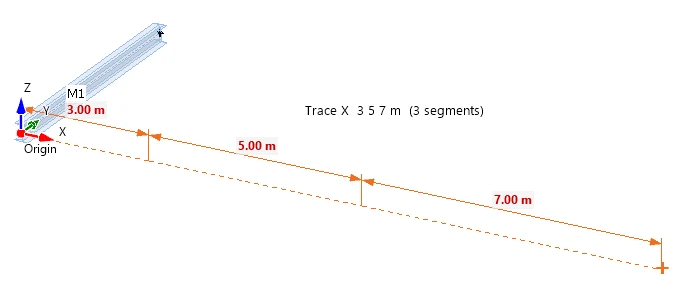
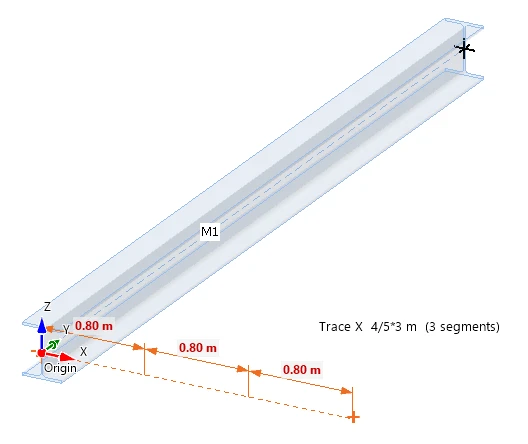
The copies keep the properties of the original objects, e.g. cross-sections and supports in the nodes.
Editing member properties
Select a member in the 3D scene or in the tree in the 3D scene. Its properties are displayed in the property grid on the right. The header of the property grid shows the number of selected members, e.g. Members (1), and contains the buttons Copy to and Delete.
When more members are selected, the header shows their number, e.g. Members (2). Properties with different values are displayed as <Multiple values>, and a changed value is applied to all selected members.
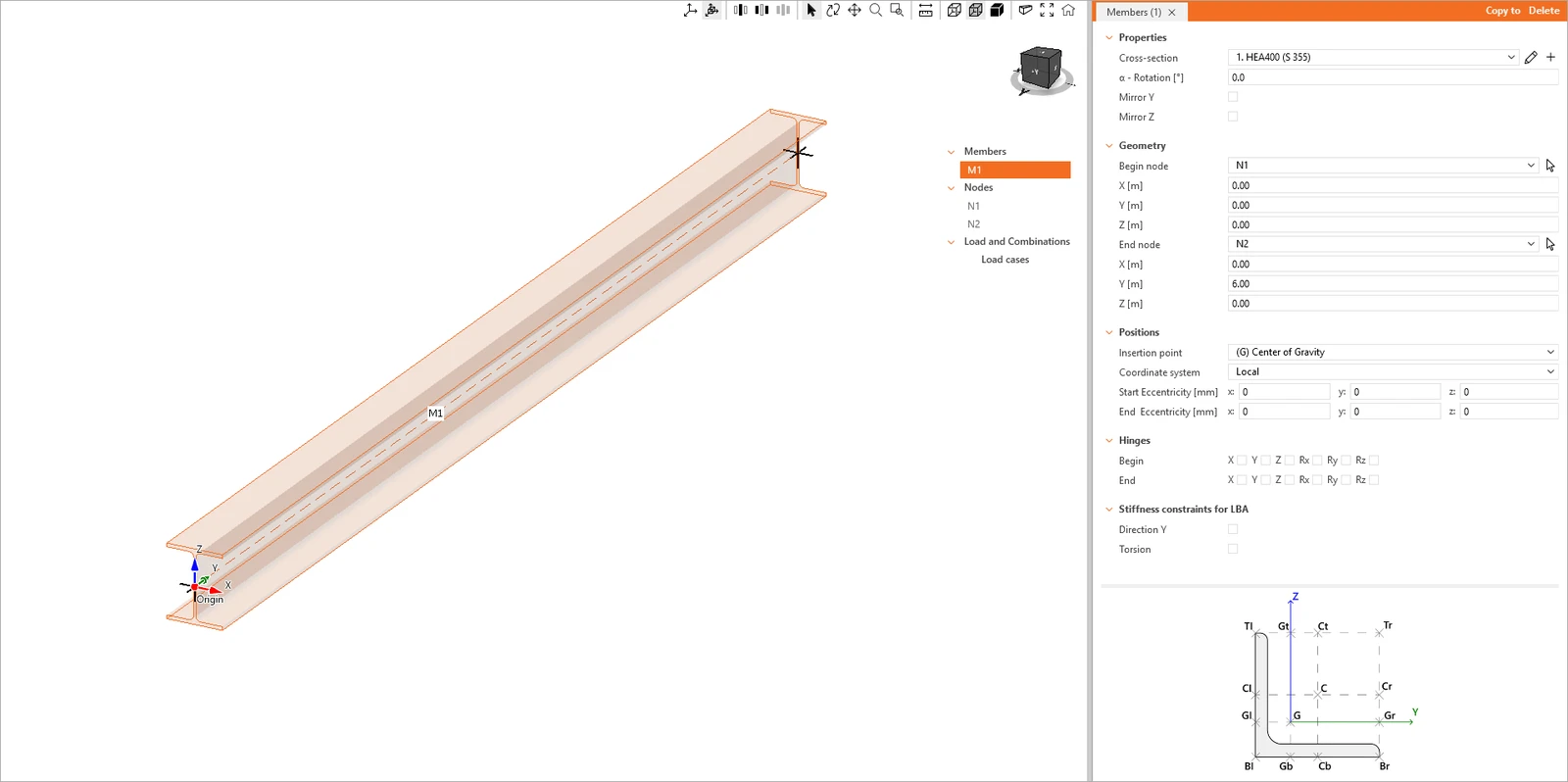
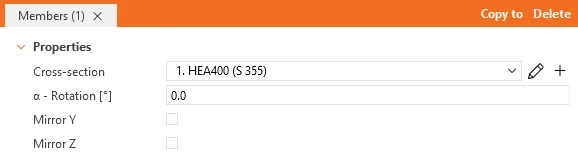
Properties
The cross-section of the member is selected from the list of cross-sections defined in the project, e.g. 1. HEA400 (S 355). The pencil icon next to the list edits the selected cross-section, and the + icon adds a new one. The cross-section can be rotated about the member axis by the angle α – Rotation [°]. The options Mirror Y and Mirror Z mirror the cross-section about its Y or Z axis.
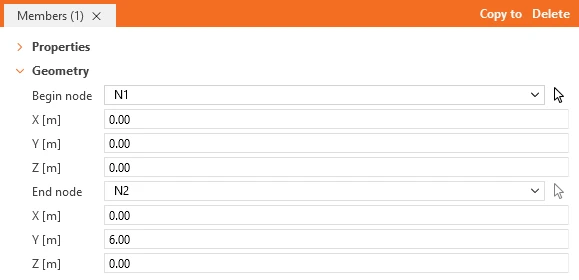
Geometry
The member is defined by its Begin node and End node. Each node can be selected from the list or picked in the 3D scene using the arrow icon. The global coordinates X, Y, Z [m] of both nodes are automatically displayed below the node name.
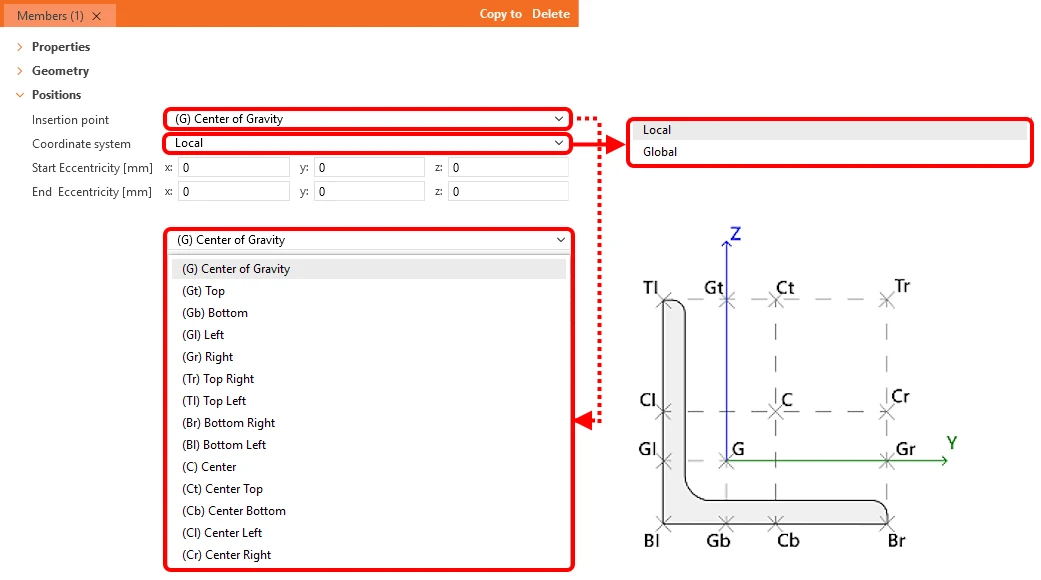
Positions
The Insertion point defines the point of the cross-section, e.g. (G) Center of Gravity. The available insertion points are shown in the cross-section scheme at the bottom of the property grid. The member can also be shifted by Start Eccentricity and End Eccentricity [mm] in the directions x, y, z. The eccentricities are defined in the selected Local or Global Coordinate system.
Hinges
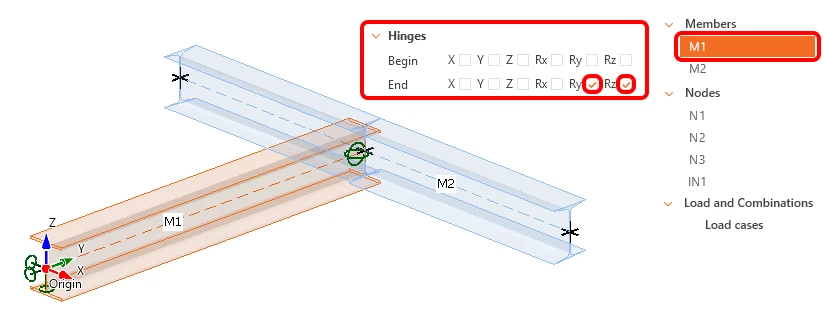
For the begin and end of the member, the individual degrees of freedom can be released: translations X, Y, Z and rotations Rx, Ry, Rz.
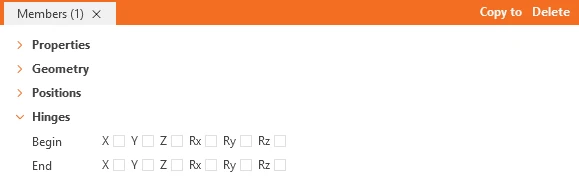
For example, a pinned joint between two members is defined at the end of one of the members by releasing the rotation about the major axis Ry and about the minor axis Rz. The rotation Rx and the translations X, Y, Z remain restrained, so the joint transfers forces and torsion, but no bending moments.
Stiffness constraints for LBA
These options add stiffness along the whole length of the member in the LBA analysis. The aim is to simulate adjacent parts of the structure that are not modelled in IDEA StatiCa Stability and that prevent selected deformations of the member when the eigenmode shapes are calculated. Other analyses do not consider this additional stiffness.
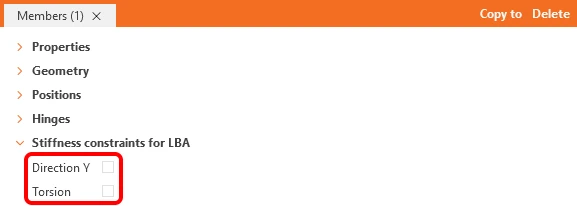
When Direction Y is selected, the member cannot translate laterally. When Torsion is selected, the member cannot rotate about the shear centre. These settings can be used, for example, for floor beams stabilized by a concrete deck on top of them, when the deck is not included in the structural model.
Cross-section scheme
The scheme at the bottom of the property grid shows the insertion points: G (center of gravity), C (center), and the points at the top (T), bottom (B), left (l) and right (r) edges of the cross-section, e.g. Tl, Gt, Ct, Tr, Cl, Cr, Gl, Gr, Bl, Gb, Cb, Br. The scheme is schematic and does not show the actual shape of the selected cross-section.
Editing node properties
Select a node in the 3D scene or in the tree in the 3D scene. Its properties are displayed in the property grid on the right. The header of the property grid shows the number of selected nodes, e.g. Nodes (1), and contains the buttons Copy to and Delete. When more nodes are selected, properties with different values are displayed as <Multiple values>, and a changed value is applied to all selected nodes.
General
The position of the node is defined in the selected Coordinate system. For the Global coordinate system, the node is defined by its global coordinates X, Y, Z [m].

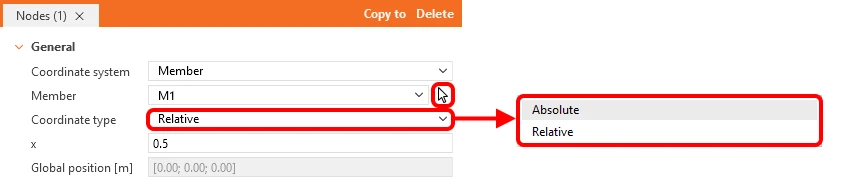
For the Member coordinate system, the node lies on the selected Member. The member can be selected from the list or picked in the 3D scene using the arrow icon. The Coordinate type defines how the position on the member is entered. Absolute means the distance X [m] from the begin node of the member. Relative means the position x relative to the member length, e.g. 0.5 places the node in the middle of the member. The resulting global coordinates of the node are displayed in the read-only field Global position [m].
Support
When the option Support in the node is selected, the node becomes a support. The individual degrees of freedom are then restrained by selecting the translations X, Y, Z and the rotations Rx, Ry, Rz. Please note that the degrees of freedom are defined in the global coordinate system.
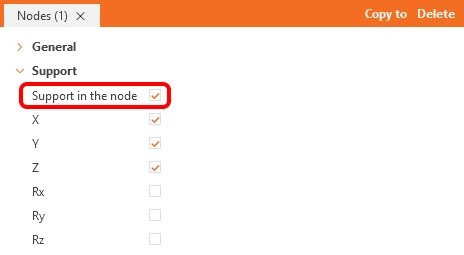
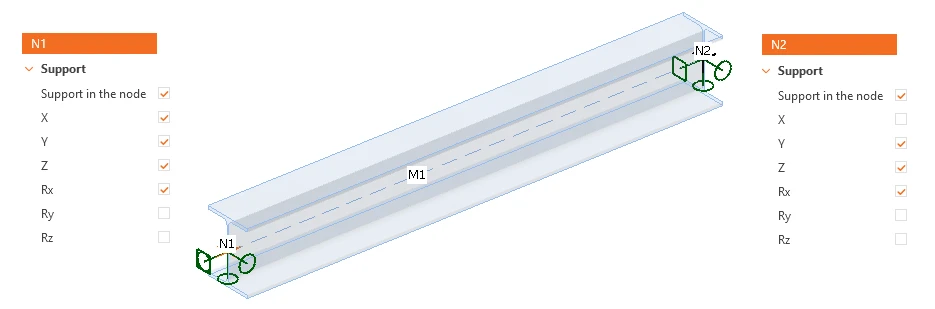
For example, for a simply supported beam with the longitudinal axis in the X direction, the supports are defined as follows. In node N1, the translations X, Y, Z and the rotation Rx are restrained. In node N2, the translations Y, Z and the rotation Rx are restrained, while the translation X is free, so the beam can move in its longitudinal direction. In both nodes, the rotations Ry and Rz are free, and the restrained rotation Rx prevents twisting of the beam at the supports. This corresponds to fork supports, which are the usual boundary conditions for the lateral-torsional buckling analysis of a beam.