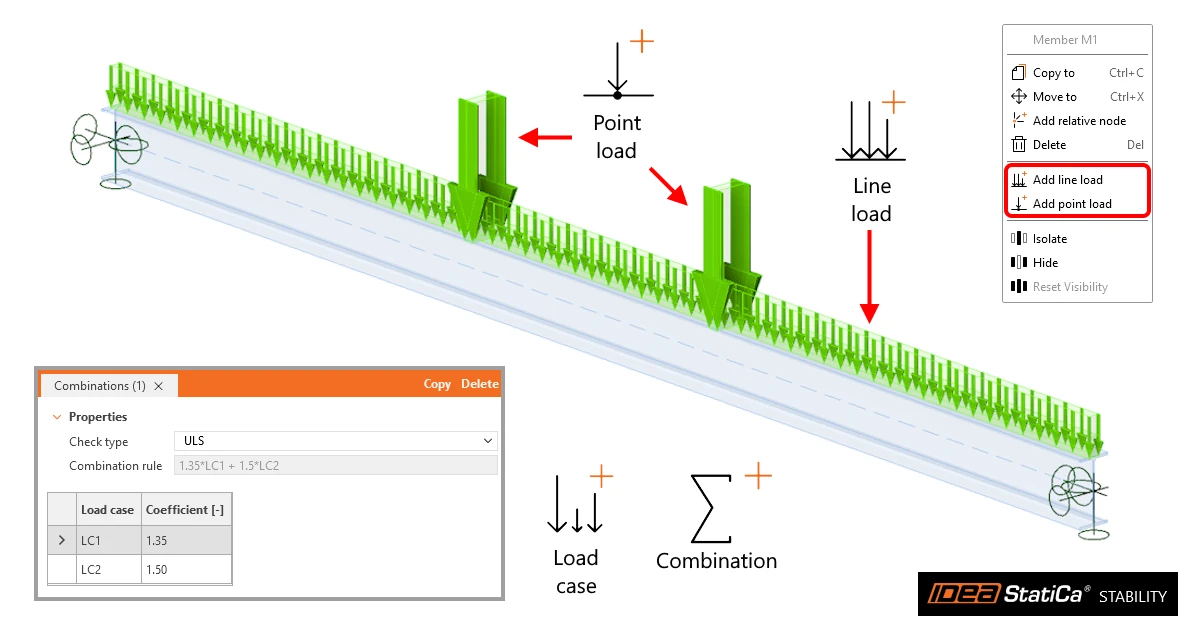


Loads in IDEA StatiCa Stability are organised on three levels: load cases, the loads inside them, and load combinations that enter the analysis.
All load items are created from the New group on the MODEL tab: buttons Load case, Line load, Point load and Combination. Because every load is assigned to a member, the members must be defined in the model first.

Load case
A load case is a group of loads that act on the structure together, such as dead load, imposed load or wind. It is created with button Load case in the New group on the MODEL tab.
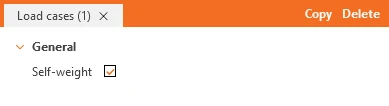
Every line load and point load is assigned to one load case. When the Self weight checkbox is ticked, the self-weight of all members is included in the load case automatically. Such a load case cannot contain any line or point loads, so keep the self-weight in its own load case and enter the other loads in separate ones.
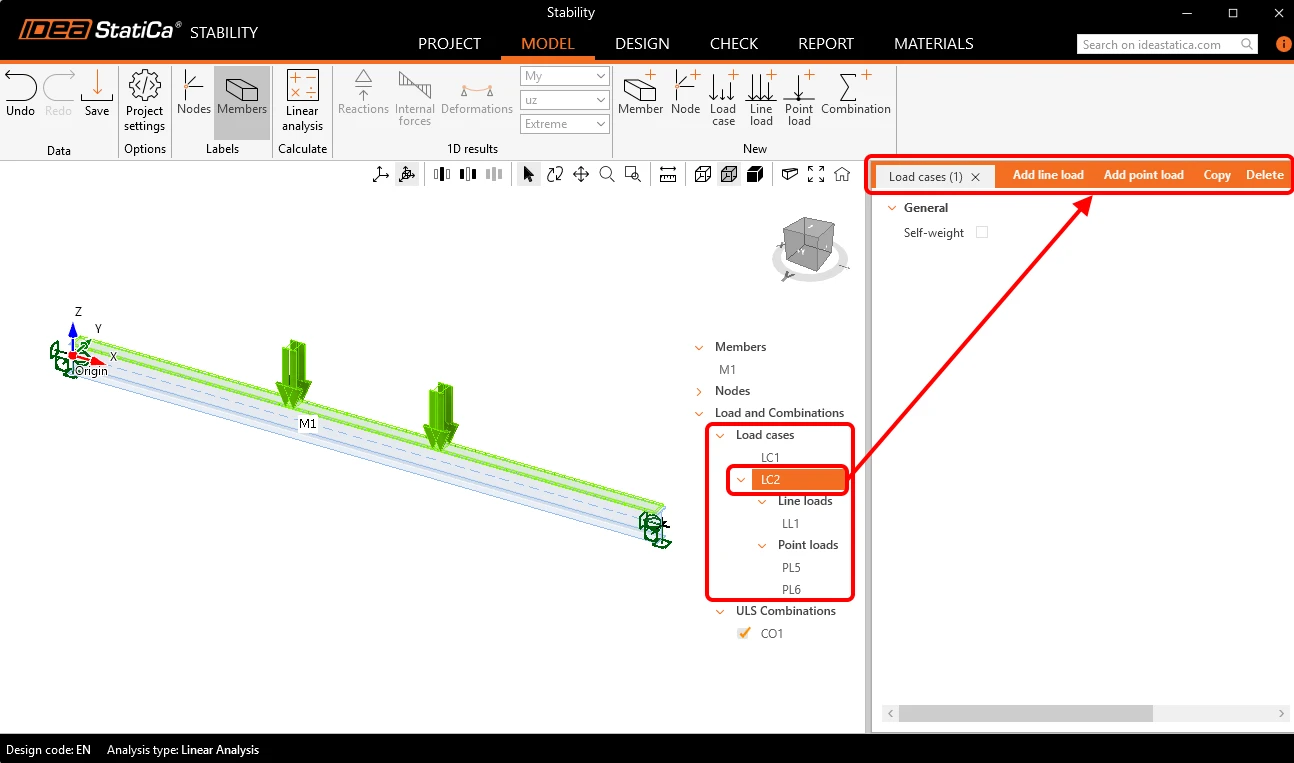
The created items appear in the tree in the scene under Load and Combinations > Load cases (LC1, LC2, …). Each load case holds its own Line loads and Point loads, if any are defined. Selecting an item in the tree opens its property grid, where it can be edited, copied (Copy) or deleted (Delete). Loads can be added directly to the selected load case with Add line load or Add point load.
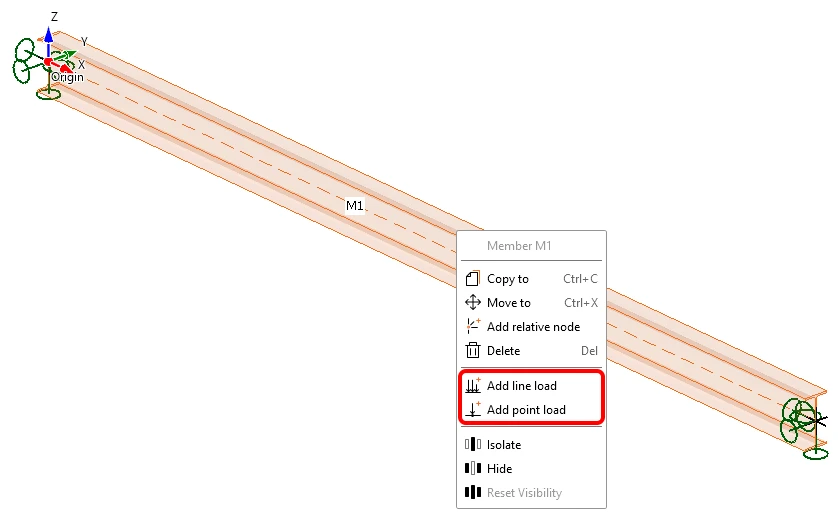
Alternatively, loads can be added to the selected load case by right-clicking a member in the 3D scene and choosing Add line load or Add point load from the context menu.
Line loads and Point loads
1. Line loads
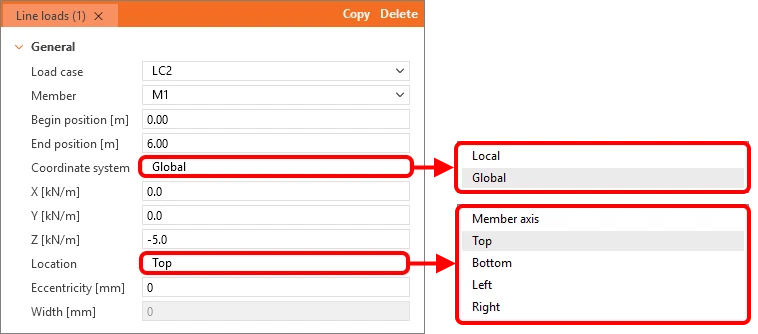
A line load acts between a Begin position and an End position [m] along the member with intensity components X, Y, Z [kN/m]. The components are entered in the Global or Local coordinate system, chosen in the Coordinate system drop-down. The Location drop-down sets where on the cross-section the load acts: Member axis, Top, Bottom, Left or Right. The point of application can be shifted in the horizontal direction by Eccentricity. When the member is selected as a CBFEM member on the DESIGN tab, the load can be spread over a specific Width; if the member is not selected as a CBFEM member, this option is disabled.
2. Point loads
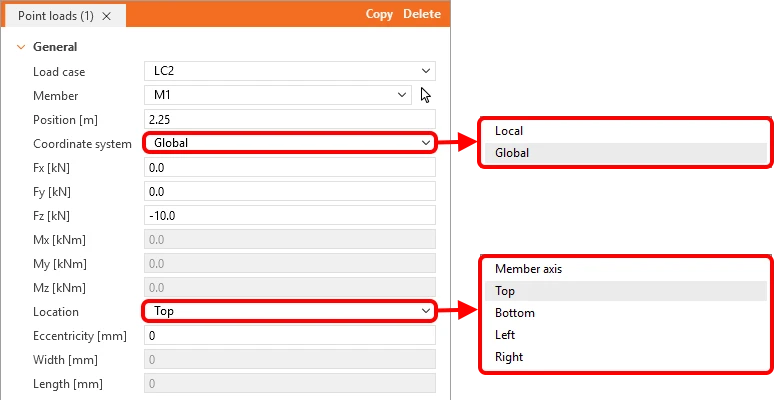
A point load acts at a single Position [m] along the member with force components Fx, Fy, Fz [kN] and moment components Mx, My, Mz [kNm]. The components are entered in the Global or Local coordinate system, chosen in the Coordinate system drop-down. The Location drop-down sets where on the cross-section the load acts: Member axis, Top, Bottom, Left or Right. The point of application can be shifted in the horizontal direction by Eccentricity. When the member is selected as a CBFEM member on the DESIGN tab, the load can be spread over a specific Width and Length; if the member is not selected as a CBFEM member, these options are disabled.
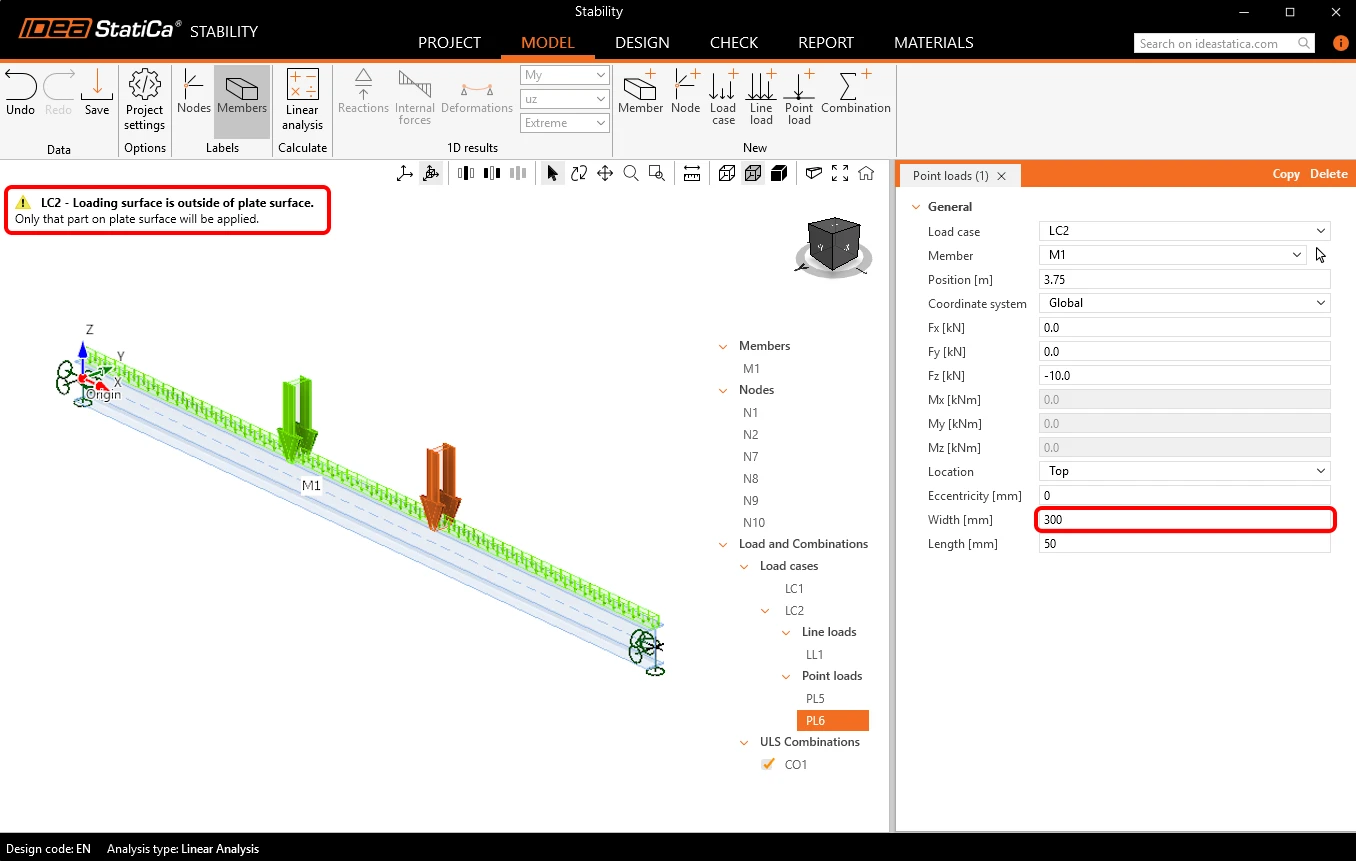
If the Width or Length of the load area are larger than the plate the load acts on (flange, web, etc.), part of the load lies outside the plate's surface. That part is not transferred to the model, so the full magnitude of the load is not used in the calculation. Because this can be unsafe and is not intuitive, the application shows a warning message in such a case.
Load combinations
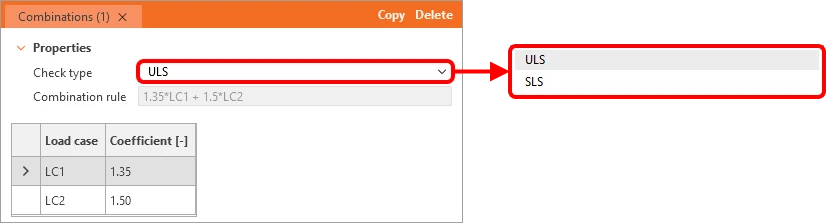
Load combinations are created with button Combination in the New group on the MODEL tab. The Check type drop-down defines whether the combination is used for the ultimate limit state (ULS) or the serviceability limit state (SLS). In the table, each load case is assigned a Coefficient [-] that multiplies all loads in that load case. Enter it as the total factor for the load case, for example 1.35 for permanent and 1.50 for variable loads. If a combination factor must also be applied, enter the product of the partial load factor and the combination factor, for example 1.50 × 0.6 = 0.90. The resulting formula is shown in the read-only Combination rule field, for example 1.35*LC1 + 1.5*LC2.