

Sometimes, there are changes to your FEA model, such as different member cross-section or increased load. These can be synchronized between Checkbot and the FEA model.
There are two possible alternatives:
- Synchronize the Current item (if one or more joints are selected)
- Synchronize the whole imported Structural model
To test this feature, you can change a member cross-section in your FEA application. Remember to re-analyze the FEA model to synchronize fresh results as well.
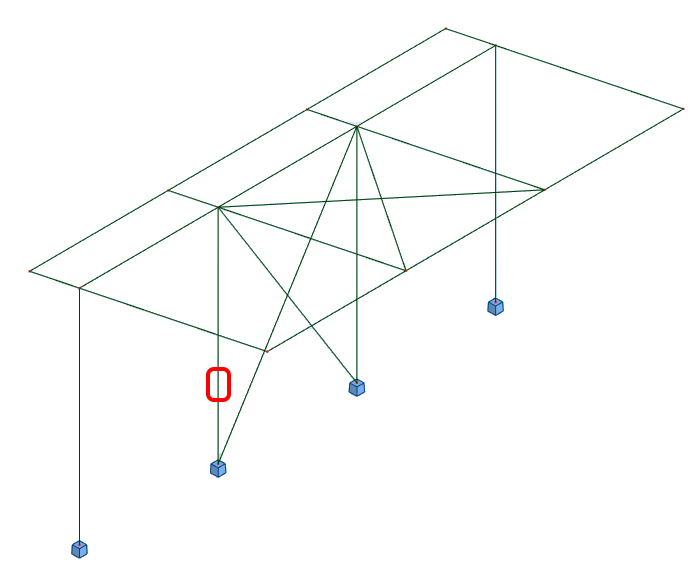
In Checkbot, select the designed connections (there may be more than one) and from the Current item panel select Sync.

The Checkbot project will be updated. The previously finished connection design is preserved, but the code-checks will be invalidated. You can see that the column is now updated - matching the change in the FEA model.
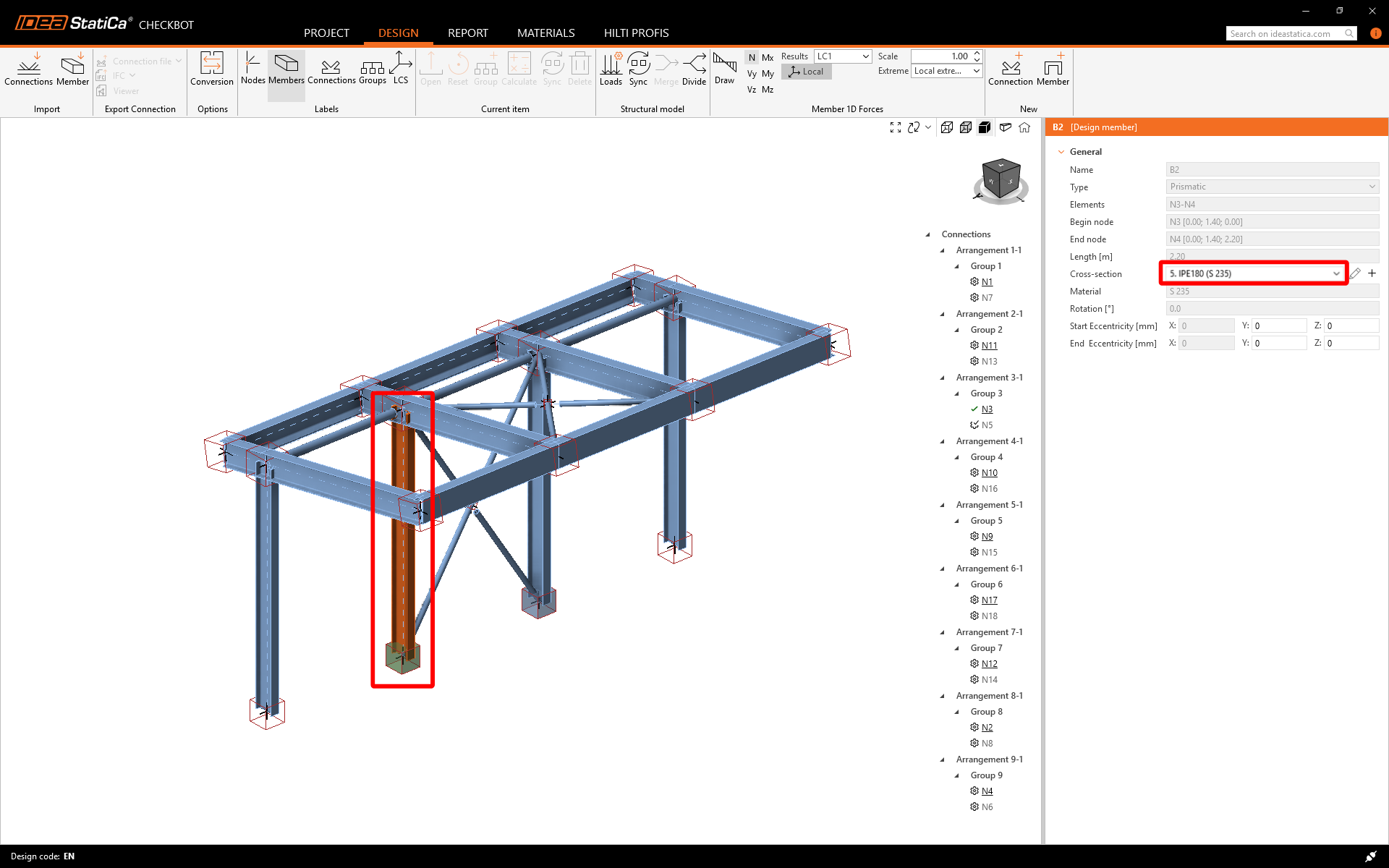
Simply code-check the highlighted connections again by selecting Calculate from the Current item panel.
If the connections do not give the desired results, then you can open them again to optimize the design (i.e. strengthen if they fail the code-check or lighten if the utilization is too low).
Bigger changes in the FEA model might require synchronization of the whole structural model in Checkbot, instead of just the current item.

Please note that newly added members or loads can not be synchronized, and a new Checkbot project has to be created.