
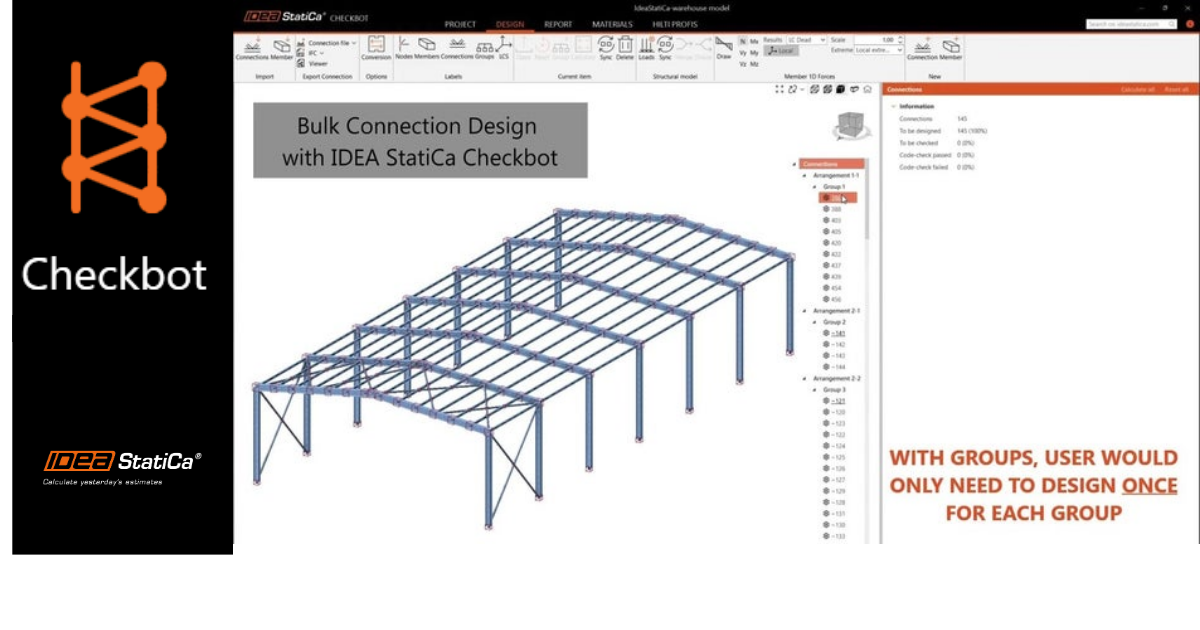


Checkbot is the IDEA StatiCa application that allows users to collaborate with over 25 other applications. The top five most used applications integrated with Checkbot are SAP 2000, RAM Structural System, STAAD.Pro, Tekla Structures, and ETABS.
This is a tutorial to learn how to import a RAM Structural System model and use the grouping and batch design tools that IDEA StatiCa Checkbot offers:
1. Go to the IDEA StatiCa main application and click on the BIM links icon
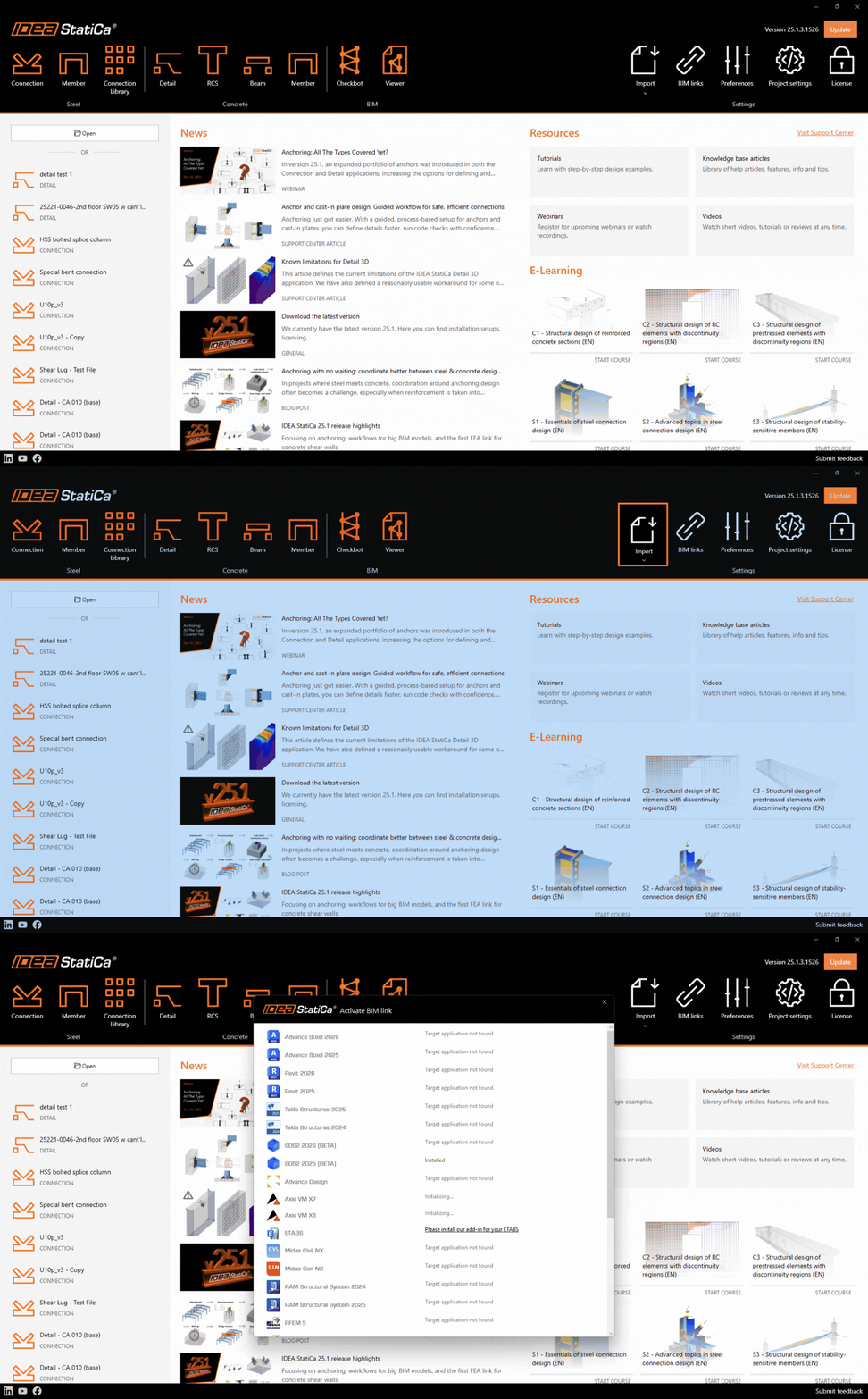
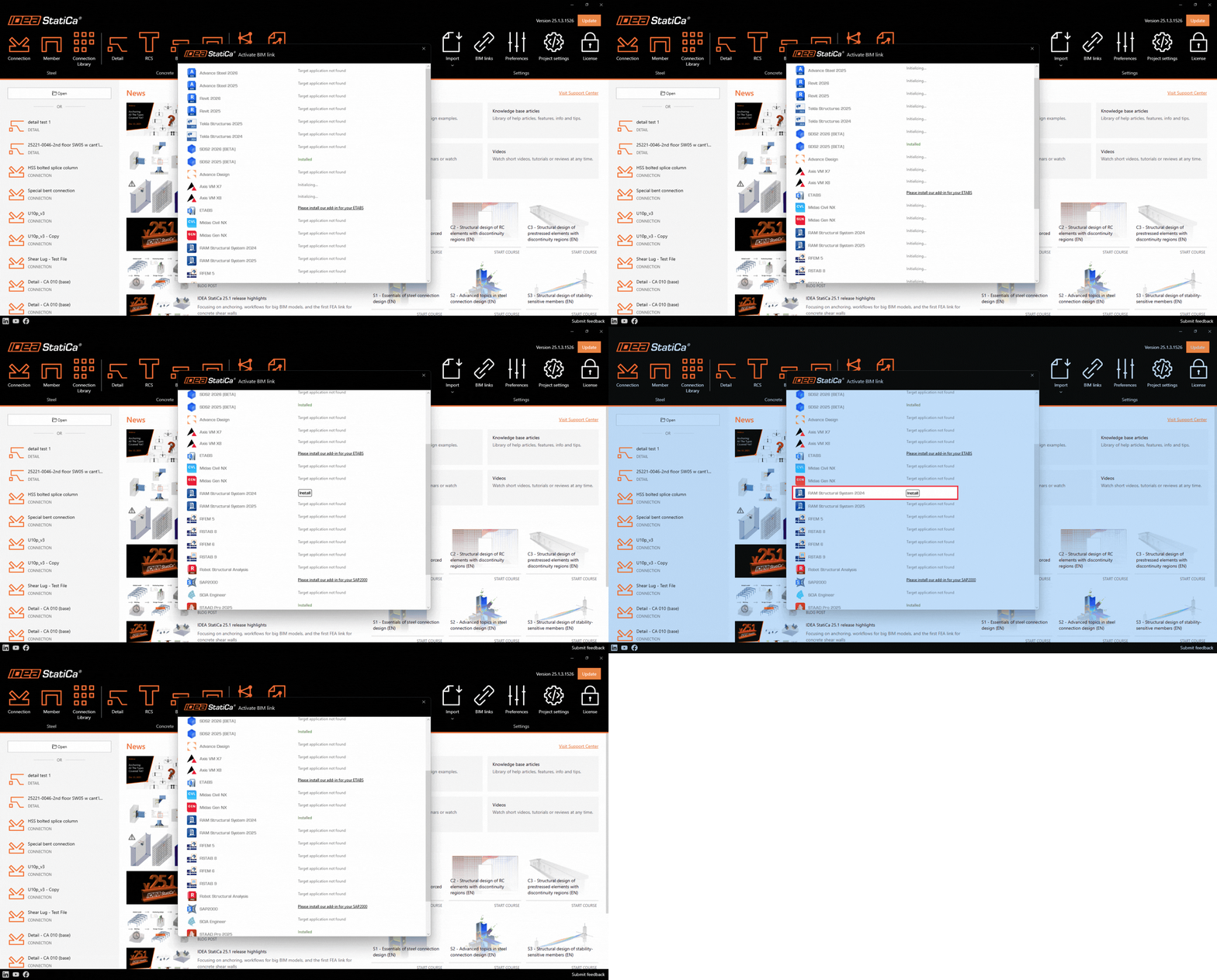
2. The Activate BIM link window will pop up, scroll down to RAM Structural system, and click on Install. Note: RAM Structural System should be installed on the computer.
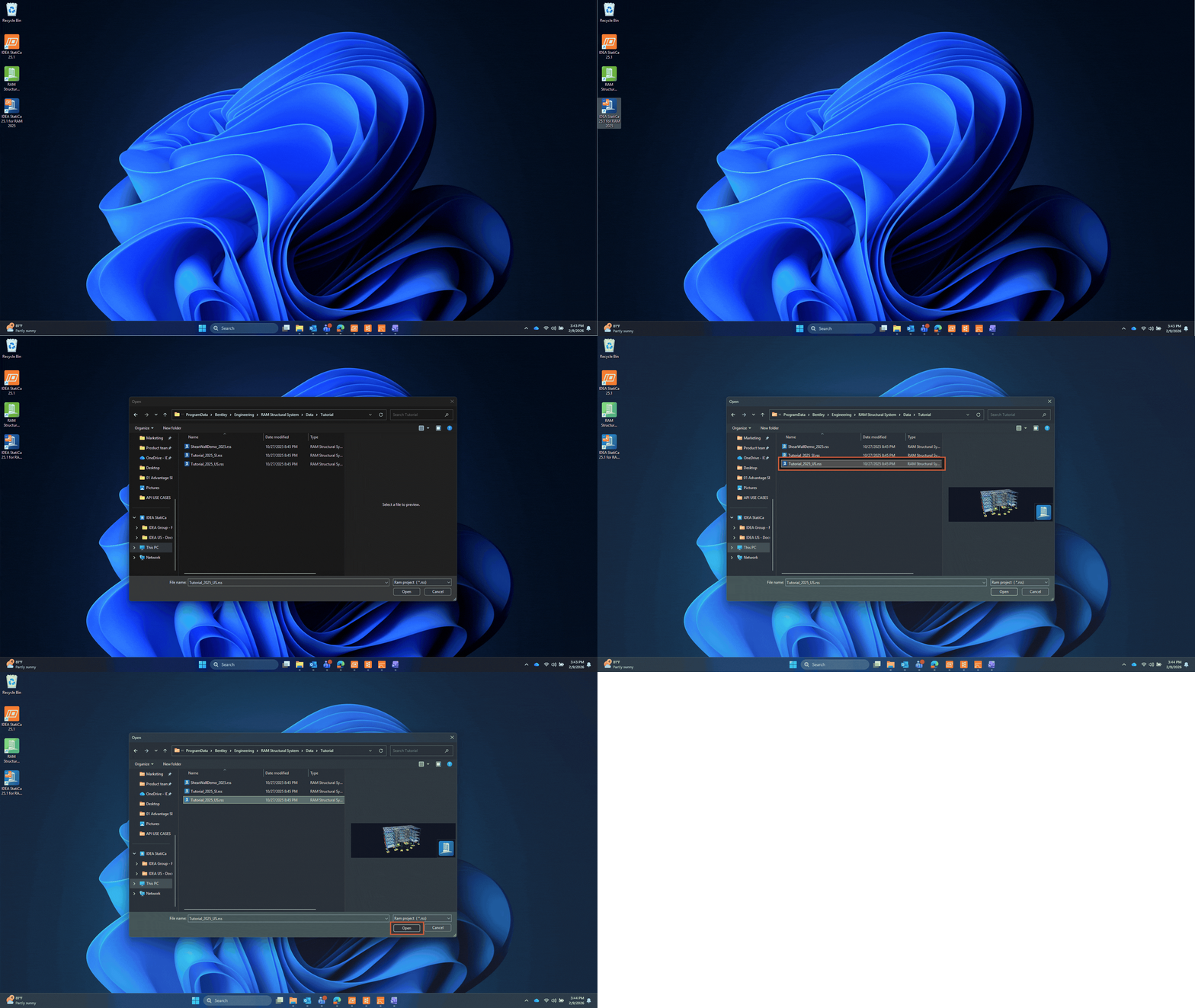
3. The Installation will create a desktop shortcut "RAM to IDEA StatiCa". Double-click the "RAM to IDEA StatiCa" icon, browse to the *.rss file location, and select it.
4. Create the project in the Checkbot app. The Checkbot project folder will be saved in the same location as the RAM file.
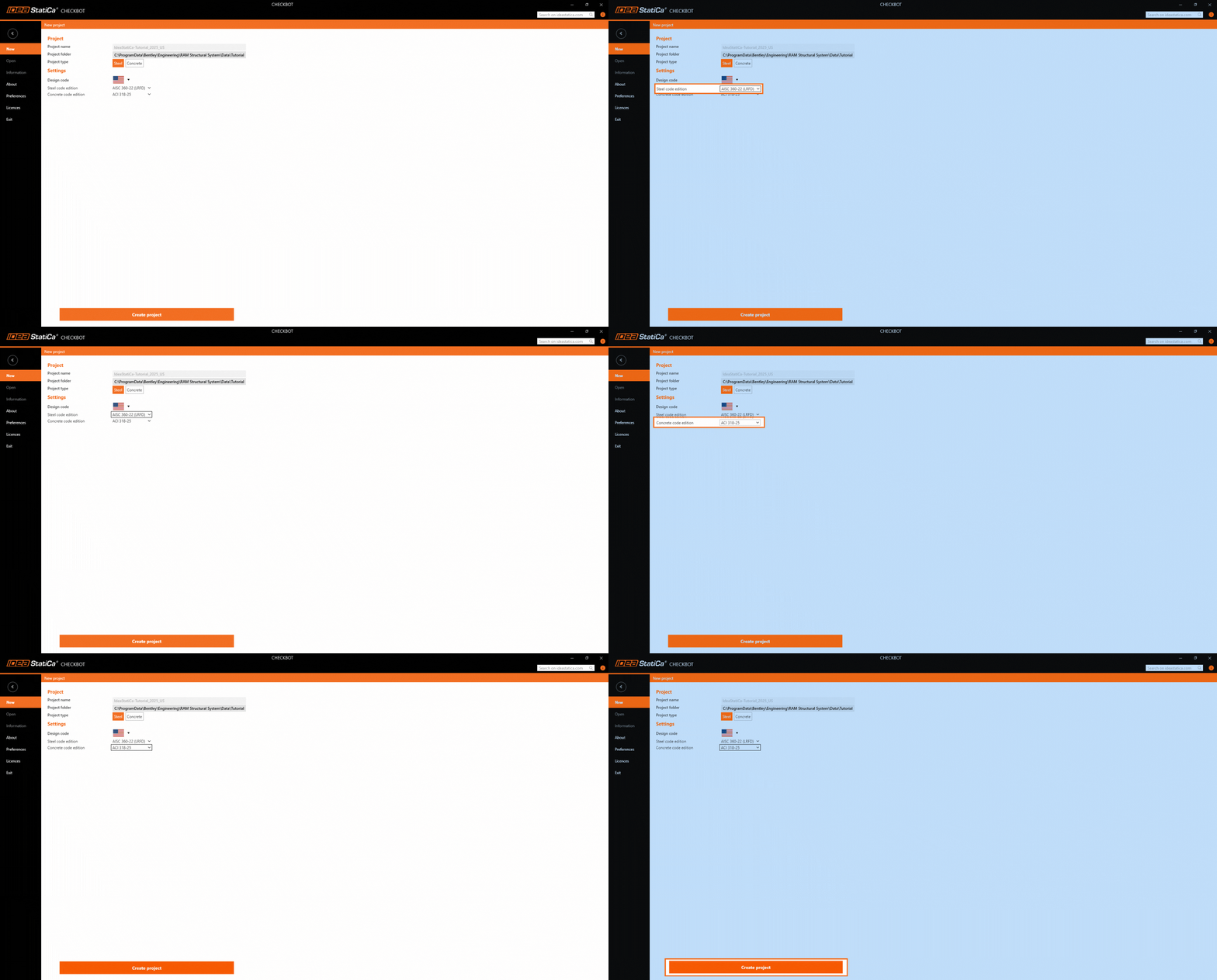
5. Once the Checkbot file is open, click on Connection to import the model. The RAM Structural File is imported to Checkbot, and you can start working on the joints.
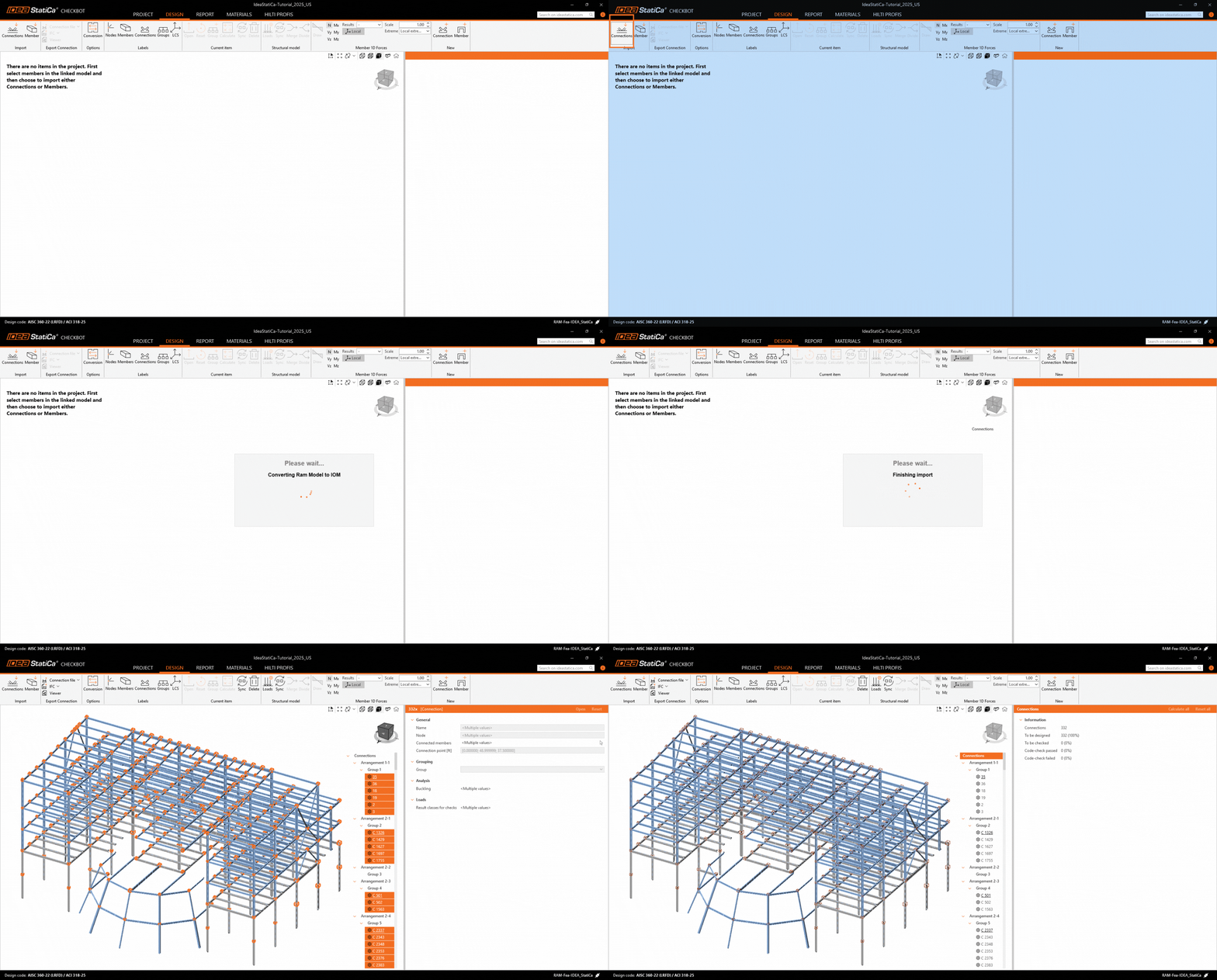
This workflow helps you move from the global model to connection design without re-creating data, while keeping control over loads, geometry, and results. You now have a RAM model inside IDEA StatiCa Checkbot, ready for grouping, batch design, and detailed connection checks.
If you would like to learn more about grouping and batch design in Checkbot, you can refer to the following article: