


How to activate the link
- Download and install the latest version of IDEA StatiCa
- Make sure that you are using a supported version of your FEA solution
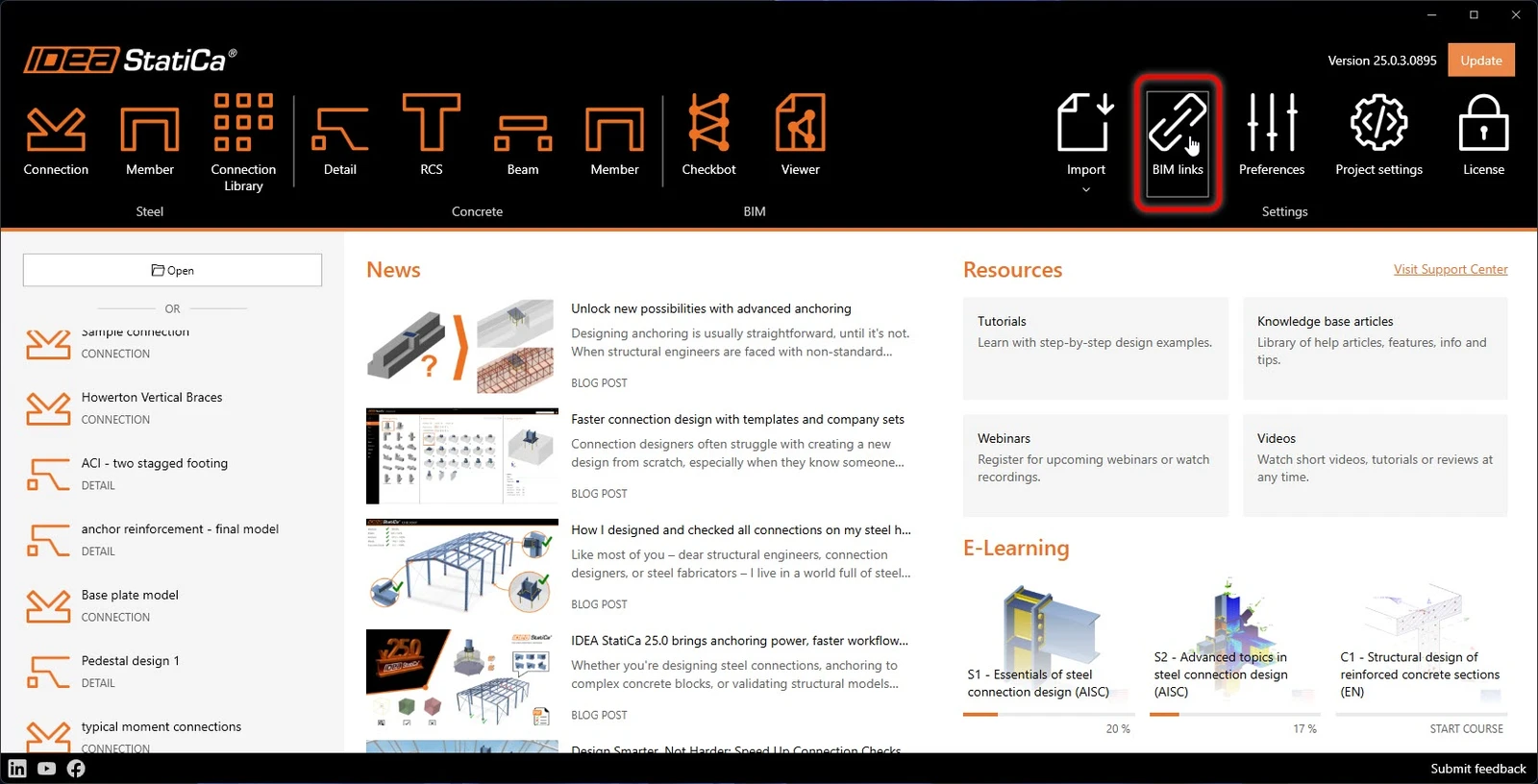
IDEA StatiCa integrates BIM links into your FEA software during its installation. You can check the status and eventually integrate more BIM links by running IDEA StatiCa and opening the BIM links. Please note that some FEA software require additional steps to fully activate their BIM link to IDEA StatiCa.
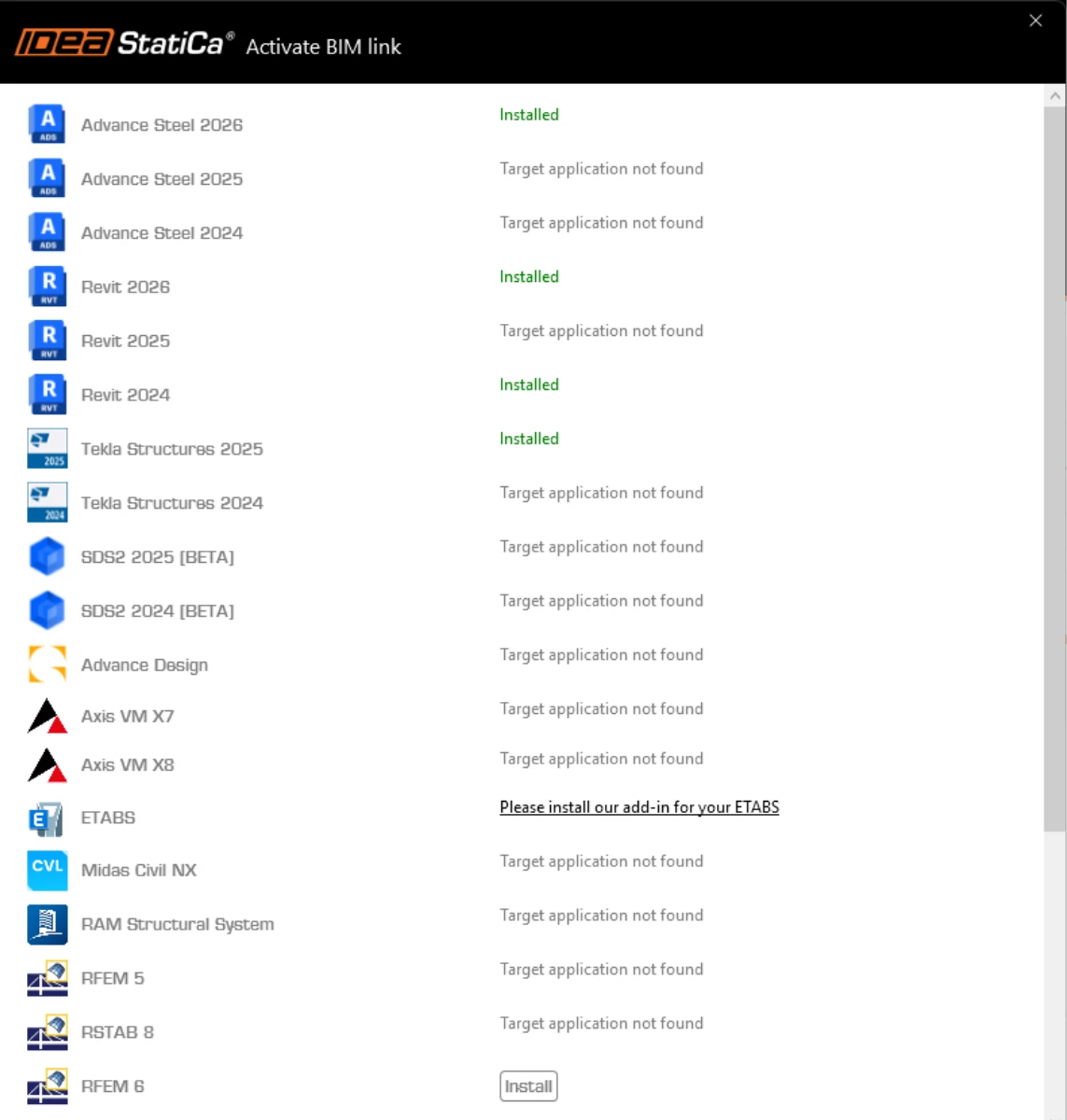
A notification "Do you want to allow this app to make changes to your device?" may appear, if so, please confirm with the Yes button.
By clicking Install, the BIM link for the selected software is integrated. The screen also tells you the status of other BIM links.
How to use the link
Download the attached project, open it in SCIA Engineer, and run the linear analysis to get the internal forces over the structure.
The BIM link is automatically integrated. You can find it in the top ribbon under Design -> External tools -> IDEA StatiCa.
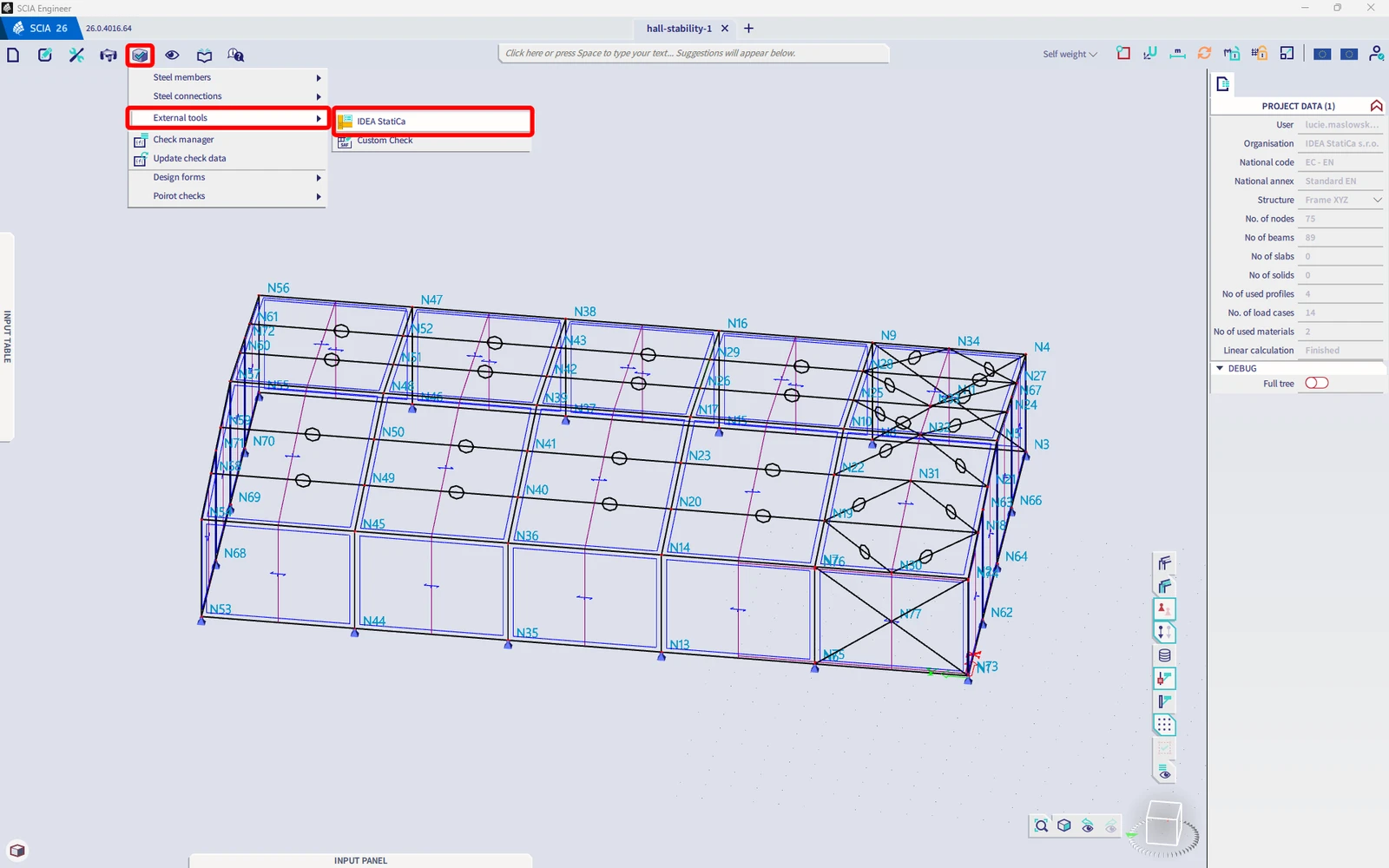
Or run the "IDEA StatiCa" command in the top command line.
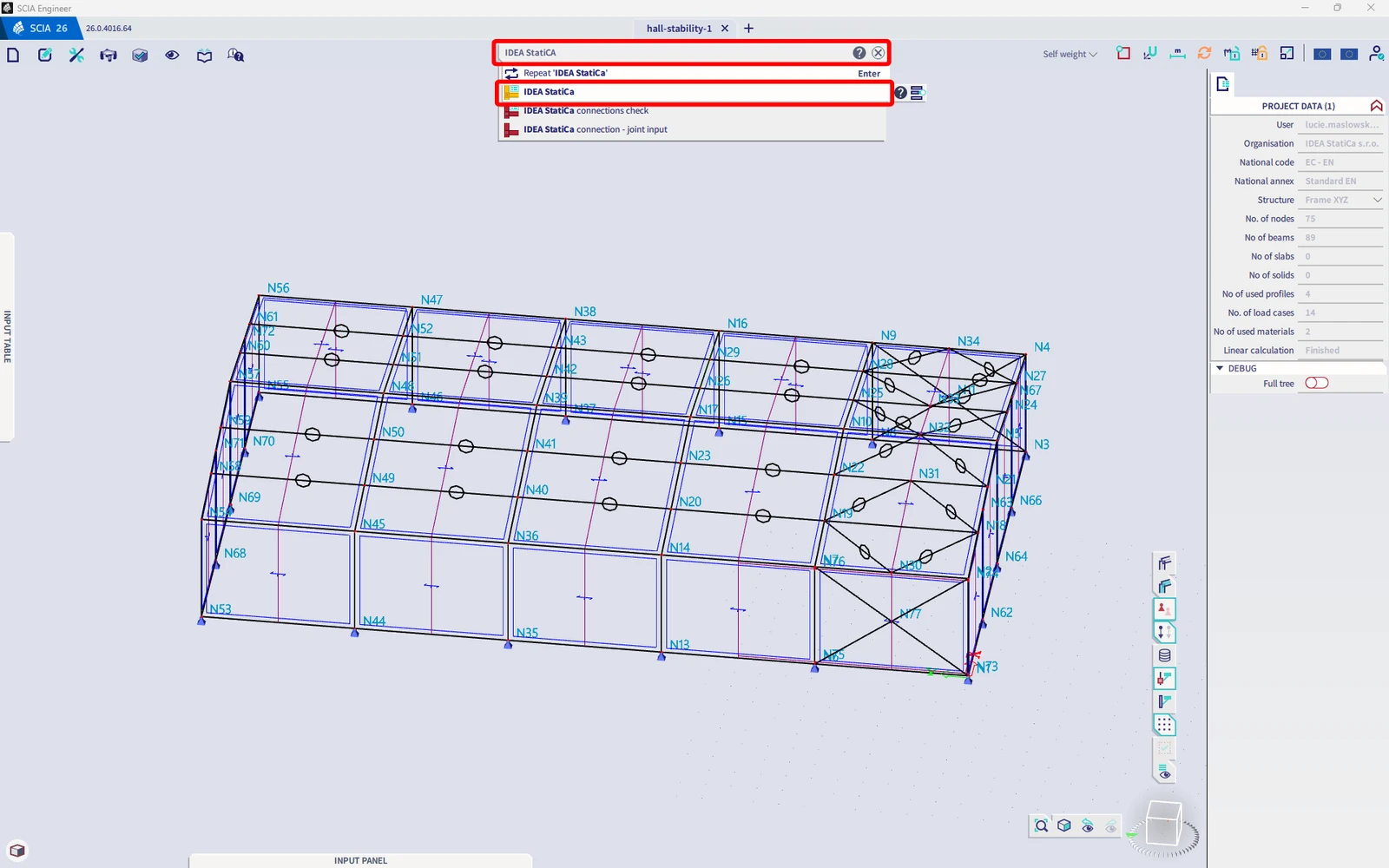
Both of these options will open the Checkbot application.
Select the Checkbot workflow and design code EN. Then select Create project.
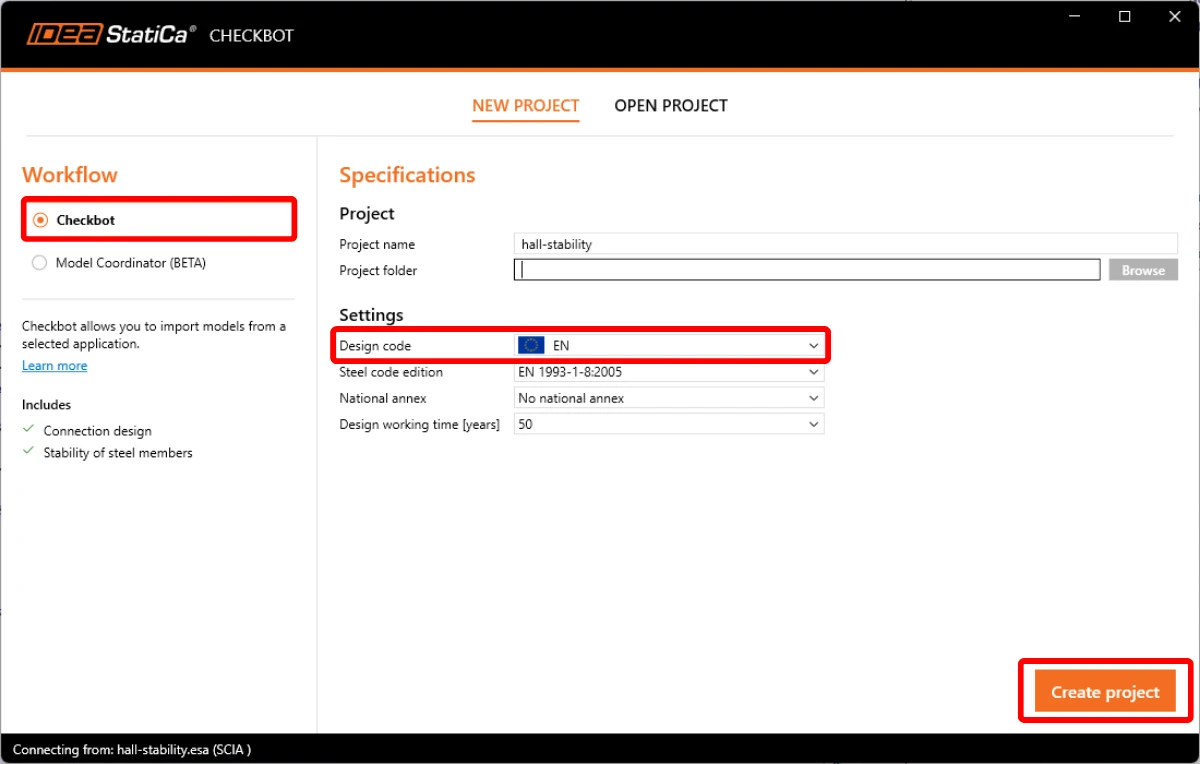
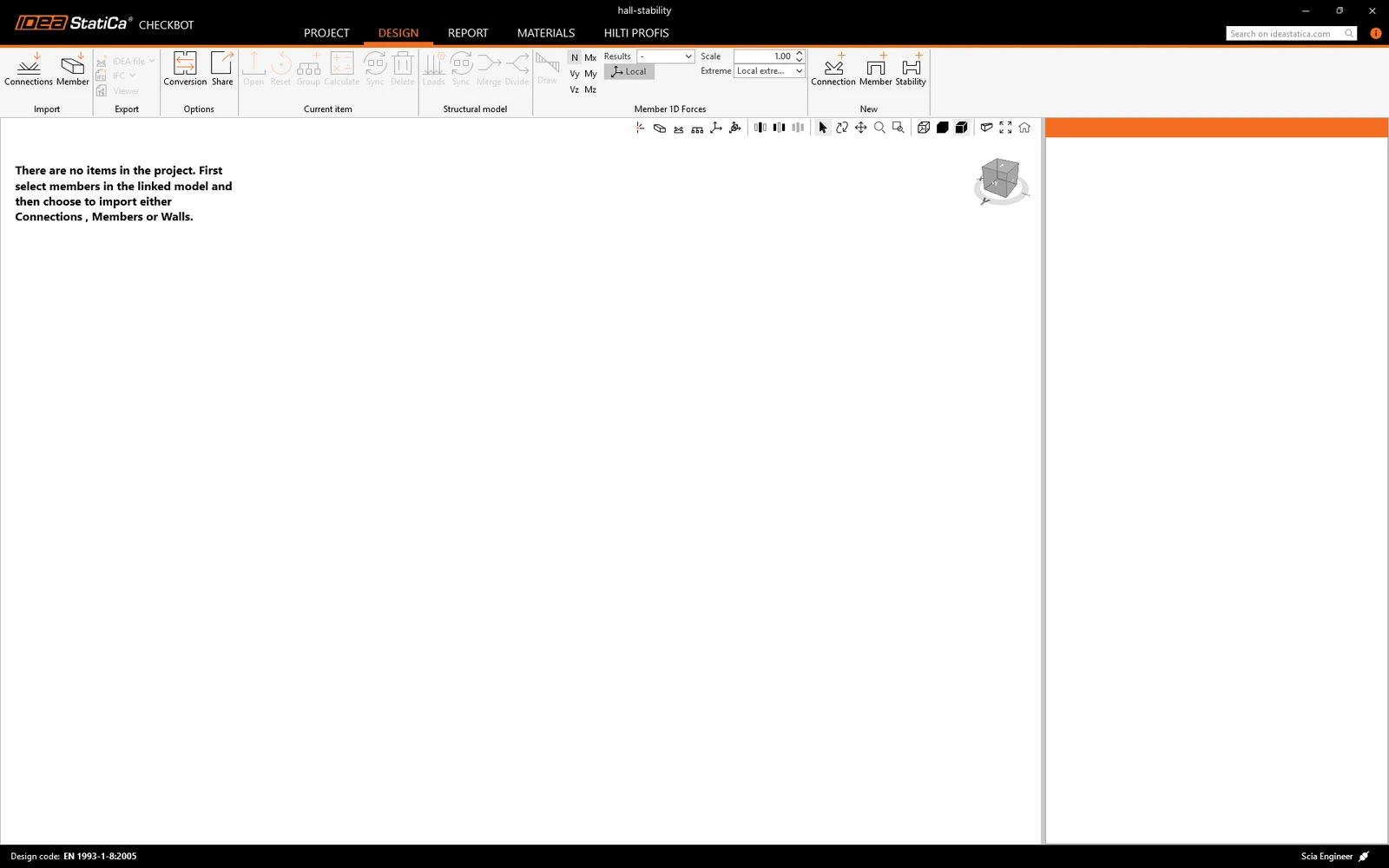
The new Checkbot project is ready to import structure from SCIA Engineer.
Now switch back to SCIA Engineer window and select the whole structure.
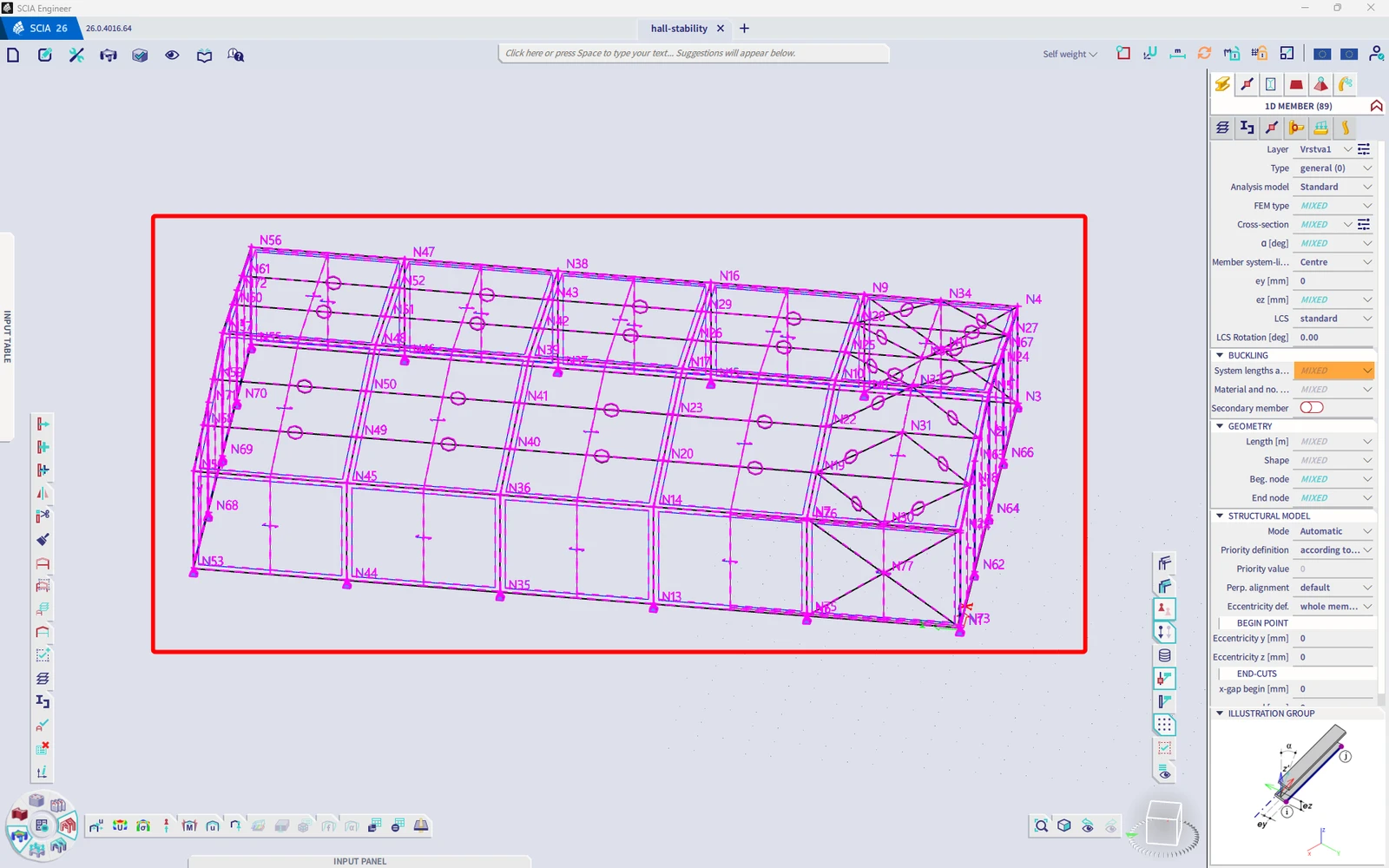
You have successfully linked SCIA Engineer with IDEA StatiCa Stability via Checkbot.
Read more about the known limitations for SCIA Engineer BIM link.
Want to improve your skills? Visit our Campus
Learn how to use IDEA StatiCa effectively with our self-paced e-learning courses
Start learning