Connection Library – your design templates
Connection Library lets you reuse previously saved or standardized connection designs, share them with your colleagues, or define a set for your current project. The same template database is also offered in the Connection Wizard when starting a new project.
All design templates are stored on cloud servers, so you must be online to fully utilize the Connection Library functions. However, every time you use the Connection Library while online, the cloud data is also saved to your system's temporary folders for offline usage, allowing you to use your templates (Propose function) later without an internet connection.
Each design template has a set of Properties:

- Name is the unique identifier and can be used for filtering by search.
- CDS represents which connection design set contains this template.
- Loading type can be set and utilized for manual filtering of templates when applying them.
- Connectors (Bolt, Weld) and Features (Anchor, Cleat, Modification) are set automatically based on the connection components in the template and can be utilized for further filtering when proposing templates.
- Parametric indicates whether the template is simple (a set of manufacturing operations) or parametric (a programmed template).
- Design code shows the design code of the template origin. You can mix the design codes when applying templates (e.g., apply an AISC template in an EN project). In such a case, a conversion tab opens, and you have to assign the materials conversion.

Connection Library design sets
The design templates are sorted into three groups:
- Predefined set contains default design templates ready to use as part of the IDEA StatiCa installation. Users can not modify this set, and it is not visible in the Connection Library manager.
- Personal set includes the design templates published by you into this set. You can use this set on any computer where you log in with your credentials. No one else can access this design set.
- Company set is the way to share the design templates with your colleagues. It contains templates published by you and your co-workers into this set. Everyone under the same license account can access and edit this set.
You can turn sets on and off in the Propose and Manage dialogues, and choose between the Personal and Company sets when using the Publish command.

How to use Connection Library
You can find the Connection Library icons in the main ribbon in the Design tab, represented by the Propose, Publish, and Manage commands.
Propose
The Propose button opens the Connection Library window and automatically offers you suitable design templates for the number of members and geometry of your structural node. Select one and click OK to apply the template. A conversion tab might open at this moment, mainly for templates with different cross-section types of members. You can adjust it or just confirm the conversion by clicking OK.

You can use the search field to type in any part of the template name and filters (Loading type, Connectors, Features, Connection Type) to navigate the database of available designs comfortably.

You can either browse the templates for the Current number of all the members in the node (default) or select a subset of only a few members (i.e., two or three). To do that, switch the Geometry parameter to Selection and click on the arrow icon. Then, holding the CTRL key, choose the members (selected ones turn red) and confirm the selection with Enter, Spacebar, right mouse button, or clicking on the tick icon. The Connection Library then offers you templates available for the selected geometry. Click Apply, and then Close the Connection Library.

Publish
Once you finish a design from scratch or finish editing the applied template, you can save your design to the Connection Library with the Publish command. Here, you need to fill in the Name, and you can set the Loading type, choose CDS (Personal or Company design set), and tick whether this is a Parametric template. Then click Publish, and the template is sent to the cloud storage.

Manage
Command Manage opens the Connection Library manager. Here you can Edit and Delete all design templates in the Private set added by you and in the Company set added by both you and your colleagues. Currently, you can edit only the Name and Loading type, and you can delete templates only one by one.

Connect to... applying design templates in the 3D scene
Alternatively, you can use the Connect to..., Anchor..., and Modify... commands from the right-click context menu. This is a faster way to create a connection design using a template, but it is limited to only the selected, single member.
Right-click on a member and choose, e.g., the Anchor... command. Connection Library opens and offers available design templates for the selected member. Click OK to apply it

More articles about the Connection Library design templates:
- Connection Library – new library of connections
- Parametric templates in Connection Library
- Bulk import of templates to Connection Library
- Company sets & selection in the Connection Library
- Connection Library: Properties, parameters and filtering
- Template application dialogue with sketches and parameters
- Right-click mouse button design proposal
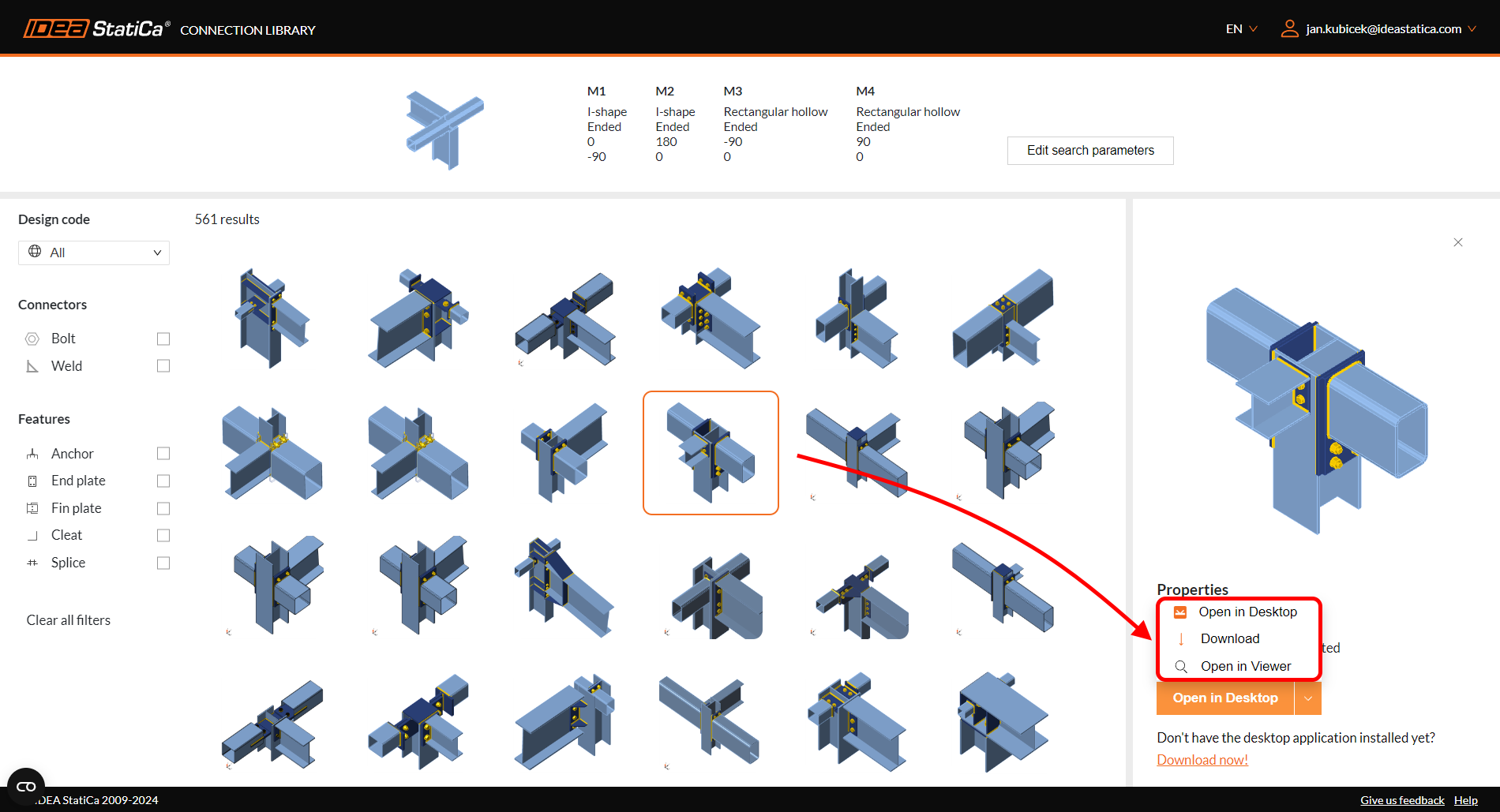
Next to the Connection Library inside the IDEA StatiCa Connection app, there is the online Connection Library catalogue with hundreds of thousands of connection models free for browsing and download.