Connection Library – os seus modelos de projeto
A Connection Library permite reutilizar projetos de ligação previamente guardados ou normalizados, partilhá-los com os seus colegas ou definir um conjunto para o projeto atual. A mesma base de dados de modelos é também disponibilizada no Connection Wizard ao iniciar um novo projeto.
Todos os modelos de projeto são armazenados em servidores na nuvem, pelo que é necessária ligação à internet para utilizar plenamente as funções da Connection Library. No entanto, sempre que utiliza a Connection Library com ligação à internet, os dados da nuvem são também guardados nas pastas temporárias do sistema para utilização offline, permitindo usar os seus modelos (função Propose) posteriormente sem ligação à internet.
Cada modelo de projeto possui um conjunto de Propriedades:

- Name é o identificador único e pode ser utilizado para filtrar por pesquisa.
- CDS indica qual o conjunto de projeto de ligação que contém este modelo.
- Loading type pode ser definido e utilizado para filtragem manual de modelos aquando da sua aplicação.
- Design code mostra o código de projeto de origem do modelo. É possível combinar códigos de projeto ao aplicar modelos (por exemplo, aplicar um modelo AISC num projeto EN). Nesse caso, abre-se um separador de conversão e é necessário atribuir a conversão de materiais.

- Connectors (Bolt, Weld) e Features (Anchor, Cleat, Modification) são definidos automaticamente com base nos componentes da ligação no modelo e podem ser utilizados para filtragem adicional ao propor modelos.
- Parametric indica se o modelo é simples (um conjunto de operações de fabrico) ou paramétrico (um modelo programado).
Conjuntos de projeto da Connection Library
Os modelos de projeto estão organizados em três grupos:
- Predefined set contém modelos de projeto predefinidos prontos a utilizar como parte da instalação do IDEA StatiCa. Os utilizadores não podem modificar este conjunto e não é visível no gestor da Connection Library.
- Company set é a forma de partilhar os modelos de projeto com os seus colegas. O Company set contém modelos publicados por si e pelos seus colaboradores em conjunto. Todos os utilizadores com a mesma conta de licença podem utilizar e editar este conjunto.
- Personal set inclui os modelos de projeto publicados apenas por si neste conjunto privado. Pode utilizar este conjunto em qualquer computador onde inicie sessão com as suas credenciais. Ninguém mais pode aceder a este conjunto de projeto.
Pode ativar e desativar conjuntos nas caixas de diálogo Propose e Manage, e escolher entre os conjuntos Personal e Company ao utilizar o comando Publish.

Como utilizar a Connection Library
Os ícones da Connection Library encontram-se no friso principal, no separador Design, representados pelos comandos Propose, Publish e Manage.

Propose
O botão Propose abre a janela da Connection Library e oferece automaticamente modelos de projeto adequados para o número de elementos e a geometria do seu nó estrutural. Selecione um e clique em OK para aplicar o modelo. Neste momento, pode abrir-se um separador de conversão, principalmente para modelos com diferentes tipos de secção transversal dos elementos. Pode ajustá-lo ou simplesmente confirmar a conversão clicando em OK.

Pode utilizar o campo de pesquisa para introduzir qualquer parte do nome do modelo e os filtros (Loading type, Connectors, Features, Connection Type) para navegar comodamente na base de dados de projetos disponíveis.

Pode navegar pelos modelos para o número Current de todos os elementos no nó (predefinição) ou selecionar um subconjunto de apenas alguns elementos (ou seja, dois ou três). Para tal, mude o parâmetro Geometry para Selection e clique no ícone de seta. Em seguida, mantendo premida a tecla CTRL, escolha os elementos (os selecionados ficam a vermelho) e confirme a seleção com Enter, Barra de espaços, botão direito do rato ou clicando no ícone de visto. A Connection Library oferece então os modelos disponíveis para a geometria selecionada. Clique em Apply e depois em Close para fechar a Connection Library.

Publish
Após concluir um projeto de raiz ou terminar a edição do modelo aplicado, pode guardar o seu projeto na Connection Library com o comando Publish. Aqui, é necessário preencher o Name e pode definir o Loading type, escolher o CDS (conjunto de projeto Personal ou Company) e indicar se se trata de um modelo Parametric. Em seguida, clique em Publish e o modelo é enviado para o armazenamento na nuvem.

Manage
O comando Manage abre o gestor da Connection Library. Aqui pode Editar e Eliminar todos os modelos de projeto no conjunto Private adicionados por si e no conjunto Company adicionados por si e pelos seus colegas. Atualmente, só é possível editar o Name e o Loading type, e os modelos só podem ser eliminados um a um.

Connect to... aplicação de modelos de projeto na cena 3D
Em alternativa, pode utilizar os comandos Connect to..., Anchor... e Modify... do menu de contexto do botão direito do rato. Esta é uma forma mais rápida de criar um projeto de ligação utilizando um modelo, mas está limitada ao elemento selecionado individualmente.
Clique com o botão direito do rato num elemento e escolha, por exemplo, o comando Anchor.... A Connection Library abre e oferece os modelos de projeto disponíveis para o elemento selecionado. Clique em OK para aplicar.

Mais artigos sobre os modelos de projeto da Connection Library:
- Connection Library – nova biblioteca de ligações
- Modelos paramétricos na Connection Library
- Importação em massa de modelos para a Connection Library
- Conjuntos de empresa e seleção na Connection Library
- Connection Library: Propriedades, parâmetros e filtragem
- Caixa de diálogo de aplicação de modelos com esboços e parâmetros
- Proposta de projeto com o botão direito do rato
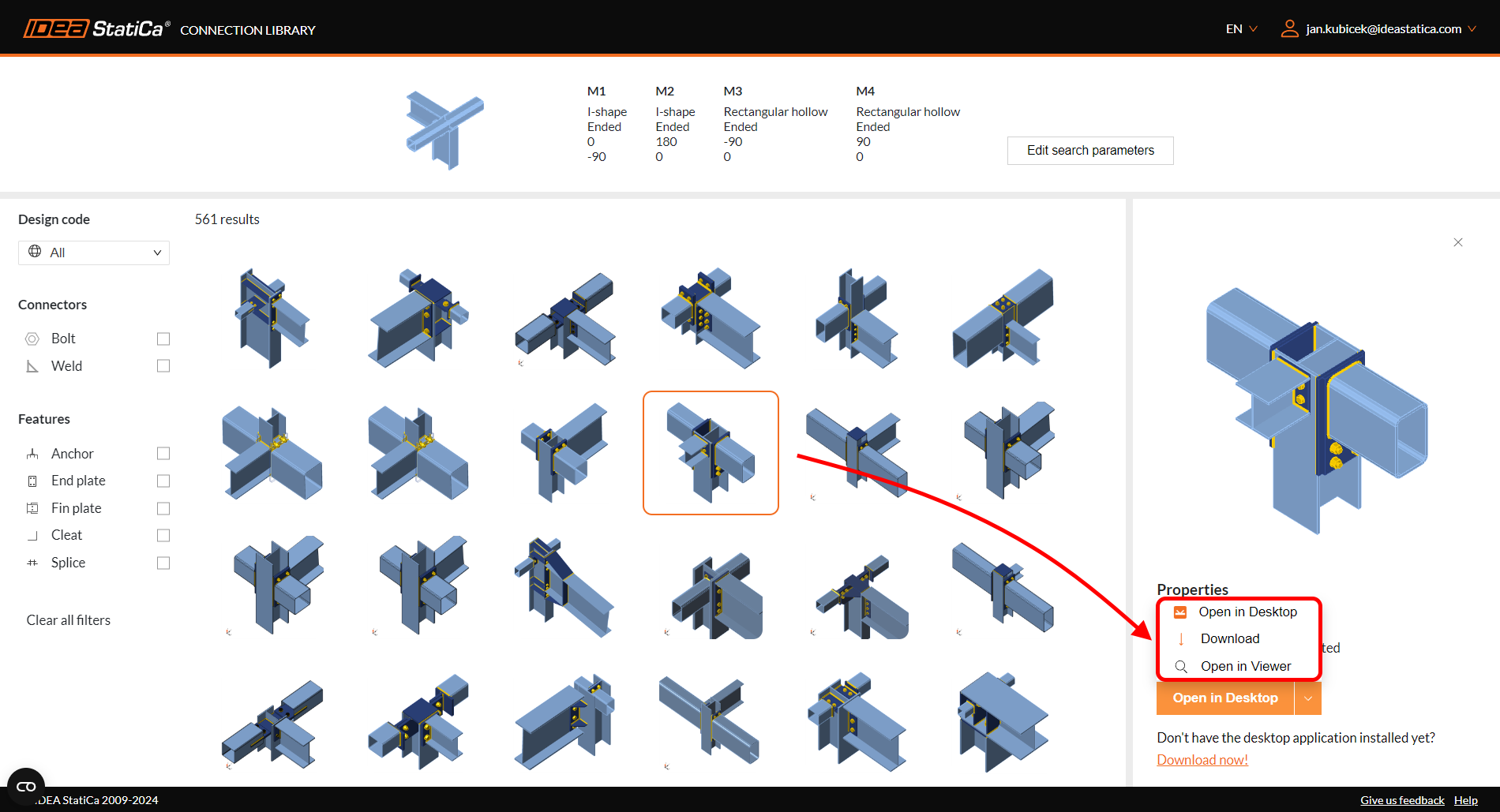
Para além da Connection Library integrada na aplicação IDEA StatiCa Connection, existe o catálogo online da Connection Library com centenas de milhares de modelos de ligação disponíveis gratuitamente para consulta e transferência.