

Come iniziare con le API - Importazione batch di combinazioni 02
Primi passi
Si consiglia di seguire il tutorial Come iniziare con le API - Nozioni di base 01, che illustra le API e come configurare l'ambiente.
File di collegamento
Per prima cosa, creare un giunto tra due sezioni cave RHS 300/200/8 e modificare i parametri in base alle immagini seguenti.
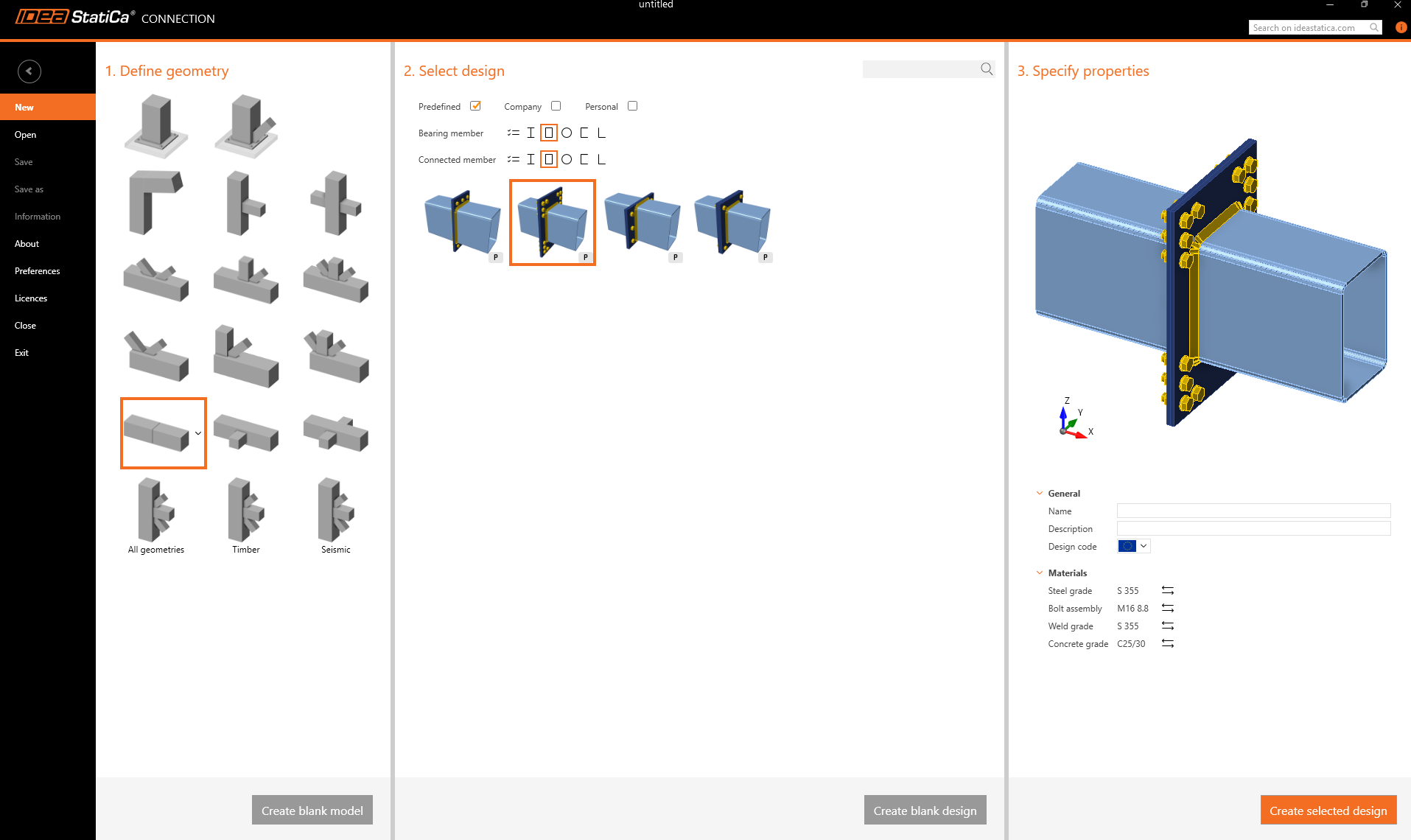
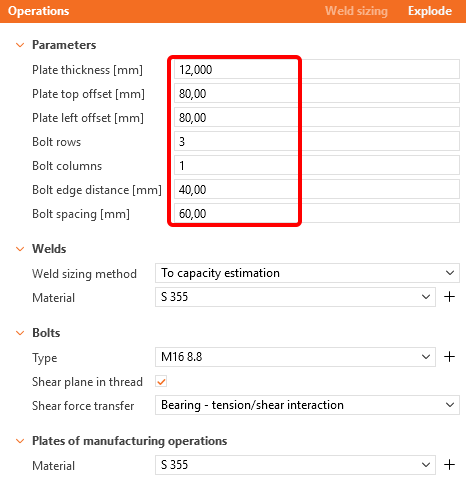
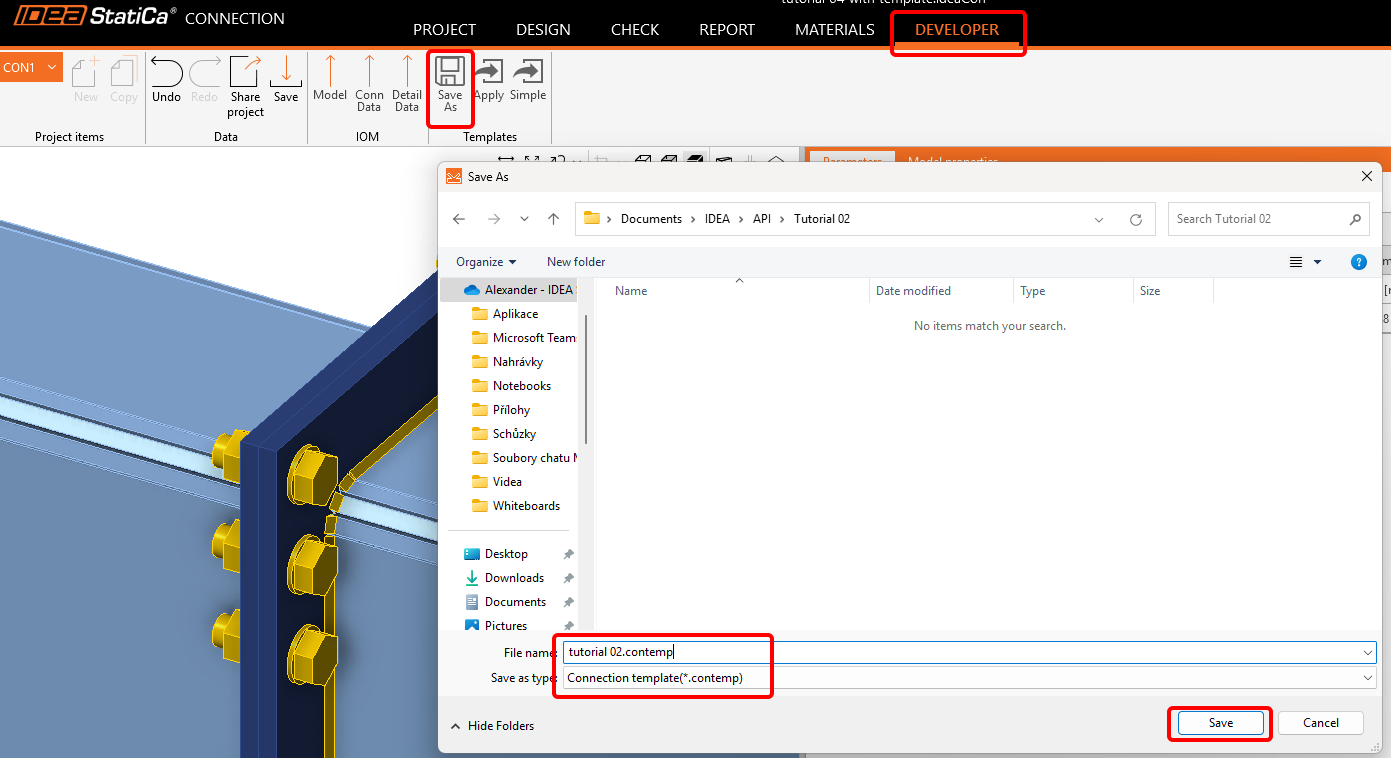
Ora, andare alla scheda Developer e salvarlo come modello con il nome tutorial 02.contemp. Verrà utilizzato nel tutorial successivo.
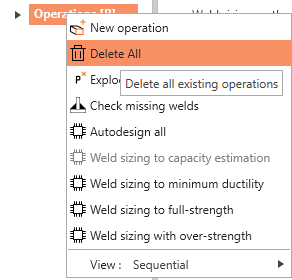
Tornare alla scheda Design, fare clic con il tasto destro su Operazioni / Elimina tutto e salvare questo file vuoto con il nome tutorial 02 - empty.ideaCon.
Foglio Excel con le combinazioni di carico
Come passo successivo, preparare un foglio Excel con i carichi da importare nel file .ideaCon. È possibile scaricarlo in fondo a questa pagina.
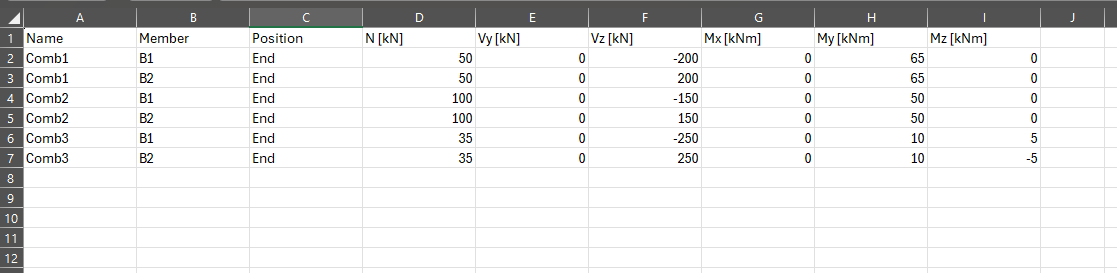
Utilizzare esattamente i nomi delle colonne così come sono usati nello script Python.
Client Python
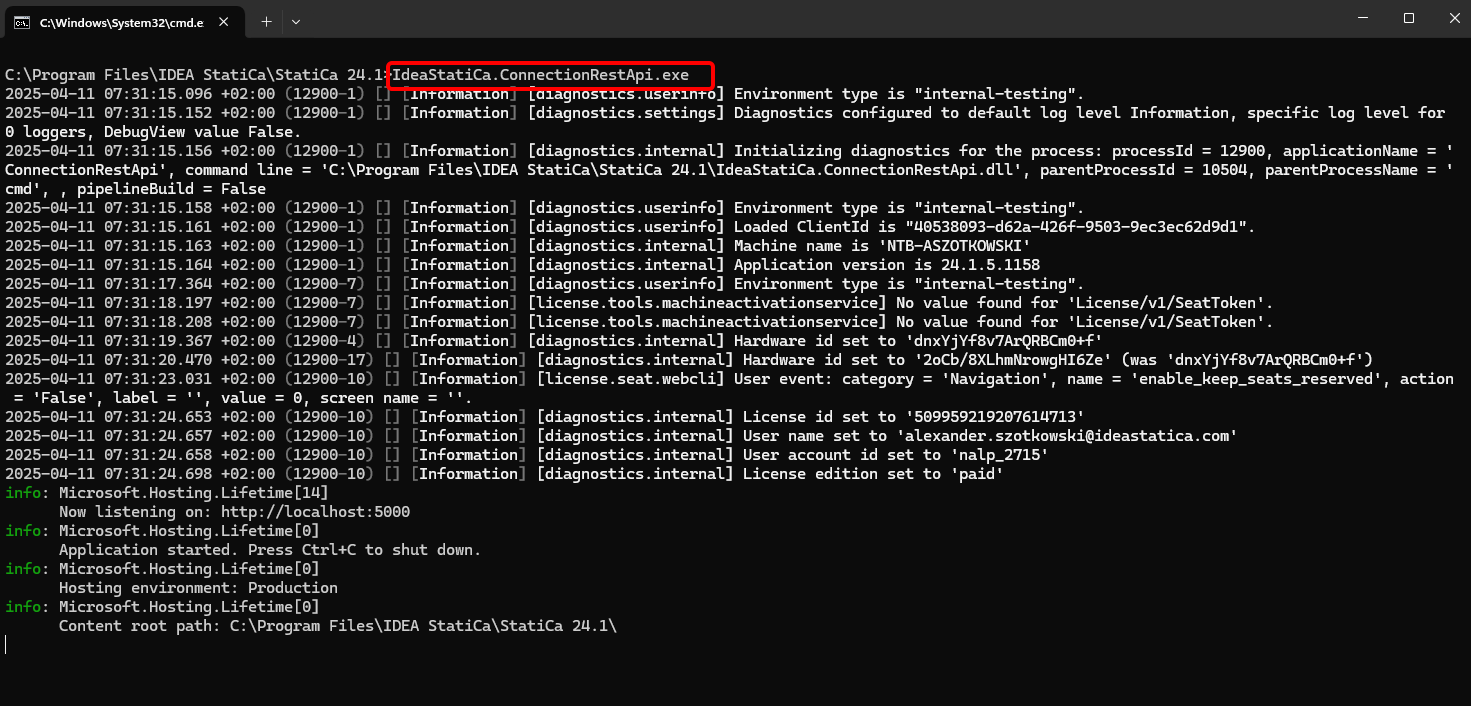
Eseguire "IdeaStatiCa.ConnectionRestApi.exe" in CMD nella cartella appropriata di IDEA StatiCa e aprire l'IDE di propria scelta.
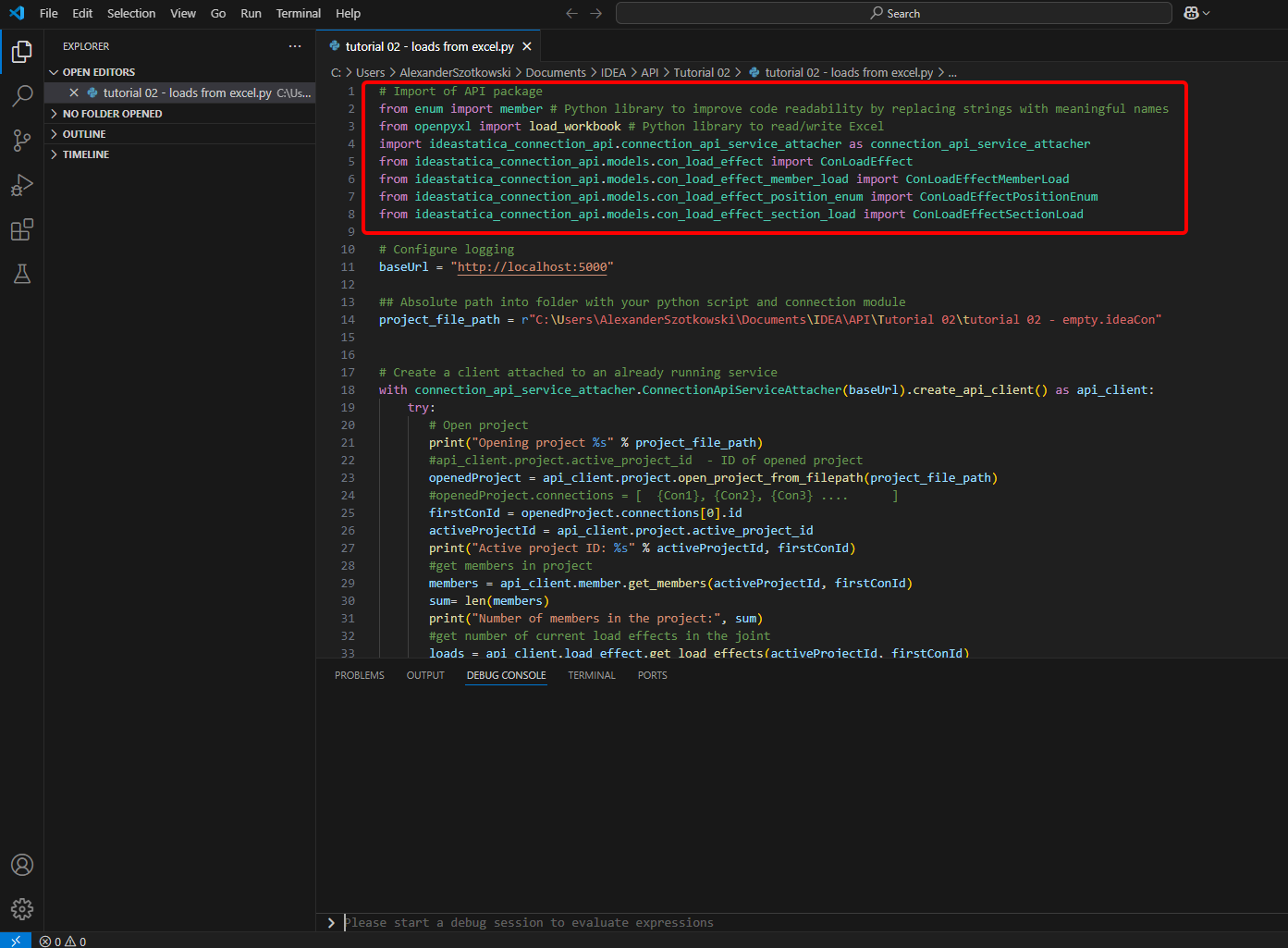
- Creare un nuovo file e importare i pacchetti che consentiranno l'uso del calcolo e il collegamento con l'URL localhost.
Codice sorgente:
## Import of API package
from enum import member # Python library to improve code readability by replacing strings with meaningful names
from openpyxl import load_workbook # Python library to read/write Excel
import ideastatica_connection_api.connection_api_service_attacher as connection_api_service_attacher
from ideastatica_connection_api.models.con_load_effect import ConLoadEffect
from ideastatica_connection_api.models.con_load_effect_member_load import ConLoadEffectMemberLoad
from ideastatica_connection_api.models.con_load_effect_position_enum import ConLoadEffectPositionEnum
from ideastatica_connection_api.models.con_load_effect_section_load import ConLoadEffectSectionLoad
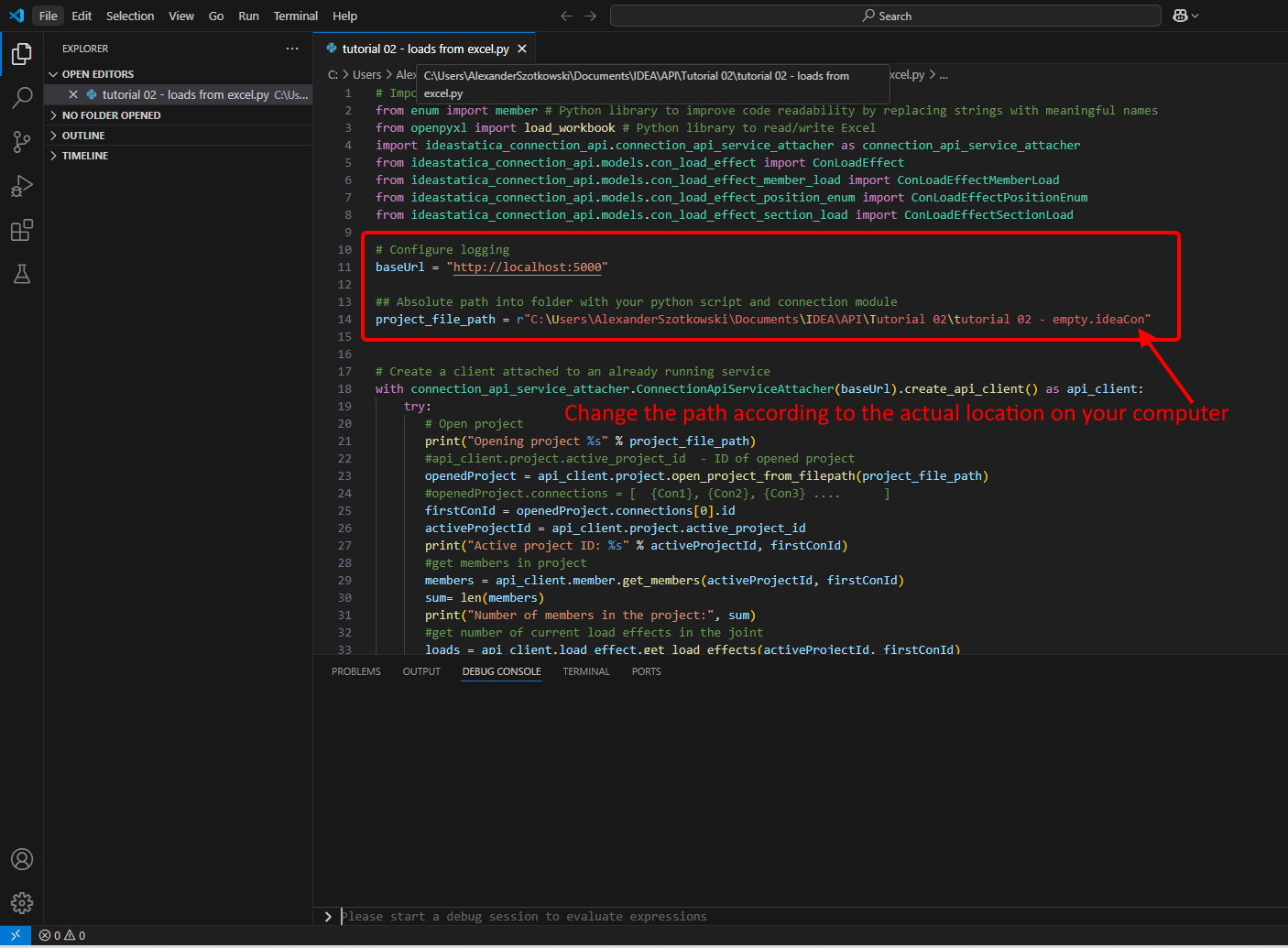
- Configurare il logging tramite la variabile "baseUrl", che richiamerà il localhost. Nel secondo passaggio, associare il percorso assoluto del file IDEA StatiCa Connection.
Codice sorgente:
## Configure logging
baseUrl = "http://localhost:5000"
## Absolute path into a folder with your python script and connection module
project_file_path = r"C:\Users\*username*\Documents\IDEA\API\Tutorial 02\tutorial 02 - empty.ideaCon"
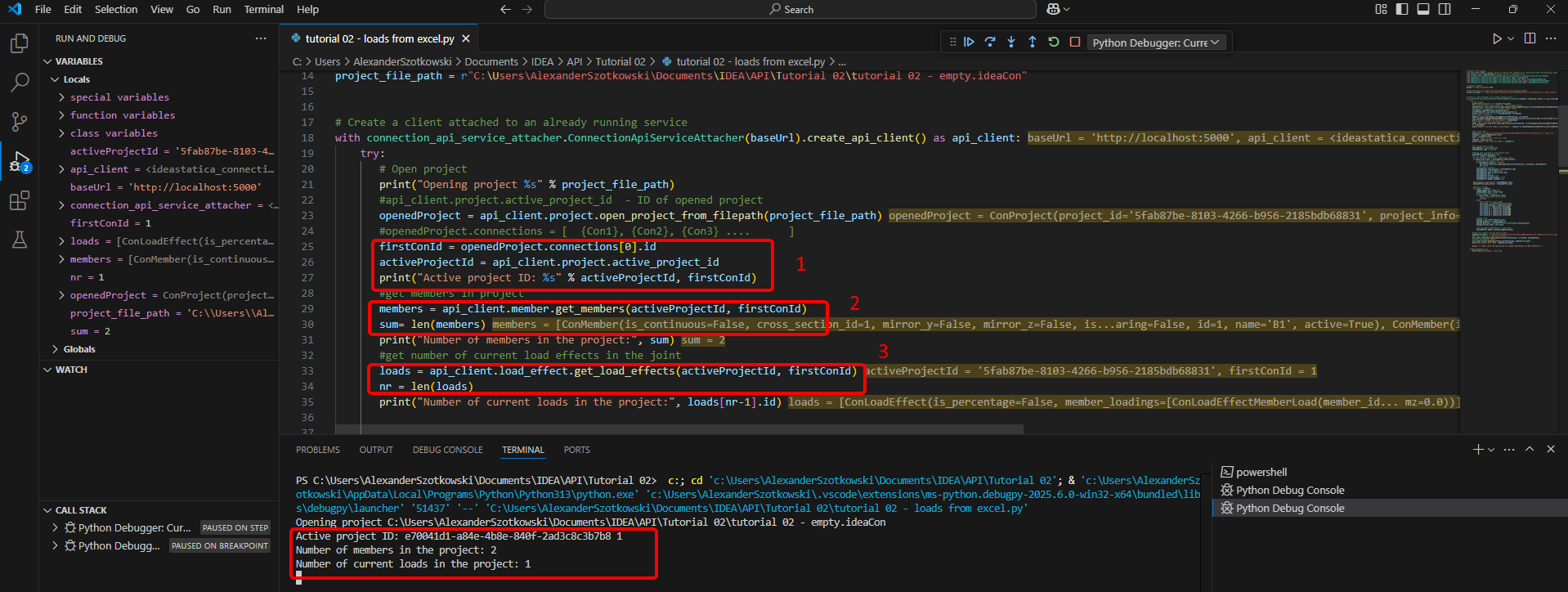
- Associare il client a un servizio già in esecuzione. Utilizzare il blocco try/except - poiché il blocco try genera un errore, verrà eseguito il blocco except. Nella prima fase, è necessario aprire il progetto e trovare l'ID progetto univoco per ogni progetto IDEA StatiCa. Eseguendo lo script, è possibile leggere il percorso stampato, l'ID univoco (1), il numero di elementi collegati (2) e il numero corrente di carichi (3).
Codice sorgente:
# Create a client attached to an already running service
with connection_api_service_attacher.ConnectionApiServiceAttacher(baseUrl).create_api_client() as api_client:
try:
## Open the project
print("Opening project %s" % project_file_path)
#api_client.project.active_project_id - ID of opened project
openedProject = api_client.project.open_project_from_filepath(project_file_path)
#openedProject.connections = [ {Con1}, {Con2}, {Con3} .... ]
firstConId = openedProject.connections[0].id
activeProjectId = api_client.project.active_project_id
print("Active project ID: %s" % activeProjectId, firstConId)
#get members in project
members = api_client.member.get_members(activeProjectId, firstConId)
sum= len(members)
print("Number of members in the project:", sum)
#get number of current load effects in the joint
loads = api_client.load_effect.get_load_effects(activeProjectId, firstConId)
nr = len(loads)
print("Number of current loads in the project:", loads[nr-1].id)
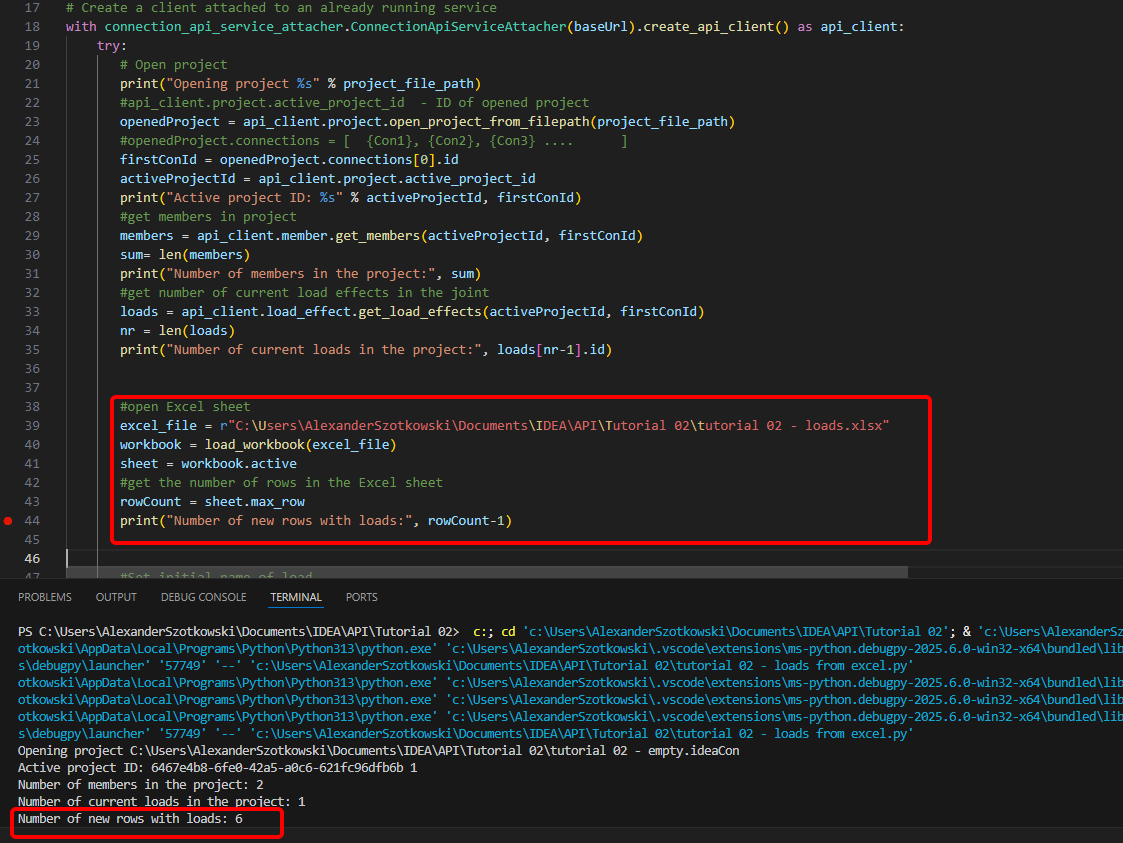
- Aprire il foglio Excel e leggere il numero di righe con i carichi.
Codice sorgente:
#open Excel sheet
excel_file = r"C:\Users\*username*\Documents\IDEA\API\Tutorial 02\tutorial 02 - loads.xlsx"
workbook = load_workbook(excel_file)
sheet = workbook.active
#get the number of rows in the Excel sheet
rowCount = sheet.max_row
print("Number of new rows with loads:", rowCount-1)
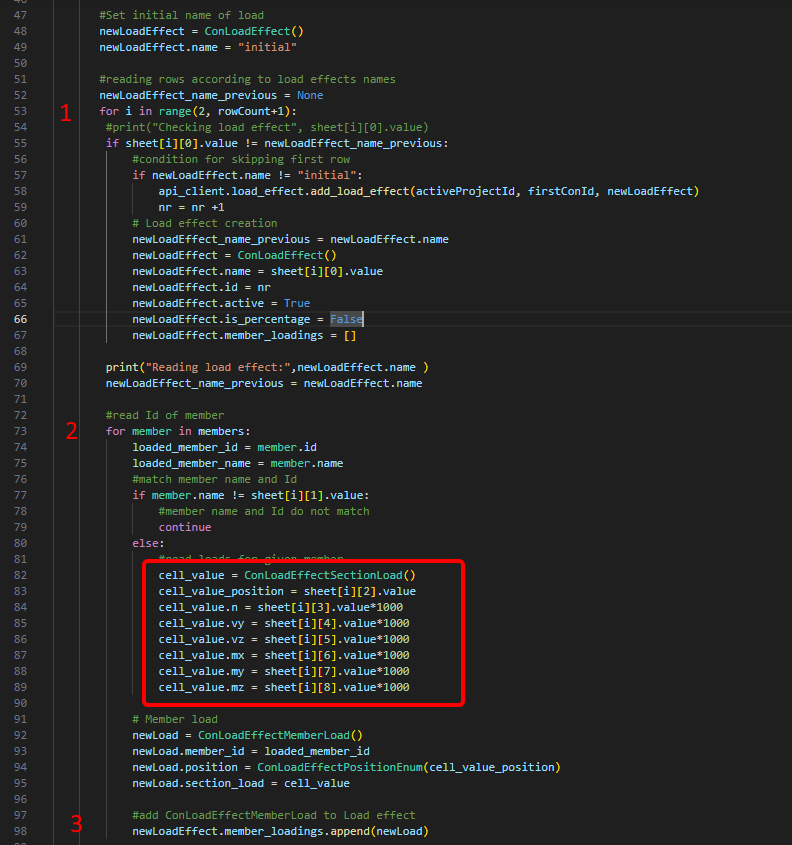
- Avviare un ciclo per rilevare le righe con lo stesso nome di combinazione di carico (1). All'interno di questo ciclo, viene avviato un altro ciclo che aggiunge i carichi a ciascun elemento (2). Dopo ogni ciclo, viene aggiunta una riga con i carichi (3).
#Set initial name of load
newLoadEffect = ConLoadEffect()
newLoadEffect.name = "initial"
#reading rows according to load effects names
newLoadEffect_name_previous = None
for i in range(2, rowCount+1):
#print("Checking load effect", sheet[i][0].value)
if sheet[i][0].value != newLoadEffect_name_previous:
#condition for skipping first row
if newLoadEffect.name != "initial":
api_client.load_effect.add_load_effect(activeProjectId, firstConId, newLoadEffect)
nr = nr +1
# Load effect creation
newLoadEffect_name_previous = newLoadEffect.name
newLoadEffect = ConLoadEffect()
newLoadEffect.name = sheet[i][0].value
newLoadEffect.id = nr
newLoadEffect.active = True
newLoadEffect.is_percentage = False
newLoadEffect.member_loadings = []
print("Reading load effect:",newLoadEffect.name )
newLoadEffect_name_previous = newLoadEffect.name
#read Id of member
for member in members:
loaded_member_id = member.id
loaded_member_name = member.name
#match member name and Id
if member.name != sheet[i][1].value:
#member name and Id do not match
continue
else:
#read loads for given member
cell_value = ConLoadEffectSectionLoad()
cell_value_position = sheet[i][2].value
cell_value.n = sheet[i][3].value*1000
cell_value.vy = sheet[i][4].value*1000
cell_value.vz = sheet[i][5].value*1000
cell_value.mx = sheet[i][6].value*1000
cell_value.my = sheet[i][7].value*1000
cell_value.mz = sheet[i][8].value*1000
# Member load
newLoad = ConLoadEffectMemberLoad()
newLoad.member_id = loaded_member_id
newLoad.position = ConLoadEffectPositionEnum(cell_value_position)
newLoad.section_load = cell_value
#add ConLoadEffectMemberLoad to Load effect
newLoadEffect.member_loadings.append(newLoad)
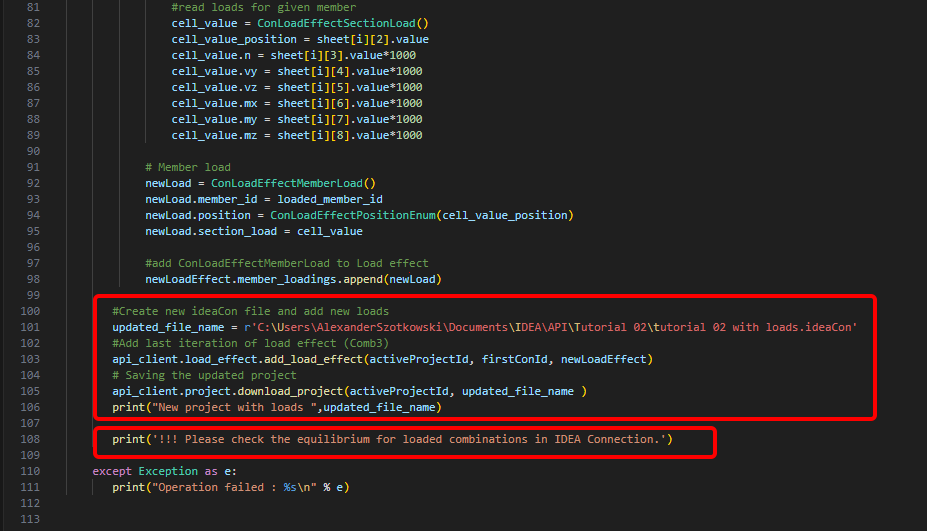
- Creare un nuovo file e salvare il progetto aggiornato con le combinazioni appena aggiunte. Viene aggiunta una nota relativa alla verifica dell'equilibrio.
Codice sorgente:
#Create new ideaCon file and add new loads
updated_file_name = r'C:\Users\AlexanderSzotkowski\Documents\IDEA\API\Tutorial 02\tutorial 02 with loads.ideaCon'
#Add last iteration of load effect (Comb3)
api_client.load_effect.add_load_effect(activeProjectId, firstConId, newLoadEffect)
# Saving the updated project
api_client.project.download_project(activeProjectId, updated_file_name )
print("New project with loads ",updated_file_name)
print('!!! Please check the equilibrium for loaded combinations in IDEA Connection.')
except Exception as e:
print("Operation failed : %s\n" % e)
Ora è possibile verificare il nuovo file per controllare se l'operazione è riuscita.
Download allegati
- tutorial 02 - loads from excel.py (PY, 5 kB)
- tutorial 02 - empty.ideaCon (IDEACON, 38 kB)
- tutorial 02 - loads.xlsx (XLSX, 9 kB)