

Erste Schritte mit der API – Batch-Import von Kombinationen 02
Erste Schritte
Wir empfehlen, das Tutorial Erste Schritte mit der API – Grundlagen 01 durchzuarbeiten, das Ihnen die API und die Einrichtung der Umgebung erklärt.
Connection-Datei
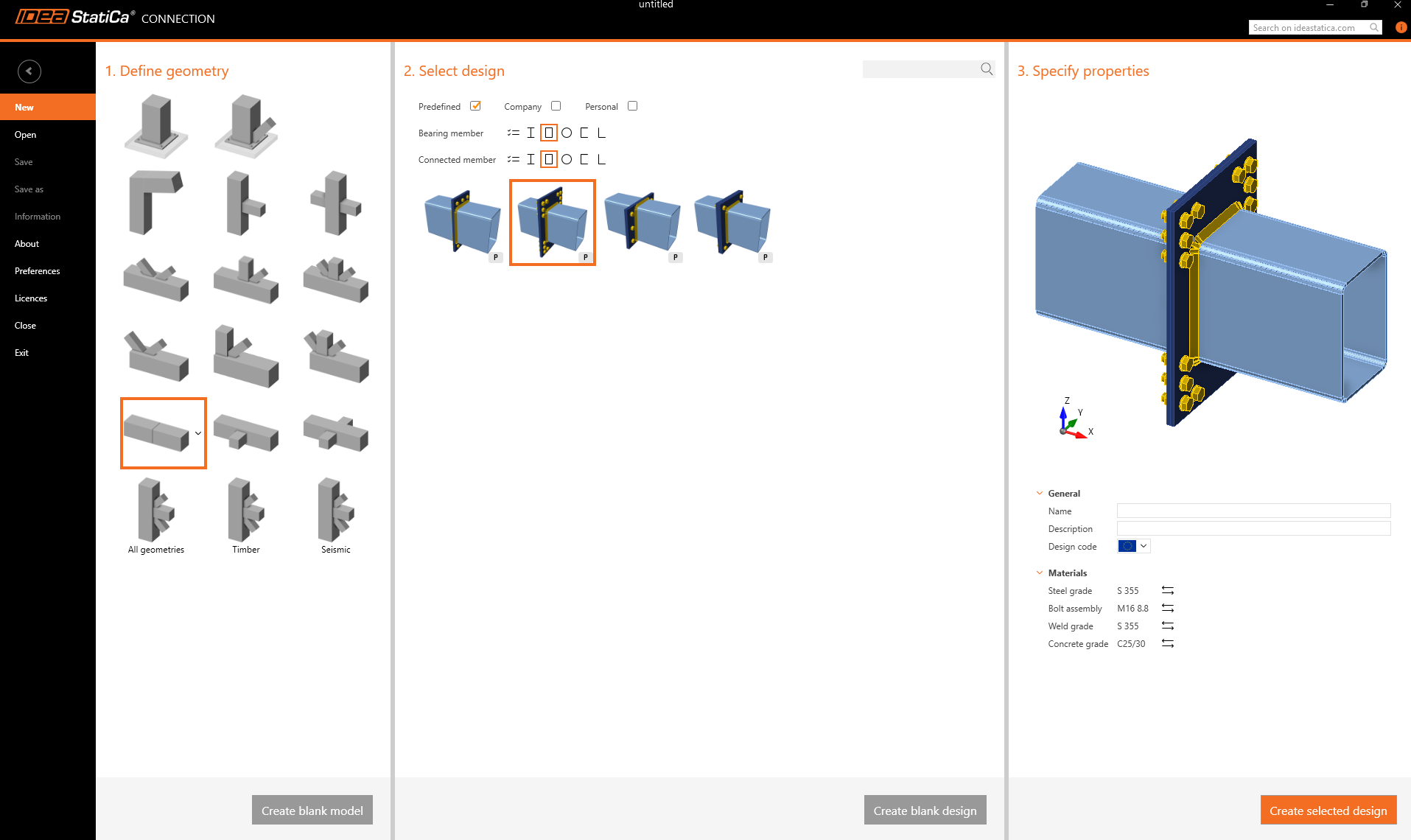
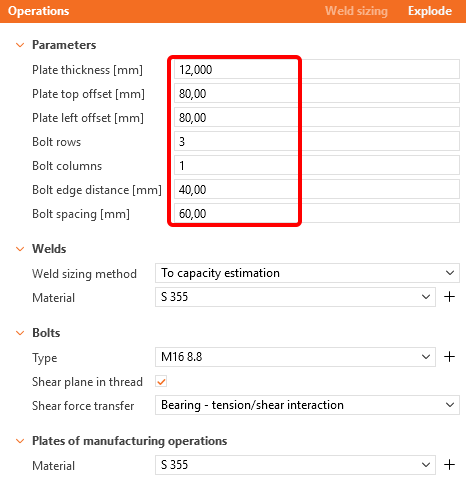
Erstellen Sie zunächst einen Knoten aus zwei Hohlprofilen RHS 300/200/8 und ändern Sie die Parameter entsprechend den folgenden Abbildungen.
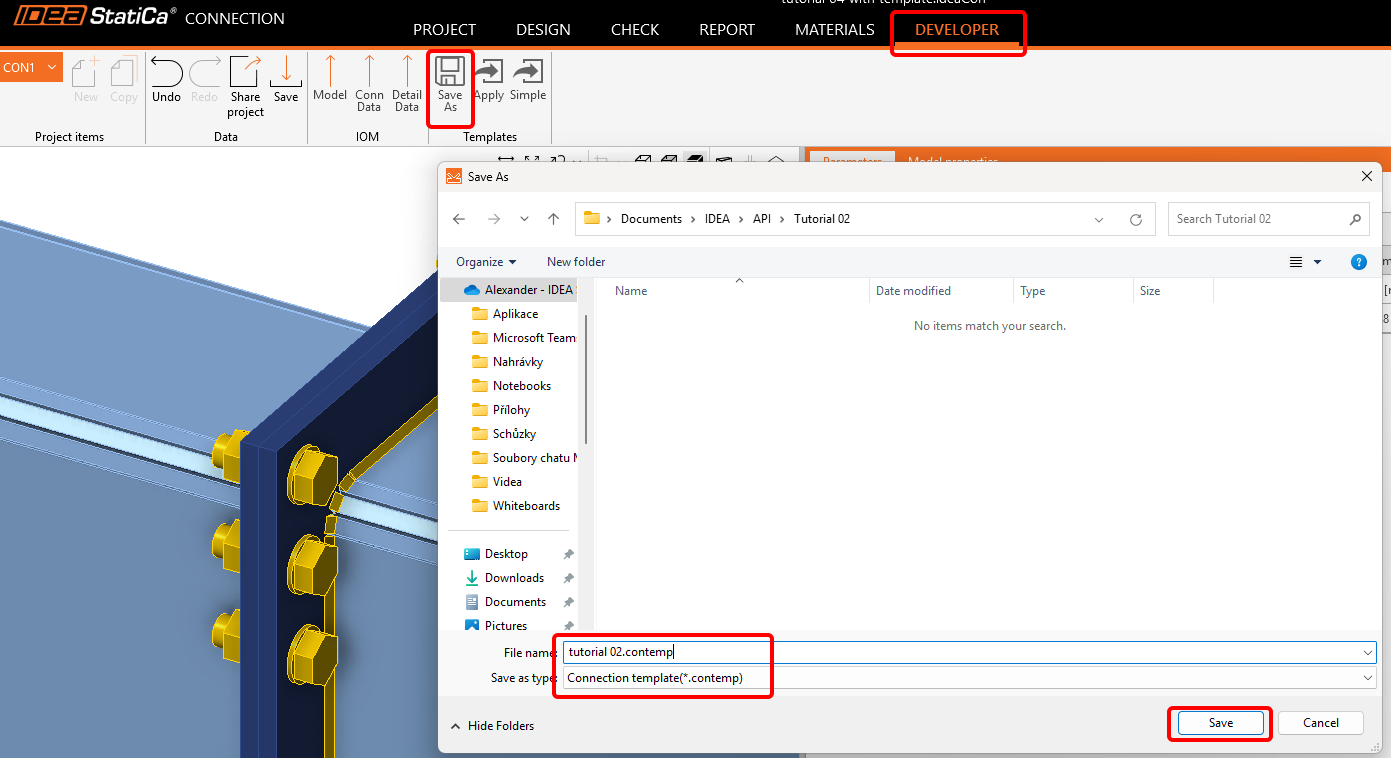
Wechseln Sie nun zur Registerkarte Developer und speichern Sie die Datei als Vorlage mit dem Namen tutorial 02.contemp. Diese wird im nächsten Tutorial verwendet.
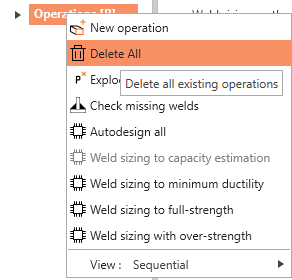
Wechseln Sie zurück zur Registerkarte Design, klicken Sie mit der rechten Maustaste auf Operationen / Alle löschen und speichern Sie diese leere Datei unter tutorial 02 - empty.ideaCon.
Excel-Tabelle mit Lastkombinationen
Bereiten Sie im nächsten Schritt eine Excel-Tabelle mit den Lasten vor, die in die .ideaCon-Datei importiert werden sollen. Diese kann am Ende dieser Seite heruntergeladen werden.
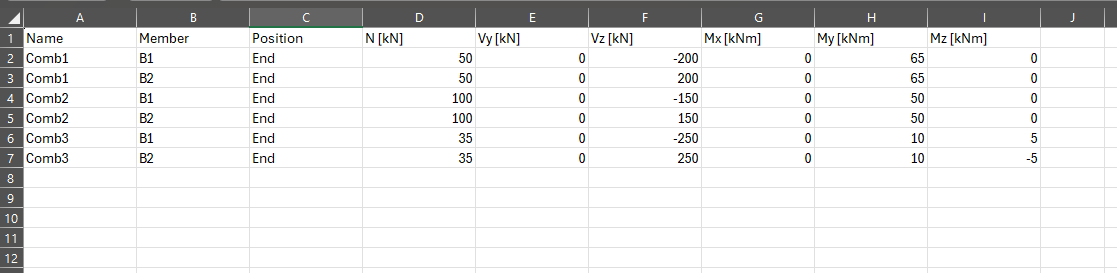
Bitte verwenden Sie die genauen Spaltennamen, wie sie im Python-Skript verwendet werden.
Python-Client
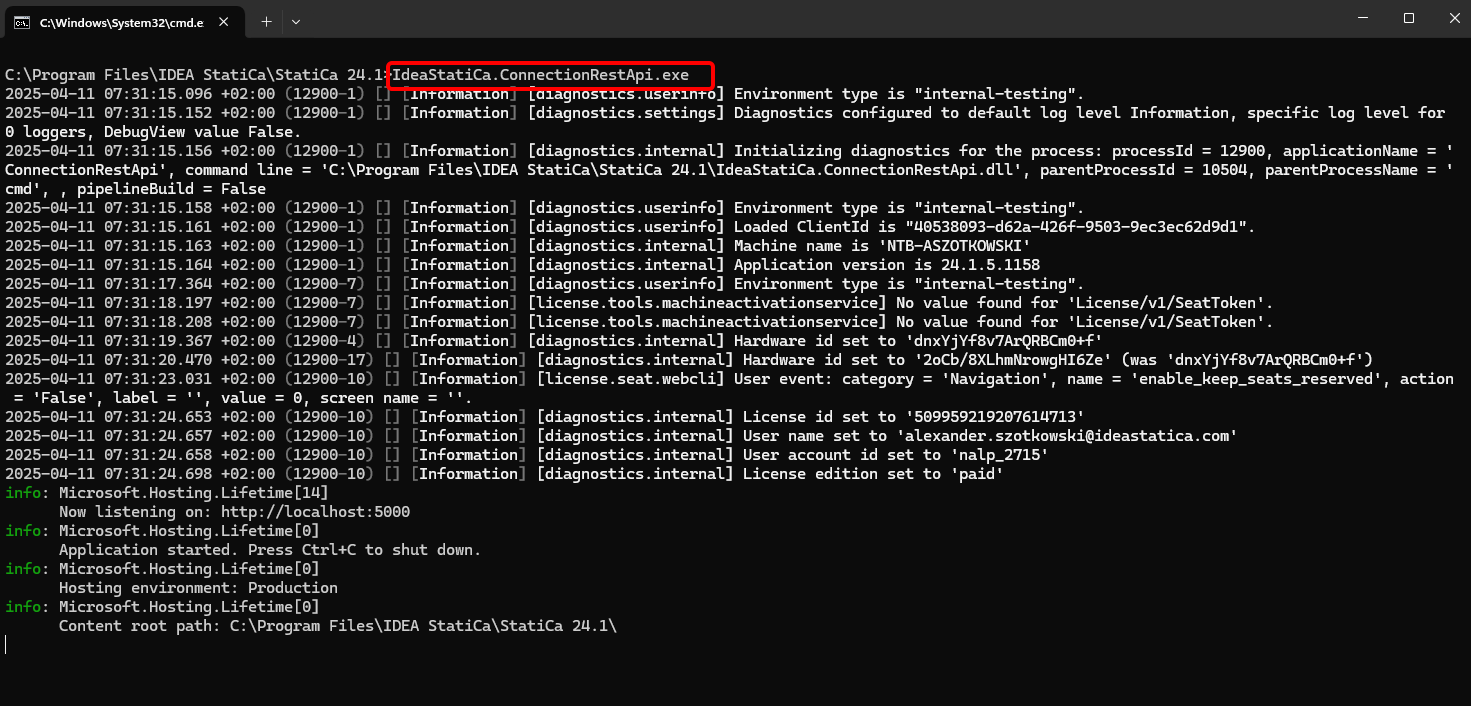
Starten Sie die „IdeaStatiCa.ConnectionRestApi.exe" in der CMD im entsprechenden IDEA StatiCa-Ordner und öffnen Sie das IDE-Werkzeug Ihrer Wahl.
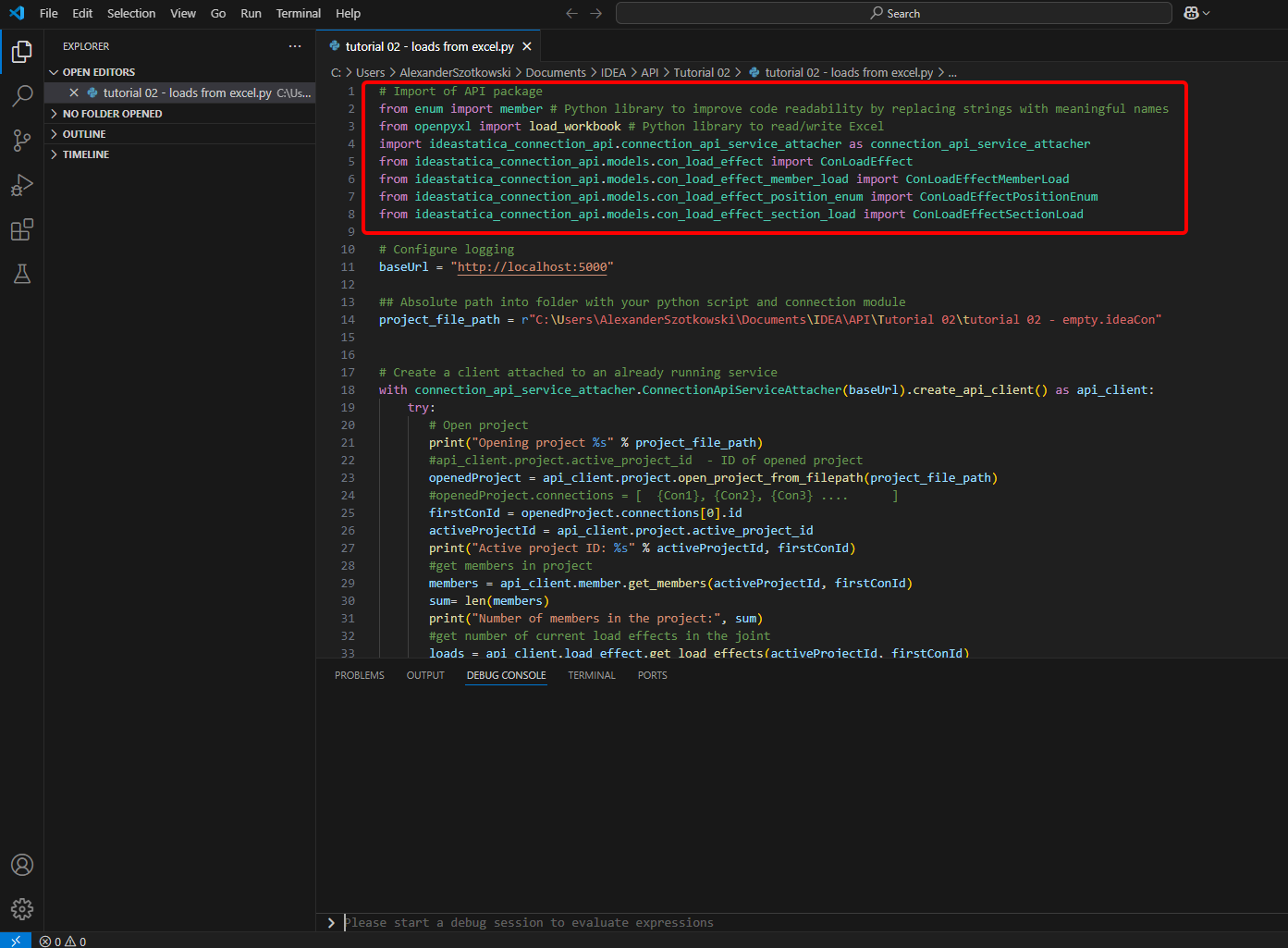
- Erstellen Sie eine neue Datei und importieren Sie die Pakete, die die Verwendung der Berechnung und die Verbindung mit der Localhost-URL ermöglichen.
Quellcode:
## Import of API package
from enum import member # Python library to improve code readability by replacing strings with meaningful names
from openpyxl import load_workbook # Python library to read/write Excel
import ideastatica_connection_api.connection_api_service_attacher as connection_api_service_attacher
from ideastatica_connection_api.models.con_load_effect import ConLoadEffect
from ideastatica_connection_api.models.con_load_effect_member_load import ConLoadEffectMemberLoad
from ideastatica_connection_api.models.con_load_effect_position_enum import ConLoadEffectPositionEnum
from ideastatica_connection_api.models.con_load_effect_section_load import ConLoadEffectSectionLoad
- Konfigurieren Sie das Logging über die Variable „baseUrl", die Ihren Localhost aufruft. Im zweiten Schritt verknüpfen Sie den absoluten Pfad Ihrer IDEA StatiCa Connection-Datei.
Quellcode:
## Configure logging
baseUrl = "http://localhost:5000"
## Absolute path into a folder with your python script and connection module
project_file_path = r"C:\Users\*username*\Documents\IDEA\API\Tutorial 02\tutorial 02 - empty.ideaCon"
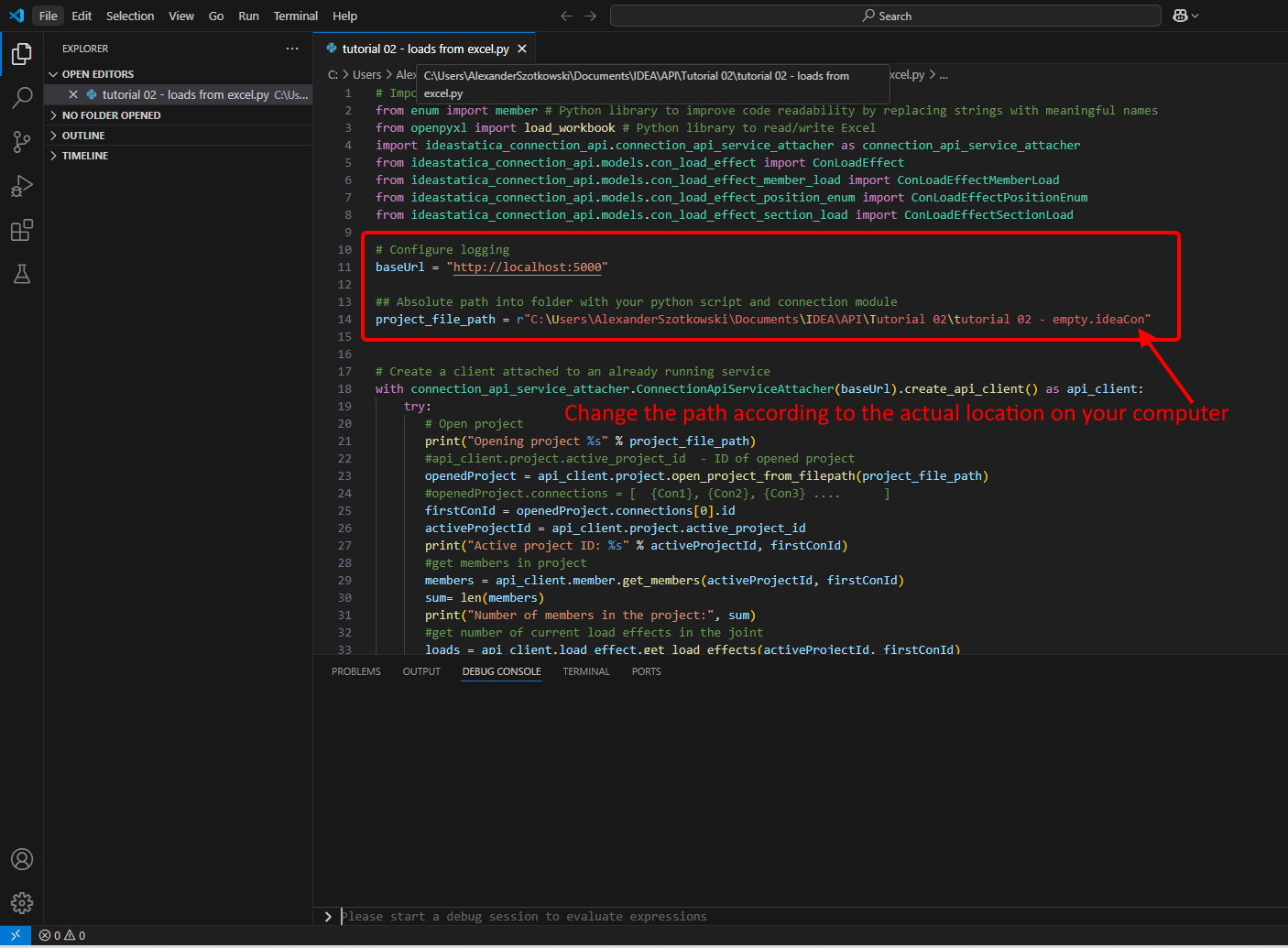
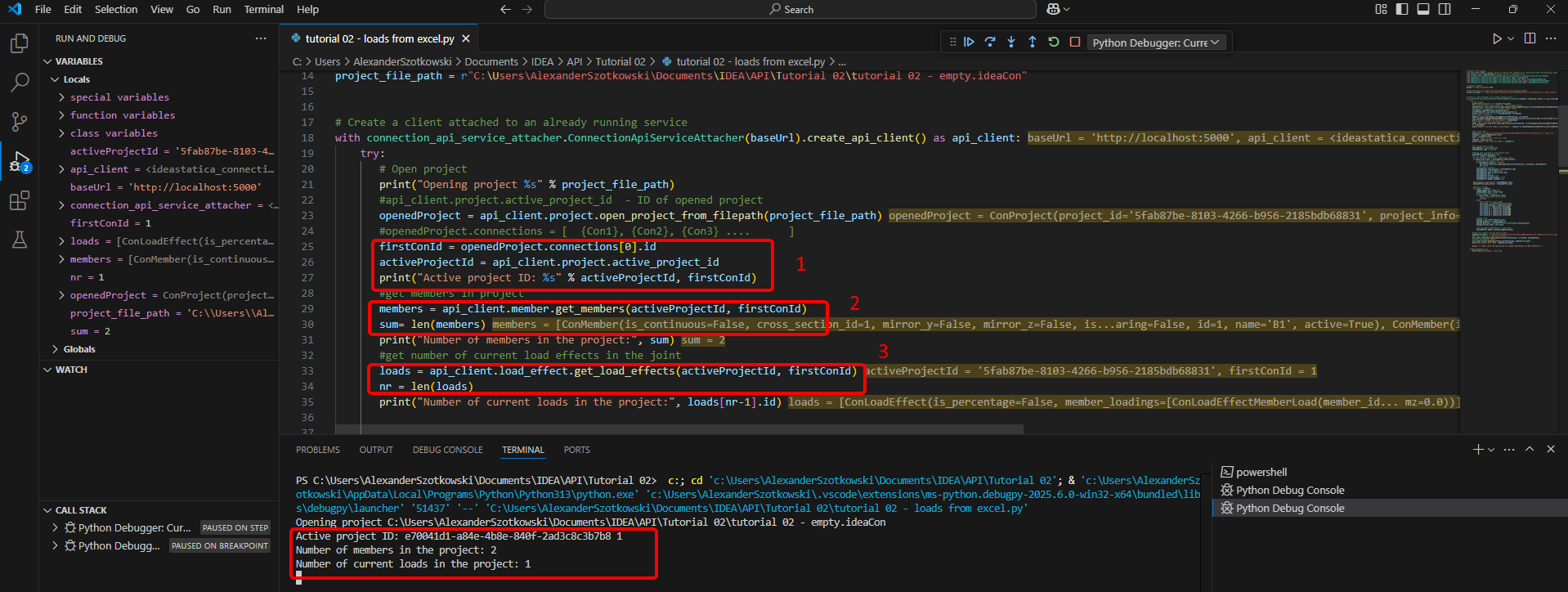
- Verbinden Sie den Client mit einem bereits laufenden Dienst. Verwenden Sie den try/except-Block – da der try-Block einen Fehler auslöst, wird der except-Block ausgeführt. In der ersten Phase muss das Projekt geöffnet und die Projekt-ID Ihres Projekts ermittelt werden, die für jedes IDEA StatiCa-Projekt eindeutig ist. Wenn Sie das Skript ausführen, können Sie den ausgegebenen Pfad, die eindeutige ID (1), die Anzahl der angehängten Bauteile (2) und die aktuelle Anzahl der Lasten (3) ablesen.
Quellcode:
# Create a client attached to an already running service
with connection_api_service_attacher.ConnectionApiServiceAttacher(baseUrl).create_api_client() as api_client:
try:
## Open the project
print("Opening project %s" % project_file_path)
#api_client.project.active_project_id - ID of opened project
openedProject = api_client.project.open_project_from_filepath(project_file_path)
#openedProject.connections = [ {Con1}, {Con2}, {Con3} .... ]
firstConId = openedProject.connections[0].id
activeProjectId = api_client.project.active_project_id
print("Active project ID: %s" % activeProjectId, firstConId)
#get members in project
members = api_client.member.get_members(activeProjectId, firstConId)
sum= len(members)
print("Number of members in the project:", sum)
#get number of current load effects in the joint
loads = api_client.load_effect.get_load_effects(activeProjectId, firstConId)
nr = len(loads)
print("Number of current loads in the project:", loads[nr-1].id)
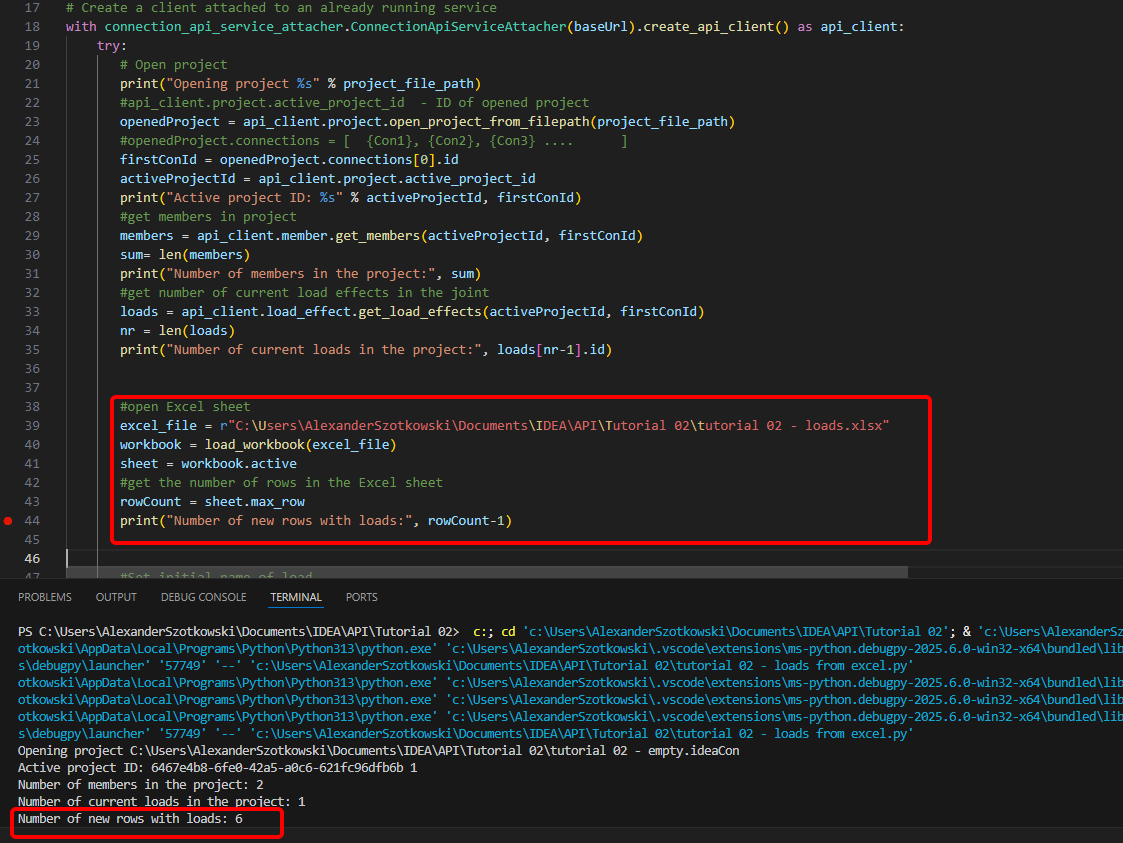
- Öffnen Sie die Excel-Tabelle und lesen Sie die Anzahl der Zeilen mit Lasten aus.
Quellcode:
#open Excel sheet
excel_file = r"C:\Users\*username*\Documents\IDEA\API\Tutorial 02\tutorial 02 - loads.xlsx"
workbook = load_workbook(excel_file)
sheet = workbook.active
#get the number of rows in the Excel sheet
rowCount = sheet.max_row
print("Number of new rows with loads:", rowCount-1)
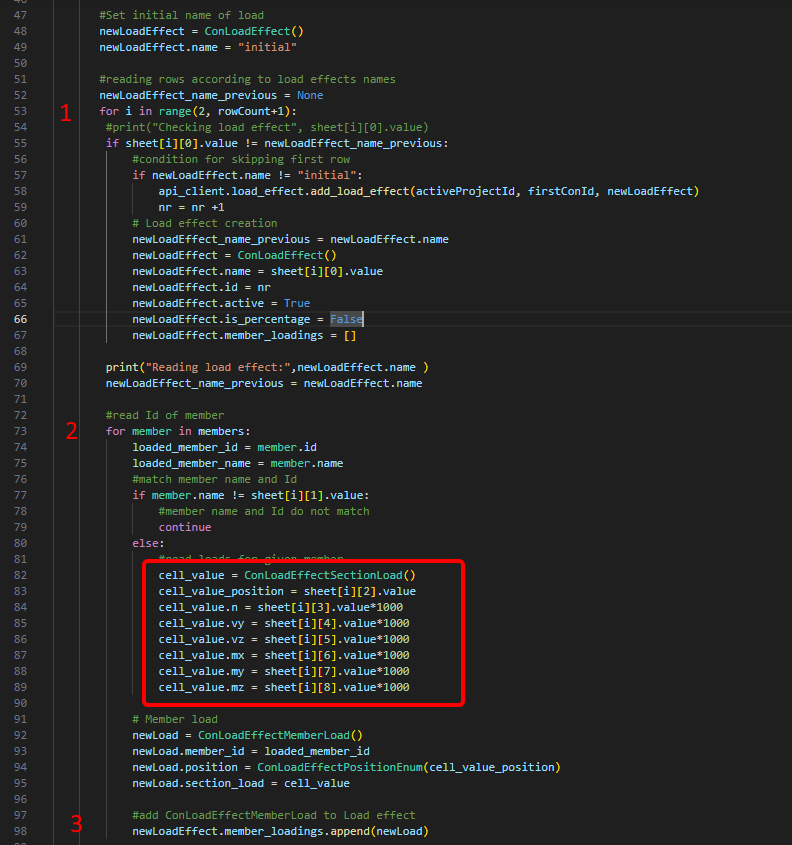
- Starten Sie eine Schleife, um Zeilen mit demselben Lastkombinationsnamen (1) zu erkennen. Innerhalb dieser Schleife wird eine weitere Schleife gestartet, die jedem Bauteil Lasten hinzufügt (2). Nach jeder Schleife wird eine Zeile mit den Lasten hinzugefügt (3).
#Set initial name of load
newLoadEffect = ConLoadEffect()
newLoadEffect.name = "initial"
#reading rows according to load effects names
newLoadEffect_name_previous = None
for i in range(2, rowCount+1):
#print("Checking load effect", sheet[i][0].value)
if sheet[i][0].value != newLoadEffect_name_previous:
#condition for skipping first row
if newLoadEffect.name != "initial":
api_client.load_effect.add_load_effect(activeProjectId, firstConId, newLoadEffect)
nr = nr +1
# Load effect creation
newLoadEffect_name_previous = newLoadEffect.name
newLoadEffect = ConLoadEffect()
newLoadEffect.name = sheet[i][0].value
newLoadEffect.id = nr
newLoadEffect.active = True
newLoadEffect.is_percentage = False
newLoadEffect.member_loadings = []
print("Reading load effect:",newLoadEffect.name )
newLoadEffect_name_previous = newLoadEffect.name
#read Id of member
for member in members:
loaded_member_id = member.id
loaded_member_name = member.name
#match member name and Id
if member.name != sheet[i][1].value:
#member name and Id do not match
continue
else:
#read loads for given member
cell_value = ConLoadEffectSectionLoad()
cell_value_position = sheet[i][2].value
cell_value.n = sheet[i][3].value*1000
cell_value.vy = sheet[i][4].value*1000
cell_value.vz = sheet[i][5].value*1000
cell_value.mx = sheet[i][6].value*1000
cell_value.my = sheet[i][7].value*1000
cell_value.mz = sheet[i][8].value*1000
# Member load
newLoad = ConLoadEffectMemberLoad()
newLoad.member_id = loaded_member_id
newLoad.position = ConLoadEffectPositionEnum(cell_value_position)
newLoad.section_load = cell_value
#add ConLoadEffectMemberLoad to Load effect
newLoadEffect.member_loadings.append(newLoad)
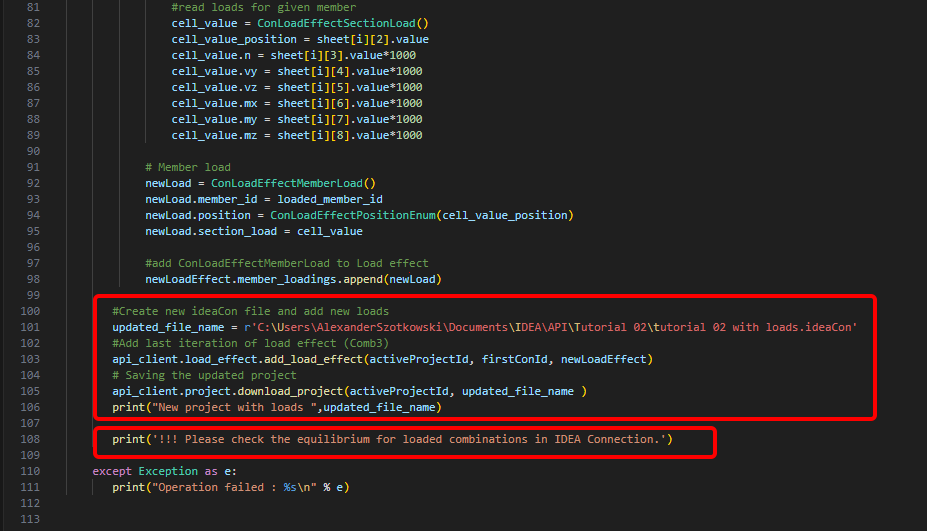
- Erstellen Sie eine neue Datei und speichern Sie das aktualisierte Projekt mit den neu hinzugefügten Kombinationen. Ein Hinweis zur Überprüfung des Gleichgewichts wird hinzugefügt.
Quellcode:
#Create new ideaCon file and add new loads
updated_file_name = r'C:\Users\AlexanderSzotkowski\Documents\IDEA\API\Tutorial 02\tutorial 02 with loads.ideaCon'
#Add last iteration of load effect (Comb3)
api_client.load_effect.add_load_effect(activeProjectId, firstConId, newLoadEffect)
# Saving the updated project
api_client.project.download_project(activeProjectId, updated_file_name )
print("New project with loads ",updated_file_name)
print('!!! Please check the equilibrium for loaded combinations in IDEA Connection.')
except Exception as e:
print("Operation failed : %s\n" % e)
Nun können Sie die neue Datei überprüfen, um festzustellen, ob der Vorgang erfolgreich war.
Anhänge zum Download
- tutorial 02 - loads from excel.py (PY, 5 kB)
- tutorial 02 - empty.ideaCon (IDEACON, 38 kB)
- tutorial 02 - loads.xlsx (XLSX, 9 kB)