

Comment démarrer avec l'API - Importation par lots de combinaisons 02
Premiers pas
Nous recommandons de suivre le tutoriel Comment démarrer avec l'API - Bases 01, qui vous présente l'API et la configuration de l'environnement.
Fichier d'assemblage
Commencez par créer un assemblage de deux sections creuses RHS 300/200/8 et modifiez les paramètres conformément aux images suivantes.
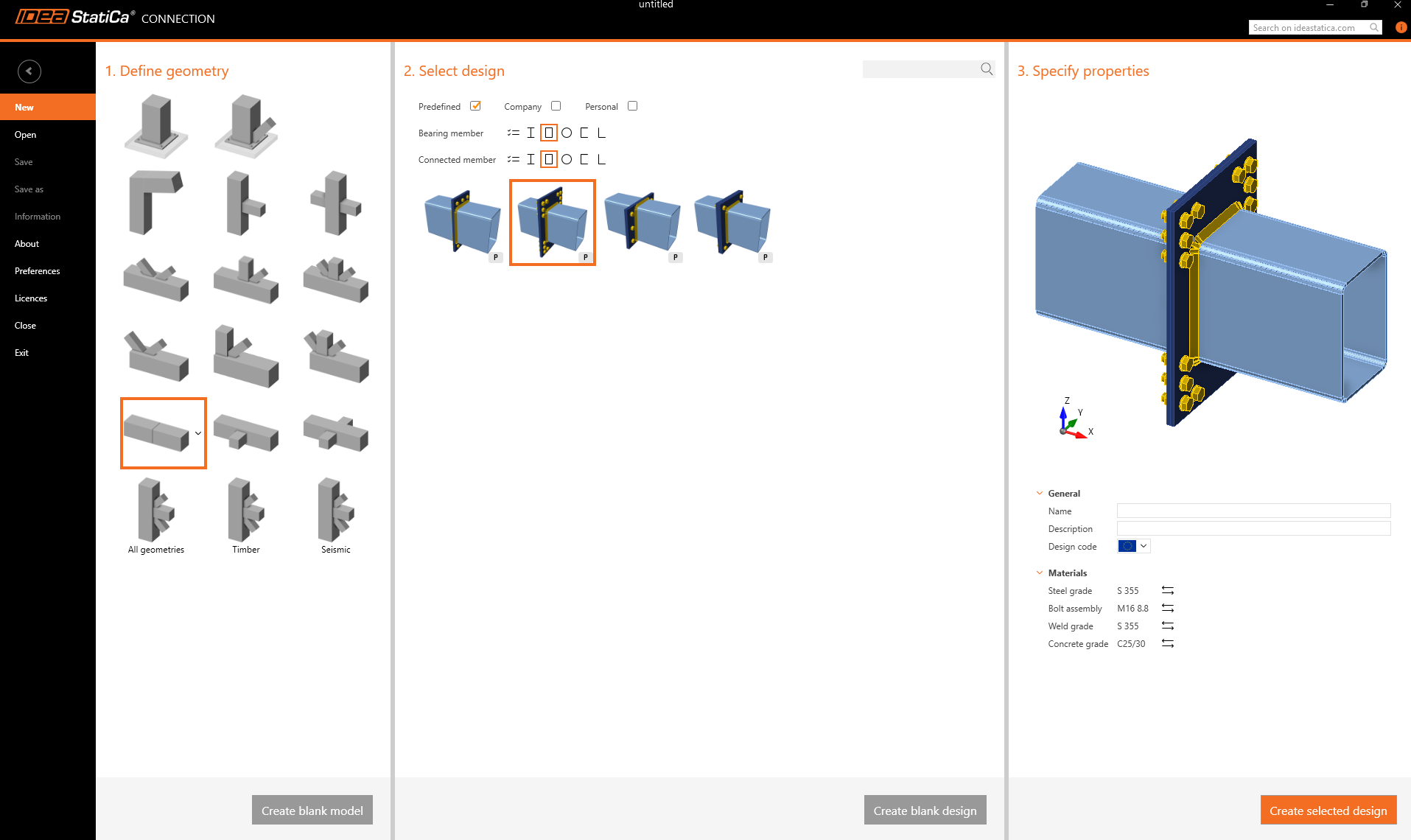
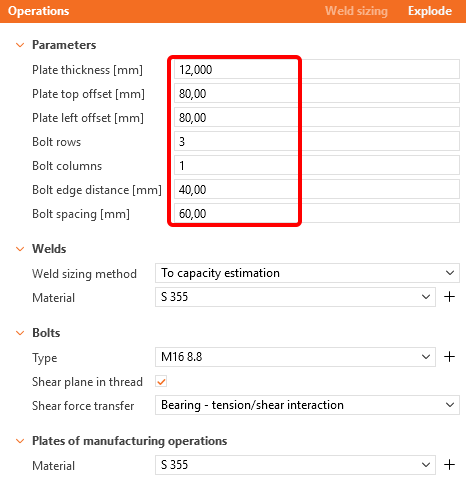
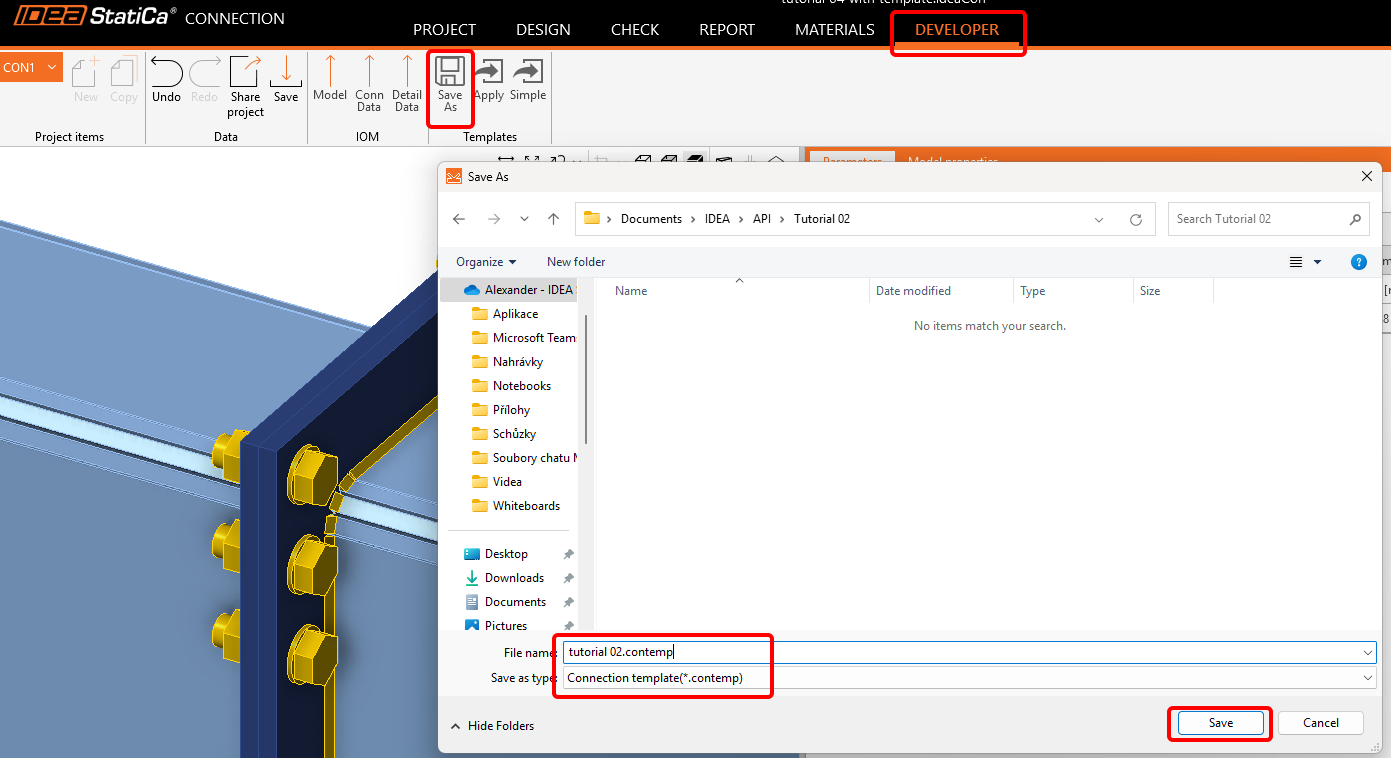
Accédez ensuite à l'onglet Developer et enregistrez-le comme modèle sous le nom tutorial 02.contemp. Nous l'utiliserons dans le prochain tutoriel.
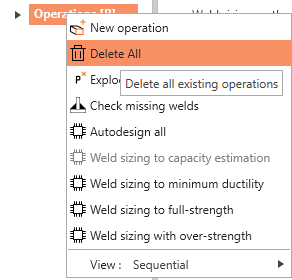
Revenez à l'onglet Design, faites un clic droit sur Operations / Delete All, et enregistrez ce fichier vide sous tutorial 02 - empty.ideaCon.
Feuille Excel avec les combinaisons de charges
Dans un second temps, préparez une feuille Excel avec les charges à importer dans le fichier .ideaCon. Vous pouvez la télécharger en bas de cette page.
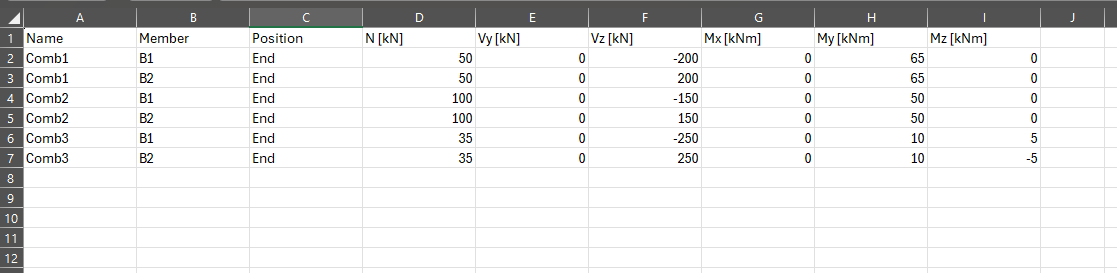
Veuillez utiliser les noms exacts des colonnes tels qu'ils sont utilisés dans le script Python.
Client Python
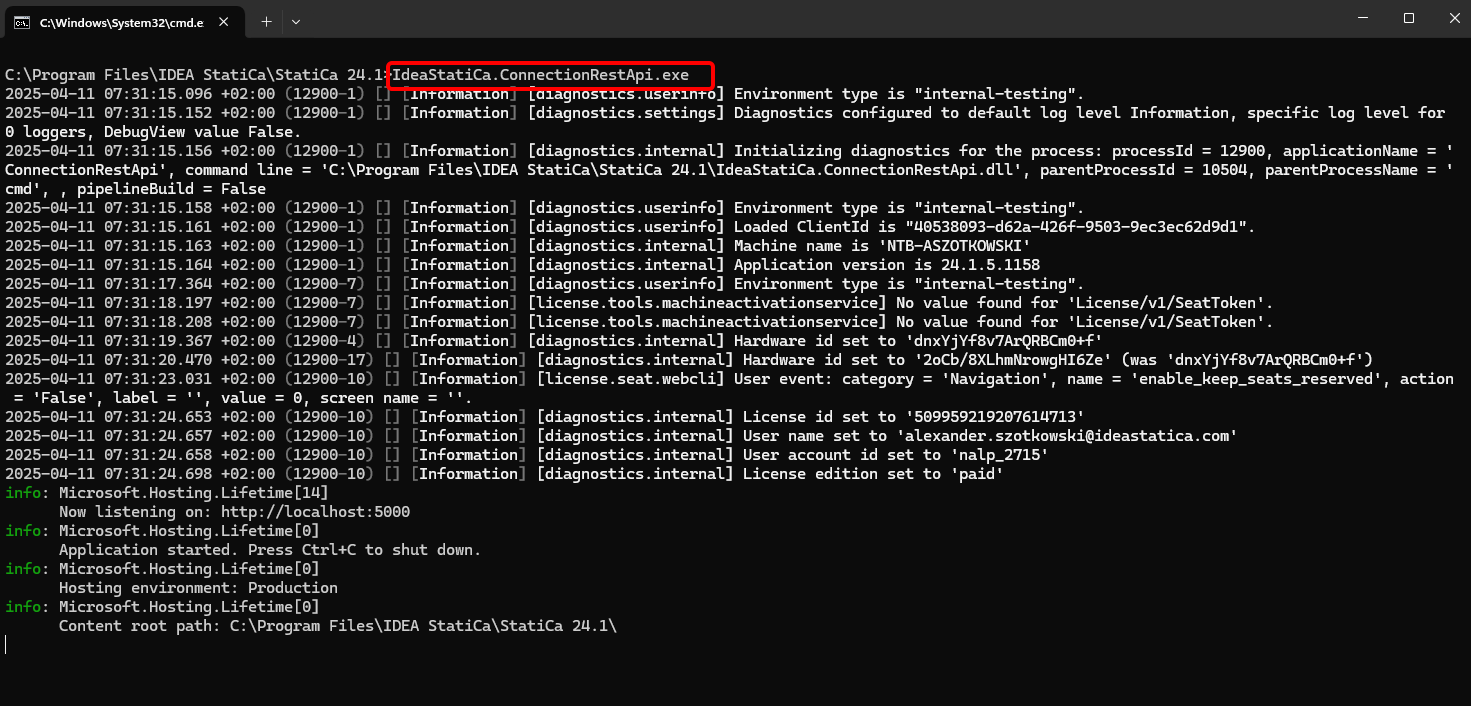
Exécutez "IdeaStatiCa.ConnectionRestApi.exe" dans CMD depuis le dossier IDEA StatiCa approprié et ouvrez l'outil IDE de votre choix.
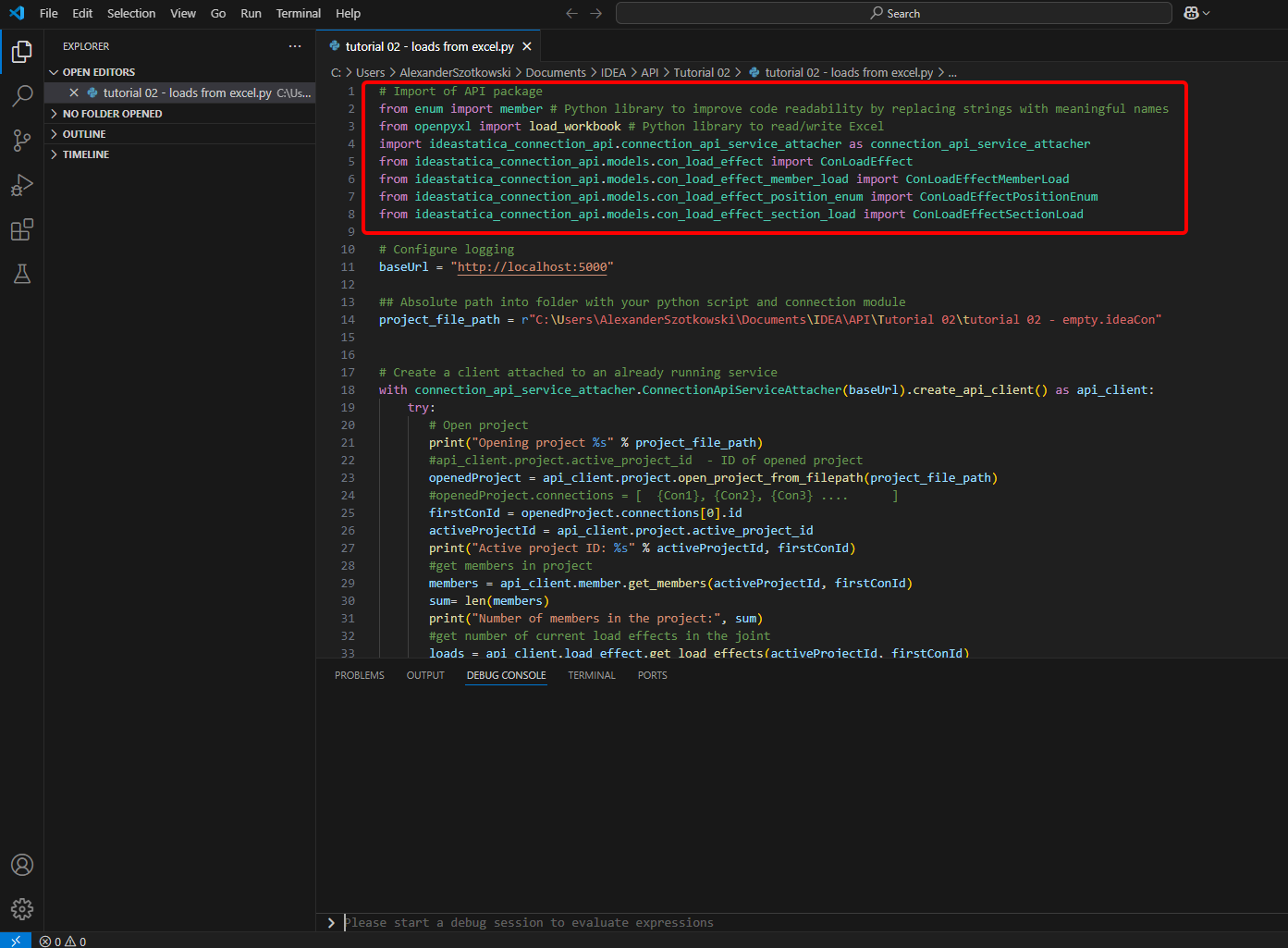
- Créez un nouveau fichier et importez les packages qui permettront d'utiliser le calcul et d'établir le lien avec l'URL localhost.
Code source :
## Import of API package
from enum import member # Python library to improve code readability by replacing strings with meaningful names
from openpyxl import load_workbook # Python library to read/write Excel
import ideastatica_connection_api.connection_api_service_attacher as connection_api_service_attacher
from ideastatica_connection_api.models.con_load_effect import ConLoadEffect
from ideastatica_connection_api.models.con_load_effect_member_load import ConLoadEffectMemberLoad
from ideastatica_connection_api.models.con_load_effect_position_enum import ConLoadEffectPositionEnum
from ideastatica_connection_api.models.con_load_effect_section_load import ConLoadEffectSectionLoad
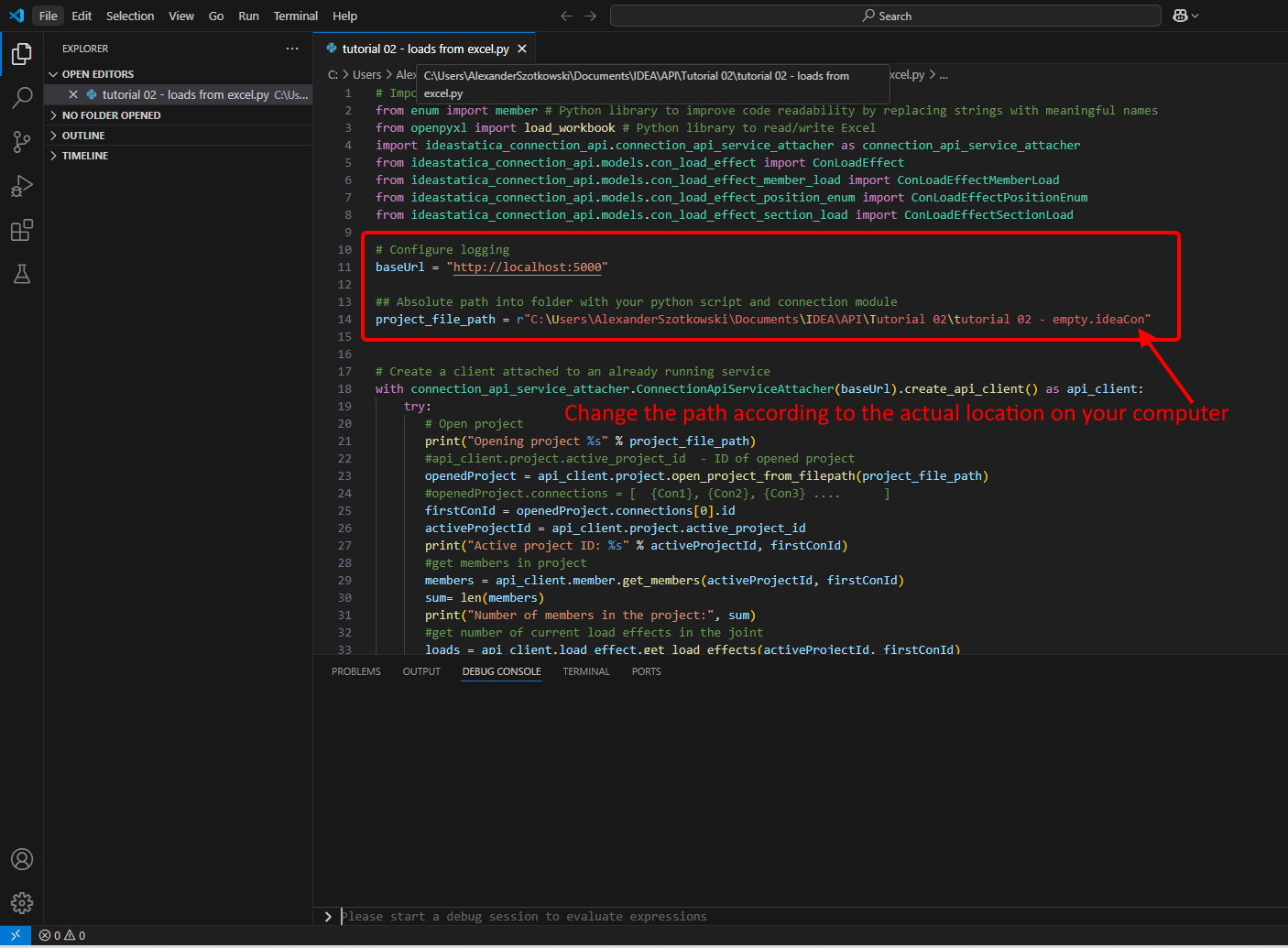
- Configurez la journalisation via la variable "baseUrl", qui appellera votre localhost. Dans un second temps, associez le chemin absolu de votre fichier IDEA StatiCa Connection.
Code source :
## Configure logging
baseUrl = "http://localhost:5000"
## Absolute path into a folder with your python script and connection module
project_file_path = r"C:\Users\*username*\Documents\IDEA\API\Tutorial 02\tutorial 02 - empty.ideaCon"
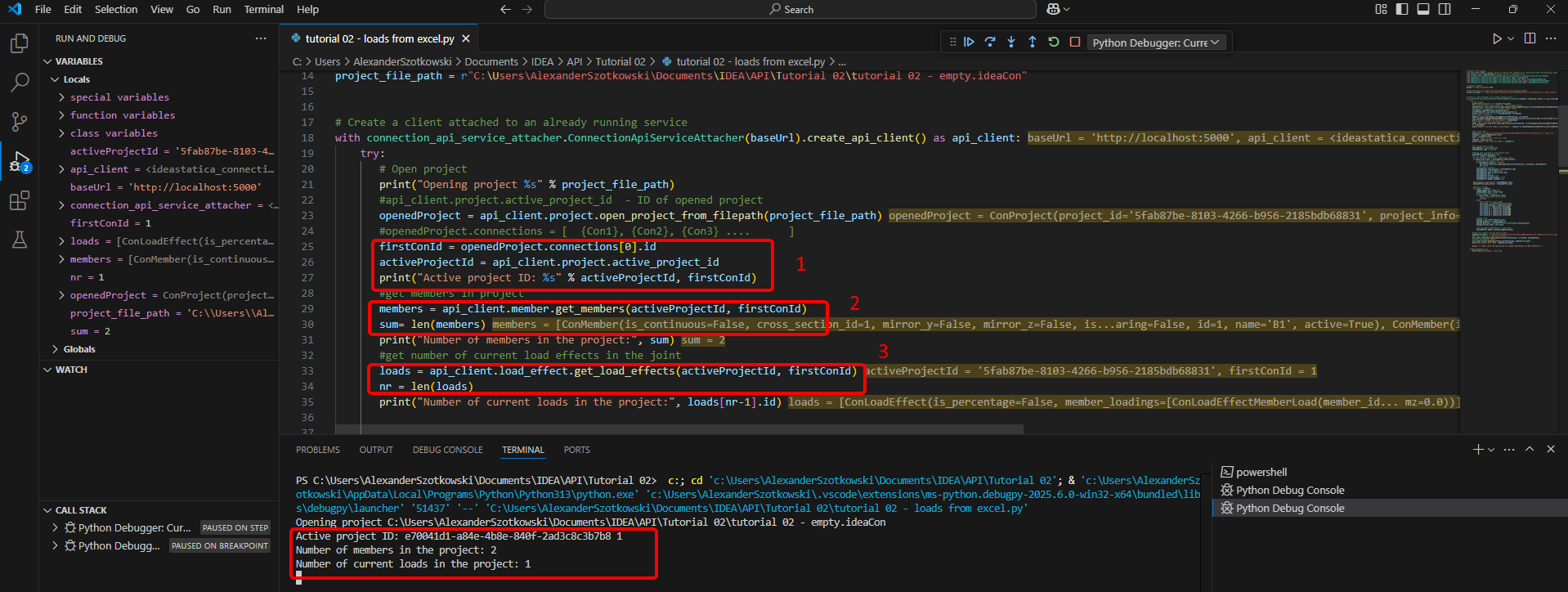
- Associez le client à un service déjà en cours d'exécution. Utilisez le bloc try/except — si le bloc try génère une erreur, le bloc except sera exécuté. Dans un premier temps, il est nécessaire d'ouvrir le projet et de trouver l'ID de projet unique à chaque projet IDEA StatiCa. En exécutant le script, vous pouvez lire le chemin affiché, l'ID unique (1), le nombre d'éléments associés (2) et le nombre actuel de charges (3).
Code source :
# Create a client attached to an already running service
with connection_api_service_attacher.ConnectionApiServiceAttacher(baseUrl).create_api_client() as api_client:
try:
## Open the project
print("Opening project %s" % project_file_path)
#api_client.project.active_project_id - ID of opened project
openedProject = api_client.project.open_project_from_filepath(project_file_path)
#openedProject.connections = [ {Con1}, {Con2}, {Con3} .... ]
firstConId = openedProject.connections[0].id
activeProjectId = api_client.project.active_project_id
print("Active project ID: %s" % activeProjectId, firstConId)
#get members in project
members = api_client.member.get_members(activeProjectId, firstConId)
sum= len(members)
print("Number of members in the project:", sum)
#get number of current load effects in the joint
loads = api_client.load_effect.get_load_effects(activeProjectId, firstConId)
nr = len(loads)
print("Number of current loads in the project:", loads[nr-1].id)
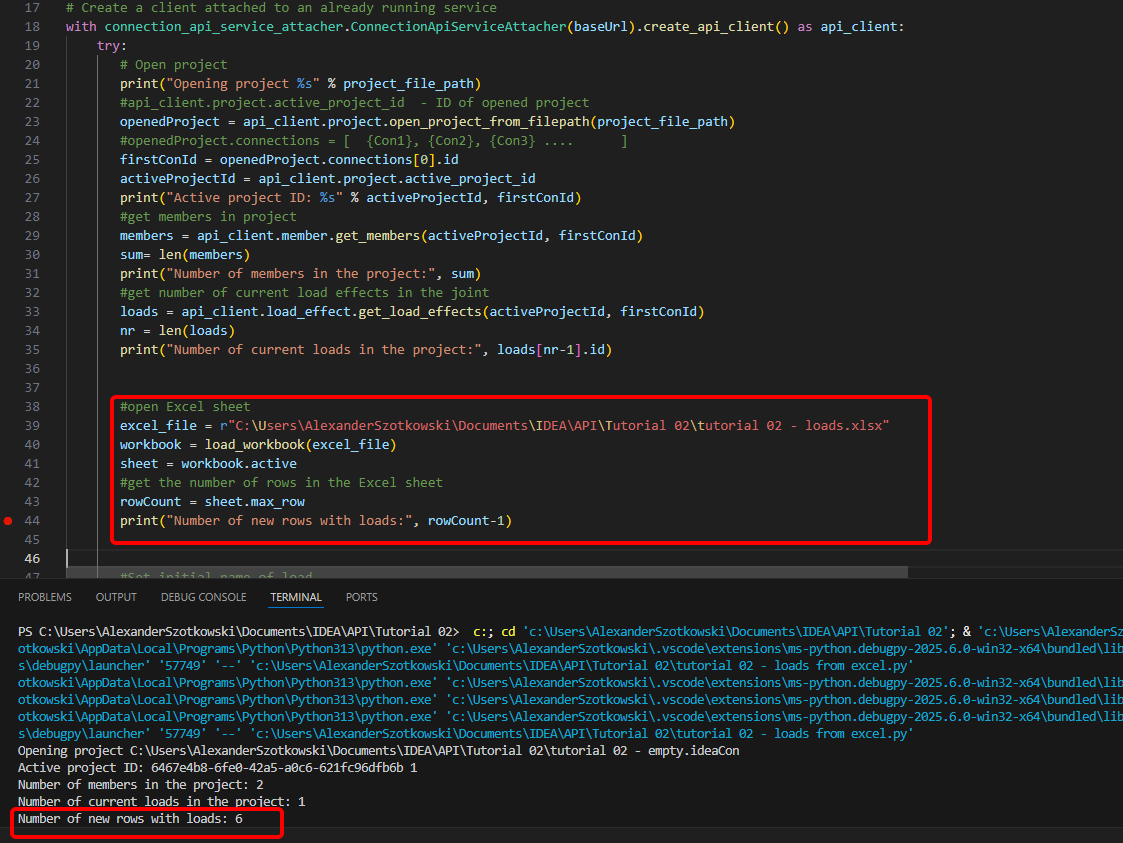
- Ouvrez la feuille Excel et lisez le nombre de lignes contenant des charges.
Code source :
#open Excel sheet
excel_file = r"C:\Users\*username*\Documents\IDEA\API\Tutorial 02\tutorial 02 - loads.xlsx"
workbook = load_workbook(excel_file)
sheet = workbook.active
#get the number of rows in the Excel sheet
rowCount = sheet.max_row
print("Number of new rows with loads:", rowCount-1)
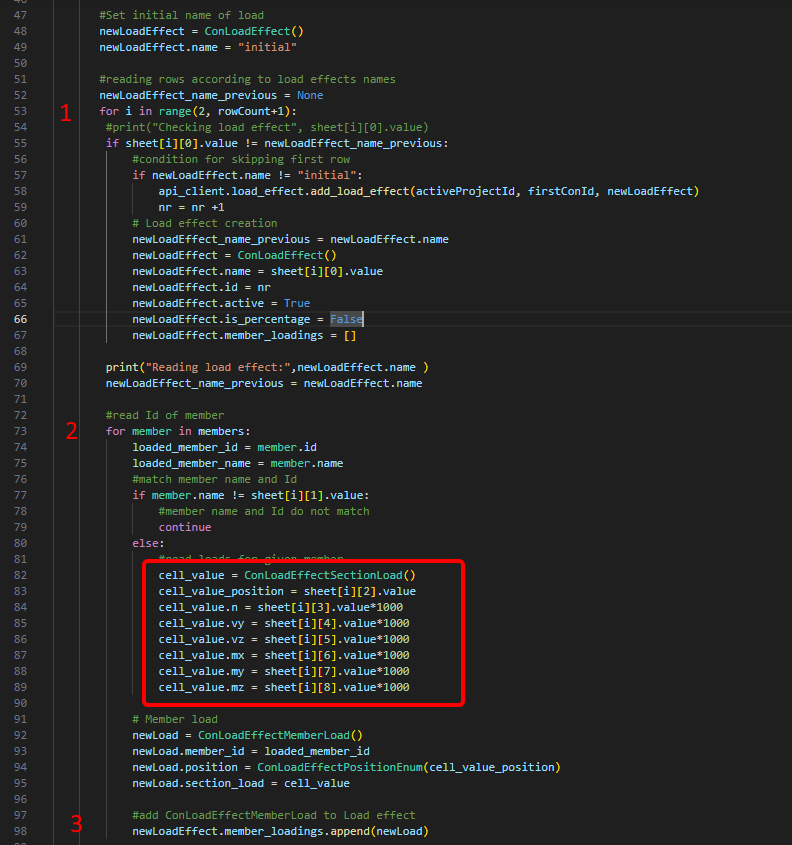
- Démarrez une boucle pour détecter les lignes portant le même nom de combinaison de charges (1). Dans cette boucle, une autre boucle ajoutant des charges à chaque élément est lancée (2). Après chaque itération, une ligne de charges est ajoutée (3).
#Set initial name of load
newLoadEffect = ConLoadEffect()
newLoadEffect.name = "initial"
#reading rows according to load effects names
newLoadEffect_name_previous = None
for i in range(2, rowCount+1):
#print("Checking load effect", sheet[i][0].value)
if sheet[i][0].value != newLoadEffect_name_previous:
#condition for skipping first row
if newLoadEffect.name != "initial":
api_client.load_effect.add_load_effect(activeProjectId, firstConId, newLoadEffect)
nr = nr +1
# Load effect creation
newLoadEffect_name_previous = newLoadEffect.name
newLoadEffect = ConLoadEffect()
newLoadEffect.name = sheet[i][0].value
newLoadEffect.id = nr
newLoadEffect.active = True
newLoadEffect.is_percentage = False
newLoadEffect.member_loadings = []
print("Reading load effect:",newLoadEffect.name )
newLoadEffect_name_previous = newLoadEffect.name
#read Id of member
for member in members:
loaded_member_id = member.id
loaded_member_name = member.name
#match member name and Id
if member.name != sheet[i][1].value:
#member name and Id do not match
continue
else:
#read loads for given member
cell_value = ConLoadEffectSectionLoad()
cell_value_position = sheet[i][2].value
cell_value.n = sheet[i][3].value*1000
cell_value.vy = sheet[i][4].value*1000
cell_value.vz = sheet[i][5].value*1000
cell_value.mx = sheet[i][6].value*1000
cell_value.my = sheet[i][7].value*1000
cell_value.mz = sheet[i][8].value*1000
# Member load
newLoad = ConLoadEffectMemberLoad()
newLoad.member_id = loaded_member_id
newLoad.position = ConLoadEffectPositionEnum(cell_value_position)
newLoad.section_load = cell_value
#add ConLoadEffectMemberLoad to Load effect
newLoadEffect.member_loadings.append(newLoad)
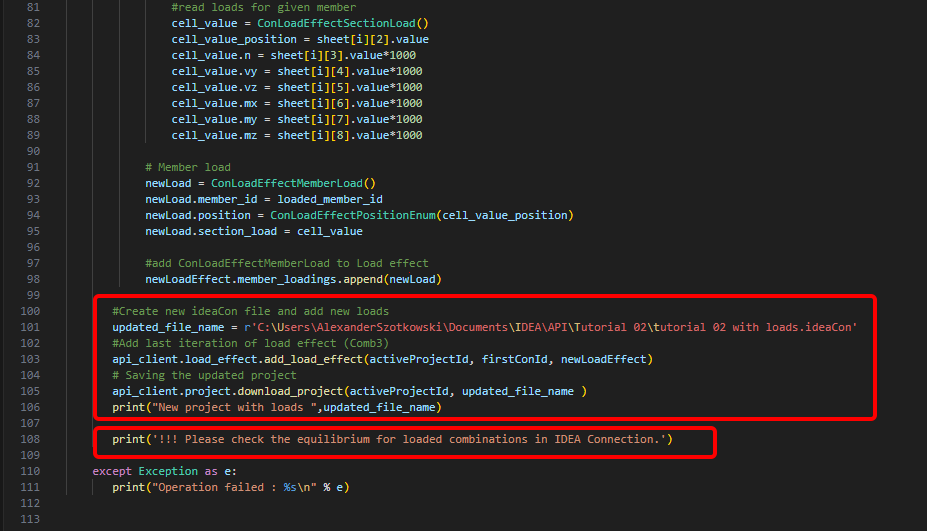
- Créez un nouveau fichier et enregistrez le projet mis à jour avec les nouvelles combinaisons ajoutées. Une remarque concernant la vérification de l'équilibre est ajoutée.
Code source :
#Create new ideaCon file and add new loads
updated_file_name = r'C:\Users\AlexanderSzotkowski\Documents\IDEA\API\Tutorial 02\tutorial 02 with loads.ideaCon'
#Add last iteration of load effect (Comb3)
api_client.load_effect.add_load_effect(activeProjectId, firstConId, newLoadEffect)
# Saving the updated project
api_client.project.download_project(activeProjectId, updated_file_name )
print("New project with loads ",updated_file_name)
print('!!! Please check the equilibrium for loaded combinations in IDEA Connection.')
except Exception as e:
print("Operation failed : %s\n" % e)
Vous pouvez maintenant vérifier le nouveau fichier pour voir si l'opération a réussi.
Téléchargements joints
- tutorial 02 - loads from excel.py (PY, 5 kB)
- tutorial 02 - empty.ideaCon (IDEACON, 38 kB)
- tutorial 02 - loads.xlsx (XLSX, 9 kB)