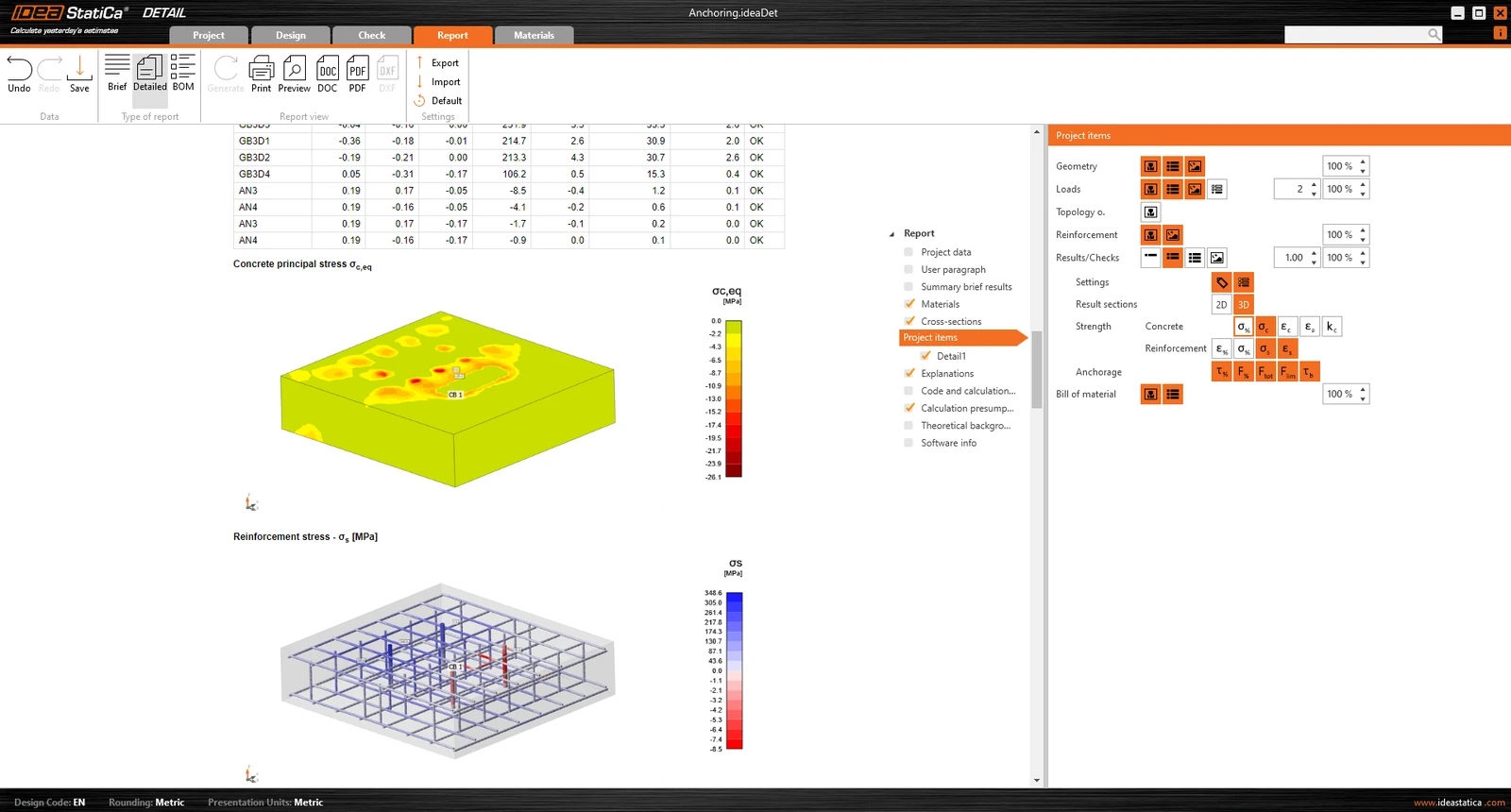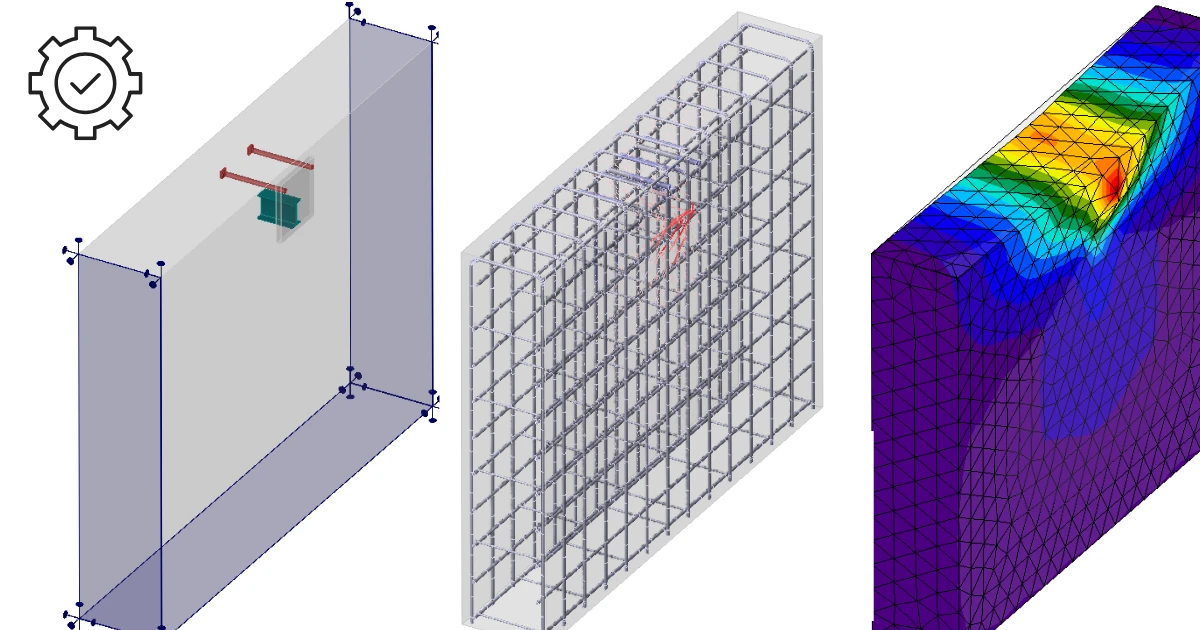


Introducere
Detail 3D este, în esență, o extensie a aplicației Detail actuale, deja consacrate. Aceasta adaugă un nou tip de model 3D și, odată cu acesta, implementarea unei metode de calcul al câmpurilor de tensiuni în spațiul 3D, numită 3D CSFM. Calculele și verificările sunt implementate pentru Starea Limită Ultimă.
Înainte de a trece la descrierea funcționalităților Detail 3D, este util să menționăm existența fondului teoretic, unde puteți citi mai multe detalii tehnice despre entitățile individuale ale modelului și despre calculele propriu-zise.
În primul pas, utilizatorul poate selecta un nou tip de model pe ecranul inițial (în asistent), unde sunt disponibile mai multe șabloane și, desigur, opțiunea de a introduce un model de la zero.
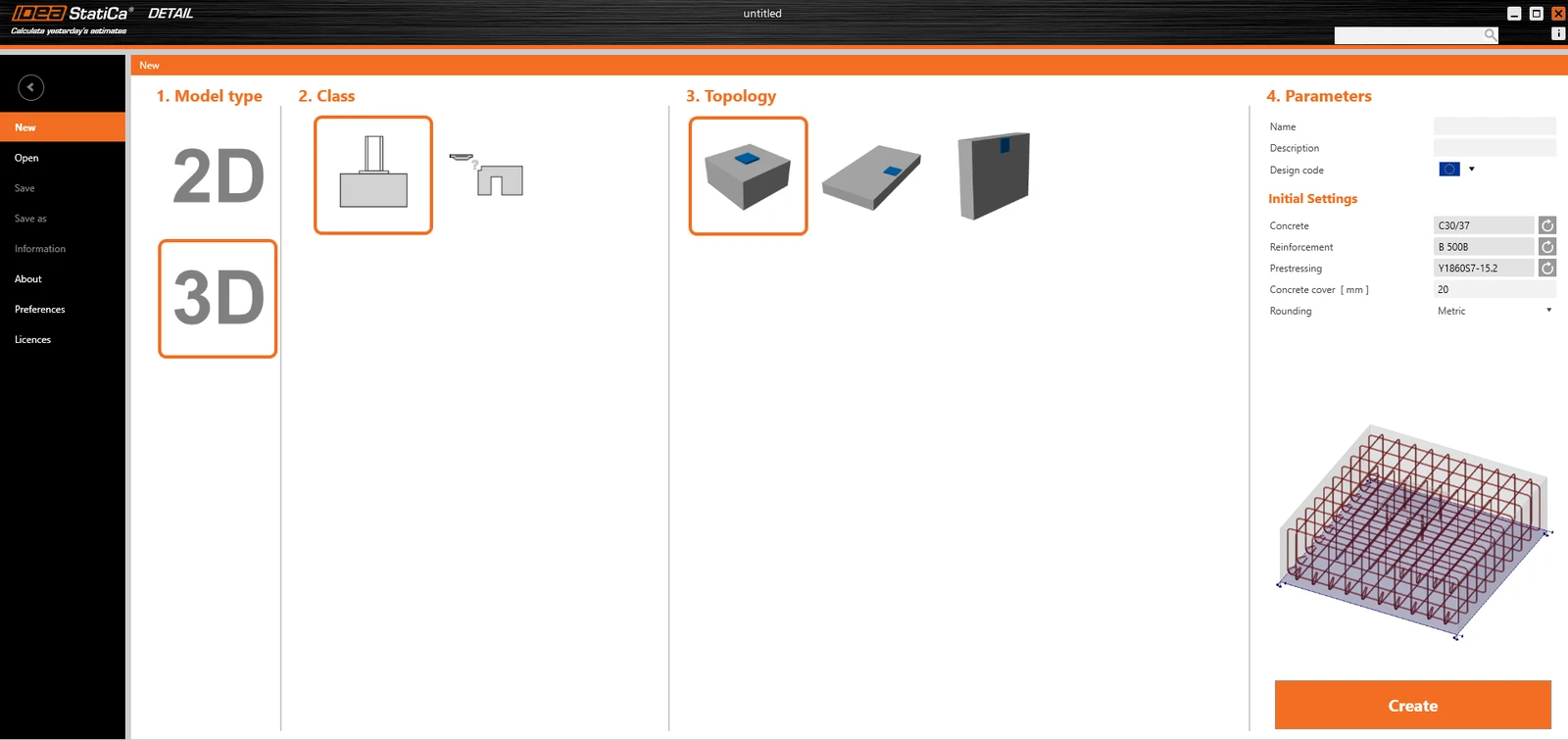
Ca și în cazul modelelor 2D, puteți edita setările inițiale în partea dreaptă, cum ar fi codul de proiectare, materialele și acoperirea cu beton.
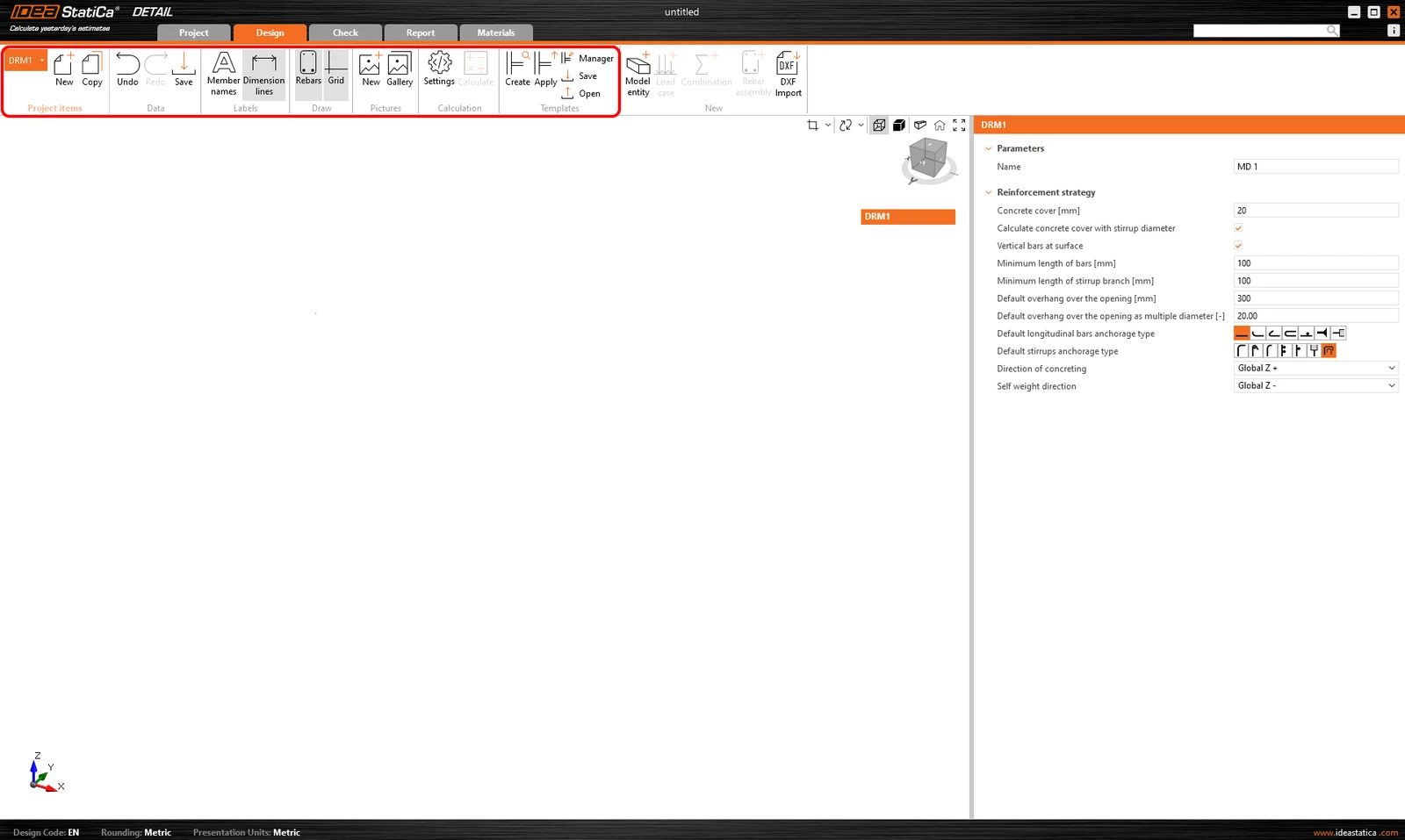
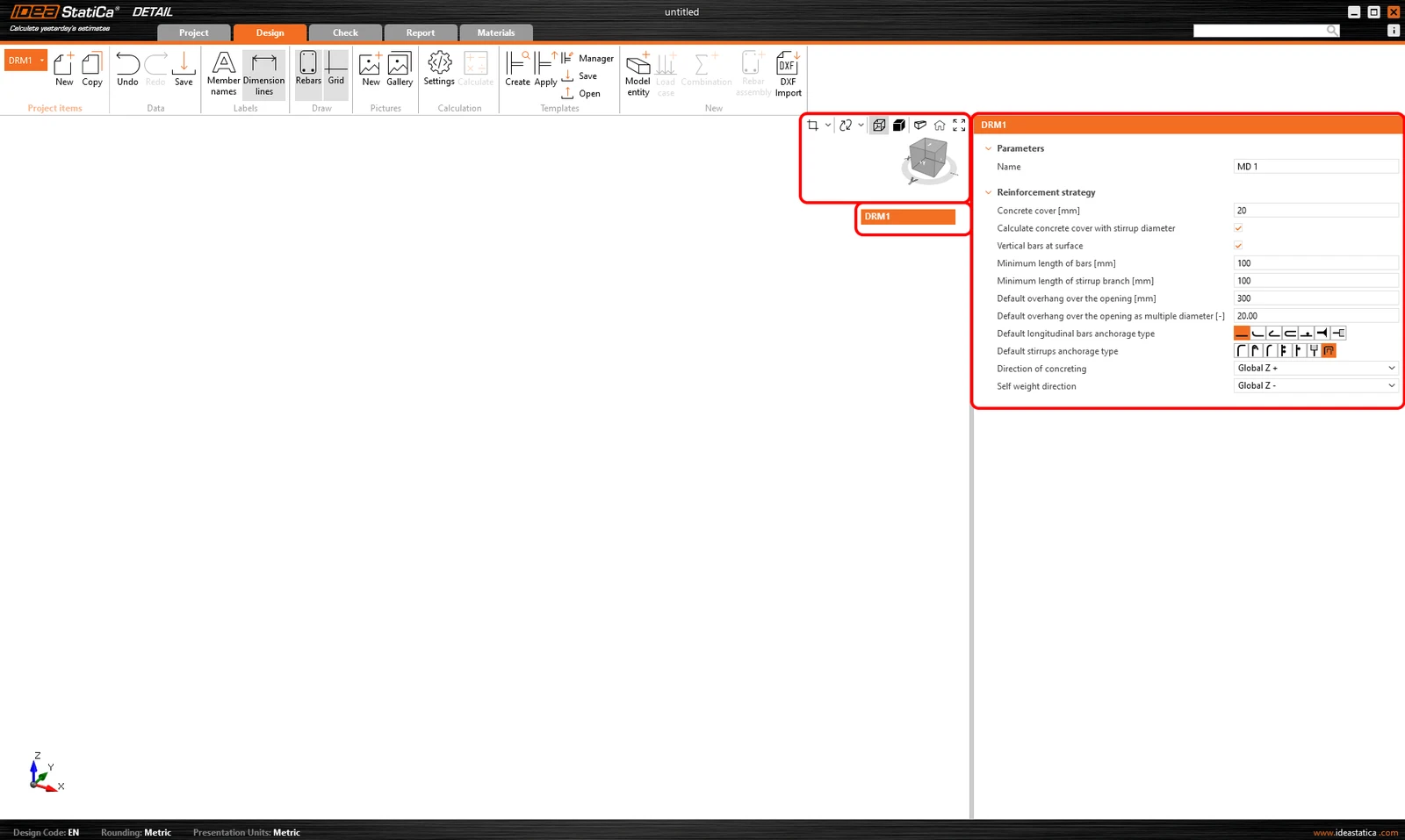
După crearea unui model gol sau a unui model dintr-un șablon, sunt disponibile opțiunile familiare din mediul de modelare 2D.
Opțiunile pentru lucrul cu mai multe elemente de proiect se găsesc în bara de instrumente superioară, împreună cu butoanele standard Anulare/Refacere, opțiunile de vizualizare a etichetelor, controalele galeriei, setările de calcul și controalele de gestionare a șabloanelor.
acesta este un test excelent
am dori să știm cum funcționează - Avem dreptate?
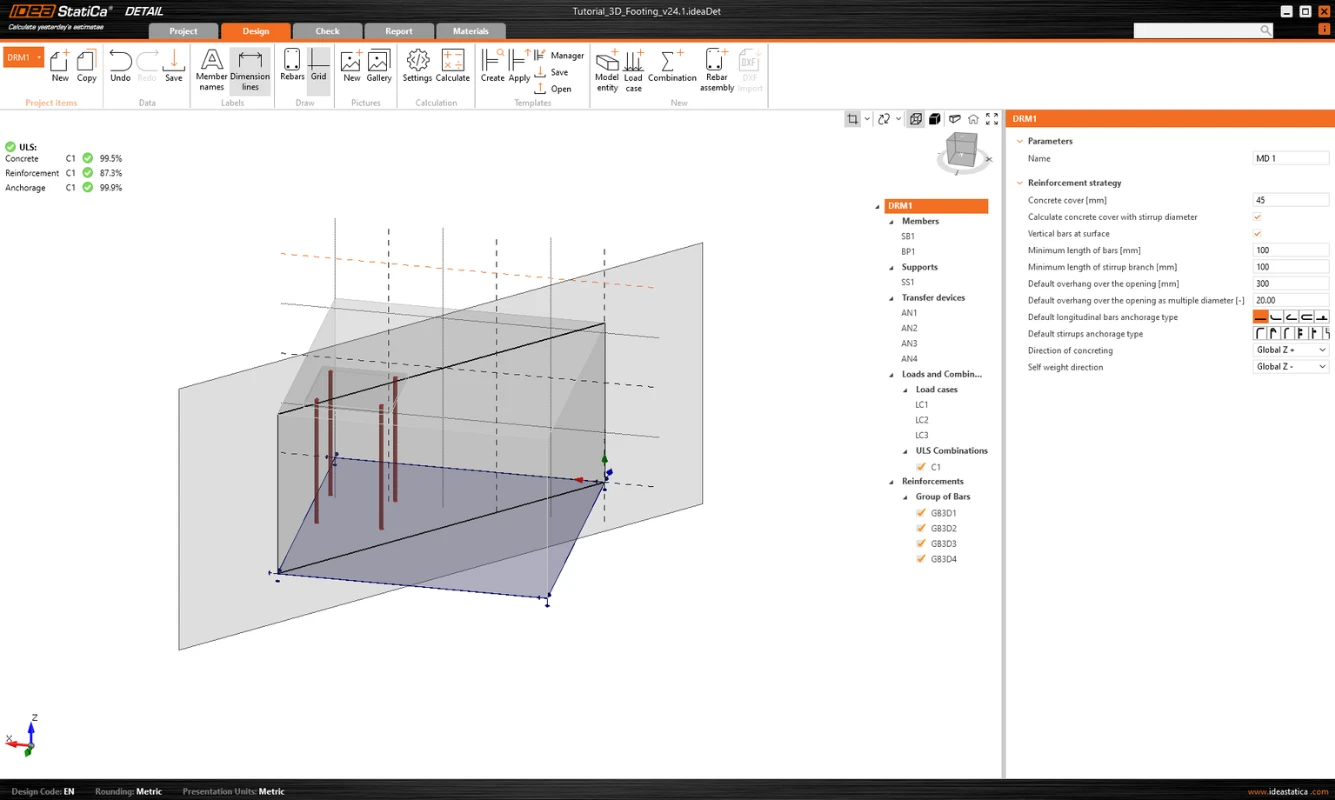
De asemenea, se inițializează arborele, al cărui prim element, numit implicit DRM1, conține setările implicite pentru elementul de proiect curent. Deasupra arborelui, puteți găsi instrumente pentru manipularea modelului.
Modelare
Entități model
Includem următoarele în categoria entităților de model din aplicația Detail:
- Elemente
- Reazeme
- Dispozitive de transfer al încărcării
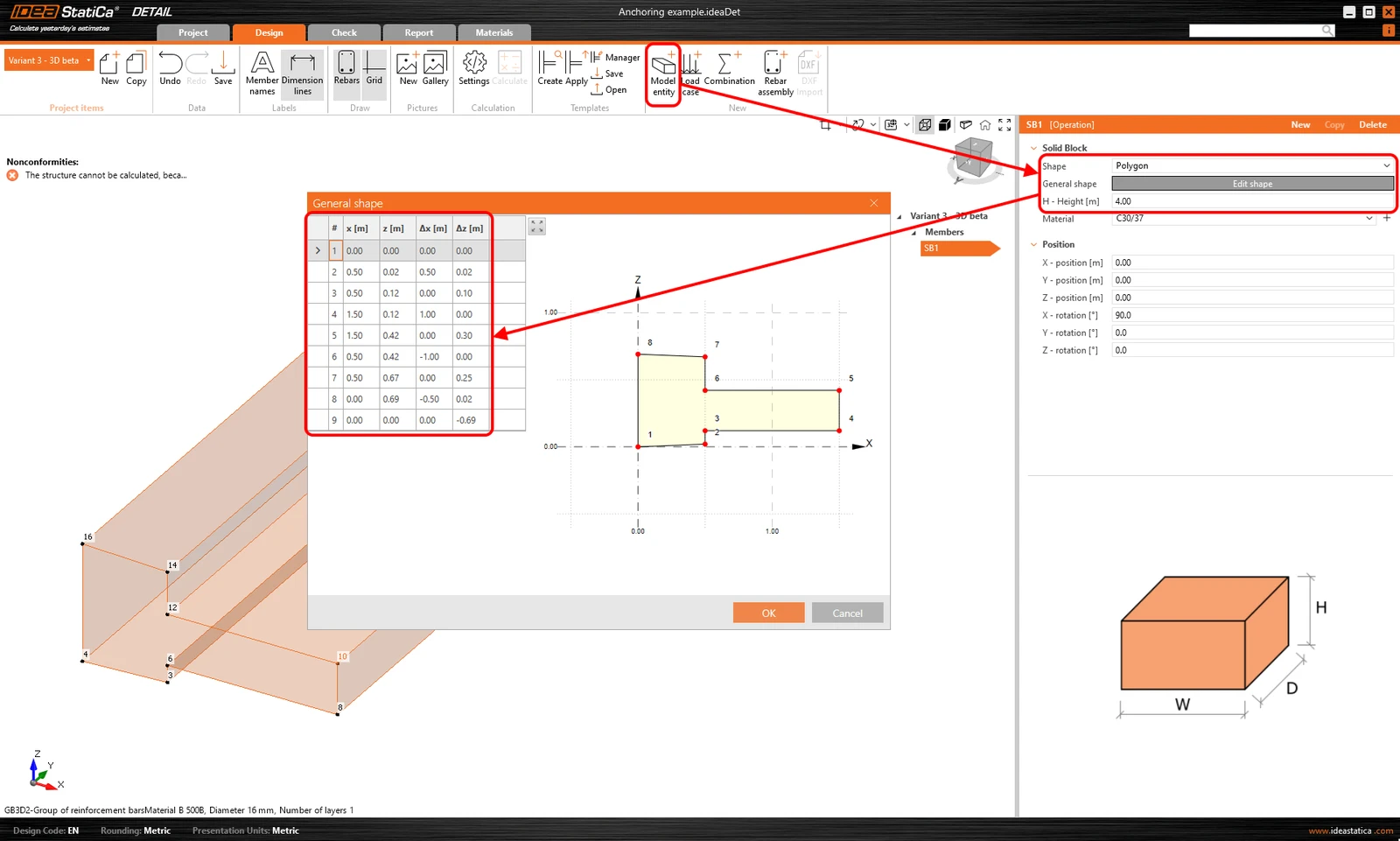
Poate fi introdus un singur Element, care poate fi definit ca formă de tip Dreptunghi sau Poligon. O formă dreptunghiulară este definită prin trei dimensiuni, în timp ce pentru opțiunea Poligon, forma în spațiul 2D este introdusă într-un tabel folosind coordonate, care pot fi apoi extrase în spațiu. Pentru a defini forma generală a unui poligon, coordonatele individuale pot fi completate în tabel, sau se poate folosi copiere-lipire dintr-un program de tip foaie de calcul (precum Microsoft Excel).
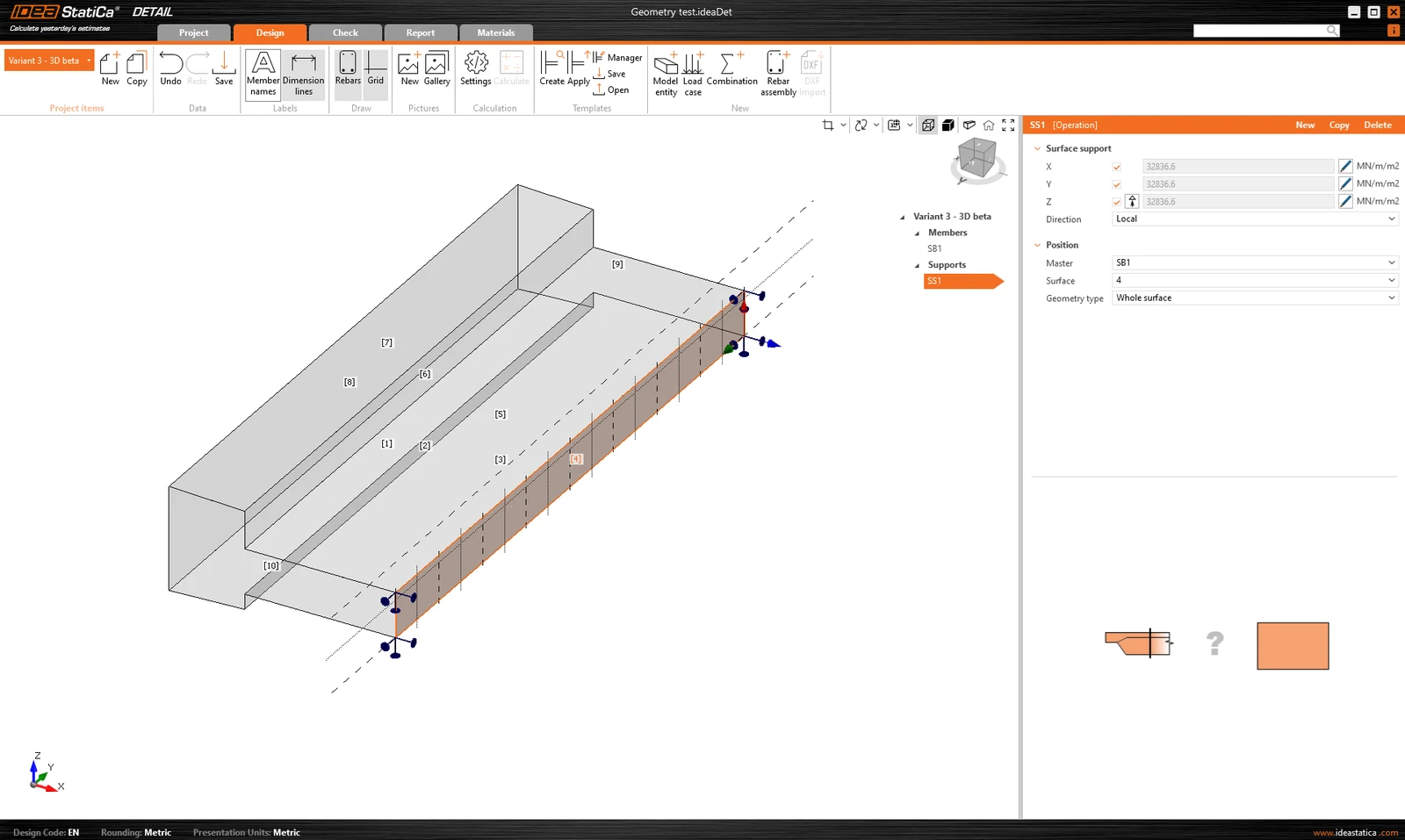
Reazemul de suprafață este utilizat pentru a susține modelul. Acest tip de reazem poate fi specificat în două moduri - două tipuri de Geometrie.
- Suprafață întreagă
- Polilinie
În ambele cazuri, trebuie să alegeți o suprafață de referință și, desigur, să definiți gradele de libertate. Reazemul poate fi definit ca elastic, iar tipul Numai compresiune poate fi utilizat pentru o direcție perpendiculară pe suprafața specificată. În figura următoare, putem vedea introducerea reazemului pe Suprafața întreagă numărul 4 și opțiunea Numai compresiune dezactivată.
Pentru a doua opțiune de introducere prin polilinie, este disponibil același tabel ca pentru introducerea Elementelor. Din nou, puteți folosi funcționalitatea de copiere-lipire sau introduce coordonatele manual. Forma introdusă poate fi deplasată de-a lungul suprafeței de referință utilizând coordonatele X și Y sau rotită prin introducerea unui unghi.
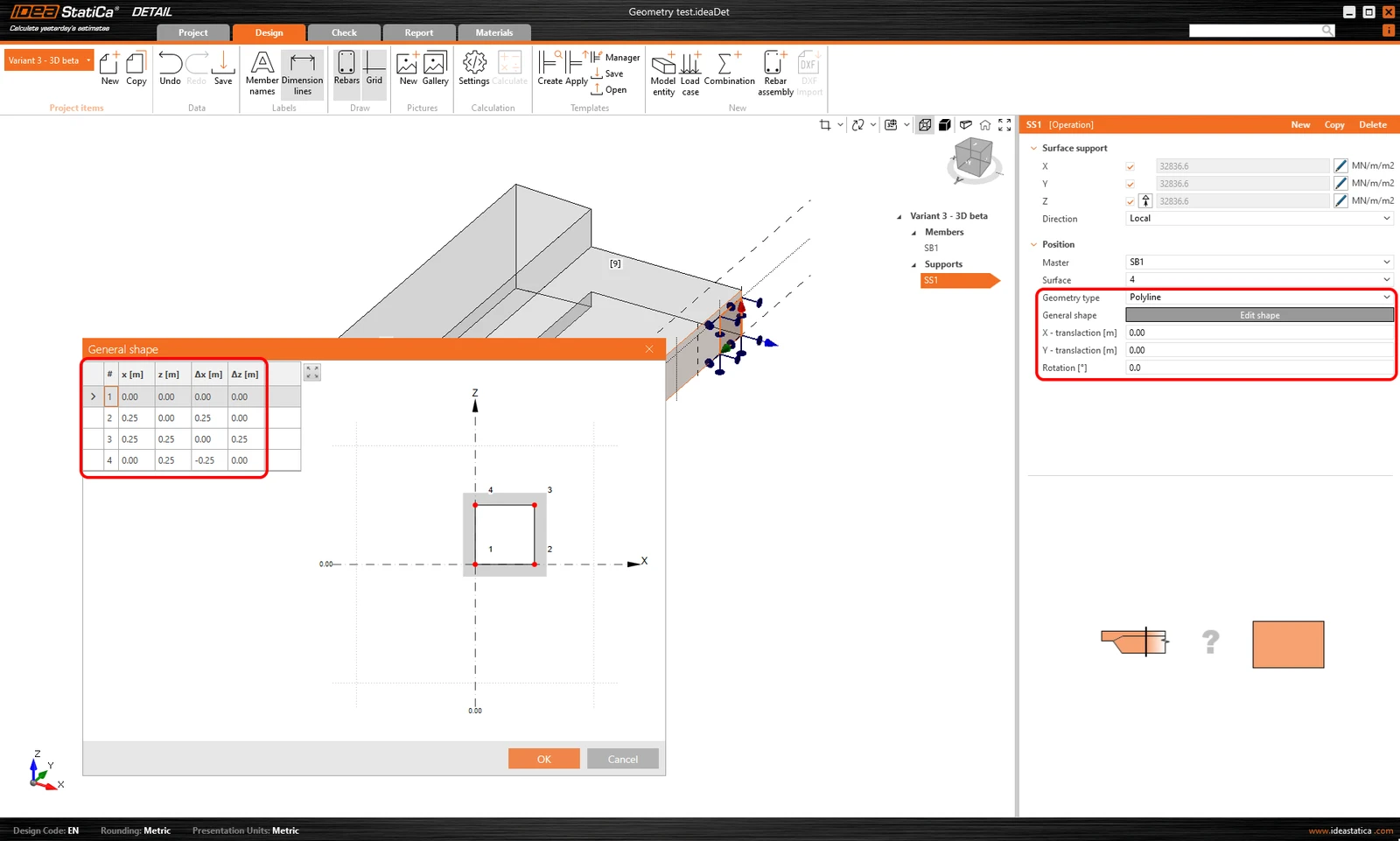
Rețineți că este posibil să specificați o polilinie astfel încât originea coordonatelor să fie în centrul de greutate al formei dorite. Poziția va fi apoi raportată prin coordonatele X și Y la acel centru de greutate.
Rigiditatea reazemelor pentru fundații
În timpul modelării, putem lua în considerare două cazuri. Dacă modelăm ancorarea la structură, reazemele pot fi considerate infinit de rigide.
În cazul ancorării într-un bloc de fundație, rigiditatea trebuie definită corect. În plus, reazemele trebuie definite ca fiind numai în compresiune.
Valorile în direcția z (rigiditatea Kz) sunt preluate din literatura de specialitate în funcție de tipul de teren corespunzător. Un exemplu concret poate fi găsit în tutorial.
Valorile depind de recomandările literaturii regionale relevante. Alternativ, valorile sunt obținute de la inginerul geotehnician.
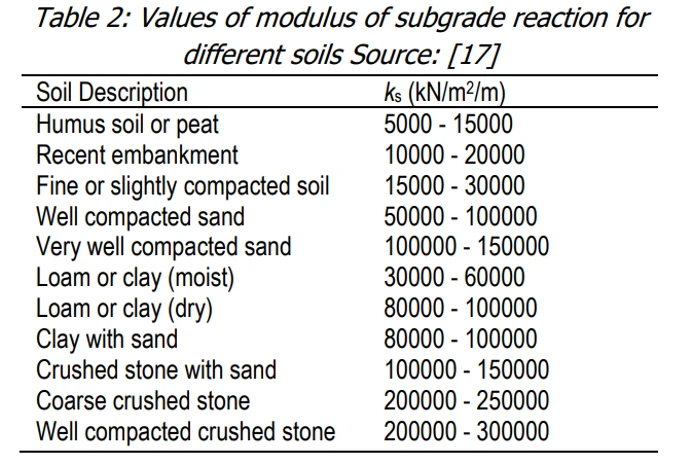
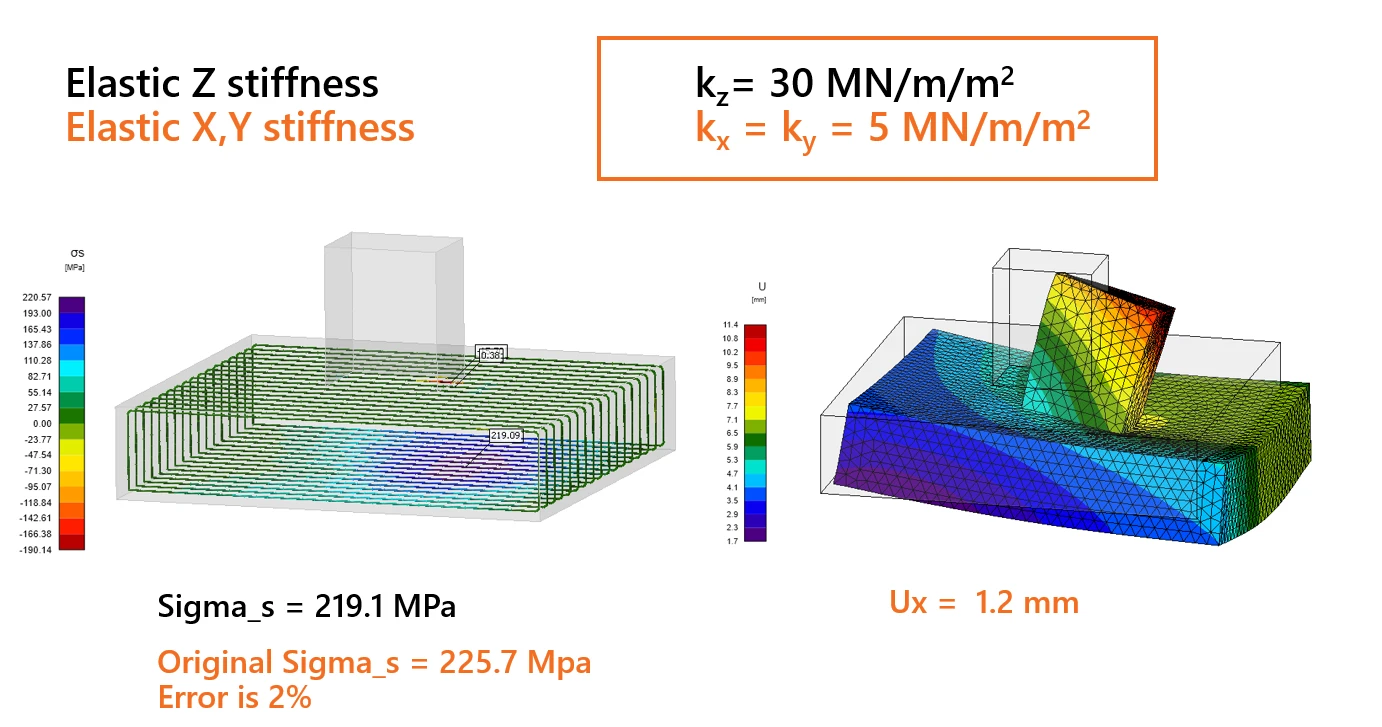
În direcțiile orizontale (Kx și Ky), situația este mai puțin clară. Recomandarea noastră generală este să folosiți o valoare de aproximativ 1/10 din Kz împreună cu judecata inginerească.
O abordare mai precisă ar fi să utilizați o procedură iterativă, din care am derivat recomandarea noastră.
Mai întâi, setați Kx și Ky la valori foarte mici (din motive de calcul, nu este recomandabil să setați valoarea direct la zero), dar de exemplu 0,1, și examinați tensiunile din armătură.

Deoarece aceste valori mici duc la deplasări nerealiste, rigiditatea trebuie crescută treptat pentru a reflecta mai bine realitatea. Scopul este de a obține valori de deplasare mai realiste, menținând în același timp tensiunea de întindere din armătură la marginea inferioară aproape de valoarea inițială, cu o abatere mai mică de 5%.
Dispozitive de transfer al sarcinii
Dispozitivele de transfer al sarcinii conțin două entități: placa de bază și ancora individuală. Să începem cu placa de bază. Pentru a specifica poziția, trebuie selectată o suprafață de referință și o muchie. Acestea definesc originea coordonatelor de la care se măsoară distanțele X și Y. Există două opțiuni de definire a formei: Dreptunghiulară și Poligon.
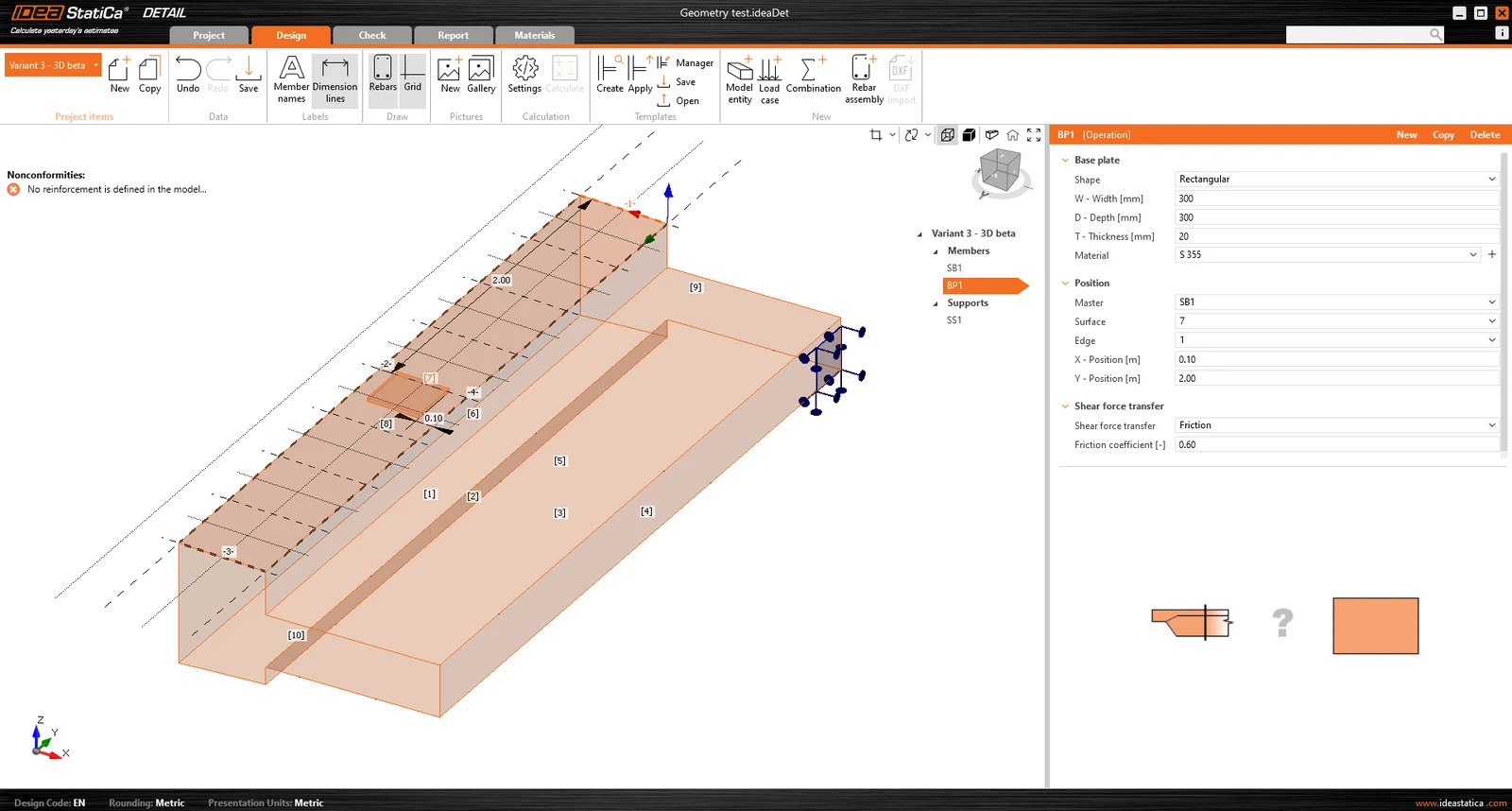
Placa de bază este conectată la elementul din beton printr-un contact care transferă tensiuni de compresiune și, dacă utilizatorul alege, poate transmite și tensiuni de forfecare. Există trei mecanisme de transfer al forfecării care pot fi selectate:
- prin frecare
- prin ancore
- prin pivot de forfecare
Software-ul nu permite combinarea acestor mecanisme de transfer al forfecării.
Pentru opțiunea prin frecare, trebuie introdusă valoarea de calcul a coeficientului de frecare. Pentru opțiunea prin pivot de forfecare, trebuie introdus profilul din oțel, inclusiv geometria și poziția acestuia.
Toate configurațiile posibile ale plăcilor de bază pot fi găsite în articolul: Opțiuni plăci de bază.
Placa de bază poate transmite fie o sarcină punctuală, fie un grup de forțe. Pentru o sarcină punctuală, modelul poate fi încărcat cu șase forțe interne (Fx, Fy, Fz, Mx, My și Mz) în orice poziție de pe placa de bază. Pentru un grup de forțe, utilizatorii pot introduce pozițiile, intensitățile și direcțiile forțelor într-un tabel, permițând o poziționare generală pe placa de bază. Este important de menționat că placa de bază este încărcată punctual și nu are niciun element de rigidizare sau element sudat pe fața sa superioară. Astfel, pentru o distribuție corectă a sarcinii, este important să se utilizeze o placă de bază relativ rigidă, cu o grosime relativ mare. O altă opțiune este utilizarea Stub, care rezolvă problema rigidității plăcii.
Un al doilea dispozitiv de transfer al sarcinii, ancora individuală, poate fi adăugat și interconectat cu placa de bază pentru a crea, de exemplu, o placă de bază a unui stâlp ancorată cu patru ancore (a se vedea figura de mai jos). Este de asemenea posibil să se modeleze ancore separate, fără placă de bază.
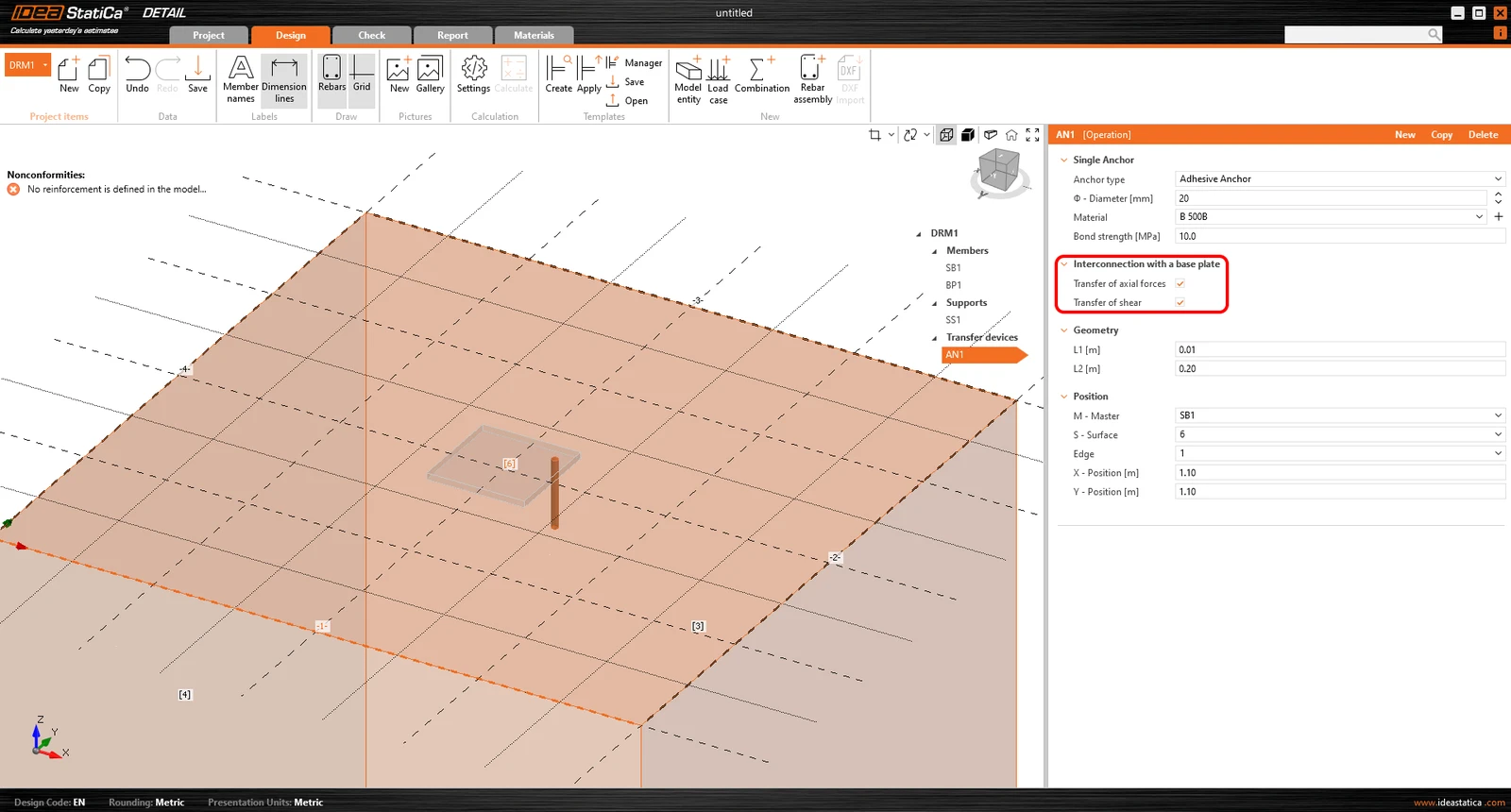
Mai multe informații despre interconectarea cu placa de bază pot fi găsite în Fundamentare teoretică.
În ceea ce privește poziția și geometria, ancorele sunt raportate la suprafața și muchia blocului, inclusiv determinarea poziției relative, la fel ca în cazul plăcii de bază. Bineînțeles, este posibil să se specifice lungimea ancorei în beton și lungimea deasupra suprafeței betonului.
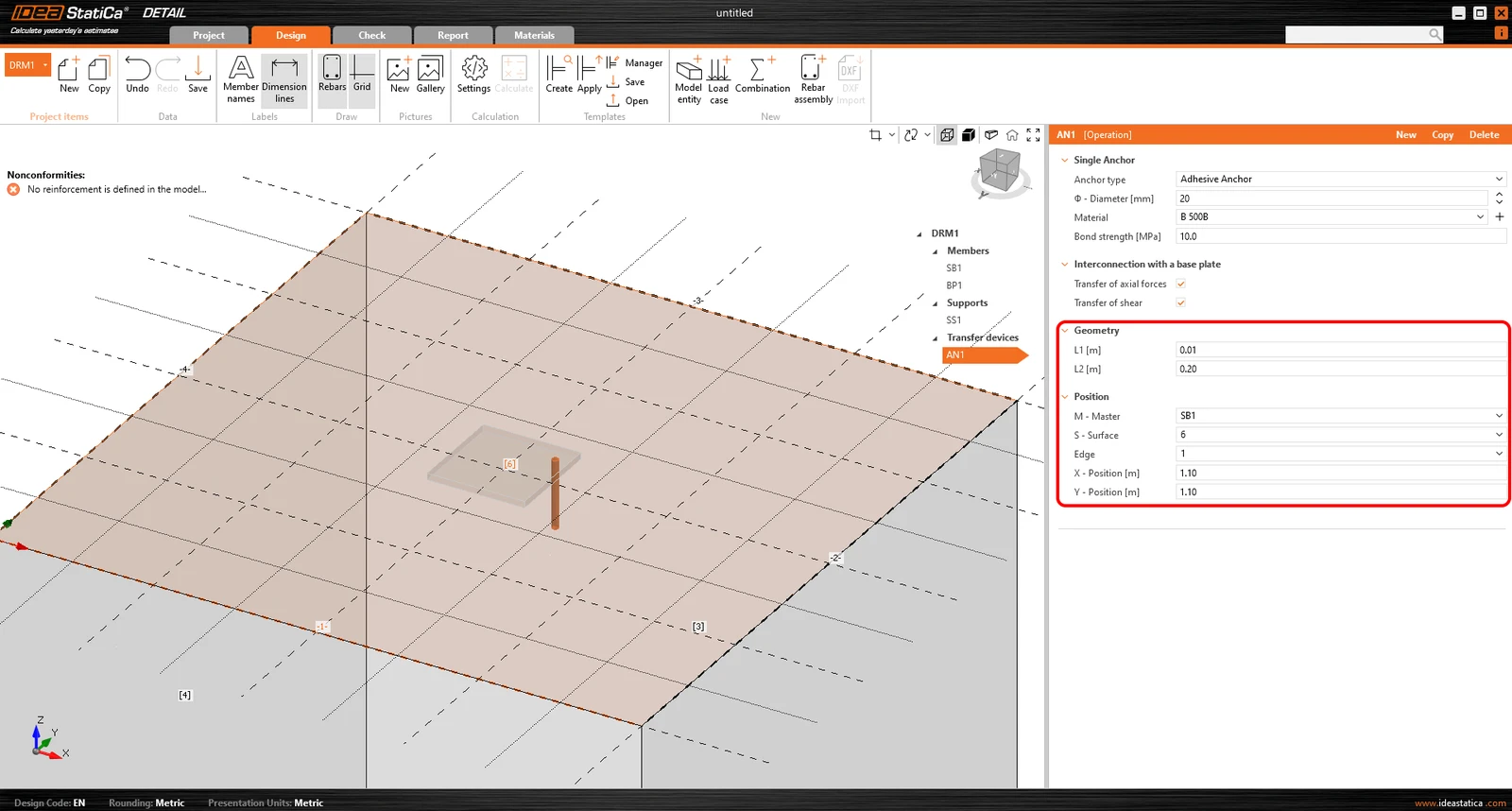
Ancorele sunt implementate în două variante:
- Turnate in situ
- Ancore lipite chimic
Pentru armătura turnată in situ, rezistența la aderență este utilizată conform EN 1992-1-1 cap. 8.4.2. În plus, este posibil să se specifice tipul de ancoraj pentru acest tip de ancoră, la fel ca pentru armătura convențională.
Pentru ancorele lipite chimic, este posibil să se introducă direct rezistența la aderență, pe care utilizatorul o poate găsi în fișa tehnică a mortarului adeziv aplicat. Rețineți că este necesar să se introducă valoarea de calcul a rezistenței la aderență. Următorul articol vă va ajuta să găsiți această valoare.

Vedeți toate opțiunile de ancore în articolul: Opțiuni ancoră individuală
O descriere detaliată a comportamentului interconectării dintre ancoră și placa de bază este prezentată în Fundamentare teoretică.
Încărcări și combinații
Încărcări
Cazurile de încărcare pot fi definite în același mod ca pentru elementele din beton armat 2D. Aceasta înseamnă că fiecărui caz de încărcare i se poate atribui un tip de încărcare Permanentă sau Variabilă. Cazurile de încărcare Permanentă sunt aplicate modelului mai întâi, iar după o calculație reușită, sunt aplicate cazurile de încărcare Variabilă.
Tipuri de impulsuri de încărcare
Un total de 4 tipuri de impulsuri de încărcare pot fi adăugate la fiecare caz de încărcare.
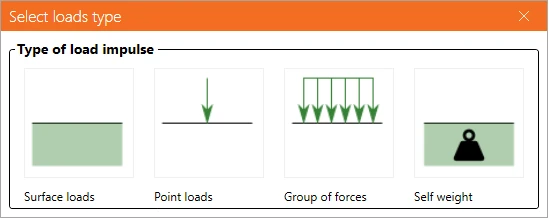
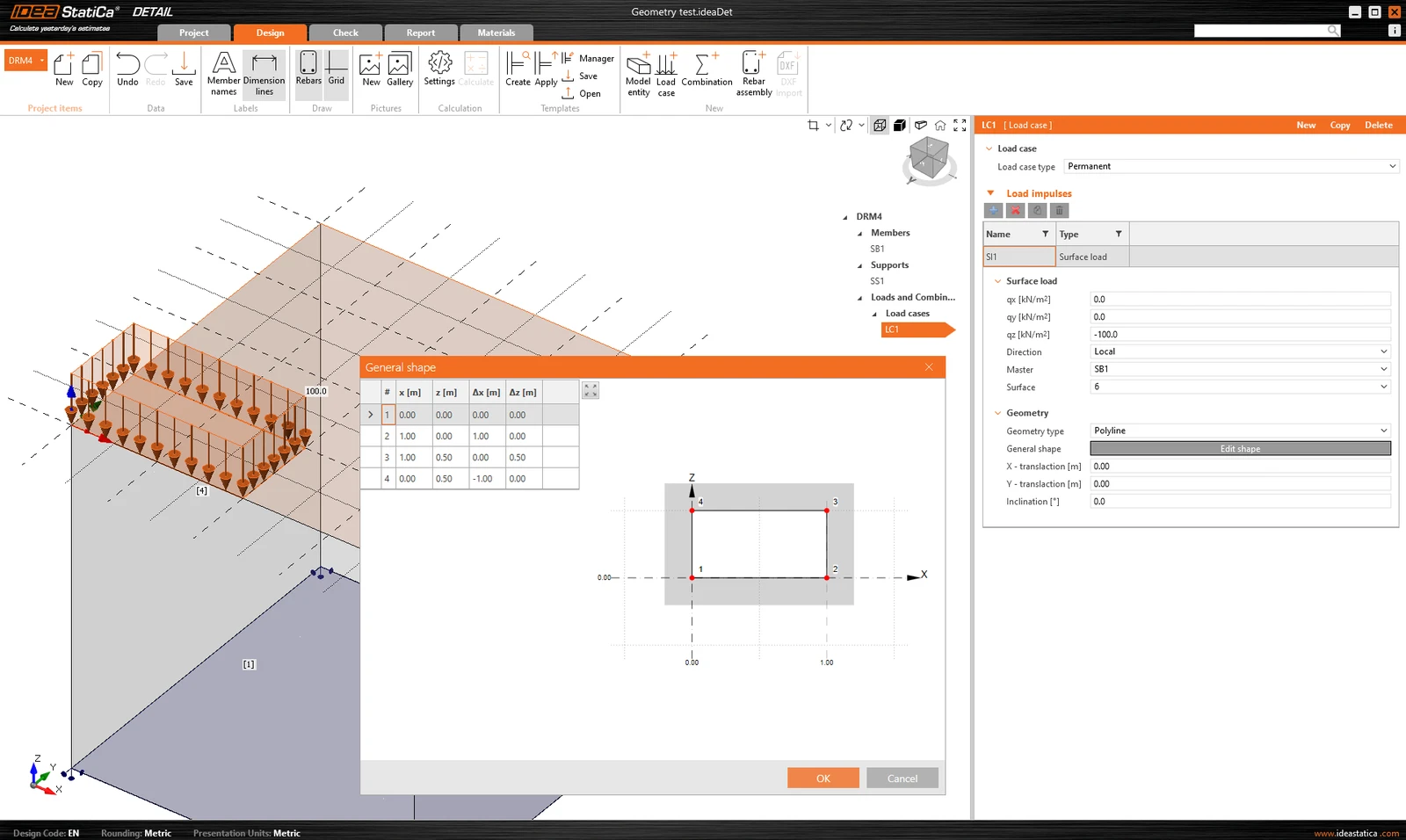
Definiția încărcărilor de suprafață este identică cu definiția reazemului de suprafață. Aceasta înseamnă că este posibil să o specificați în două moduri: Întreaga suprafață și Polilinie. În cazul încărcărilor de suprafață, desigur, intensitatea încărcării se introduce pe cele trei direcții generale.
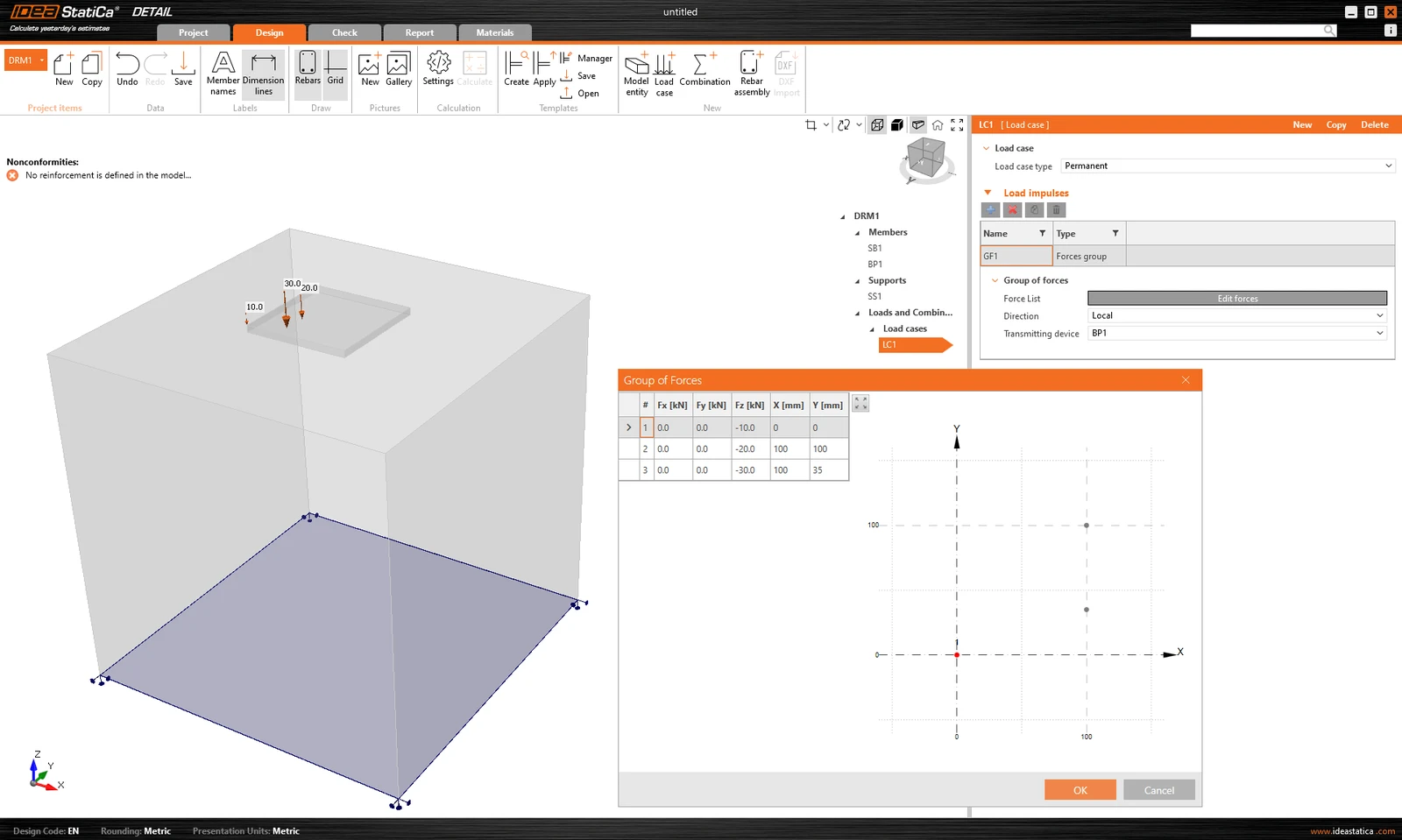
Grupul de forțe este o entitate de încărcare care permite specificarea forțelor în trei direcții oriunde pe model, folosind un tabel. Poate fi raportată la placa de bază sau la suprafața unui bloc de beton. Pentru introducerea tabelară, este din nou posibilă utilizarea funcționalității de copiere-lipire din programul de calcul tabelar.
Greutatea proprie ar trebui inclusă în fiecare model. De exemplu, fundațiile din beton încărcate cu un moment încovoietor nu se vor răsturna atât de ușor.
Încărcările concentrate pot fi aplicate direct pe placa de bază cu șase forțe interne Fx, Fy, Fz, Mx, My și Mz, în poziție generală.
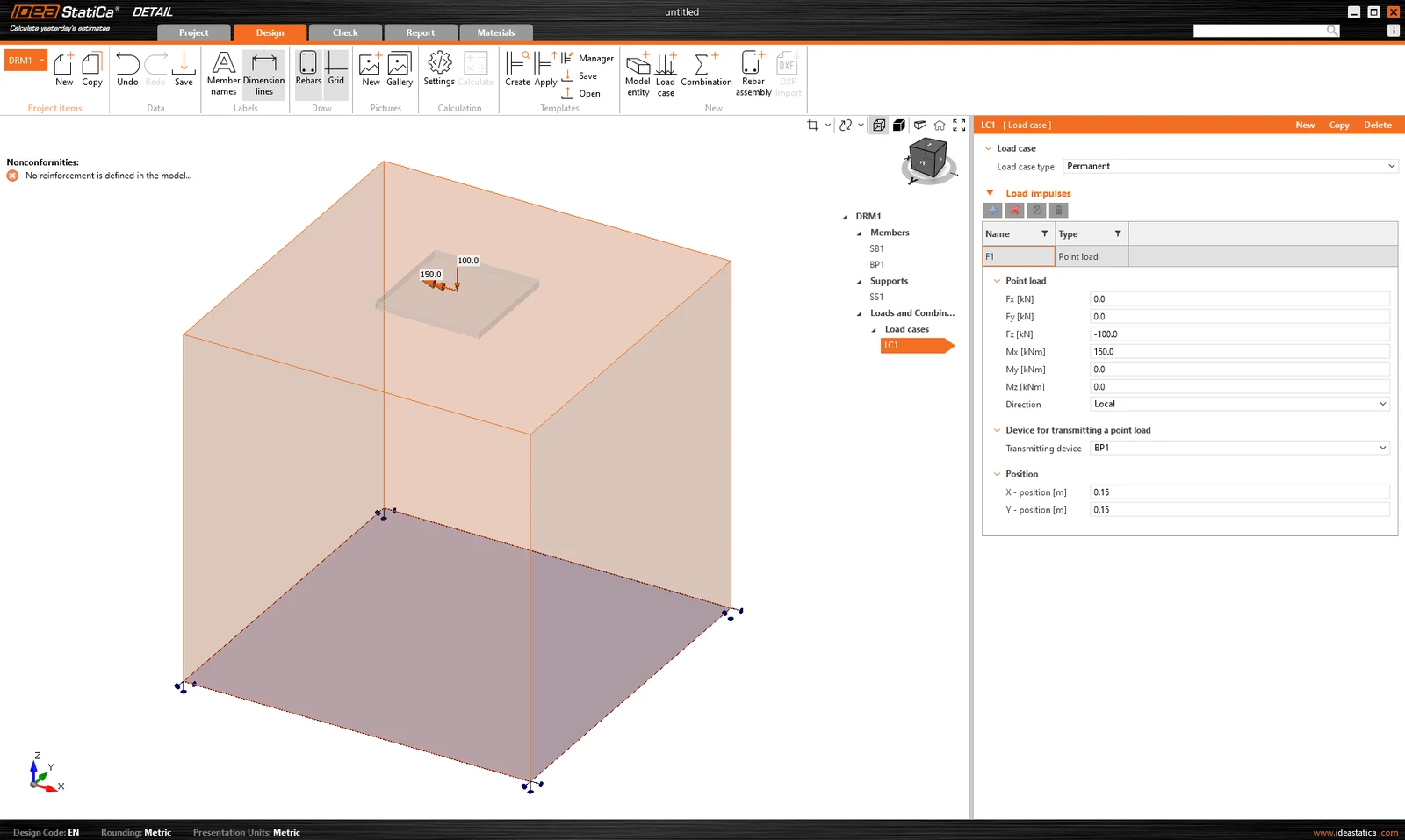
Când se utilizează o placă de bază, aplicarea acestei forțe direct pe o placă de bază realistă, deformabilă poate duce la o redistribuire nerealistă a tensiunilor în placă, ancore și beton. Prin urmare, este mai potrivit să se utilizeze a doua opțiune - tronsonul scurt.
Tronsonul scurt
Tronsonul scurt este reprezentat de o porțiune scurtă a stâlpului situată deasupra plăcii de bază, care este modelată ca o structură de elemente de placă (shell) și se comportă ca o interfață fizic corectă între forțele interne și placă. Se utilizează o bază de date standard de secțiuni.
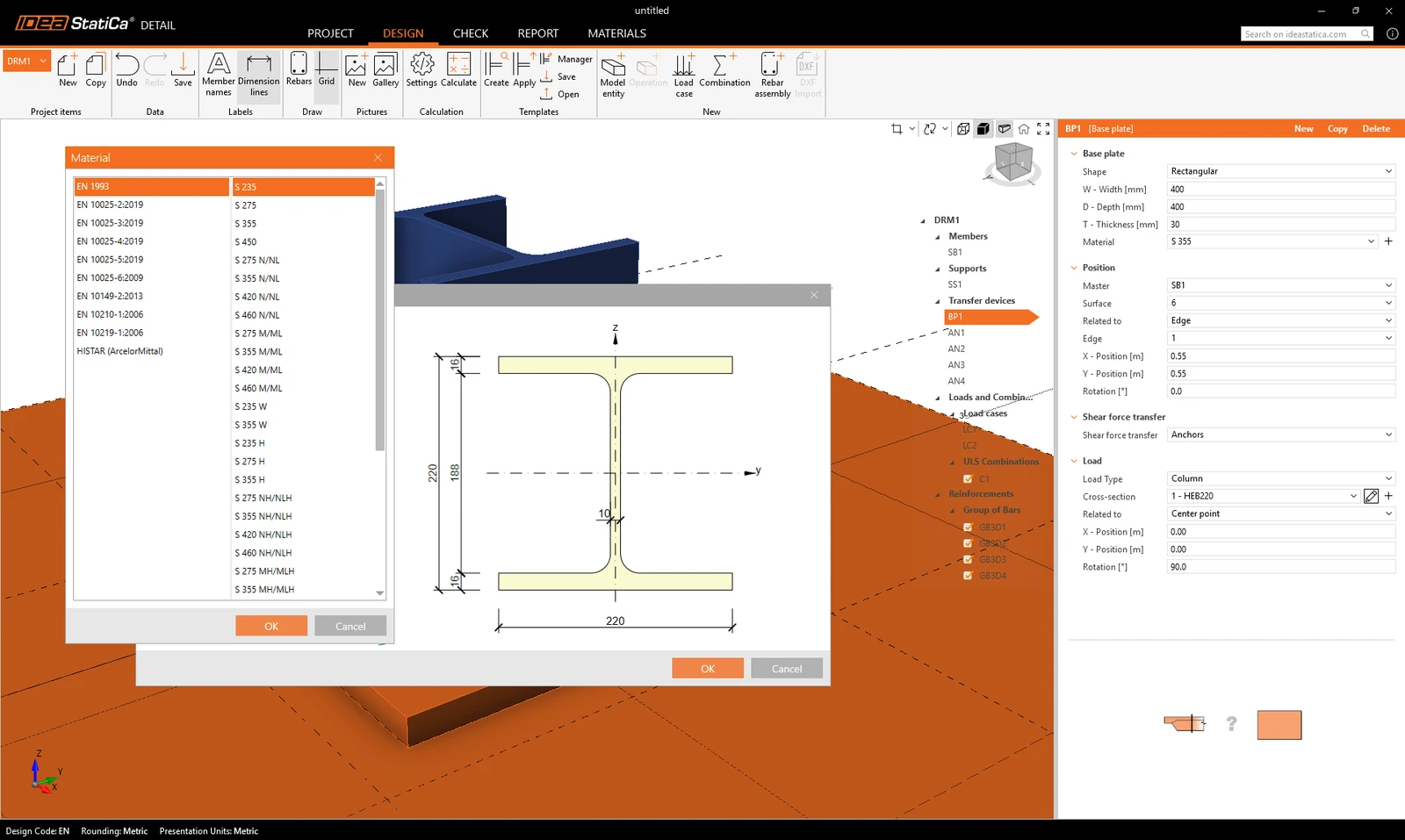
Setul de 6 componente ale forței interne (forțe și momente) este aplicat într-un singur punct pe fața inferioară a tronsonului scurt - adică baza stâlpului.
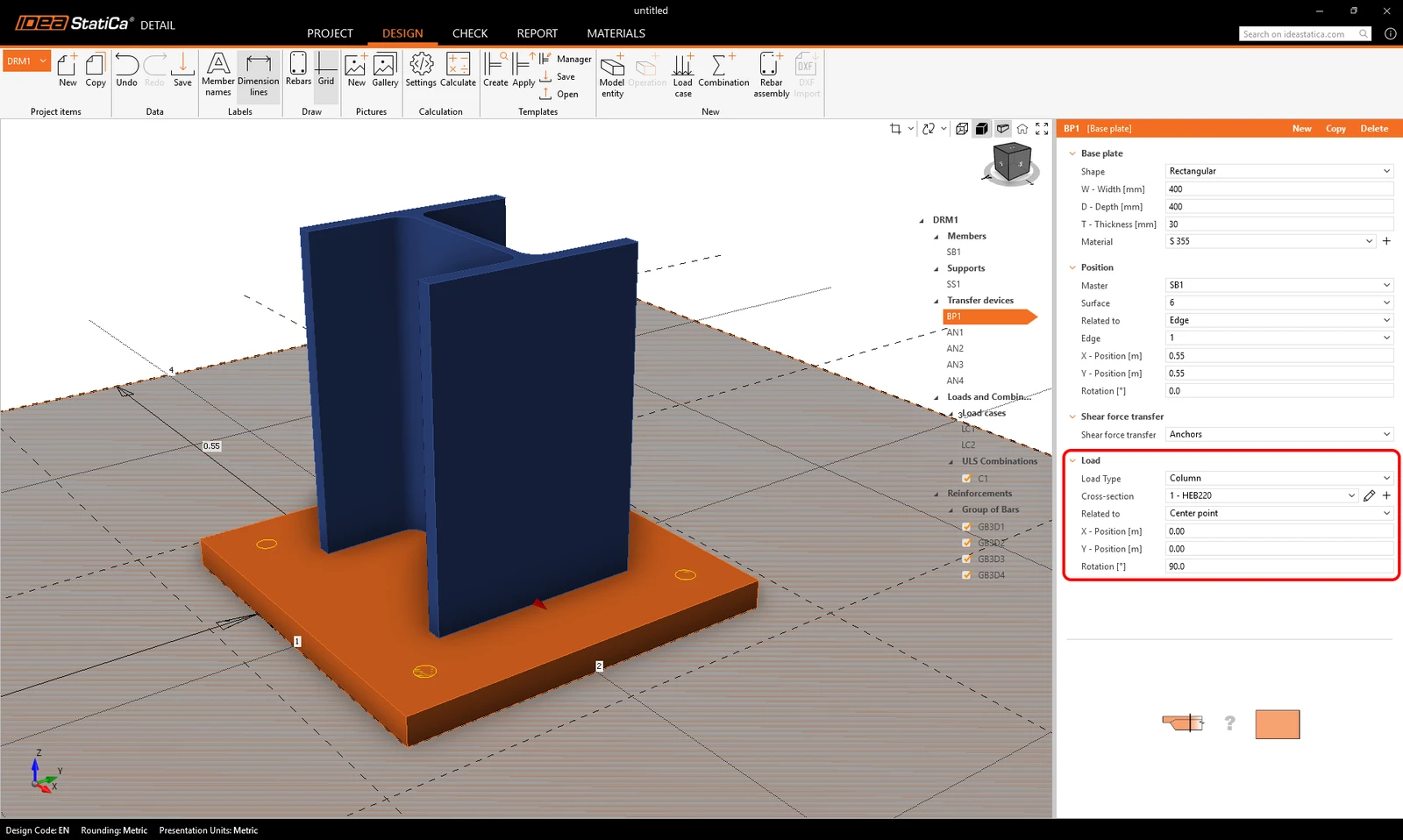
Constrângerile transferă forțele către fața superioară a tronsonului scurt, de unde acestea sunt redistribuite în mod natural prin tronsonul scurt către placa de bază, ancore și beton.
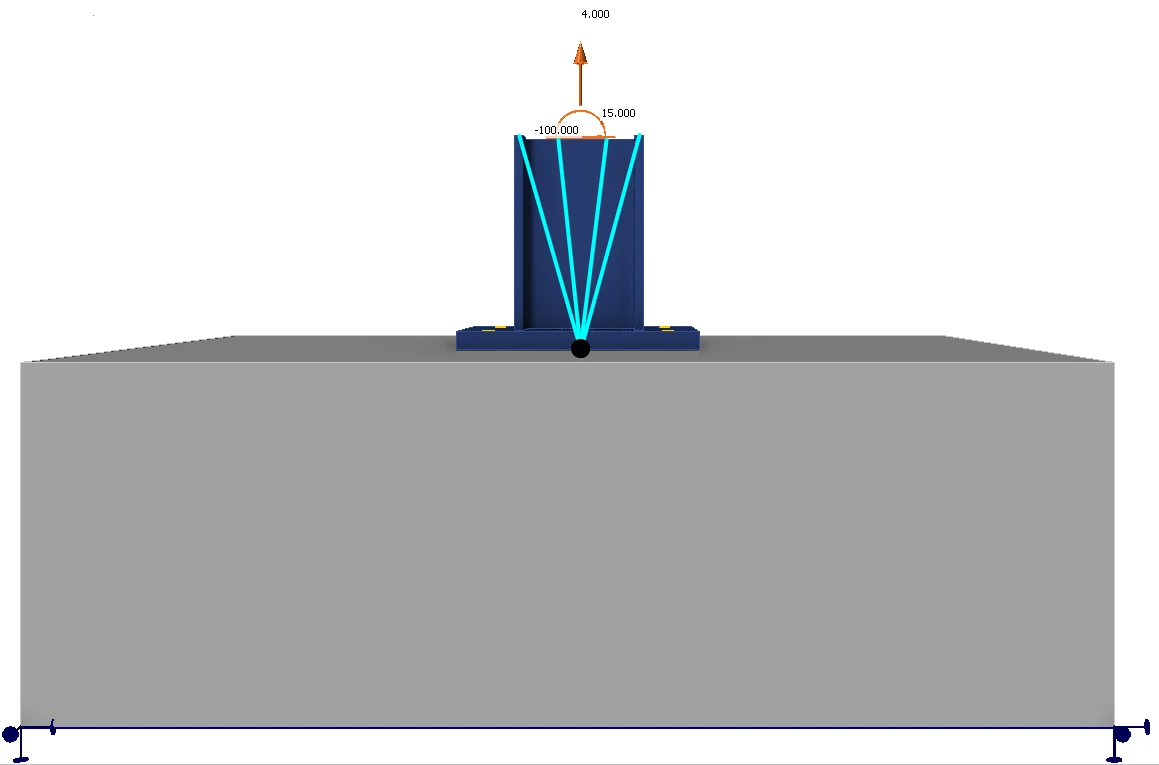
Această abordare păstrează interacțiunea realistă de rigiditate dintre stâlp și placă și elimină necesitatea oricărei redistribuiri manuale sau a unor ipoteze artificiale.
Tronsonul scurt a fost lansat în IDEA StatiCa versiunea 25.1.
Combinații
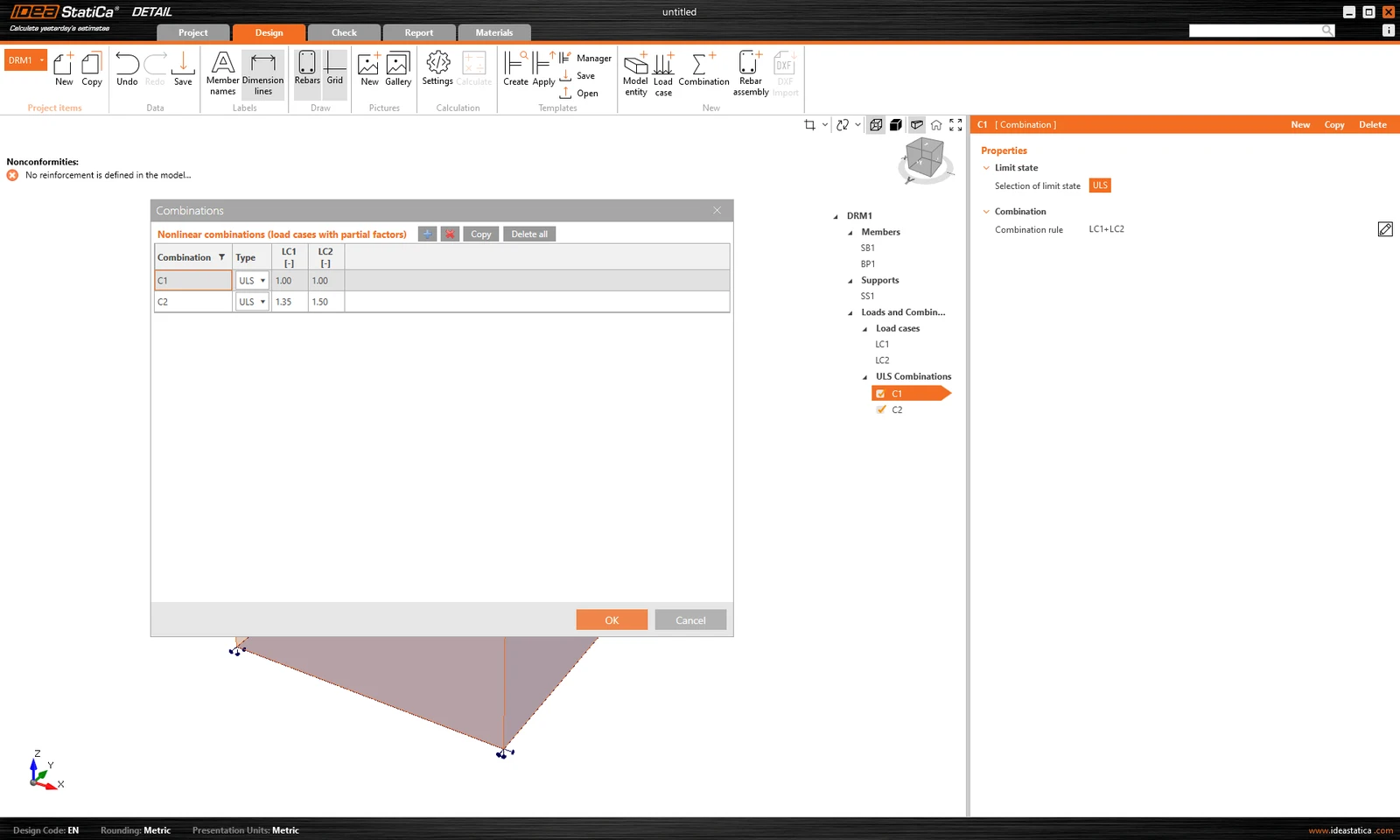
Deoarece analiza în IDEA StatiCa Detail este neliniară, se utilizează așa-numitele combinații neliniare. Aceasta înseamnă că cazurile de încărcare individuale nu sunt calculate separat, iar rezultatele nu sunt apoi însumate. Dimpotrivă, cazurile de încărcare de același tip sunt însumate înainte de calcul, desigur cu coeficienții respectivi definiți în combinații, iar combinațiile individuale sunt apoi calculate. Din acest motiv, existența a cel puțin unei combinații este o condiție prealabilă pentru a începe calculul.
Pot fi definite doar combinații pentru SLU.
Încercați astăzi noile funcționalități ale IDEA StatiCa
Descărcați gratuit cea mai recentă versiuneArmătură
Modelul poate fi armat cu Grup de bare 3D. Acest tip de armătură conține multe opțiuni, pe care le vom parcurge în textul următor. Astfel, pot fi specificate 4 tipuri de Definiții ale formei barei:
- Prin două puncte
- Pe muchia suprafeței
- Pe muchia suprafeței pe mai multe muchii
- Pe polilinie
Pentru fiecare dintre aceste elemente puteți, desigur, să specificați diametrul și materialul, inclusiv tipul de ancorare la începutul și la sfârșitul barelor.
Definirea formei barei Prin două puncte se explică de la sine. Trebuie să introduceți două seturi de coordonate carteziene X, Y, Z.
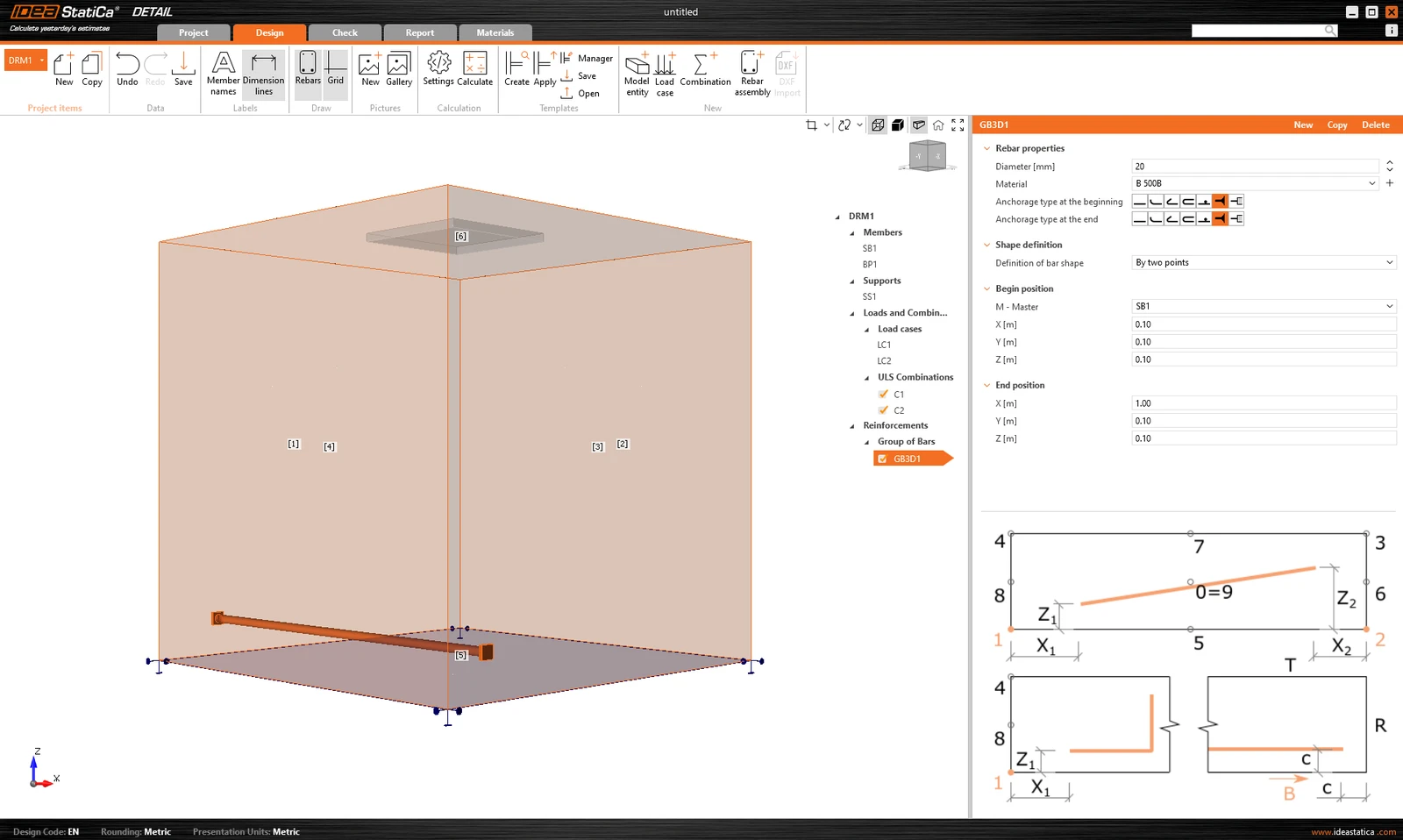
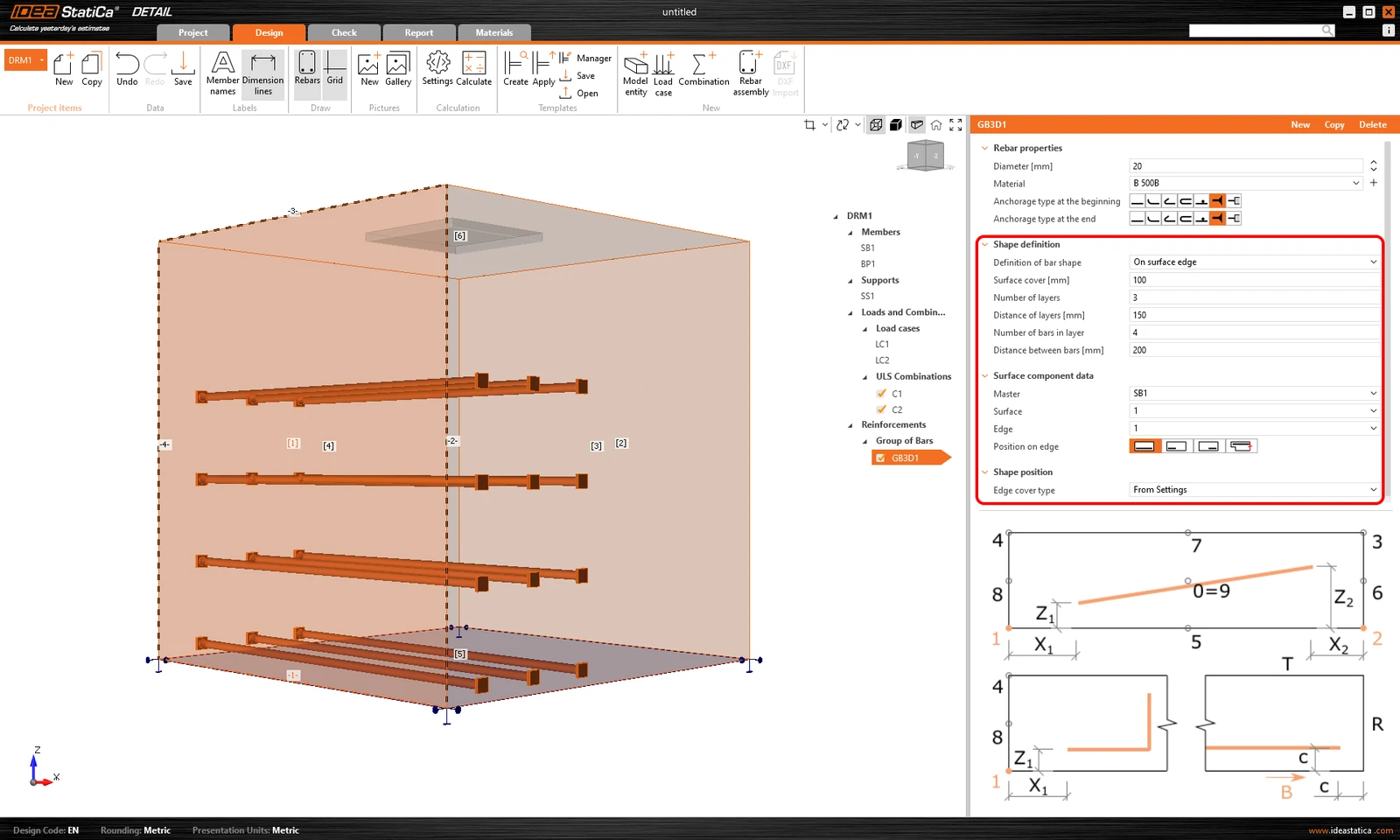
Definiția Pe muchia suprafeței oferă numeroase opțiuni de control pentru poziționarea armăturilor în locația dorită. Puteți introduce bare de armătură în mai multe straturi, cu mai multe bare într-un strat, cu distanțe specificate între bare și între straturi. Desigur, este necesar și să specificați suprafața și muchia de referință. În continuare, trebuie să specificați Acoperirea suprafeței, care definește distanța față de suprafața de referință (de la suprafața [1] în figura de mai jos) și Acoperirea muchiei, care definește distanța inserțiilor față de suprafețele laterale (de la suprafețele [4], [5] și [2] în figura de mai jos); acestea pot fi specificate ca Din setări sau Introducere de către utilizator. Valoarea implicită a acoperirii (Din setări) pentru elementul de Proiect activ poate fi găsită în primul element din arbore (numit implicit DRM1). Aceasta a fost definită la începutul acestui articol. Acoperirea muchiei poate fi setată ca o valoare unică pentru fiecare Grup de bare.
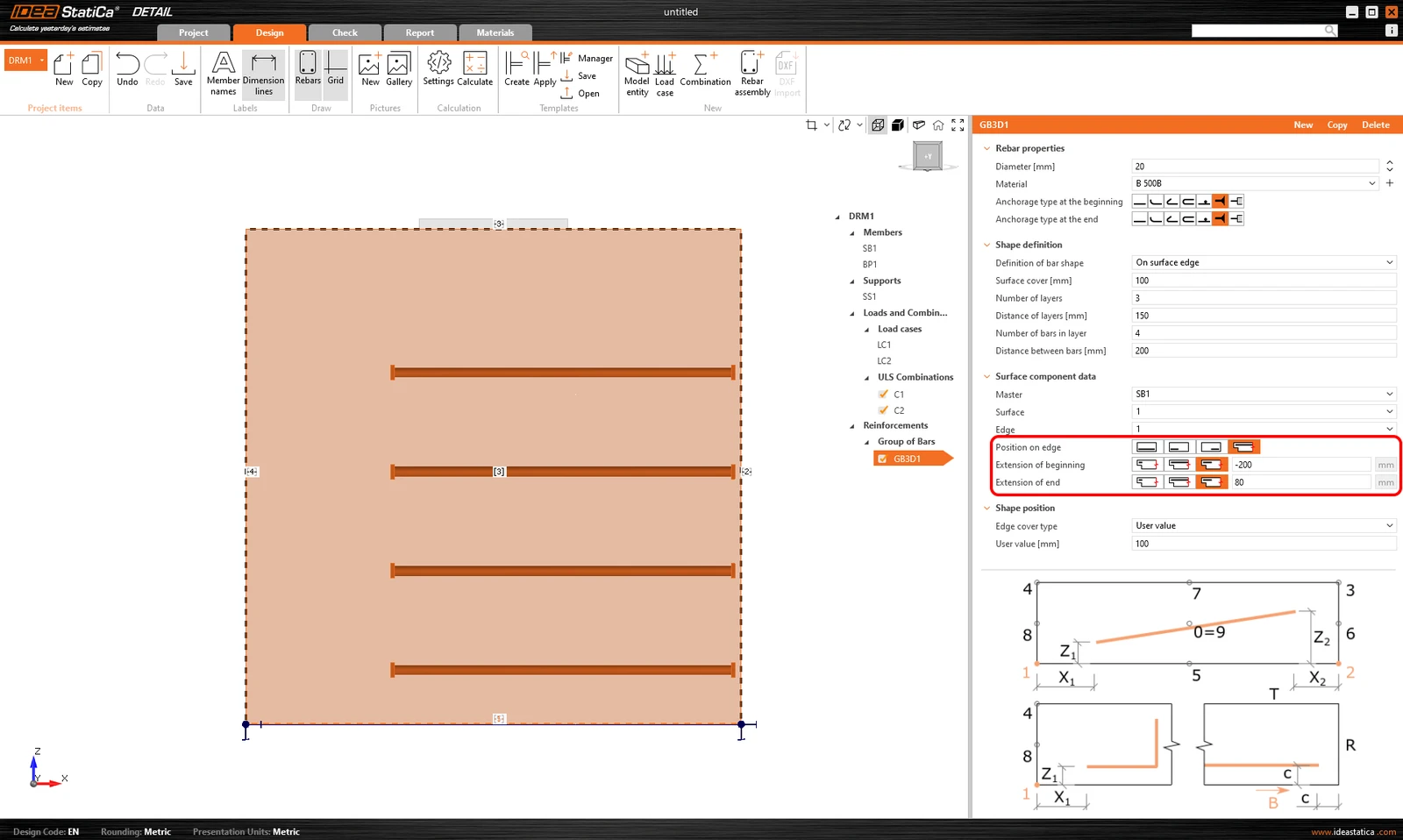
În sfârșit, Poziția pe muchie poate fi editată pentru acest tip de introducere. De exemplu, așa cum se arată în figura de mai jos, este posibil să specificați armătura astfel încât Acoperirea muchiei definită de utilizator să fie aplicată doar suprafeței inferioare [5]. Suprafețele laterale sunt controlate de Extinderea începutului și sfârșitului.
Un alt tip de definiție este Pe muchia suprafeței pe mai multe muchii. Aici este posibil să specificați o listă de muchii sau suprafețe pe care va fi plasată armătura, împreună cu o listă de straturi de acoperire pentru fiecare suprafață, așa cum se arată în figura următoare.
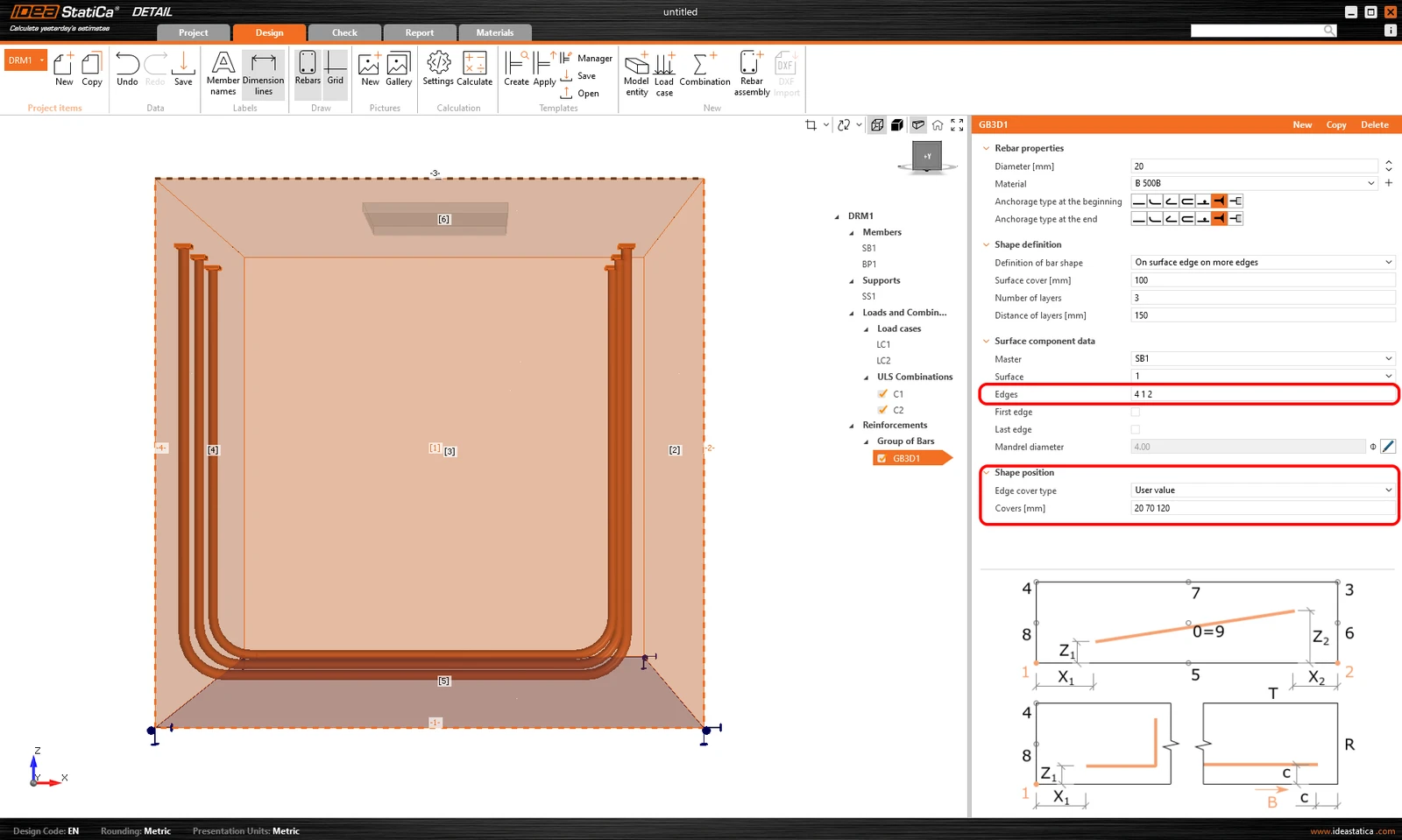
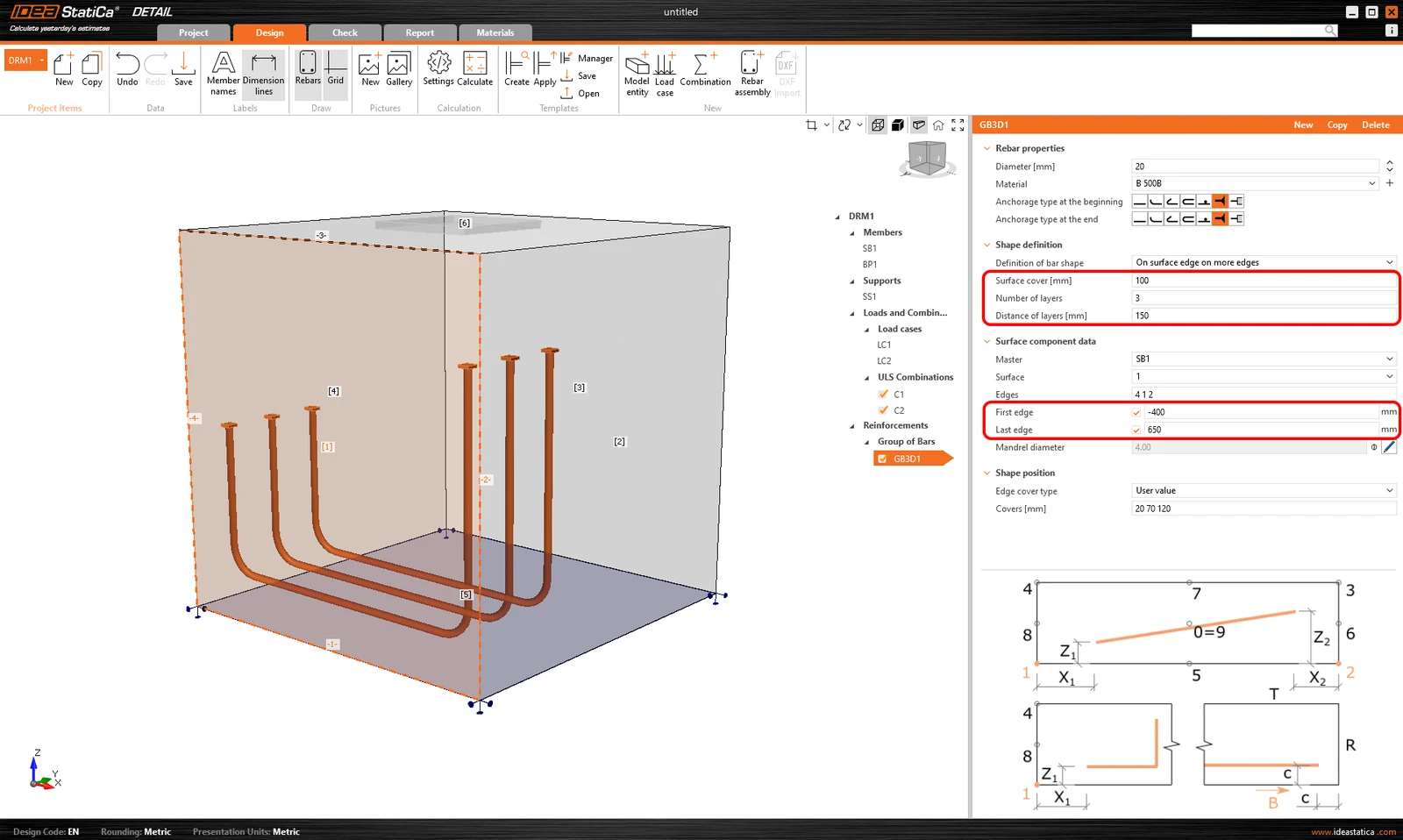
Acoperirea poate fi specificată și folosind opțiunea Din setări, la fel ca la cea anterioară. Din nou, este posibil să decalați armătura față de suprafața de referință folosind Acoperirea suprafeței și să specificați Numărul și Distanța straturilor. De asemenea, este posibil să lungiți sau să scurtați capetele față de Prima muchie și Ultima muchie.
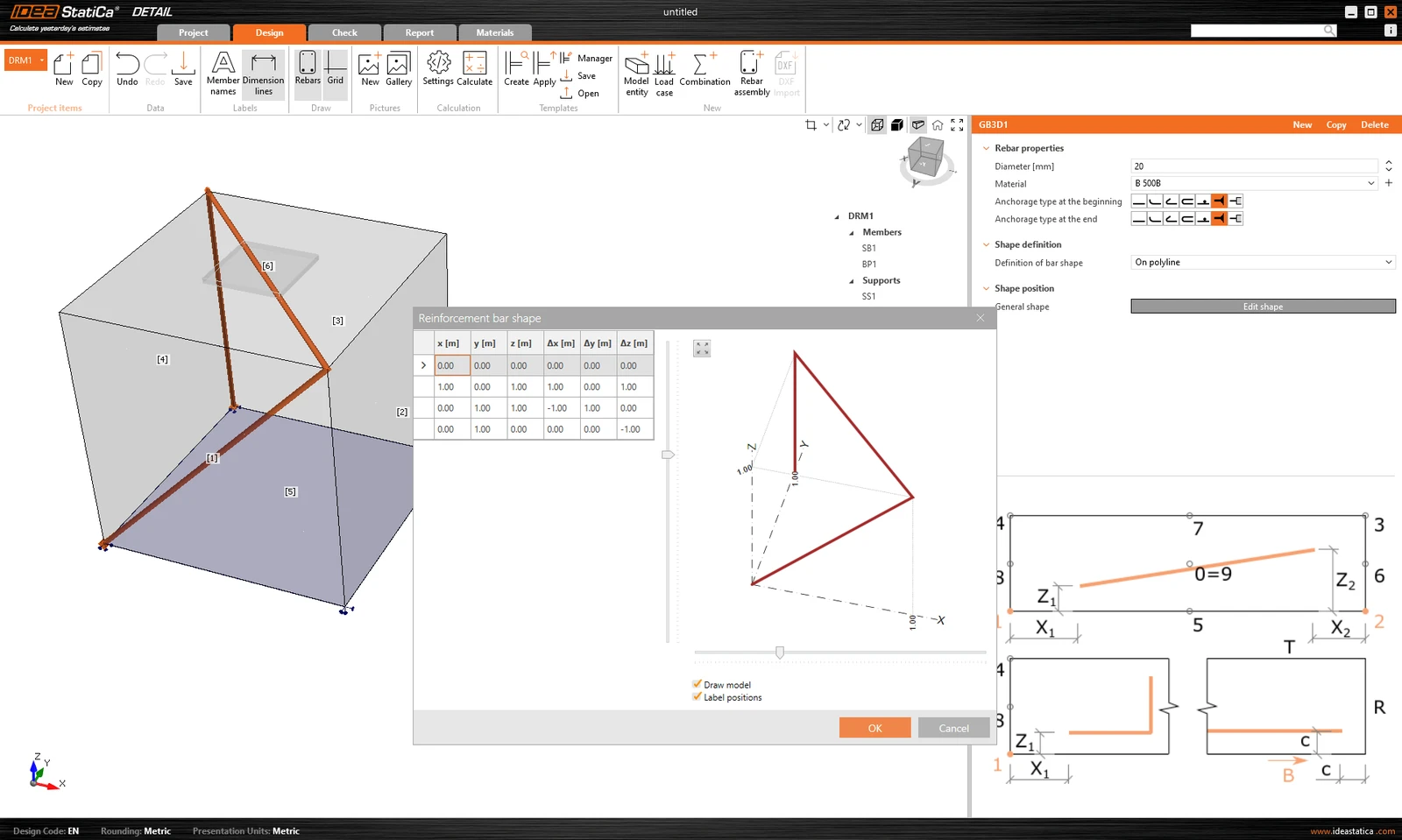
Ultima modalitate de definire a armăturii este Pe polilinie. Ca și în cazul entităților de model menționate mai sus, armătura poate fi specificată folosind o listă de coordonate copiate dintr-un program de tip foaie de calcul. În acest caz, este disponibilă suplimentar o scenă 3D cu armătura afișată, pentru o orientare mai bună, permițând rotații în jurul a două axe.
Import de ancorare din Connection în Detail
Ancorarea într-un bloc de beton simplu poate fi modelată și verificată conform codului în IDEA StatiCa Connection. Pentru anumite cazuri, cum ar fi ancorarea aproape de margine, proiectarea este insuficientă din cauza posibilelor moduri de cedare, iar armătura suplimentară este necesară. Deși această funcționalitate nu este disponibilă în aplicația Connection, este posibil să se continue direct în aplicația Detail.
3D Detail este axat pe rezolvarea ancorării în blocuri de beton și analiza atât a elementelor de ancorare, cât și a blocului de beton propriu-zis. Mai mult, o legătură directă este implementată între aplicațiile Connection și Detail pentru a simplifica procesul. Utilizatorii Connection care proiectează ancorare conform Eurocode sau AISC pot importa modelul lor din Connection în aplicația avansată 3D Detail printr-un singur clic pe buton.
- Importul este permis doar pentru ancorare. Dacă nu există niciun bloc de beton în modelul Connection, exportul către Detail este dezactivat ("RC check").
- Modelul din Connection trebuie să fie calculat. Dacă rezultatele nu sunt disponibile, pictograma de export ("RC check") este dezactivată. Pentru funcționalitatea de export, este de asemenea necesar să existe licențe valide pentru aplicațiile de beton. În caz contrar, opțiunea de export va fi din nou dezactivată.
- Este permis un singur bloc de beton pentru import/export.
- Unele tipuri de ancore nu sunt acceptate pentru import și, de asemenea, nu recomandăm exportul așa-numitei ancorări de margine. O prezentare detaliată a limitărilor este furnizată în articolul: Limitări cunoscute pentru 3D Detail
Îmbinarea este importată, inclusiv
- Blocul de beton
- Ancorele
- Plăcile de bază
- Încărcările
Informații suplimentare și parametri care sunt setați conform setărilor corespunzătoare din Connection:
- Transfer de forfecare (prin ancore, pivoți de forfecare și frecare)
- Material
- Tip de ancorare
- Tip de ancorare la capăt
- Coeficient de frecare
Configurațiile și tipurile posibile de ancore care pot fi exportate se găsesc în următoarele articole:
Export din Connection în Detail pas cu pas
Mai întâi, creați un model de ancorare în Connection conform Eurocode/AISC și faceți clic pe butonul Calculate.
Când există rezultate, exportul fundației este activat. Făcând clic pe butonul "RC Check" din bara de instrumente, apare un dialog care solicită locația și numele noului fișier Detail creat.
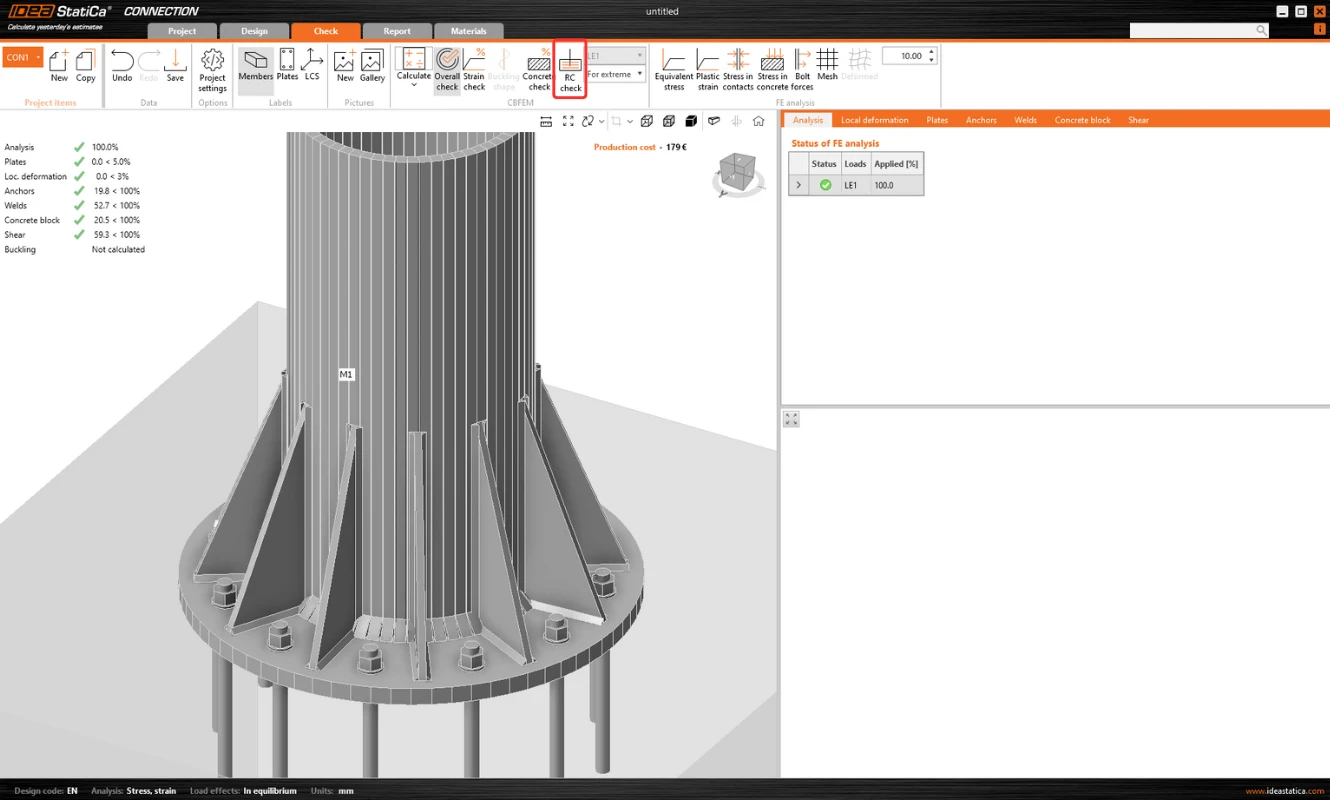
După un export reușit, proiectul din Detail este creat. Geometria blocului de beton și a plăcii de bază, poziția și proprietățile ancorelor, precum și încărcarea sunt transferate automat în Detail. Reazemul de suprafață plasat pe suprafața inferioară a blocului de beton este creat automat.
Notă: Este necesar doar să verificați setările pe direcția Z. (Pentru fundații izolate, folosim doar compresiune cu setarea rigidității solului; pentru o structură continuă, putem activa și reazemul la întindere).
Cea mai delicată parte a acestui proces este importul încărcării. Pentru fiecare efect de încărcare calculat în Connection, cazul de încărcare corespunzător și combinația SLU sunt create automat în Detail.
- Placa de bază este încărcată prin forțe în suduri, care sunt modelate ca un grup de forțe. Pentru încărcarea plăcii de bază propriu-zise, încărcarea importată este reprezentată printr-un grup de forțe care urmează tensiunile din sudurile dintre placa de bază și elementele metalice din modelul Connection.
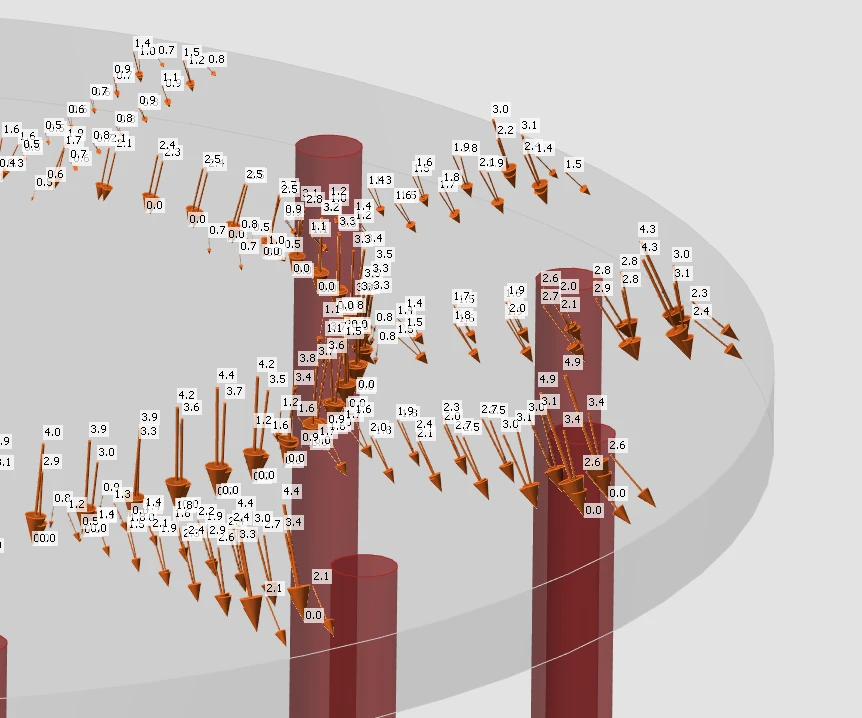
- Ancorele sunt modelate și încărcate independent de placa de bază și sunt încărcate axial prin sarcini punctuale. Încărcarea ancorelor este reprezentată în scenă printr-o pereche de săgeți în direcții opuse. O săgeată reprezintă forța de întindere care acționează doar în partea superioară a ancorei. Cealaltă reprezintă forța de compresiune care acționează asupra plăcii de bază.
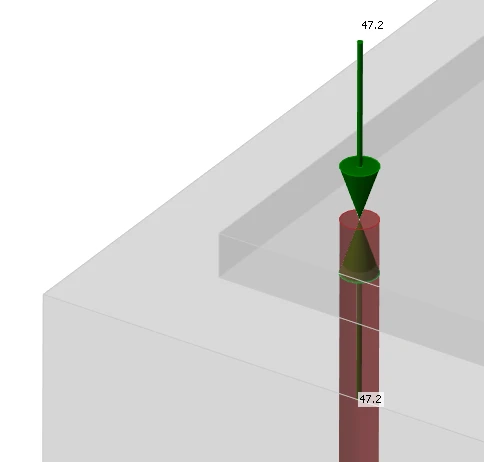
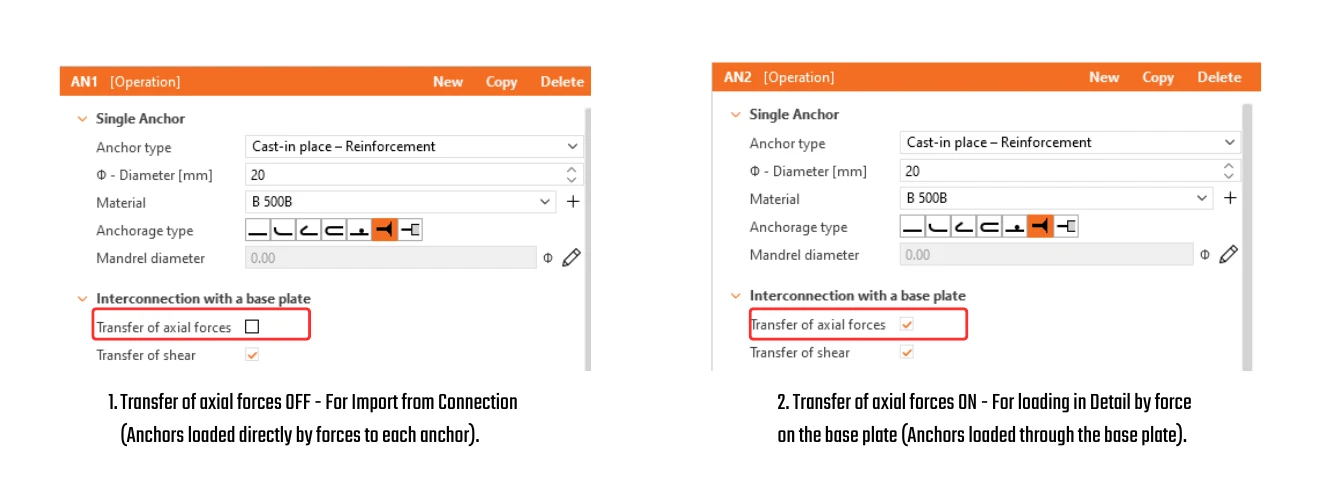
Caseta de bifare "Transfer de forțe axiale" este debifată în mod implicit, deoarece ancorele sunt încărcate direct prin forțe.
Notă: Figura următoare nu se aplică plăcilor turnate in situ, unde transferul forței axiale este verificat corect după export. Motivul poate fi găsit în Fundamentarea teoretică.
- Forfecarea este transferată conform setării din Connection prin una dintre opțiuni – ancore, pivoți de forfecare sau frecare. Dacă forța de forfecare este transferată prin ancore, puteți dezactiva ancore specifice debifând caseta "Transfer de forfecare".
- Dacă sunt setate frecarea sau pivoții de forfecare, forfecarea în ancore nu este niciodată luată în considerare în model. (Chiar dacă caseta este bifată.)
Apoi, adăugați doar armătura necesară folosind instrumentele menționate mai sus și calculați modelul. Nu uitați să setați Rezistența de calcul la aderență pentru ancorele adezive (post-instalate) conform parametrilor producătorului.
Este de asemenea recomandat să verificați că încărcarea specificată nu va răsturna blocul de beton. Răsturnarea poate fi prevenită prin greutate proprie sau forță normală de compresiune suficientă. Dacă forța verticală rezultantă este pozitivă (blocul va fi ridicat de pe reazem), calculul va eșua de asemenea.
Deoarece betonul nu preia întindere, acoperirea dintre armătura inferioară și reazem se va desprinde.
O explicație detaliată a forțelor importate care acționează asupra plăcii de bază sau a ancorelor, prezentate în figura de mai jos, se găsește în Fundamentarea teoretică.
Sincronizare unidirecțională din Connection în Detail
Aplicația Connection oferă o funcție „Update Existing” pentru a sincroniza un proiect Detail cu cele mai recente date din Connection, eliminând necesitatea de a recrea modelul de la zero.
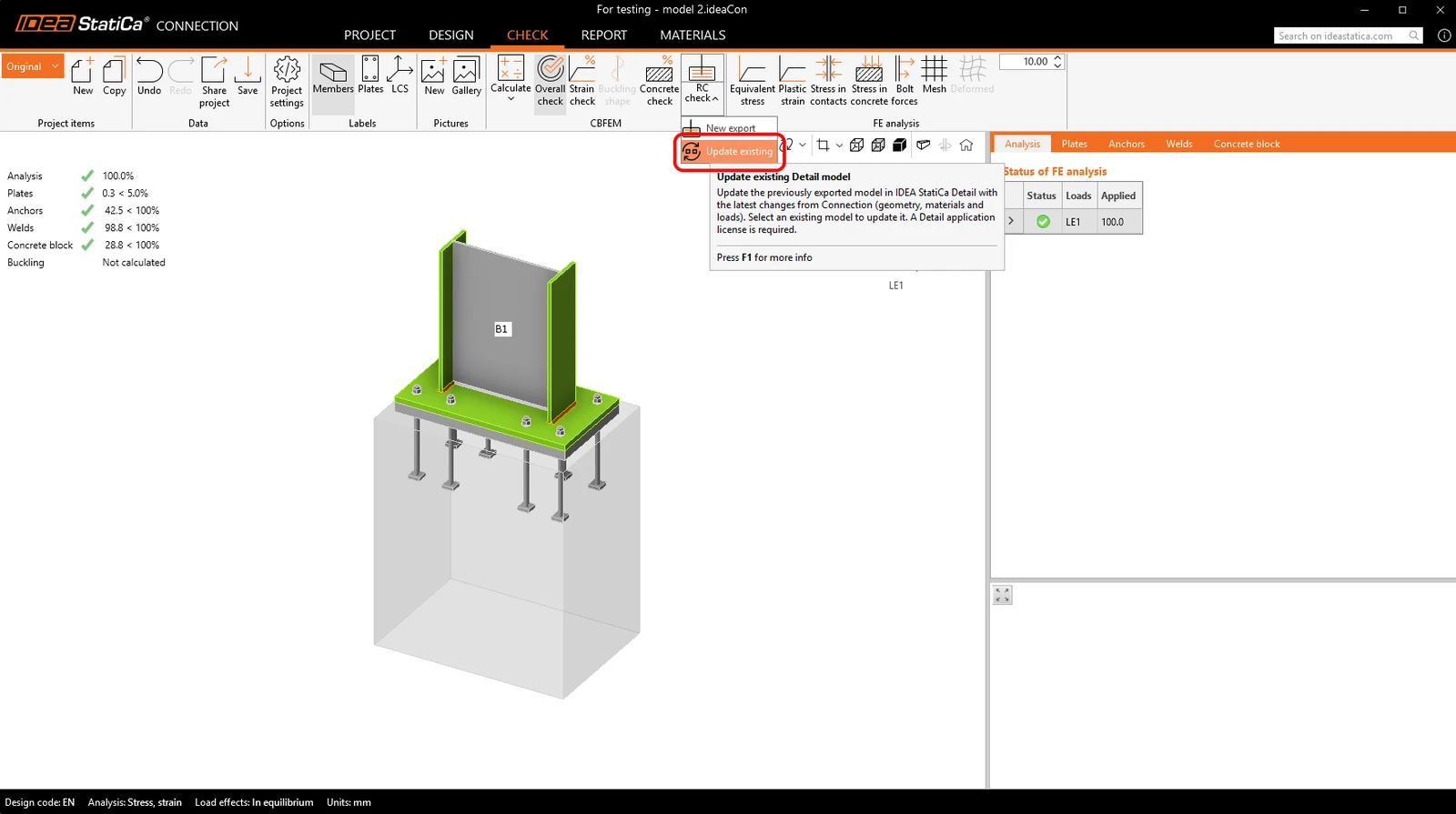
Procesul de actualizare sincronizează următoarele date:
- Blocul de beton: geometrie și material
- Placa de bază / placa turnată in situ: geometrie și material
- Ancore / dispozitive de fixare: geometrie și material
- Date de încărcare: cazuri de încărcare, impulsuri și combinații
Setările nu sunt importate/sincronizate, astfel încât codul trebuie să fie întotdeauna setat corect.
În timpul actualizării, entitățile create inițial din Connection sunt gestionate astfel: entitățile existente sunt actualizate cu noile date, entitățile care nu mai sunt prezente în Connection sunt șterse, iar entitățile noi din Connection sunt adăugate la proiectul Detail. Entitățile create direct în Detail rămân neschimbate, inclusiv volumele negative, tăierile, operațiile booleene, armătura, plăcile, ancorele și cazurile de încărcare.
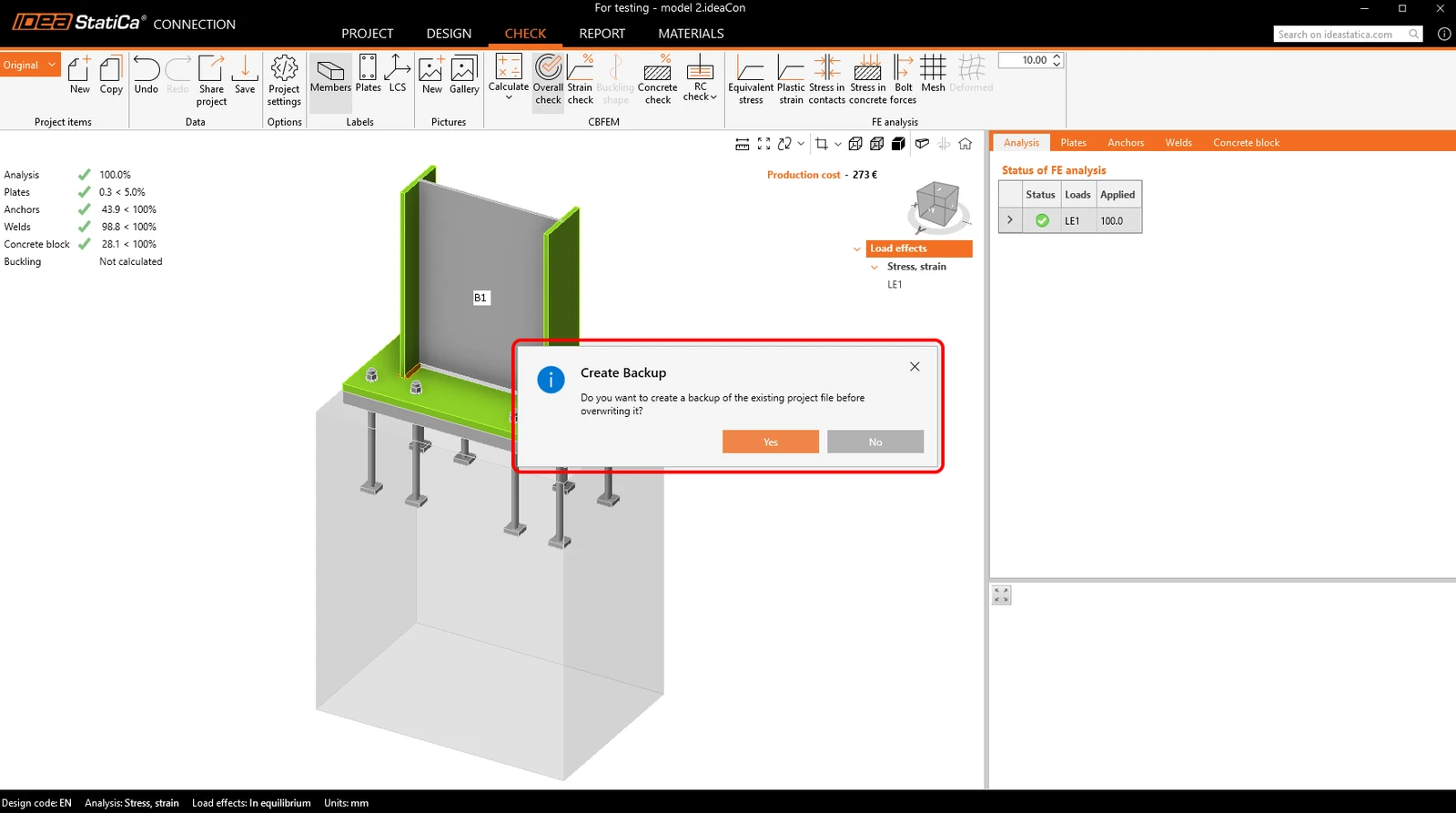
Înainte de actualizare, sistemul solicită crearea unei copii de rezervă, iar copiile de rezervă sunt stocate automat în același folder pentru a asigura recuperarea stării anterioare.
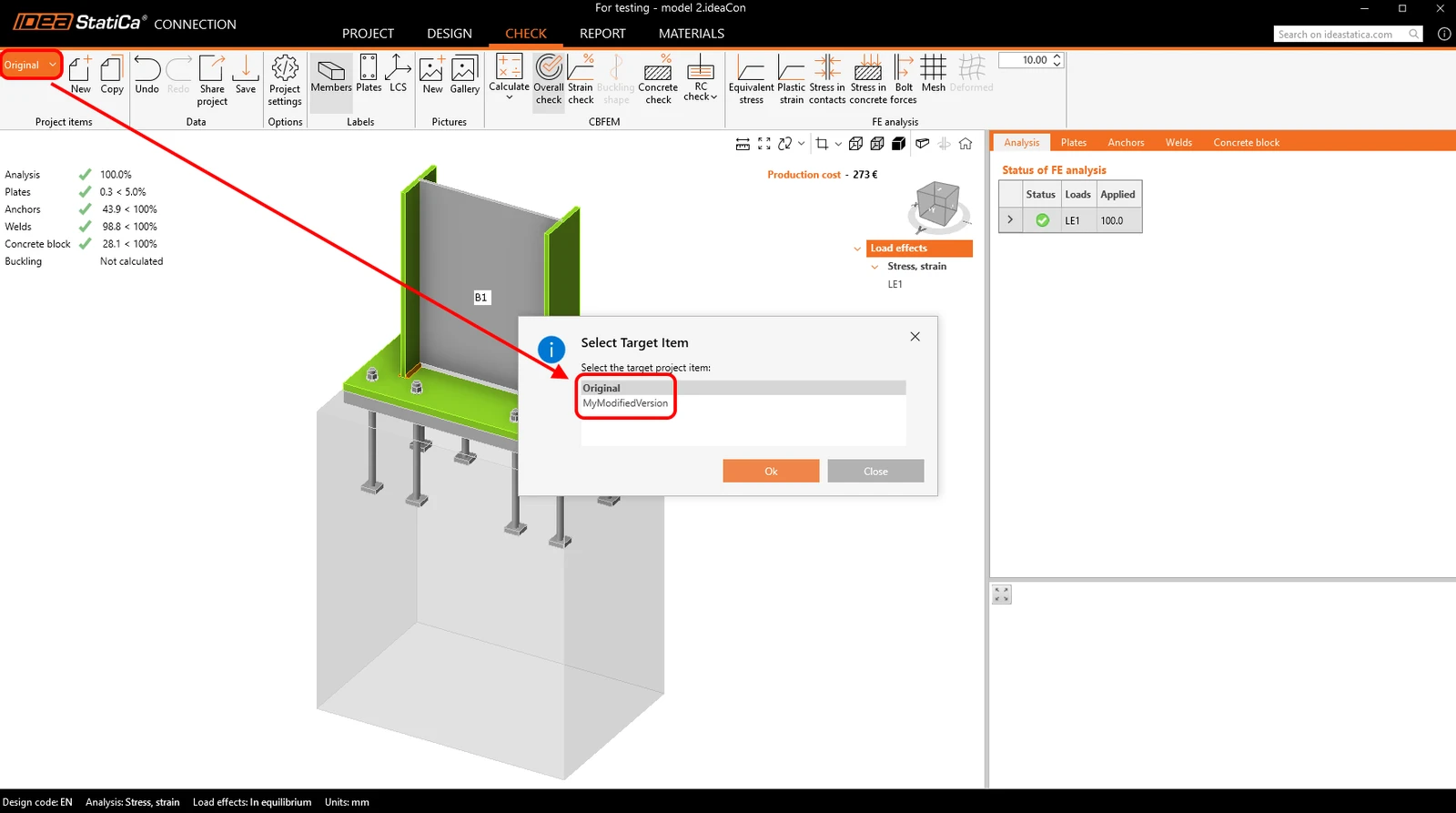
Fluxul de lucru acceptă mai multe elemente de proiect atât în Connection, cât și în Detail. Este posibil să copiați un element de proiect Connection pentru a crea o variantă și apoi să îl sincronizați cu proiectul Detail corespunzător. Actualizările sunt de asemenea acceptate pentru proiectele Detail care conțin mai multe elemente de proiect, permițând ca toate datele relevante să rămână consistente.
Notă: Lansată în IDEA StatiCa versiunea 24.1. pentru EN. Îmbunătățită treptat prin implementarea AISC, adăugarea opțiunilor pentru elementele de ancorare și rafinarea limitărilor. Acest articol, incluzând funcționalitatea completă, este aplicabil începând cu versiunea 26.0. Modificările individuale pot fi văzute în notele de lansare.
Încercați astăzi noile funcționalități ale IDEA StatiCa
Descărcați gratuit cea mai recentă versiuneRezultate
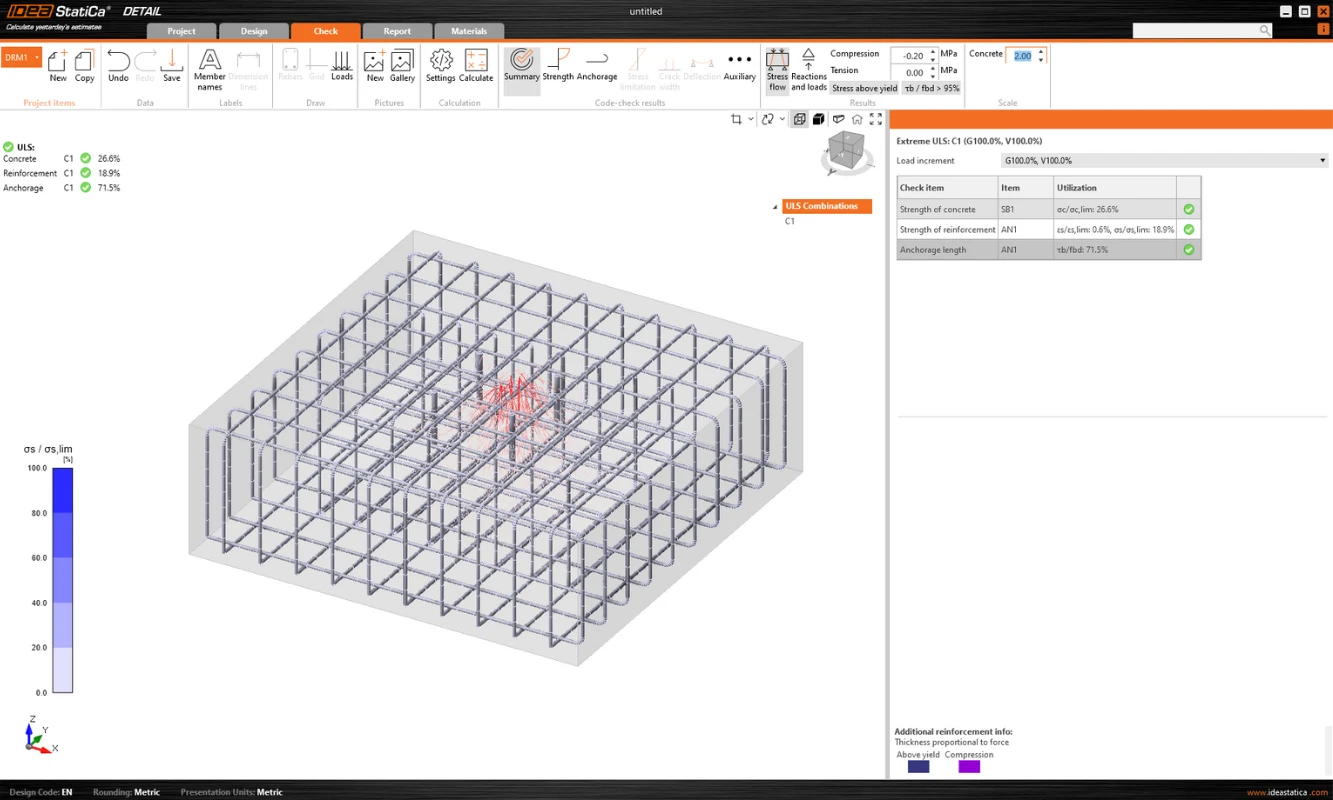
Afișarea rezultatelor este foarte similară cu cea din Detail 2D. Totuși, există câteva diferențe majore, în special în ceea ce privește rezultatele pentru beton și rezultatele ancorelor. În secțiunea următoare, vom parcurge toate rezultatele disponibile, concentrându-ne pe diferențele menționate. În fila de verificare puteți vizualiza un total de 4 tipuri de rezultate:
- Sumar
- Verificarea rezistenței și a ancorelor bazată pe coduri
- Ancorarea armăturii
- Alte rezultate suplimentare
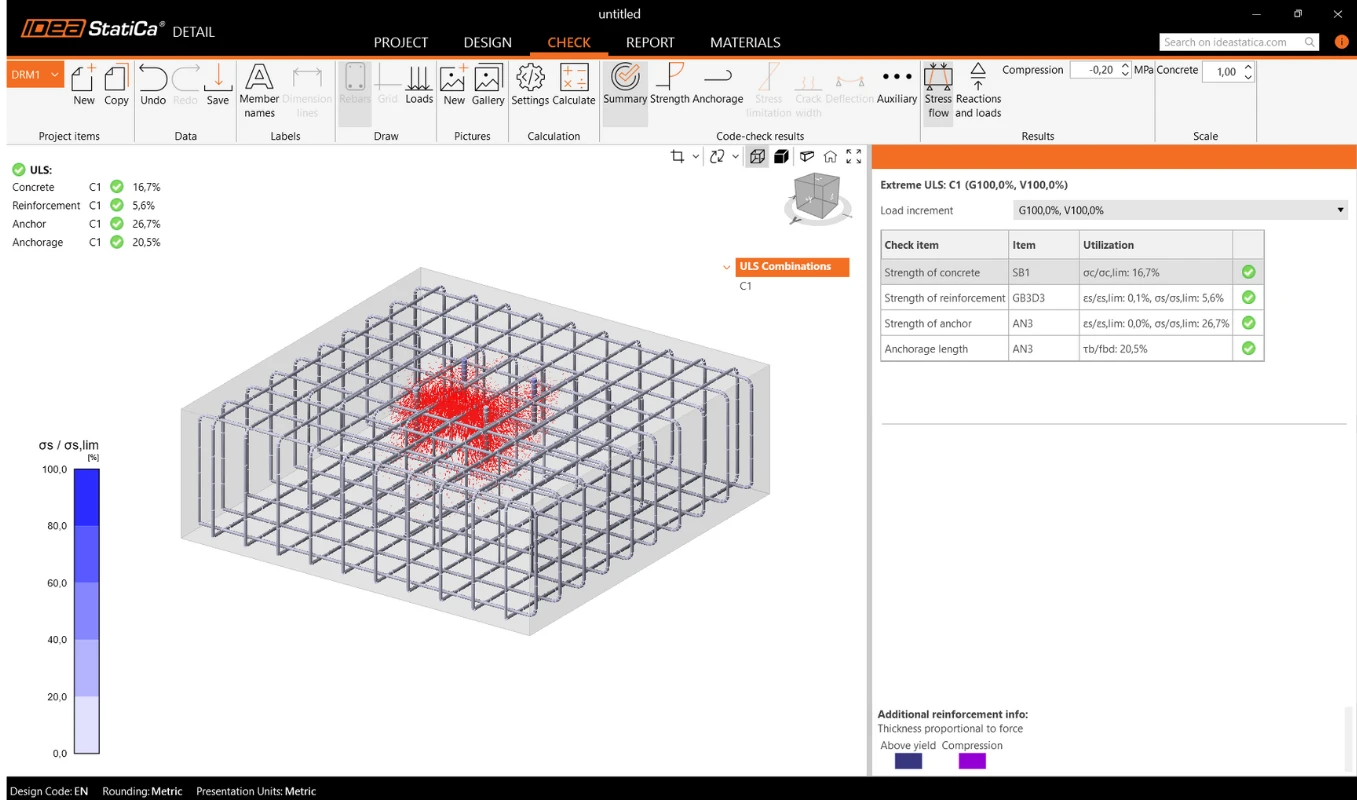
Fluxul de tensiuni în rezultatele Sumar vă arată vectorii tensiunilor principale de compresiune din beton și gradul de utilizare al armăturii și ancorelor, oferindu-vă o imagine de ansamblu de bază.
Verificarea rezistenței betonului, armăturii și ancorelor
În verificarea Rezistență puteți afișa redistribuirea tensiunilor și deformațiilor pentru beton. În bara de instrumente Rezultate din panglica superioară, puteți controla ce va fi afișat. Este de asemenea posibil să afișați rapoartele σc,eq/σlim, și ε/εlim precum și deformația plastică, nivelul de triaxialitate σc3/σlim, și direcția tensiunii principale pentru beton. Toate rezultatele din Rezistență sunt legate de Starea Limită Ultimă.
Notă: Este posibil să observați că tensiunea echivalentă principală σc,eq este zero chiar sub placa de bază comprimată. Vă rugăm să citiți Fundamentarea teoretică unde este definită σc,eq. Sau puteți parcurge acest articol de verificare, în care acest fenomen este explicat și verificat folosind un test tri-axial binecunoscut: Tensiune tri-axială – efectul de confinare activă
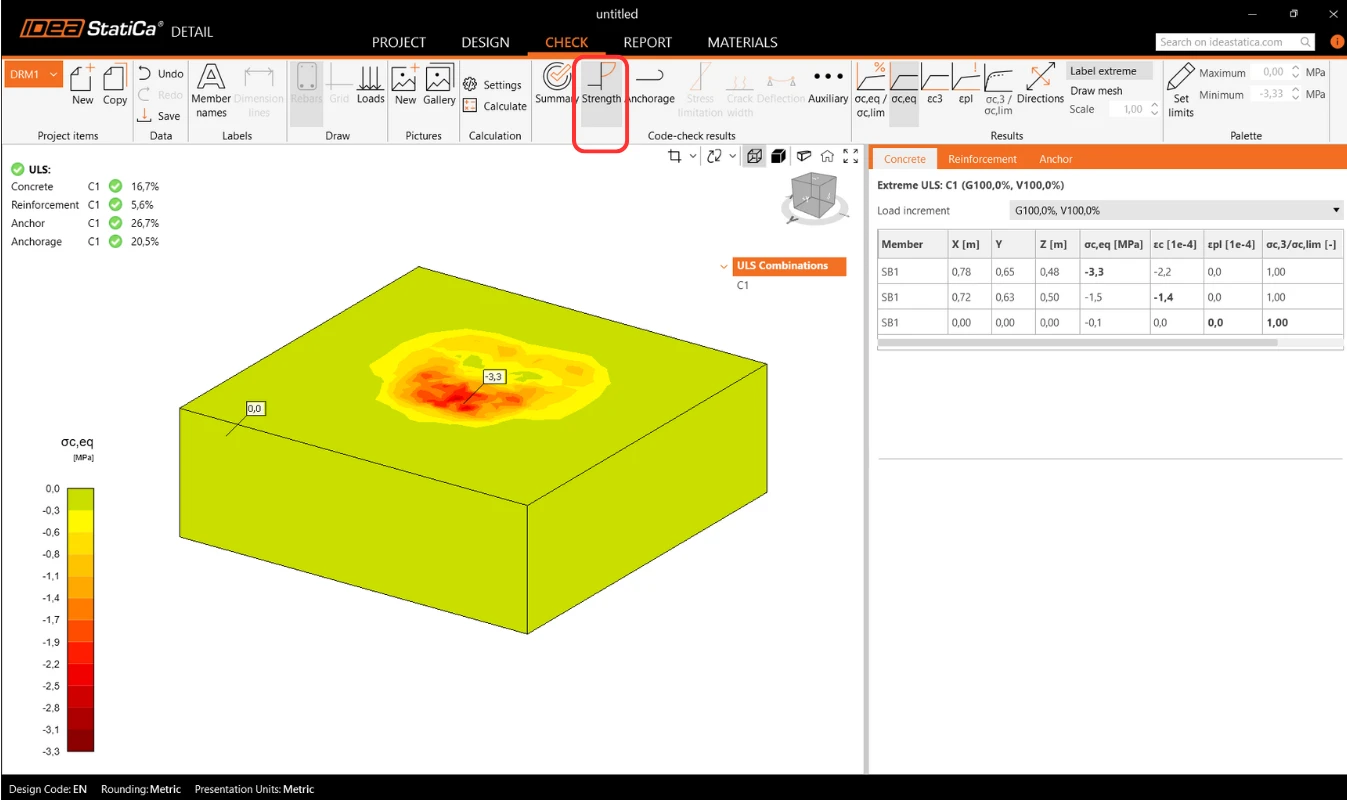
Materialele pot fi schimbate în proprietăți.
Verificarea pentru armătură se efectuează într-un mod foarte similar, unde comparăm din nou valorile limită cu tensiunea/deformația calculată - σs/σlim, și εs/εlim.
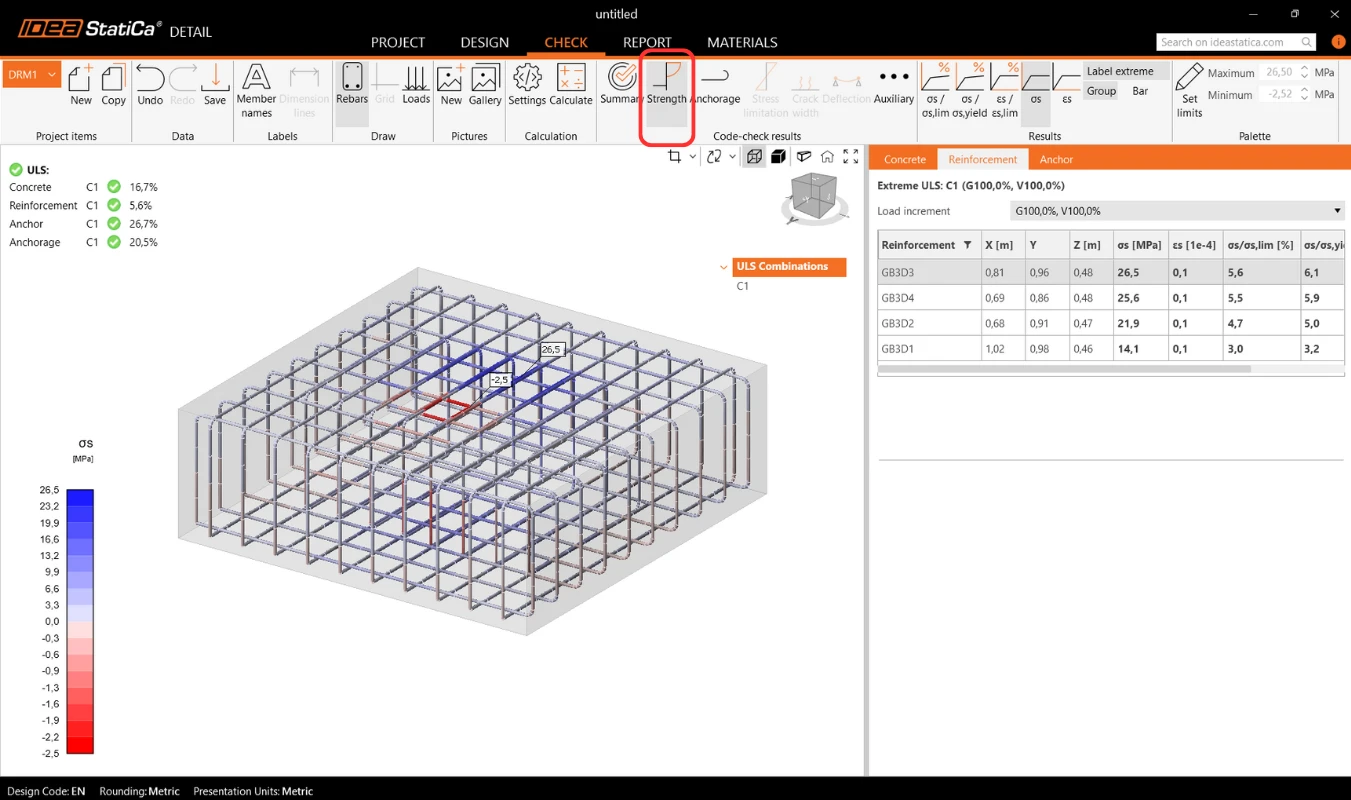
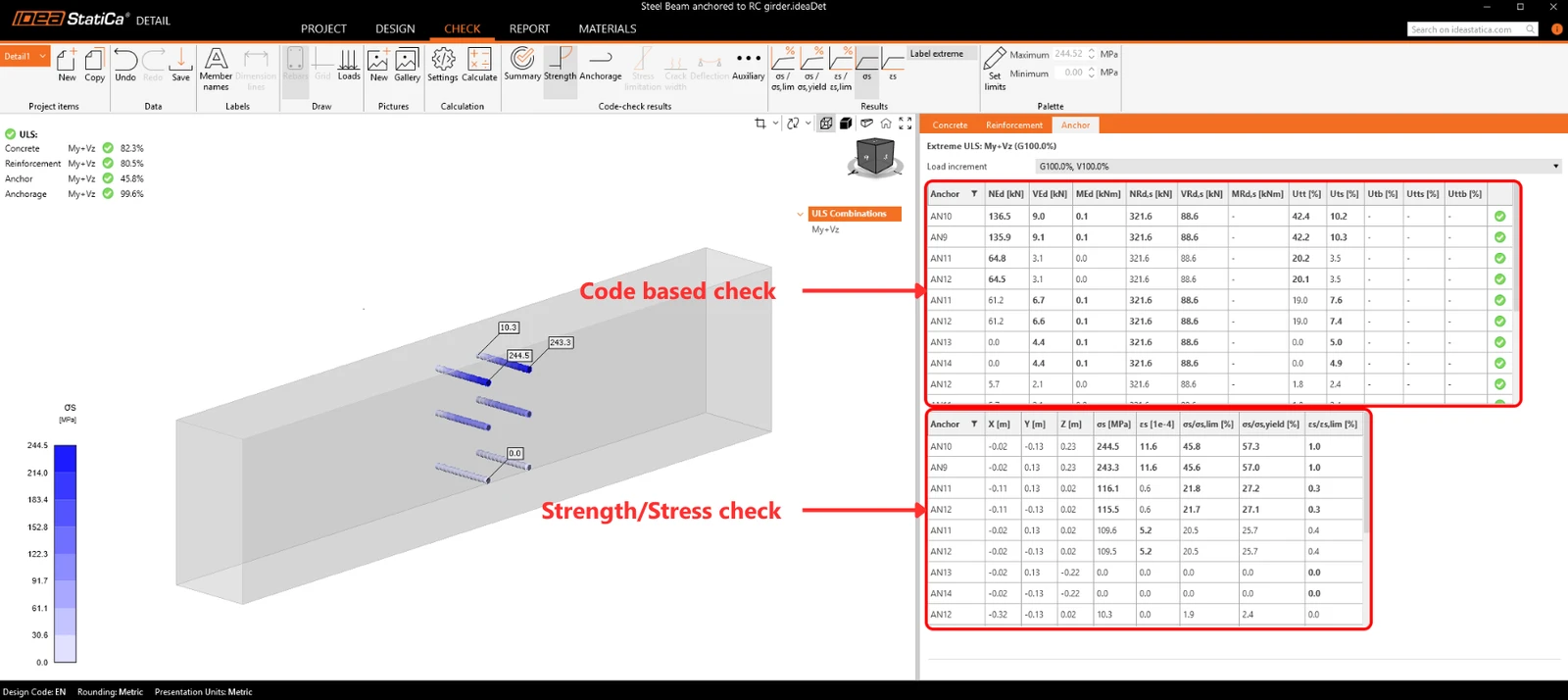
Pentru ancore, avem două verificări. Una este aceeași ca pentru armătură — comparând valorile limită - σs/σlim, și εs/εlim.
Notă: Este posibil să observați că fiecare ancoră este verificată în mai multe poziții, care sunt calculate automat ca cazuri extreme.
Verificarea conform codului a ancorelor conform codului de proiectare
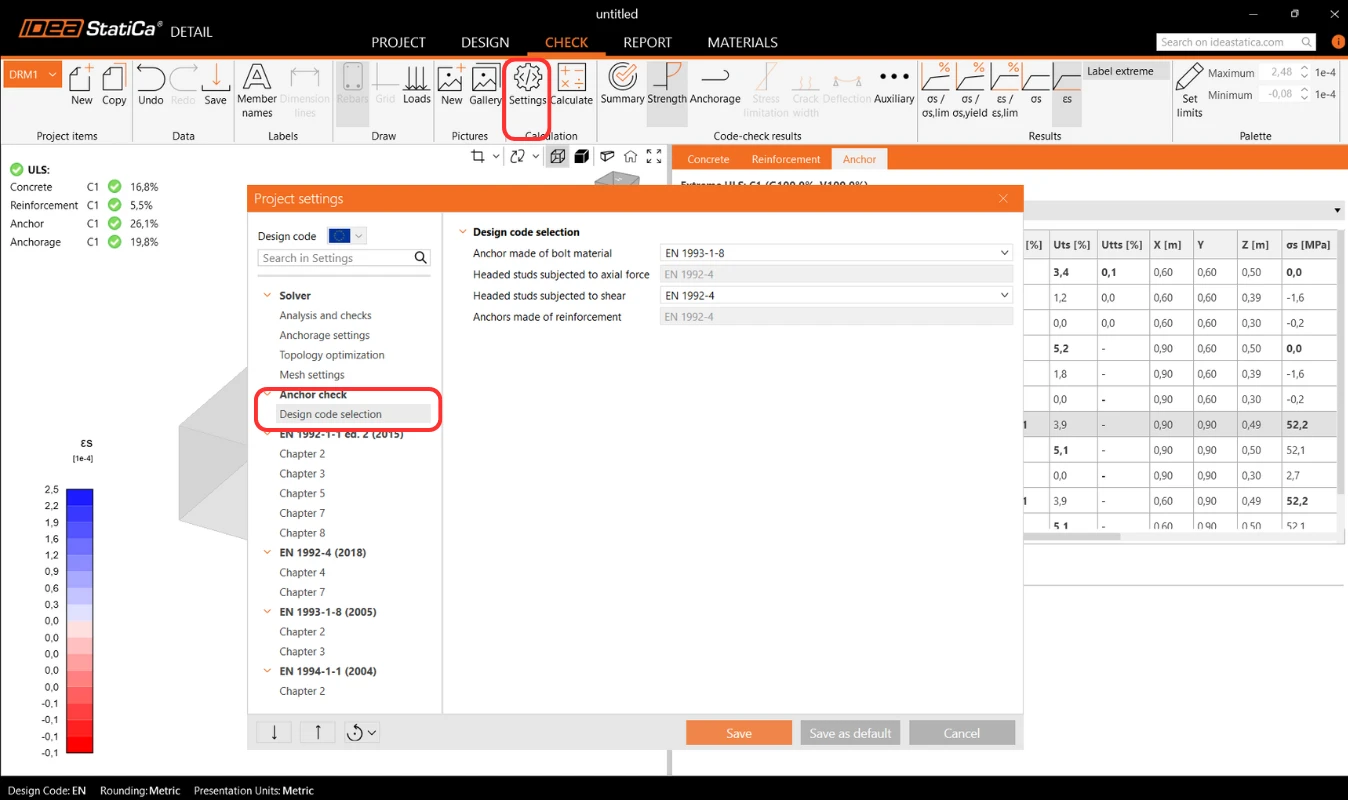
În plus, avem verificări bazate pe codul de proiectare (EN, ACI/AISC, AUS), care sunt efectuate empiric conform standardului. Standardul specific luat în considerare poate fi văzut în setări, unde este de asemenea posibil să selectați unul diferit în funcție de tipul de ancorare utilizat (placă de bază în contact direct cu betonul, placă de bază injectată și placă de bază cu spațiu liber), precum și standardul necesar în funcție de practicile regionale.
Coduri implementate: EN 1992-4, EN 1993-1-8, EN 1994-1-1, ACI318-19, AISC 360-16, AS3600, AS 5216, AS 4100
Setările standardului pot fi modificate în Setările proiectului, unde capitolele vor apărea conform standardului selectat la crearea proiectului. La importul din Connection, se recomandă verificarea că este setat același standard.
În capitolul Fundamentare teoretică - Verificări la Starea Limită Ultimă, fiecare verificare este explicată în detaliu, incluzând toate formulele utilizate.
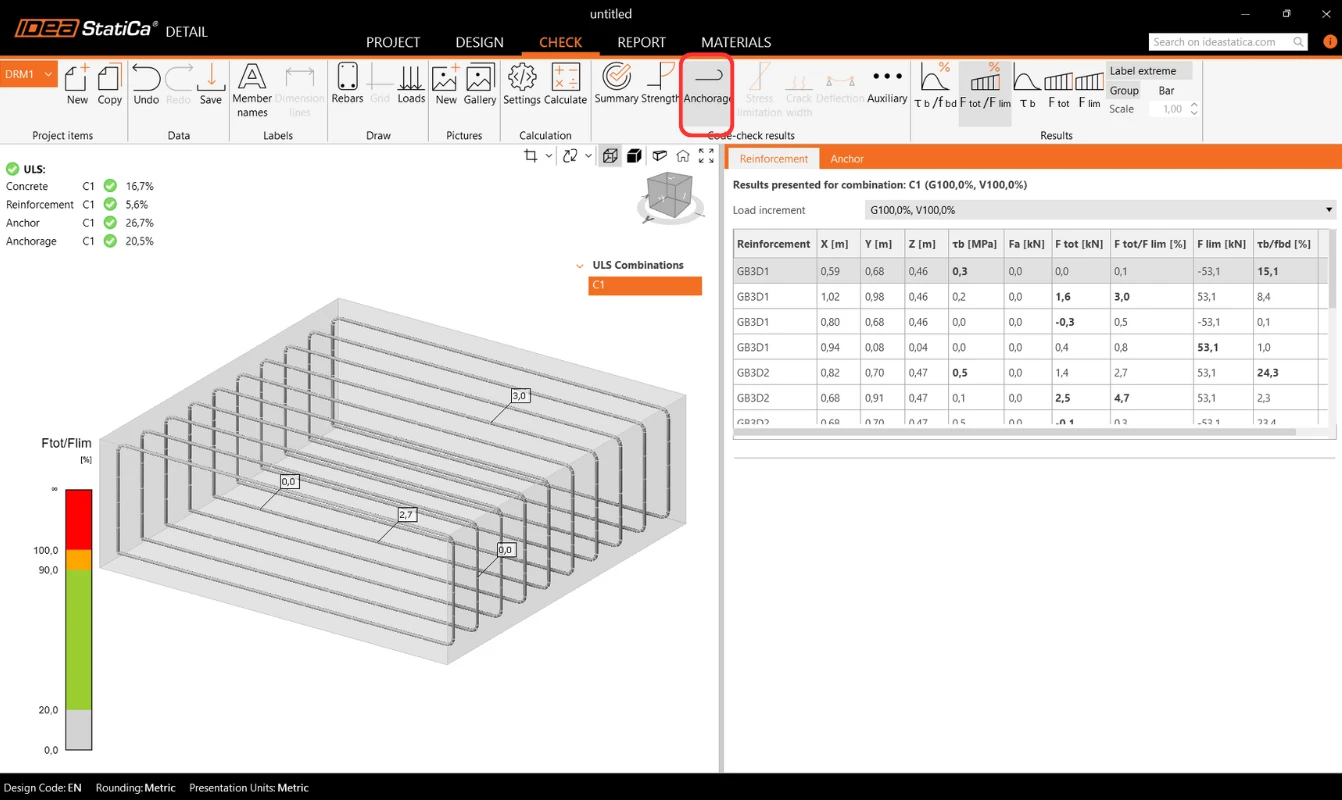
Ancorarea armăturii
Verificarea Ancorare vă oferă informații despre tensiunea de aderență și forța totală asupra armăturii și ancorelor.
Reacțiuni în reazemele de suprafață
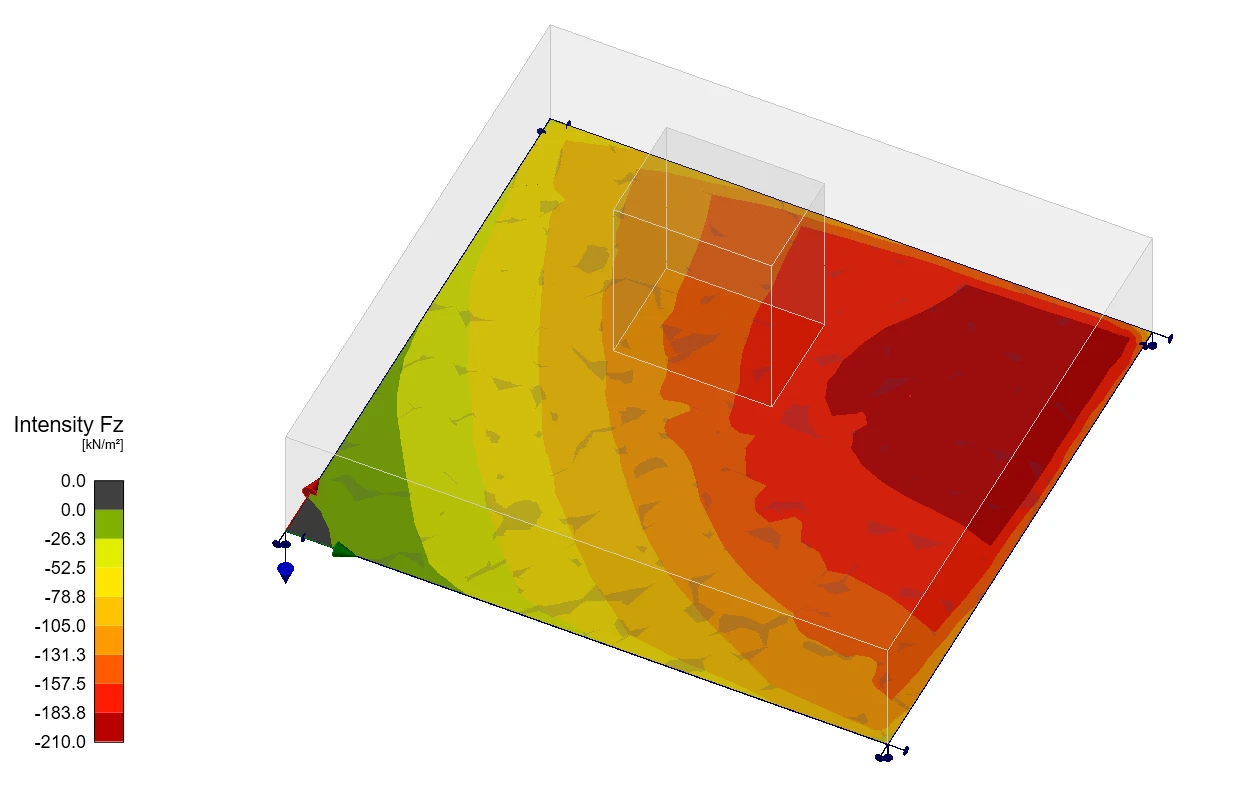
Secțiunea Reacțiuni și încărcări include o opțiune pentru a afișa reacțiunile reazemelor de suprafață. Reacțiunile pot fi vizualizate în două moduri:
- Intensitate – Reacțiunile de suprafață sunt afișate pe fața susținută a blocului de beton folosind izobande pentru a ilustra distribuția pe suprafața reazemului.
- Rezultantă – Reacțiunea rezultantă pentru fiecare reazem este afișată sub forma unei săgeți în centrul de greutate al reazemului, indicând mărimea și direcția.
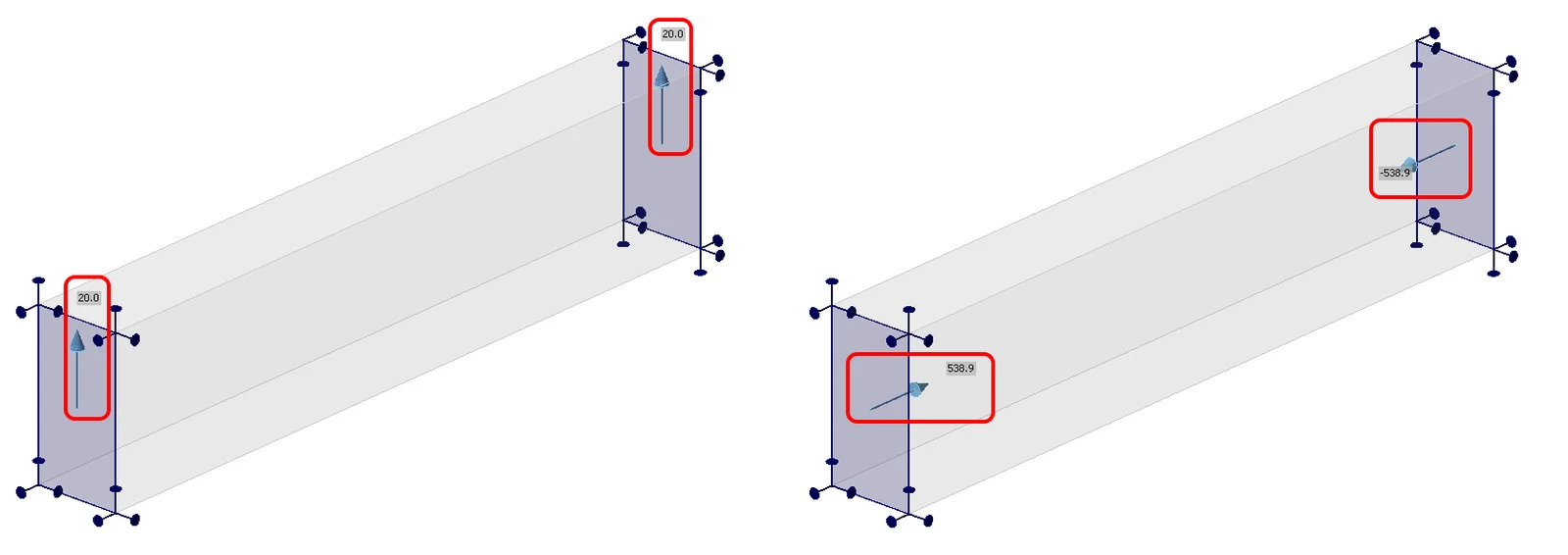
Pentru ambele moduri, reacțiunile pot fi afișate fie în Sistemul de coordonate global (GCS), fie în Sistemul de coordonate local (LCS) al reazemului.
Un nou tabel din Grila de proprietăți listează reacțiunile sumarizate pentru reazemele individuale, disponibile de asemenea în coordonate globale sau locale.
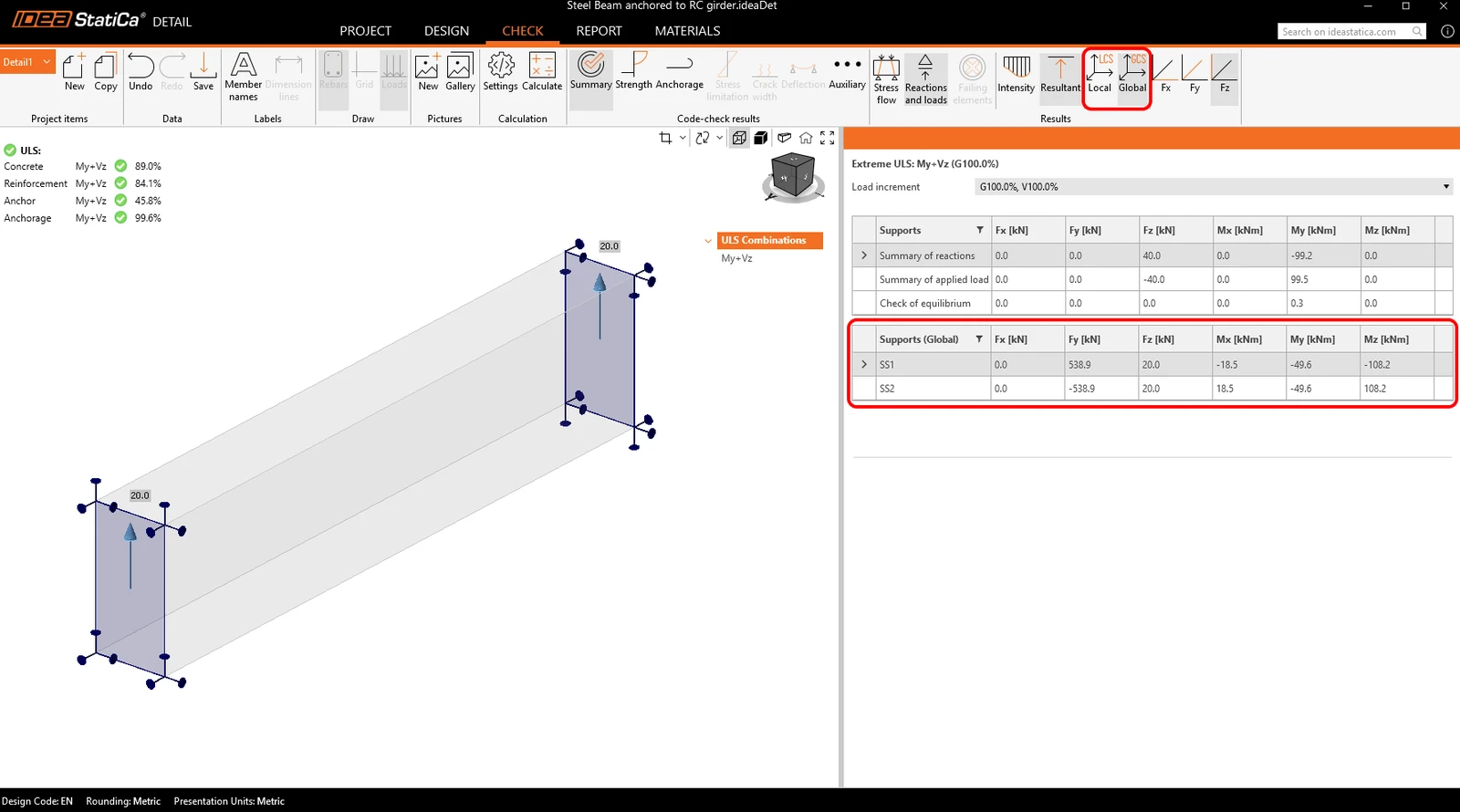
În plus, distribuția reacțiunilor poate fi vizualizată în vederile de secțiune create de utilizator.

Rezultate suplimentare avansate
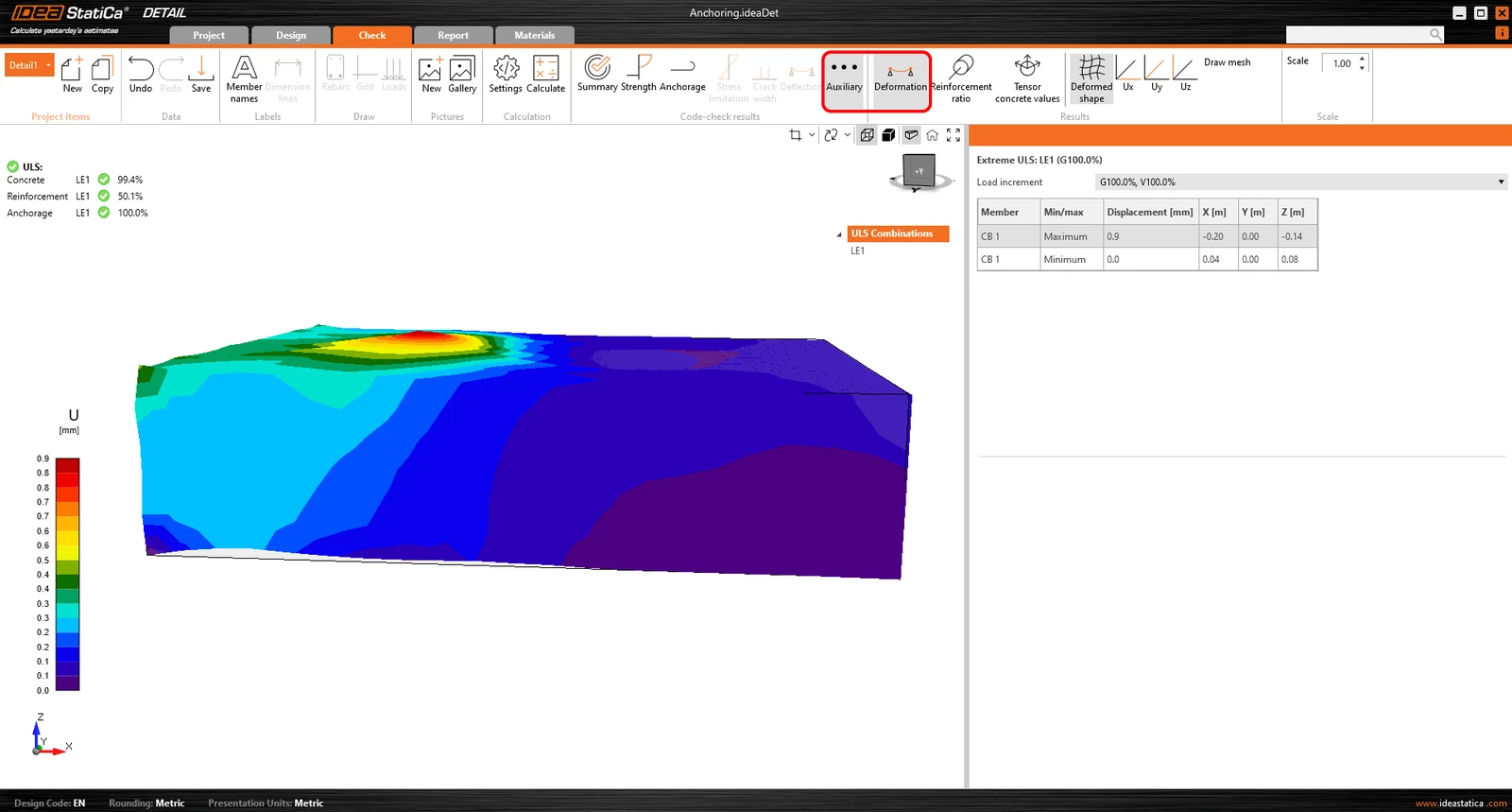
Nu în ultimul rând, puteți vizualiza rezultatele Auxiliare din aplicație - Deformația, Raportul de armare și Valorile tensorului betonului. Primul tip, Deformația, poate afișa deformațiile scalate ale modelului neliniar SLU.
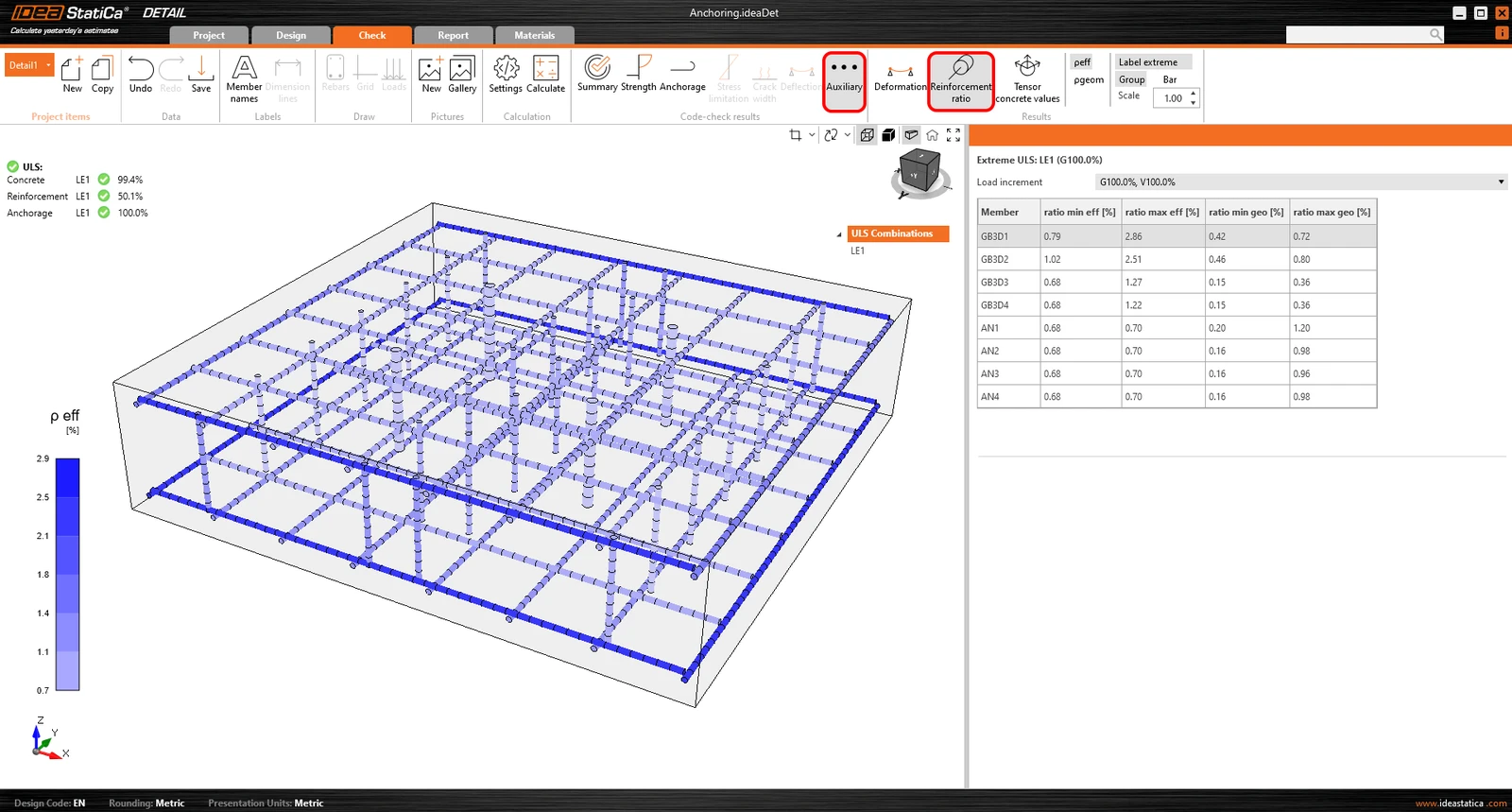
Raportul de armare arată valorile utilizate pentru a calcula efectul de participare a betonului întins.
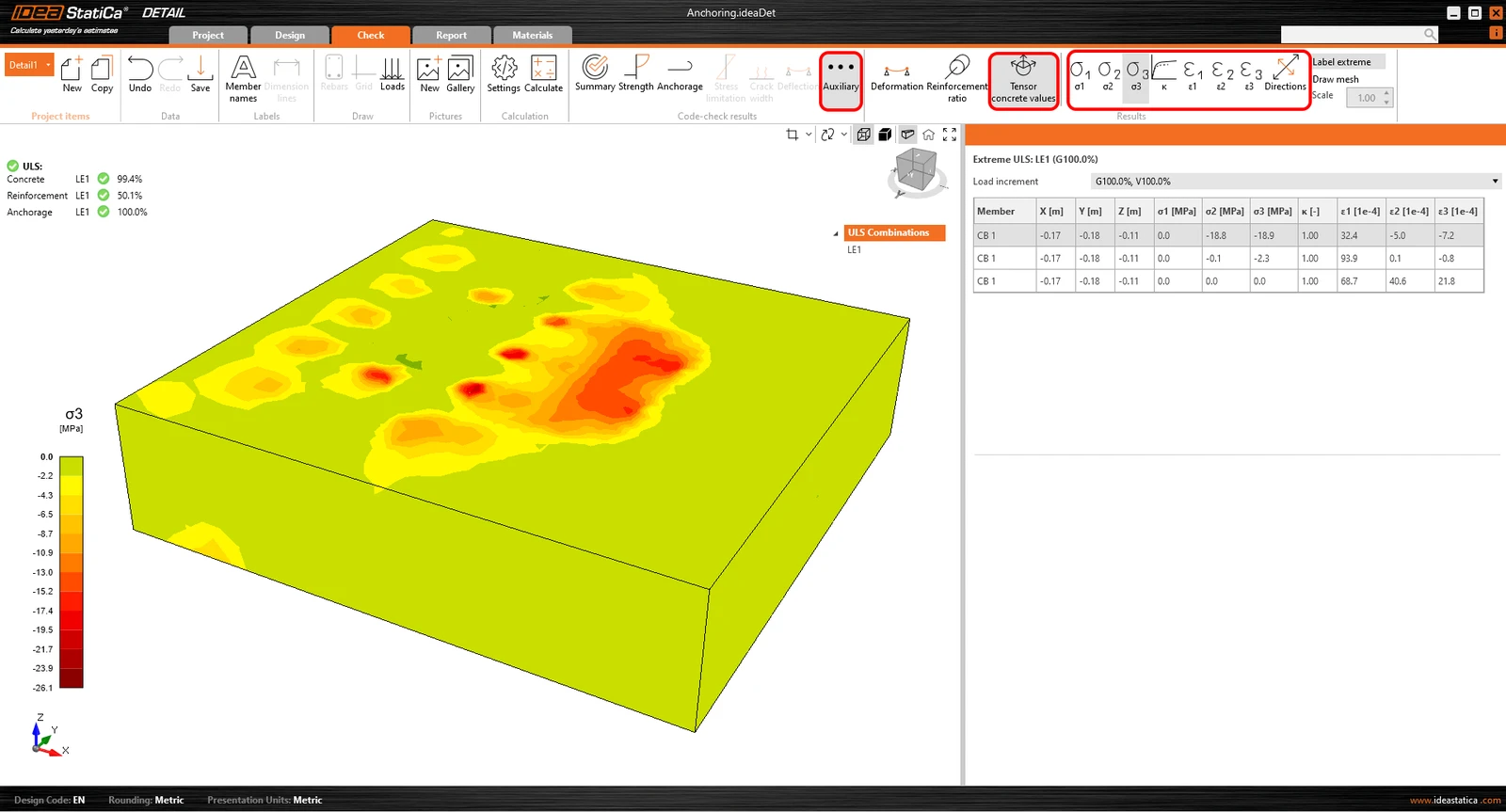
Valorile tensorului betonului vă permit să afișați intensitățile tensiunilor principale din beton și direcția lor.
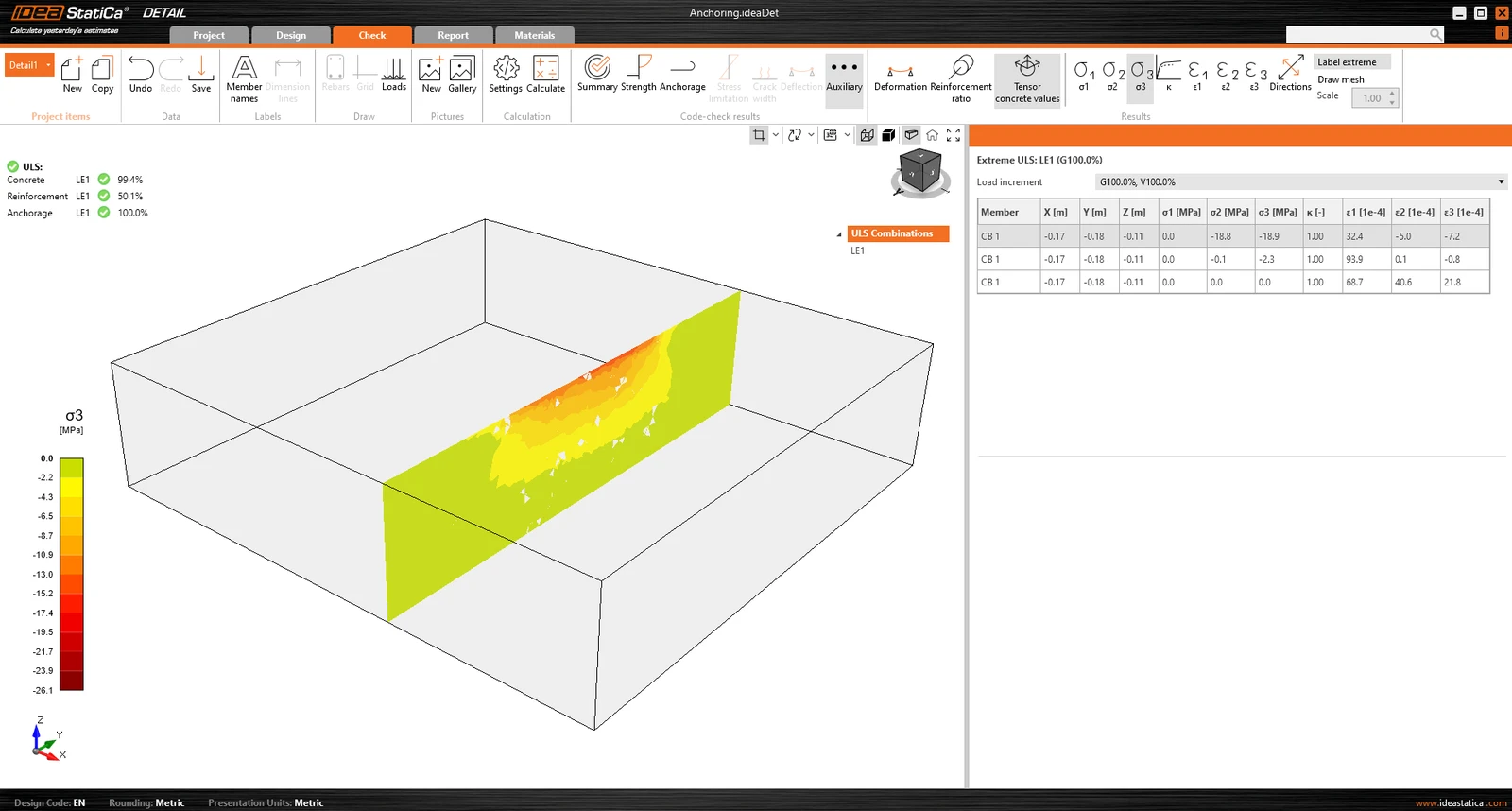
Secțiunile de rezultate pot fi de asemenea utilizate.
Investigați comportamentul modelului cu rezultatele Section și verificarea Stress
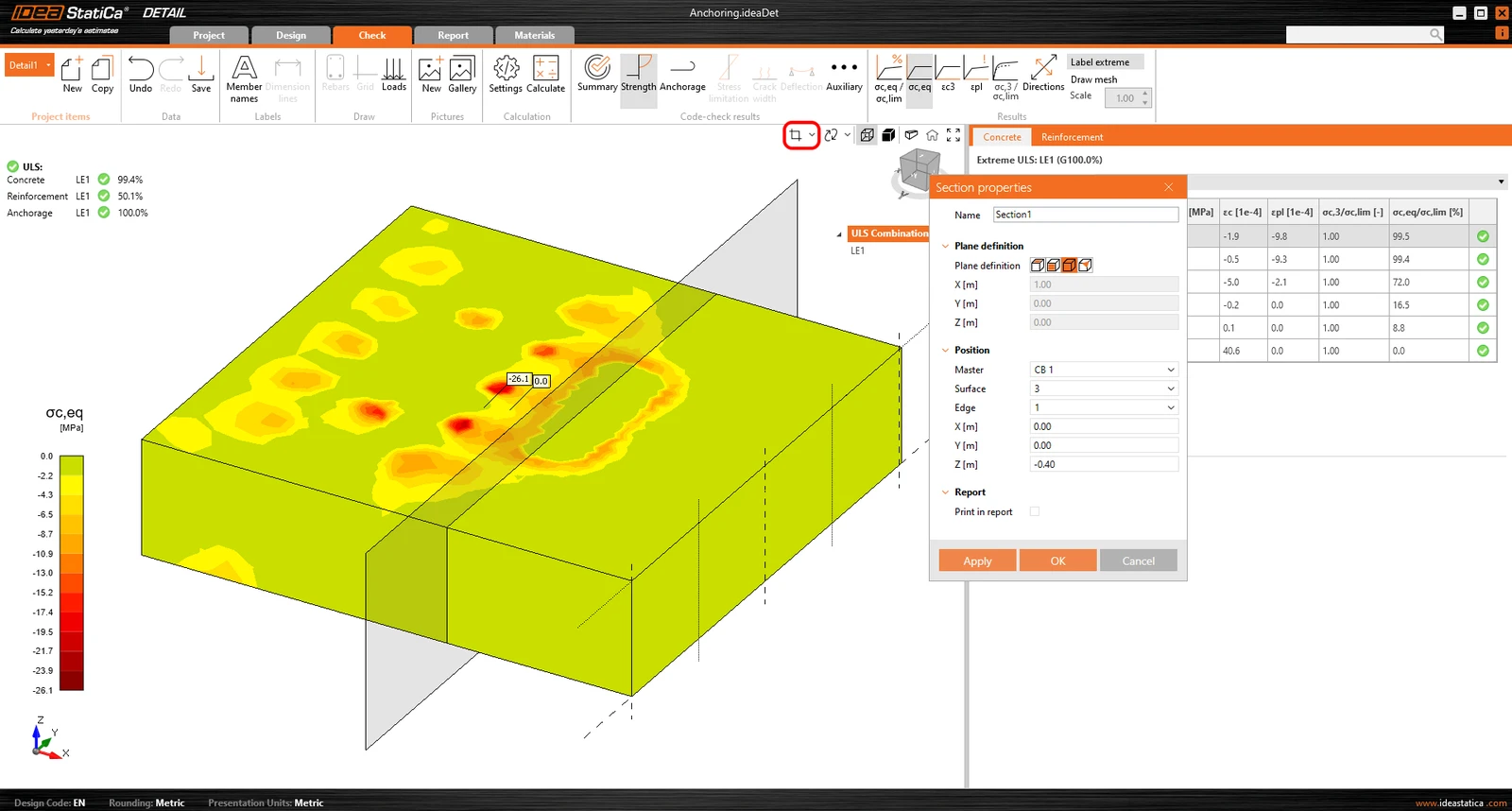
Rezultatele Section permit analiza tensiunilor din elementul de beton. Este posibilă crearea oricărui număr de secțiuni și în orice plan.
Pentru modelele 3D, există opțiunea de afișare a rezultatelor pentru beton - Section results. Pentru a defini sau modifica secțiunile, trebuie să folosiți butonul de secțiune din controlul vederii, aflat în colțul din dreapta sus al scenei.
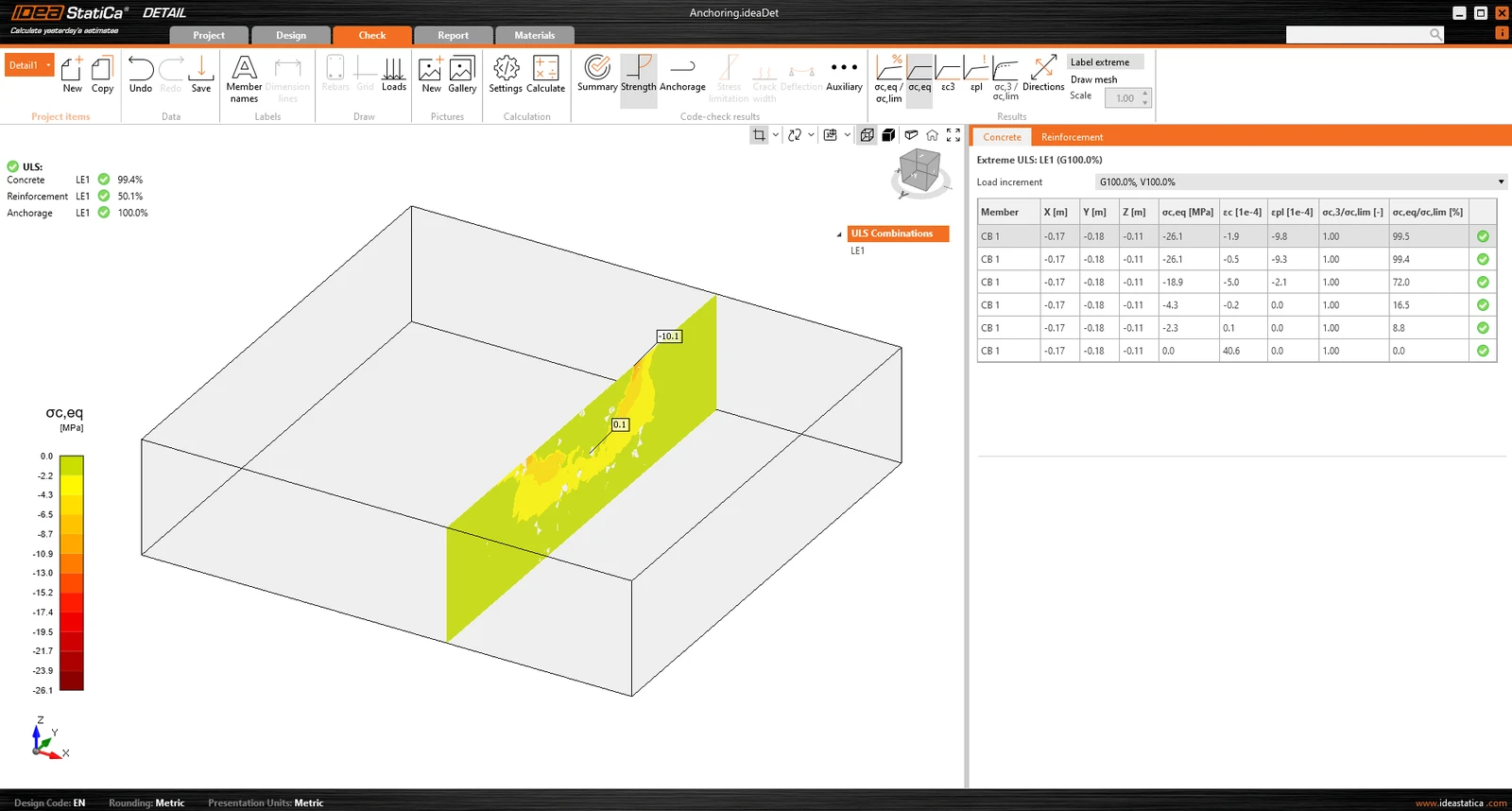
Apoi puteți activa pur și simplu butonul de secțiune, iar rezultatele vor fi afișate prin secțiunea specificată.
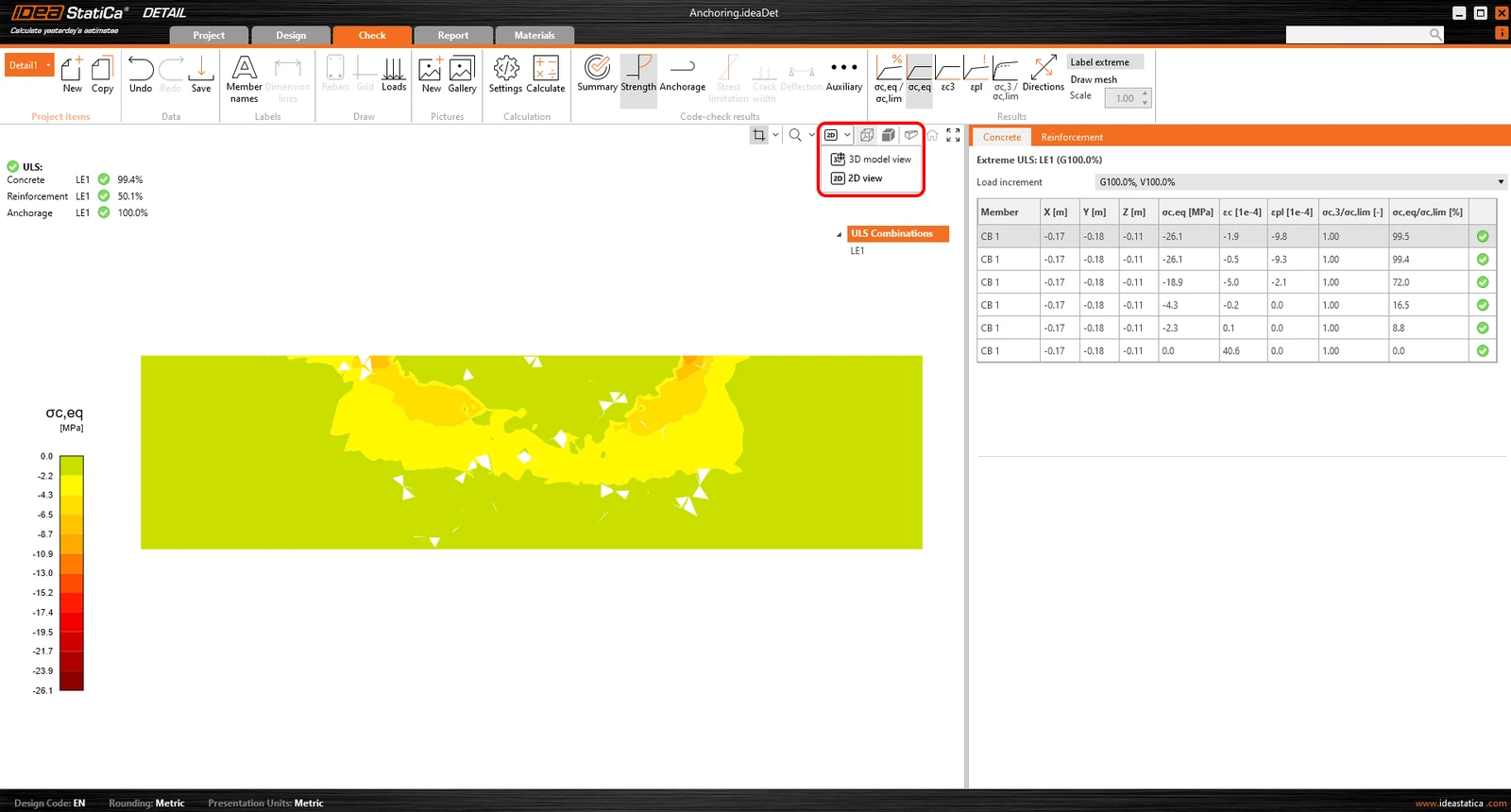
Sau există opțiunea de a comuta vederea din 3D în 2D și, pentru o claritate mai bună, de a afișa secțiunea selectată în 2D.
Verificarea Stress
Pentru o mai bună înțelegere a rezultatelor și a teoriei implementate în Detail 3D, iconografia a fost îmbunătățită semnificativ. În secțiunea „Strength”, sub evaluarea tensiunii betonului, veți găsi pictograme noi și, cel mai important, casete de informații (tooltips) care explică teoria de bază. Aceste casete de informații corespund fundamentelor teoretice.
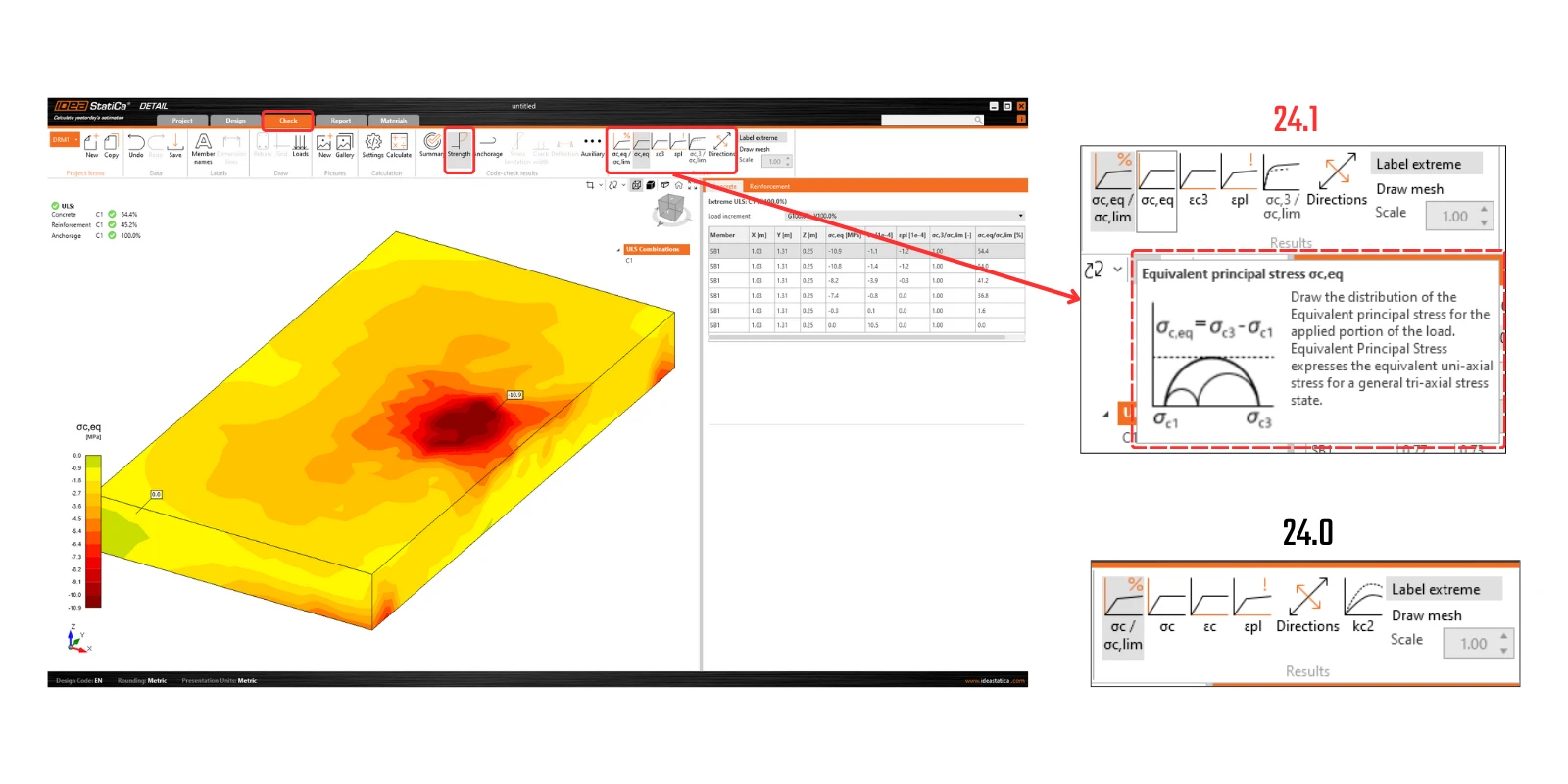
Lansat în IDEA StatiCa versiunea 24.0.2
Încercați astăzi noile funcționalități ale IDEA StatiCa
Descărcați gratuit cea mai recentă versiuneRaport
Ca și în cazul standard din aplicațiile noastre, toate rezultatele pot fi tipărite într-un raport generat automat, care include fundamentele teoretice, paragrafe definite de utilizator și multe altele.