

Cómo empezar con la API - Importar una plantilla y ejecutar el cálculo 03
Primeros pasos
Recomendamos seguir el tutorial Cómo empezar con la API - Conceptos básicos 01, que le enseña sobre la API y cómo configurar el entorno.
Archivo Connection
Este ejemplo se basa en los archivos creados en el tutorial Cómo empezar con la API - Importación por lotes de combinaciones 02.
Por favor, descargue los archivos tutorial 02 with loads.ideaCon y tutorial 02.contemp en su PC.
Cliente Python
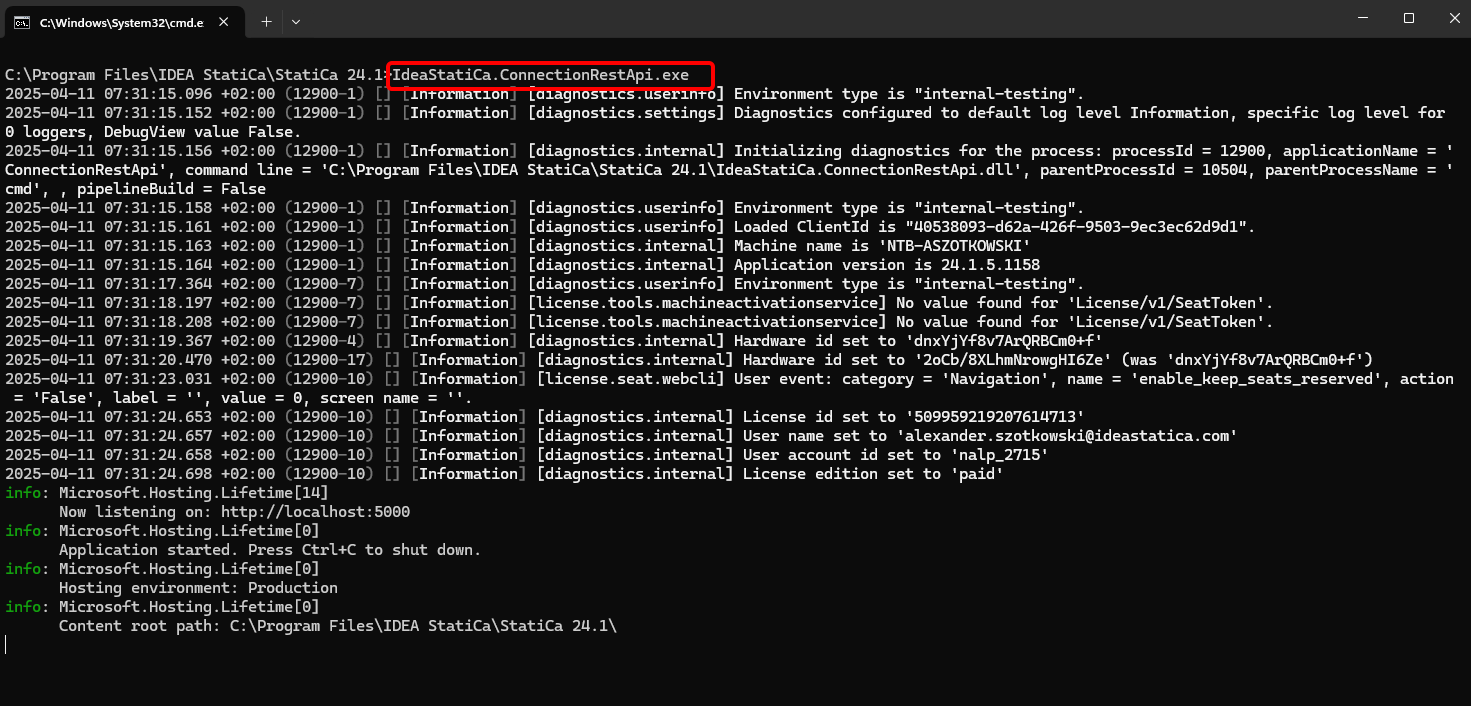
De nuevo, ejecute "IdeaStatiCa.ConnectionRestApi.exe" en CMD dentro de la carpeta de IDEA StatiCa correspondiente y abra la herramienta IDE de su elección.
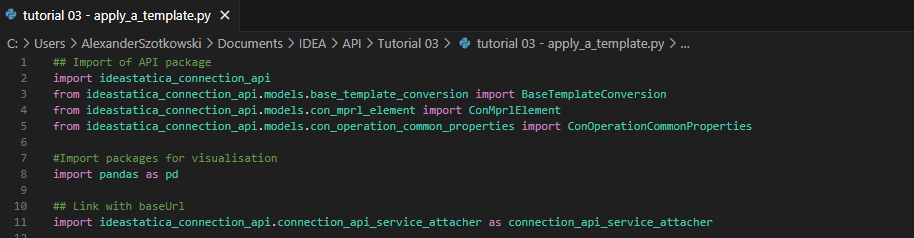
- Cree un nuevo archivo e importe los paquetes que permitirán el uso del cálculo y la conexión con la URL del localhost.
Código fuente:
## Import of API package
import ideastatica_connection_api
from ideastatica_connection_api.models.base_template_conversion import BaseTemplateConversion
from ideastatica_connection_api.models.con_mprl_element import ConMprlElement
from ideastatica_connection_api.models.con_operation_common_properties import ConOperationCommonProperties
#Import packages for visualisation
import pandas as pd
## Link with baseUrl
import ideastatica_connection_api.connection_api_service_attacher as connection_api_service_attacher
- Configure el registro mediante la variable "baseUrl", que cargará su localhost. En el segundo paso, vincule la ruta absoluta de su archivo IDEA StatiCa Connection.
## Configure logging
baseUrl = "http://localhost:5000"
## Absolute path into folder with your python script and connection module
project_file_path = r"C:\Users\AlexanderSzotkowski\Documents\IDEA\API\Tutorial 03\tutorial 02 with loads.ideaCon"
print("Opening project ",project_file_path)

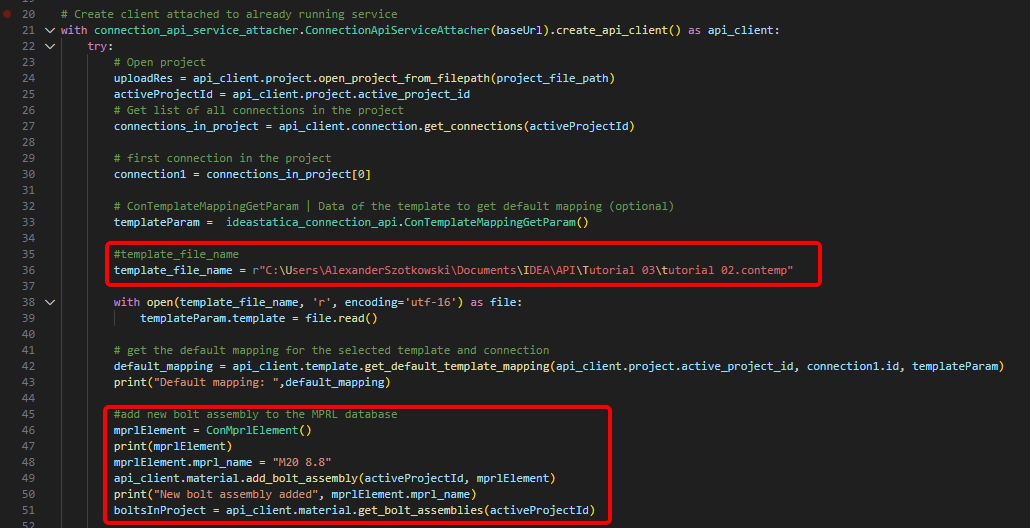
- Vincule el cliente con un servicio ya en ejecución. Utilice el bloque try/except: dado que el bloque try genera un error, se ejecutará el bloque except. En la primera fase, es necesario abrir el proyecto y encontrar el ID de proyecto de su proyecto, que es único para cada proyecto de IDEA StatiCa. A continuación, necesitamos todas las uniones almacenadas en nuestro archivo, ya que queremos aplicar la plantilla solo a la primera. Como siguiente paso, podemos leer el archivo de plantilla de mapeo predeterminado y añadir otro conjunto de tornillos (M20 8.8) a la base de datos MPRL.
# Create a client attached to an already running service
with connection_api_service_attacher.ConnectionApiServiceAttacher(baseUrl).create_api_client() as api_client:
try:
# Open project
uploadRes = api_client.project.open_project_from_filepath(project_file_path)
activeProjectId = api_client.project.active_project_id
# Get list of all connections in the project
connections_in_project = api_client.connection.get_connections(activeProjectId)
# first connection in the project
connection1 = connections_in_project[0]
# ConTemplateMappingGetParam | Data of the template to get default mapping (optional)
templateParam = ideastatica_connection_api.ConTemplateMappingGetParam()
#template_file_name
template_file_name = r"C:\Users\AlexanderSzotkowski\Documents\IDEA\API\Tutorial 03\tutorial 02.contemp"
with open(template_file_name, 'r', encoding='utf-16') as file:
templateParam.template = file.read()
# get the default mapping for the selected template and connection
default_mapping = api_client.template.get_default_template_mapping(api_client.project.active_project_id, connection1.id, templateParam)
print("Default mapping: ",default_mapping)
#add new bolt assembly to the MPRL database
mprlElement = ConMprlElement()
print(mprlElement)
mprlElement.mprl_name = "M20 8.8"
api_client.material.add_bolt_assembly(activeProjectId, mprlElement)
print("New bolt assembly added", mprlElement.mprl_name)
boltsInProject = api_client.material.get_bolt_assemblies(activeProjectId)
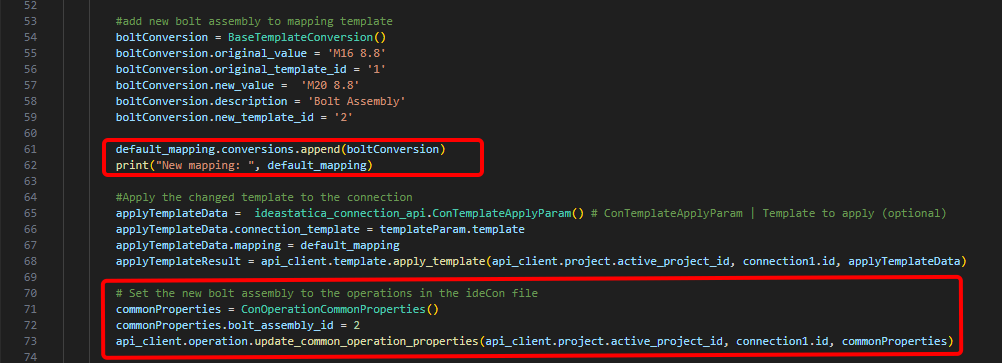
- Si queremos asignar el nuevo conjunto de tornillos a la operación Placa a placa directamente, debemos ejecutar el comando BaseTemplateConversion() y añadirlo a la plantilla de mapeo.
# add new bolt assembly to mapping template
boltConversion = BaseTemplateConversion()
boltConversion.original_value = 'M16 8.8'
boltConversion.original_template_id = '1'
boltConversion.new_value = 'M20 8.8'
boltConversion.description = 'Bolt Assembly'
boltConversion.new_template_id = '2'
default_mapping.conversions.append(boltConversion)
print("New mapping: ", default_mapping)
# Apply the changed template to the connection
applyTemplateData = ideastatica_connection_api.ConTemplateApplyParam() # ConTemplateApplyParam | Template to apply (optional)
applyTemplateData.connection_template = templateParam.template
applyTemplateData.mapping = default_mapping
applyTemplateResult = api_client.template.apply_template(api_client.project.active_project_id, connection1.id, applyTemplateData)
# Set the new bolt assembly to the operations in the ideaCon file
commonProperties = ConOperationCommonProperties()
commonProperties.bolt_assembly_id = 2
api_client.operation.update_common_operation_properties(api_client.project.active_project_id, connection1.id, commonProperties)
- También podemos obtener los costes de la unión
# Get the costs of the connection with the applied template
costs = api_client.connection.get_production_cost(api_client.project.active_project_id, connection1.id)
print("Costs: ",costs.total_estimated_cost)

- Como último paso, podemos ejecutar el cálculo, ver los resultados, guardar el archivo con un nuevo nombre y consultar los resultados
# Run stress-strain analysis for the connection
con1_cbfem_results1 = api_client.calculation.calculate(api_client.project.active_project_id, [connection1.id])
results = api_client.calculation.get_results(api_client.project.active_project_id, [connection1.id])
CheckResSummary = pd.DataFrame(results[0].check_res_summary)
print("Results summary: \n",CheckResSummary[1])
#Create new ideaCon file and apply the template
updated_file_name = r'C:\Users\AlexanderSzotkowski\Documents\IDEA\API\Tutorial 03\tutorial 03 with template.ideaCon'
api_client.project.download_project(api_client.project.active_project_id, updated_file_name )
print("New project with template ",updated_file_name)
except Exception as e:
print("Operation failed : %s\n" % e)


Los resultados son correctos. En el siguiente tutorial, nos centraremos en la optimización de algunos de los componentes.
Descargas adjuntas
- tutorial 02.contemp (CONTEMP, 34 kB)
- tutorial 03 - apply_a_template.py (PY, 5 kB)
- tutorial 03 with template.ideaCon (IDEACON, 14 kB)
- tutorial 02 with loads.ideaCon (IDEACON, 9 kB)