

Como começar com a API - Importar um modelo e executar o cálculo 03
Primeiros passos
Recomendamos que consulte o tutorial Como começar com a API - Noções básicas 01, que o ensina sobre a API e como configurar o ambiente.
Ficheiro Connection
Este exemplo baseia-se em ficheiros criados no tutorial Como começar com a API - Importação em lote de combinações 02.
Por favor, transfira os ficheiros tutorial 02 with loads.ideaCon e tutorial 02.contemp para o seu PC.
Cliente Python
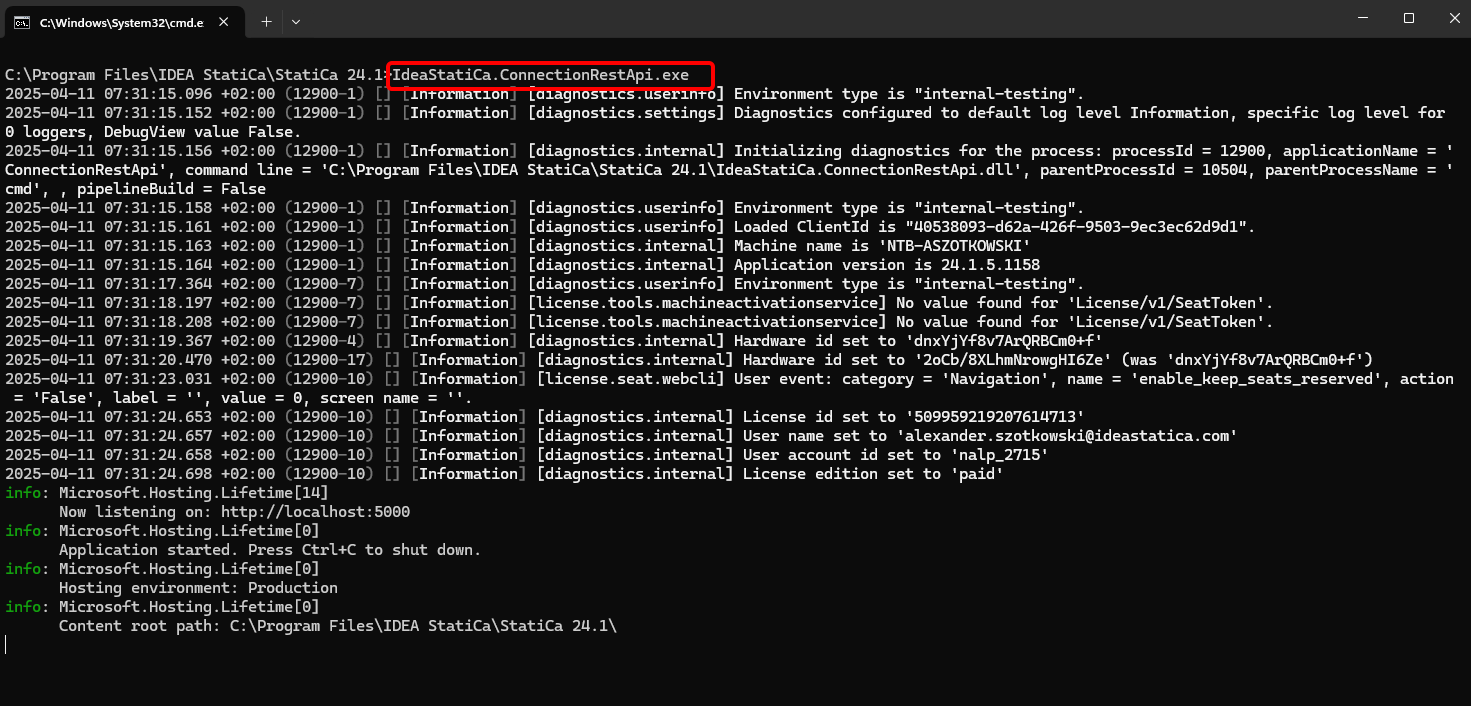
Novamente, execute o "IdeaStatiCa.ConnectionRestApi.exe" no CMD dentro da pasta IDEA StatiCa adequada e abra a ferramenta IDE da sua preferência.
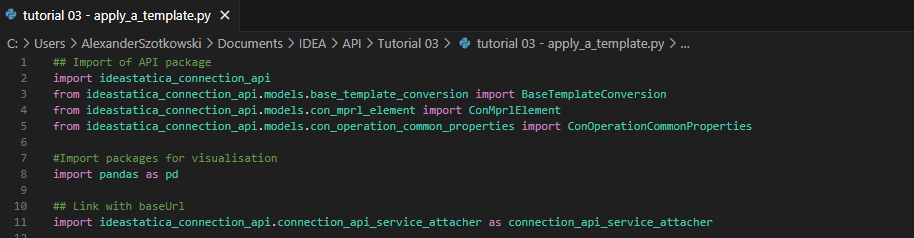
- Crie um novo ficheiro e importe os pacotes que permitirão a utilização do cálculo e a ligação com o URL do localhost.
Código fonte:
## Import of API package
import ideastatica_connection_api
from ideastatica_connection_api.models.base_template_conversion import BaseTemplateConversion
from ideastatica_connection_api.models.con_mprl_element import ConMprlElement
from ideastatica_connection_api.models.con_operation_common_properties import ConOperationCommonProperties
#Import packages for visualisation
import pandas as pd
## Link with baseUrl
import ideastatica_connection_api.connection_api_service_attacher as connection_api_service_attacher
- Configure o registo através da variável "baseUrl," que irá iniciar o seu localhost. No segundo passo, associe o caminho absoluto do seu ficheiro IDEA StatiCa Connection.
## Configure logging
baseUrl = "http://localhost:5000"
## Absolute path into folder with your python script and connection module
project_file_path = r"C:\Users\AlexanderSzotkowski\Documents\IDEA\API\Tutorial 03\tutorial 02 with loads.ideaCon"
print("Opening project ",project_file_path)

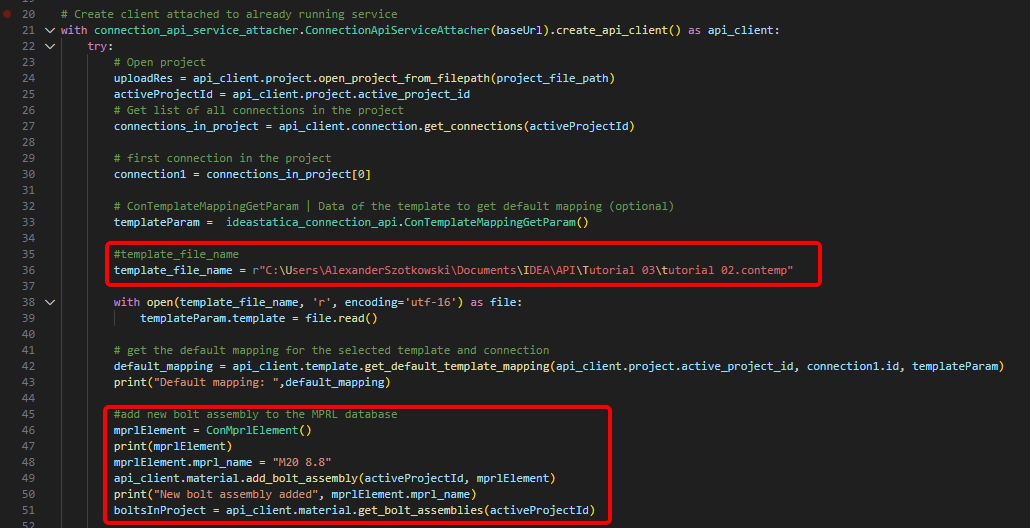
- Associe o cliente a um serviço já em execução. Utilize o bloco try/except - uma vez que o bloco try gera um erro, o bloco except será executado. Na primeira fase, é necessário abrir o projeto e encontrar o ID do projeto, que é único para cada projeto IDEA StatiCa. De seguida, precisamos de todas as ligações armazenadas no nosso ficheiro, pois pretendemos aplicar o modelo apenas à primeira. Como passo seguinte, podemos ler o ficheiro de modelo de mapeamento predefinido e adicionar outro conjunto de parafusos (M20 8.8) à base de dados MPRL.
# Create a client attached to an already running service
with connection_api_service_attacher.ConnectionApiServiceAttacher(baseUrl).create_api_client() as api_client:
try:
# Open project
uploadRes = api_client.project.open_project_from_filepath(project_file_path)
activeProjectId = api_client.project.active_project_id
# Get list of all connections in the project
connections_in_project = api_client.connection.get_connections(activeProjectId)
# first connection in the project
connection1 = connections_in_project[0]
# ConTemplateMappingGetParam | Data of the template to get default mapping (optional)
templateParam = ideastatica_connection_api.ConTemplateMappingGetParam()
#template_file_name
template_file_name = r"C:\Users\AlexanderSzotkowski\Documents\IDEA\API\Tutorial 03\tutorial 02.contemp"
with open(template_file_name, 'r', encoding='utf-16') as file:
templateParam.template = file.read()
# get the default mapping for the selected template and connection
default_mapping = api_client.template.get_default_template_mapping(api_client.project.active_project_id, connection1.id, templateParam)
print("Default mapping: ",default_mapping)
#add new bolt assembly to the MPRL database
mprlElement = ConMprlElement()
print(mprlElement)
mprlElement.mprl_name = "M20 8.8"
api_client.material.add_bolt_assembly(activeProjectId, mprlElement)
print("New bolt assembly added", mprlElement.mprl_name)
boltsInProject = api_client.material.get_bolt_assemblies(activeProjectId)
- Se pretendermos atribuir o novo conjunto de parafusos diretamente à operação Plate to plate, temos de executar o comando BaseTemplateConversion() e adicioná-lo ao modelo de mapeamento.
# add new bolt assembly to mapping template
boltConversion = BaseTemplateConversion()
boltConversion.original_value = 'M16 8.8'
boltConversion.original_template_id = '1'
boltConversion.new_value = 'M20 8.8'
boltConversion.description = 'Bolt Assembly'
boltConversion.new_template_id = '2'
default_mapping.conversions.append(boltConversion)
print("New mapping: ", default_mapping)
# Apply the changed template to the connection
applyTemplateData = ideastatica_connection_api.ConTemplateApplyParam() # ConTemplateApplyParam | Template to apply (optional)
applyTemplateData.connection_template = templateParam.template
applyTemplateData.mapping = default_mapping
applyTemplateResult = api_client.template.apply_template(api_client.project.active_project_id, connection1.id, applyTemplateData)
# Set the new bolt assembly to the operations in the ideaCon file
commonProperties = ConOperationCommonProperties()
commonProperties.bolt_assembly_id = 2
api_client.operation.update_common_operation_properties(api_client.project.active_project_id, connection1.id, commonProperties)
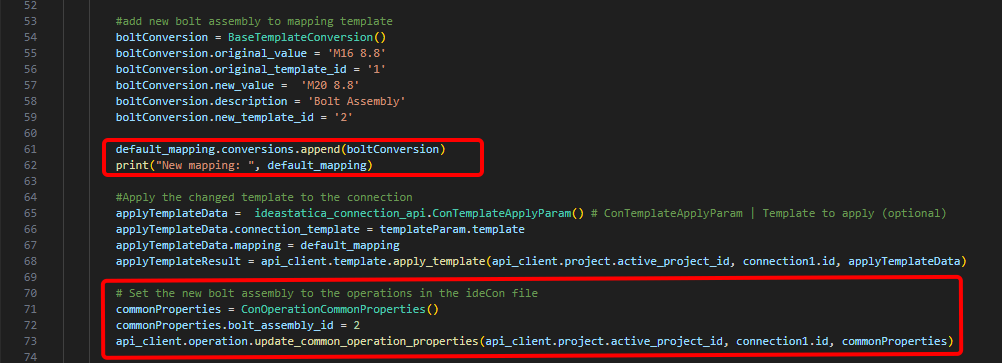
- Também podemos obter os custos da ligação
# Get the costs of the connection with the applied template
costs = api_client.connection.get_production_cost(api_client.project.active_project_id, connection1.id)
print("Costs: ",costs.total_estimated_cost)

- Como último passo, podemos executar o cálculo, ver os resultados, guardar o ficheiro com um novo nome e consultar os resultados
# Run stress-strain analysis for the connection
con1_cbfem_results1 = api_client.calculation.calculate(api_client.project.active_project_id, [connection1.id])
results = api_client.calculation.get_results(api_client.project.active_project_id, [connection1.id])
CheckResSummary = pd.DataFrame(results[0].check_res_summary)
print("Results summary: \n",CheckResSummary[1])
#Create new ideaCon file and apply the template
updated_file_name = r'C:\Users\AlexanderSzotkowski\Documents\IDEA\API\Tutorial 03\tutorial 03 with template.ideaCon'
api_client.project.download_project(api_client.project.active_project_id, updated_file_name )
print("New project with template ",updated_file_name)
except Exception as e:
print("Operation failed : %s\n" % e)


Os resultados estão corretos. No tutorial seguinte, iremos focar-nos na otimização de alguns dos componentes.
Transferências Anexadas
- tutorial 02.contemp (CONTEMP, 34 kB)
- tutorial 03 - apply_a_template.py (PY, 5 kB)
- tutorial 03 with template.ideaCon (IDEACON, 14 kB)
- tutorial 02 with loads.ideaCon (IDEACON, 9 kB)