

วิธีเริ่มต้นใช้งาน API - นำเข้าแม่แบบและเรียกใช้การคำนวณ 03
ขั้นตอนแรก
เราแนะนำให้ศึกษาบทช่วยสอน วิธีเริ่มต้นใช้งาน API - พื้นฐาน 01 ซึ่งจะสอนเกี่ยวกับ API และวิธีตั้งค่าสภาพแวดล้อม
ไฟล์ Connection
ตัวอย่างนี้อ้างอิงจากไฟล์ที่สร้างขึ้นในบทช่วยสอน วิธีเริ่มต้นใช้งาน API - การนำเข้าชุดแรงกระทำแบบกลุ่ม 02
กรุณาดาวน์โหลดไฟล์ tutorial 02 with loads.ideaCon และ tutorial 02.contemp ไปยังคอมพิวเตอร์ของคุณ
Python client
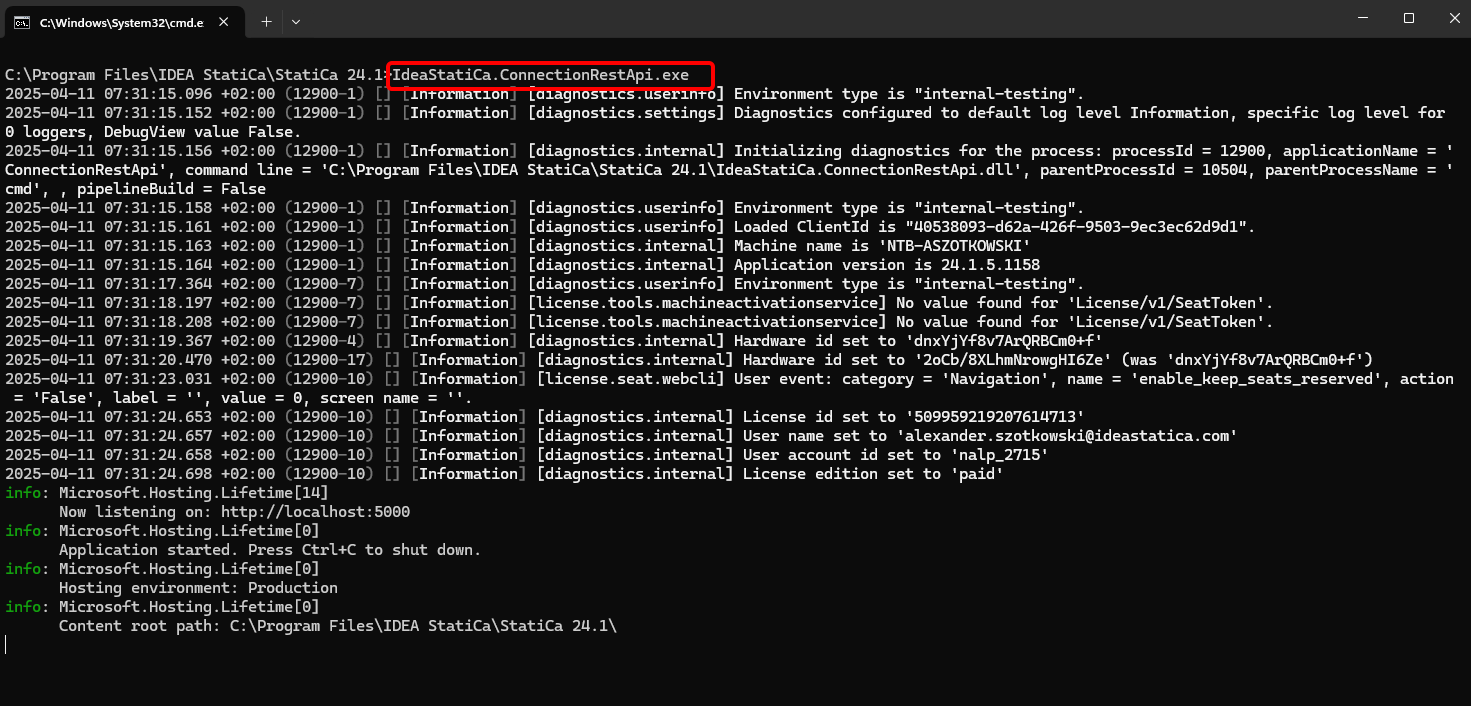
เรียกใช้ "IdeaStatiCa.ConnectionRestApi.exe" ใน CMD ภายในโฟลเดอร์ IDEA StatiCa ที่เหมาะสม และเปิด IDE tool ที่คุณต้องการใช้งาน
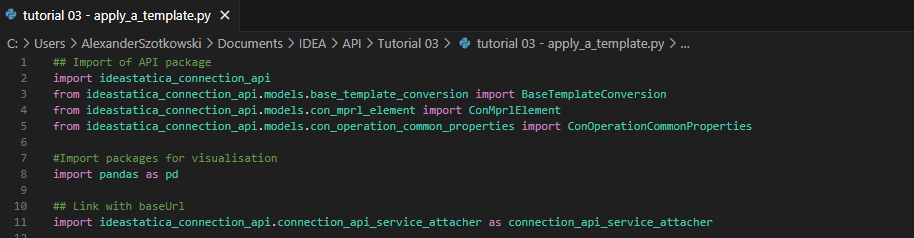
- สร้างไฟล์ใหม่และ นำเข้า packages ที่จะเปิดใช้งานการคำนวณและเชื่อมต่อกับ localhost URL
Source code:
## Import of API package
import ideastatica_connection_api
from ideastatica_connection_api.models.base_template_conversion import BaseTemplateConversion
from ideastatica_connection_api.models.con_mprl_element import ConMprlElement
from ideastatica_connection_api.models.con_operation_common_properties import ConOperationCommonProperties
#Import packages for visualisation
import pandas as pd
## Link with baseUrl
import ideastatica_connection_api.connection_api_service_attacher as connection_api_service_attacher
- กำหนดค่า logging ผ่านตัวแปร "baseUrl" ซึ่งจะเรียก localhost ของคุณ ในขั้นตอนที่สอง ให้ระบุ absolute path ของไฟล์ IDEA StatiCa Connection ของคุณ
## Configure logging
baseUrl = "http://localhost:5000"
## Absolute path into folder with your python script and connection module
project_file_path = r"C:\Users\AlexanderSzotkowski\Documents\IDEA\API\Tutorial 03\tutorial 02 with loads.ideaCon"
print("Opening project ",project_file_path)

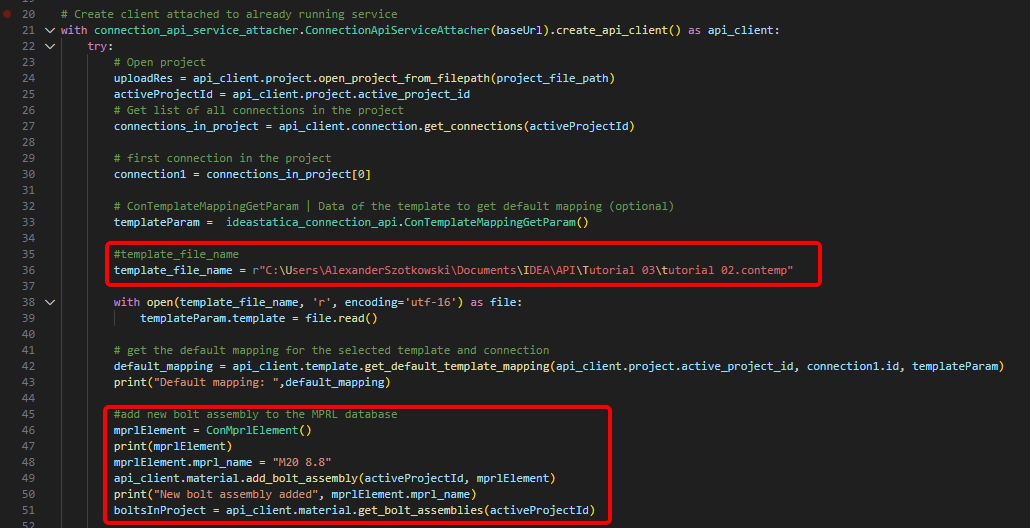
- เชื่อมต่อ client กับ service ที่กำลังทำงานอยู่ ใช้บล็อก try/except - เมื่อบล็อก try เกิดข้อผิดพลาด บล็อก except จะถูกดำเนินการ ในขั้นตอนแรก จำเป็นต้องเปิดโปรเจกต์และค้นหา project ID ของโปรเจกต์ ซึ่งมีความเฉพาะตัวสำหรับทุกโปรเจกต์ IDEA StatiCa จากนั้นเราต้องการการเชื่อมต่อทั้งหมดที่จัดเก็บในไฟล์ของเรา เนื่องจากต้องการนำแม่แบบไปใช้กับการเชื่อมต่อแรกเท่านั้น ในขั้นตอนถัดไป สามารถอ่านไฟล์แม่แบบ mapping เริ่มต้นและเพิ่มชุดสลัก (M20 8.8) ลงในฐานข้อมูล MPRL
# Create a client attached to an already running service
with connection_api_service_attacher.ConnectionApiServiceAttacher(baseUrl).create_api_client() as api_client:
try:
# Open project
uploadRes = api_client.project.open_project_from_filepath(project_file_path)
activeProjectId = api_client.project.active_project_id
# Get list of all connections in the project
connections_in_project = api_client.connection.get_connections(activeProjectId)
# first connection in the project
connection1 = connections_in_project[0]
# ConTemplateMappingGetParam | Data of the template to get default mapping (optional)
templateParam = ideastatica_connection_api.ConTemplateMappingGetParam()
#template_file_name
template_file_name = r"C:\Users\AlexanderSzotkowski\Documents\IDEA\API\Tutorial 03\tutorial 02.contemp"
with open(template_file_name, 'r', encoding='utf-16') as file:
templateParam.template = file.read()
# get the default mapping for the selected template and connection
default_mapping = api_client.template.get_default_template_mapping(api_client.project.active_project_id, connection1.id, templateParam)
print("Default mapping: ",default_mapping)
#add new bolt assembly to the MPRL database
mprlElement = ConMprlElement()
print(mprlElement)
mprlElement.mprl_name = "M20 8.8"
api_client.material.add_bolt_assembly(activeProjectId, mprlElement)
print("New bolt assembly added", mprlElement.mprl_name)
boltsInProject = api_client.material.get_bolt_assemblies(activeProjectId)
- หากต้องการกำหนดชุดสลักใหม่ให้กับการดำเนินการ Plate to plate โดยตรง จะต้องเรียกใช้คำสั่ง BaseTemplateConversion() และเพิ่มลงในแม่แบบ mapping
# add new bolt assembly to mapping template
boltConversion = BaseTemplateConversion()
boltConversion.original_value = 'M16 8.8'
boltConversion.original_template_id = '1'
boltConversion.new_value = 'M20 8.8'
boltConversion.description = 'Bolt Assembly'
boltConversion.new_template_id = '2'
default_mapping.conversions.append(boltConversion)
print("New mapping: ", default_mapping)
# Apply the changed template to the connection
applyTemplateData = ideastatica_connection_api.ConTemplateApplyParam() # ConTemplateApplyParam | Template to apply (optional)
applyTemplateData.connection_template = templateParam.template
applyTemplateData.mapping = default_mapping
applyTemplateResult = api_client.template.apply_template(api_client.project.active_project_id, connection1.id, applyTemplateData)
# Set the new bolt assembly to the operations in the ideaCon file
commonProperties = ConOperationCommonProperties()
commonProperties.bolt_assembly_id = 2
api_client.operation.update_common_operation_properties(api_client.project.active_project_id, connection1.id, commonProperties)
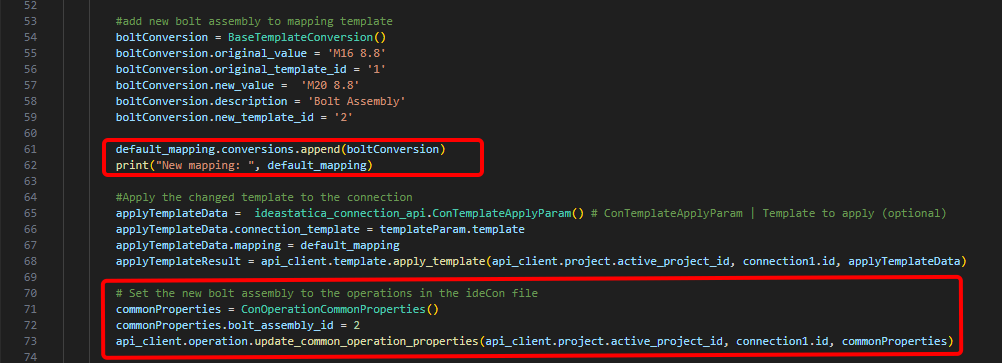
- เราสามารถดูต้นทุนของการเชื่อมต่อได้เช่นกัน
# Get the costs of the connection with the applied template
costs = api_client.connection.get_production_cost(api_client.project.active_project_id, connection1.id)
print("Costs: ",costs.total_estimated_cost)

- ในขั้นตอนสุดท้าย เราสามารถเรียกใช้การคำนวณ ดูผลลัพธ์ บันทึกไฟล์ภายใต้ชื่อใหม่ และดูผลลัพธ์
# Run stress-strain analysis for the connection
con1_cbfem_results1 = api_client.calculation.calculate(api_client.project.active_project_id, [connection1.id])
results = api_client.calculation.get_results(api_client.project.active_project_id, [connection1.id])
CheckResSummary = pd.DataFrame(results[0].check_res_summary)
print("Results summary: \n",CheckResSummary[1])
#Create new ideaCon file and apply the template
updated_file_name = r'C:\Users\AlexanderSzotkowski\Documents\IDEA\API\Tutorial 03\tutorial 03 with template.ideaCon'
api_client.project.download_project(api_client.project.active_project_id, updated_file_name )
print("New project with template ",updated_file_name)
except Exception as e:
print("Operation failed : %s\n" % e)


ผลลัพธ์เป็นที่น่าพอใจ ในบทช่วยสอนถัดไป เราจะมุ่งเน้นไปที่การปรับปรุงองค์ประกอบบางส่วนให้เหมาะสมยิ่งขึ้น
Attached Downloads
- tutorial 02.contemp (CONTEMP, 34 kB)
- tutorial 03 - apply_a_template.py (PY, 5 kB)
- tutorial 03 with template.ideaCon (IDEACON, 14 kB)
- tutorial 02 with loads.ideaCon (IDEACON, 9 kB)